
How to Install and Enable the Theme
- Download the NopMotors theme from our store https://www.nop-station.com/nopcommerce-themes
- Go to Configuration → Local plugins from the Admin dashboard.
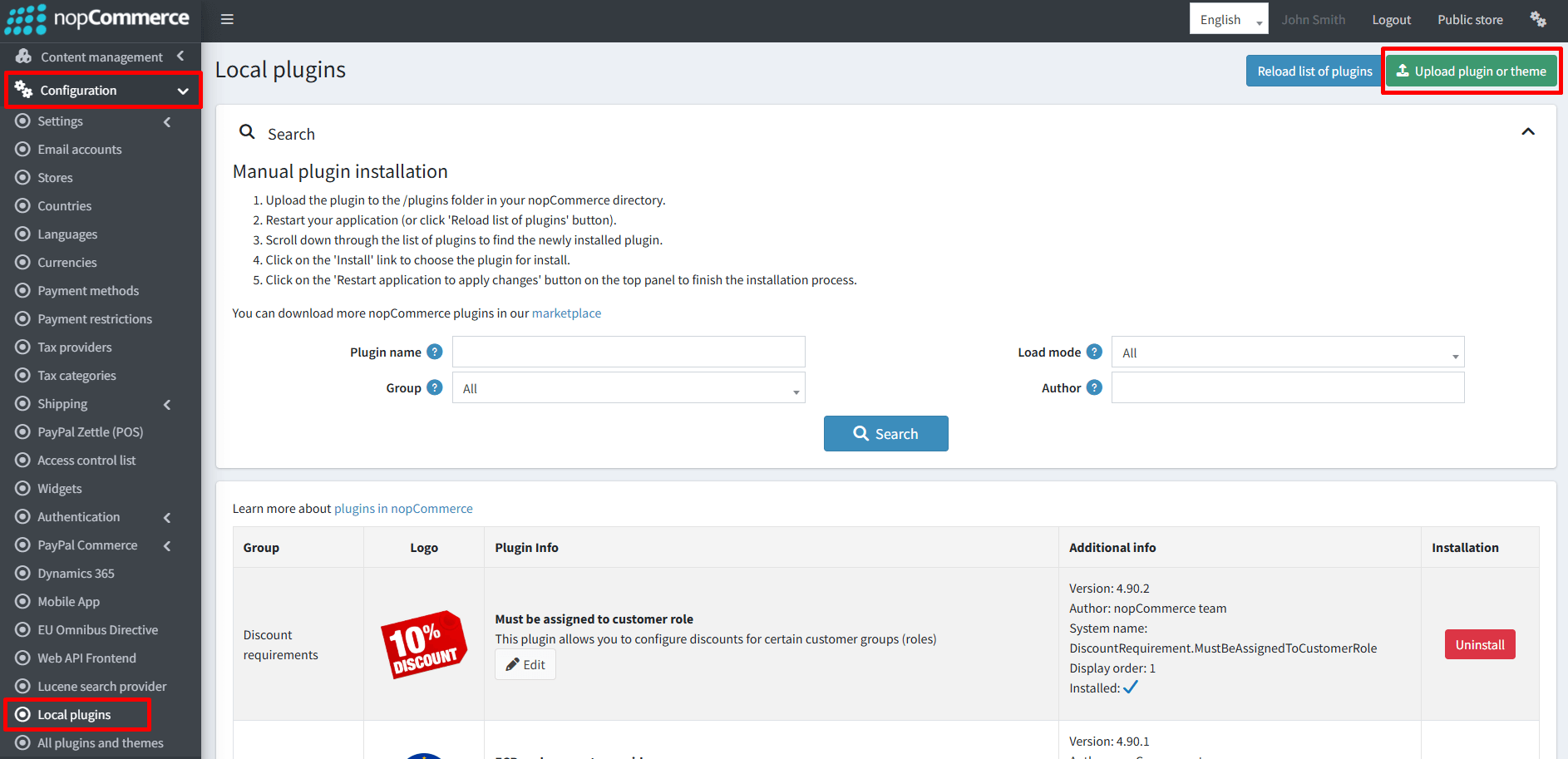
- Click on the Upload plugin or theme button and a popup will appear asking to navigate to the file that contains the theme.
- Select the nopmotors .zip file named 'NopMotors' and click Upload plugin or theme button.
- Install and enable all the plugins whose Group name is 'Nop Station'. Install the "NopStation Core" and then "Widget Manager" plugins before installing the other plugins as they are dependent on these 2 plugins. Make sure the "Nop-Station NopMotors Theme" plugin is installed and enabled.
- To get these plugins, search by the group name.
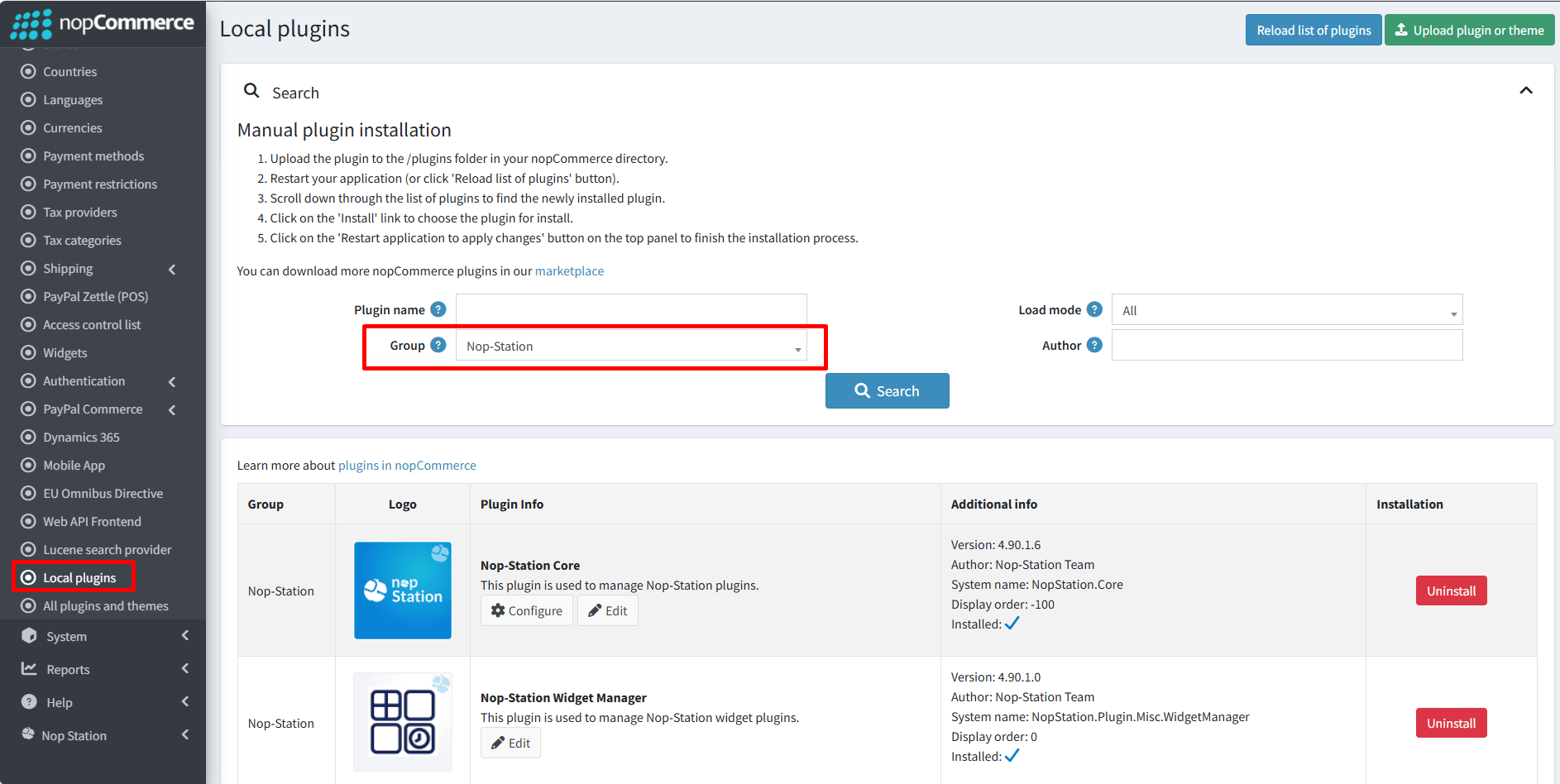
- To know how to install and enable a plugin, go to nopCommerce documentation describing this topic.
- Disable the Nivo Slider plugin to get the expected view on the homepage.
To enable the theme
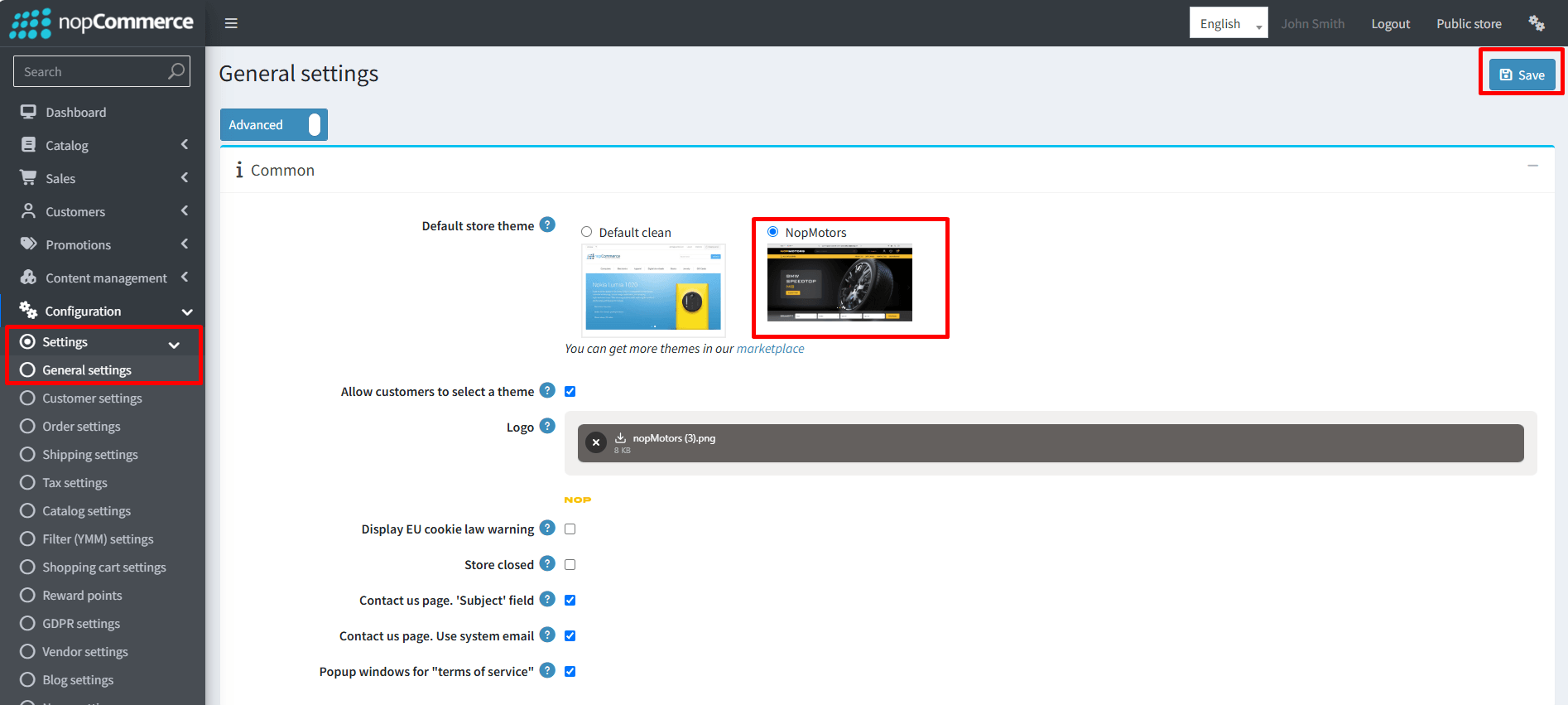
- Go to Configuration → Settings → General settings in the admin panel.
- Choose NopMotors as the Default store theme.
The License Key
After buying the theme, one should contact nopStation for the license key and it will be sent through an email. The contact info is available here.
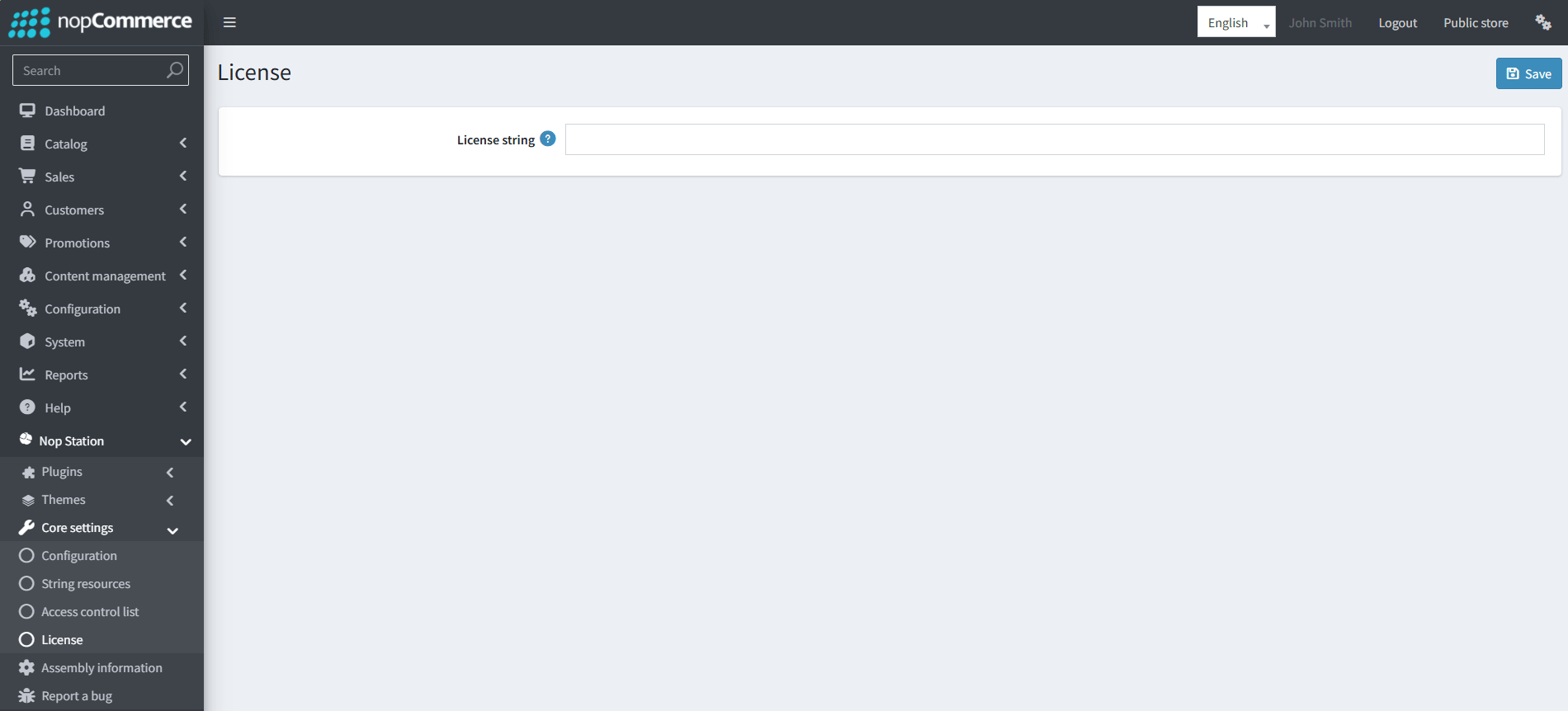
If anyone tries to configure the theme or bundled plugins for the first time, s/he will be redirected to a page prompting to enter the Product Key. It can also be entered by going to Nop Station → Core settings → License.
Configuration:
You can configure the theme configuration by going to Administration → Nop Station → Themes → NopMotors → Configuration
General Settings:
Color:
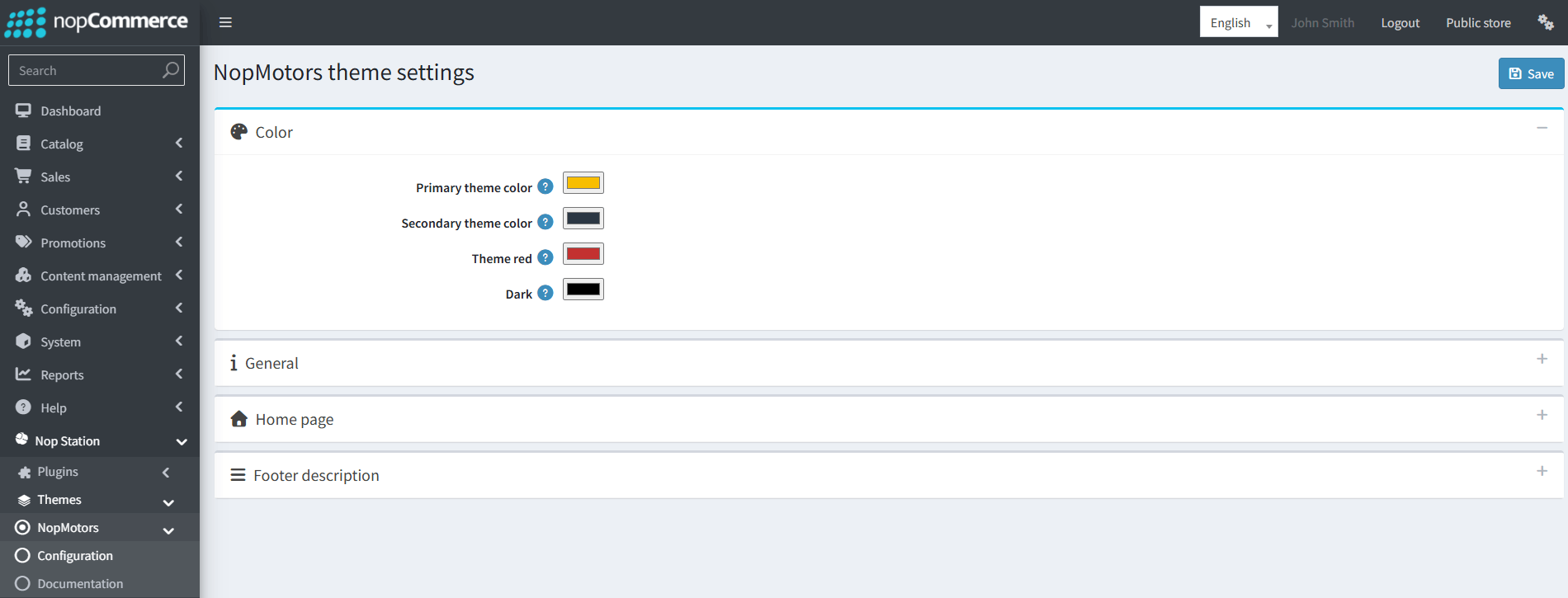
- Primary theme color: Choose primary theme color.
- Secondary theme color: Choose secondary theme color.
- Theme red: Choose a color for theme red.
- Dark: Choose a color for dark.
General Settings:
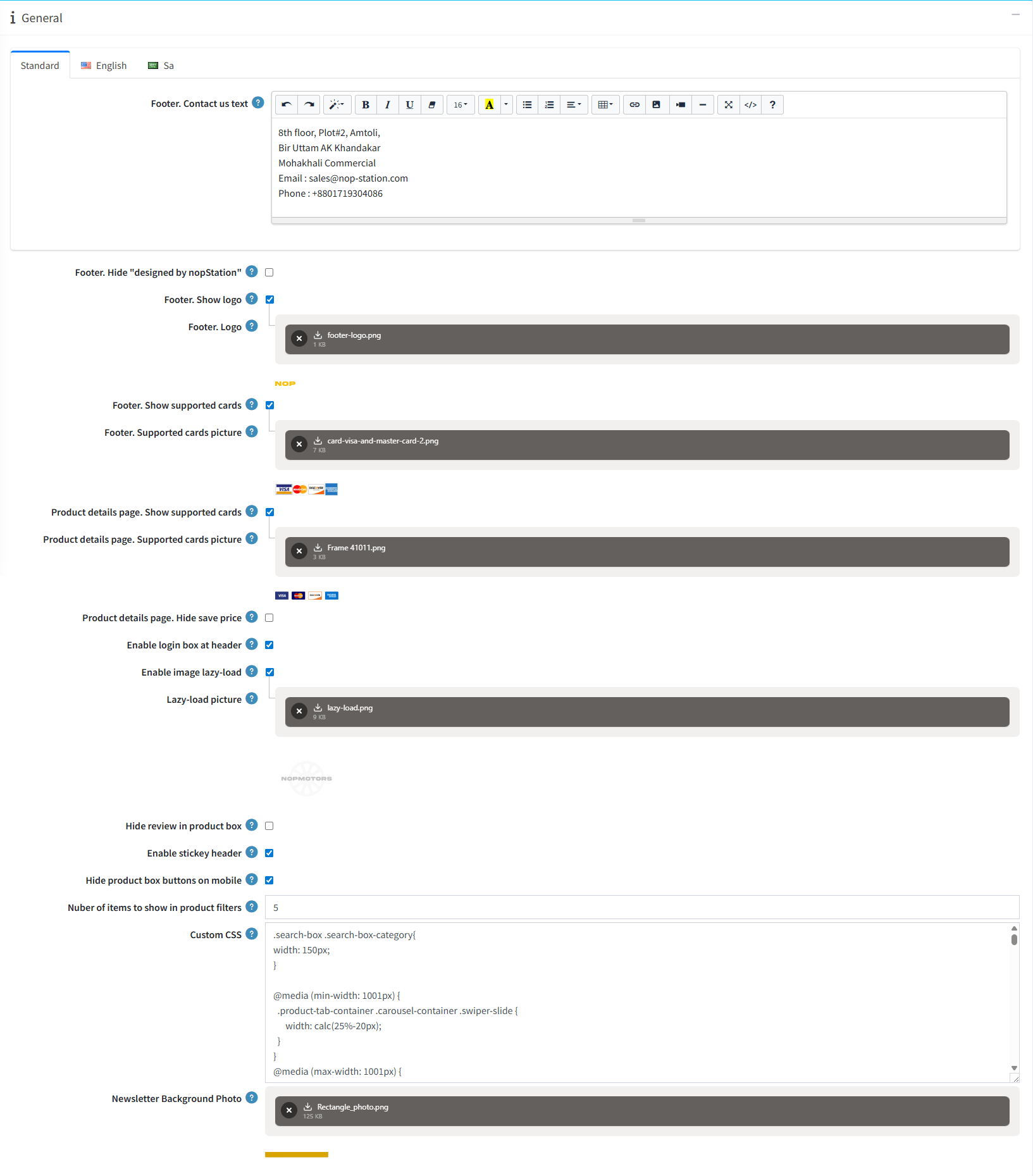
- Footer. Contact us text: Add custom contact information to display in the footer.
- Footer. Hide "designed by nopStation": Hide the "Designed by nopStation" text in the footer.
- Footer. Show logo: Enable or disable the footer logo.
- Footer. Logo: Choose and upload the logo to display in the footer.
- Footer. Show supported cards: Determines whether the supported cards image will be displayed in the footer.
- Footer. Supported cards picture: Choose and upload the supported cards image to display in the footer.
- Product details page. Show supported cards: Determines whether the supported cards image will be displayed on the product details page.
- Product details page. Supported cards picture: Choose and upload the supported cards image to display on the product details page.
- Product details page. Hide save price: Enable to hide the "You Save" price section on the product details page.
- Enable login box at header: Enable or disable the login box in the website header.
- Enable image lazy-load: Enable lazy loading for product images to improve page performance.
- Lazy-load picture: Choose and upload a placeholder image to display until the actual product image loads. The recommended image size is 4–5 KB.
- Hide review in product box: Enable or disable product review ratings in product boxes.
- Enable stickey header: Enable or disable the sticky header while scrolling.
- Hide product box buttons on mobile: Enable to hide product action buttons on mobile devices.
- Number of items to show in product filters: Specify the maximum number of filter items to display initially.
- Custom CSS: Write custom CSS for your website. It will be rendered in the head section of the HTML page.
- Newsletter Background Photo: Choose and upload a background image for the newsletter section.
Homepage Settings:
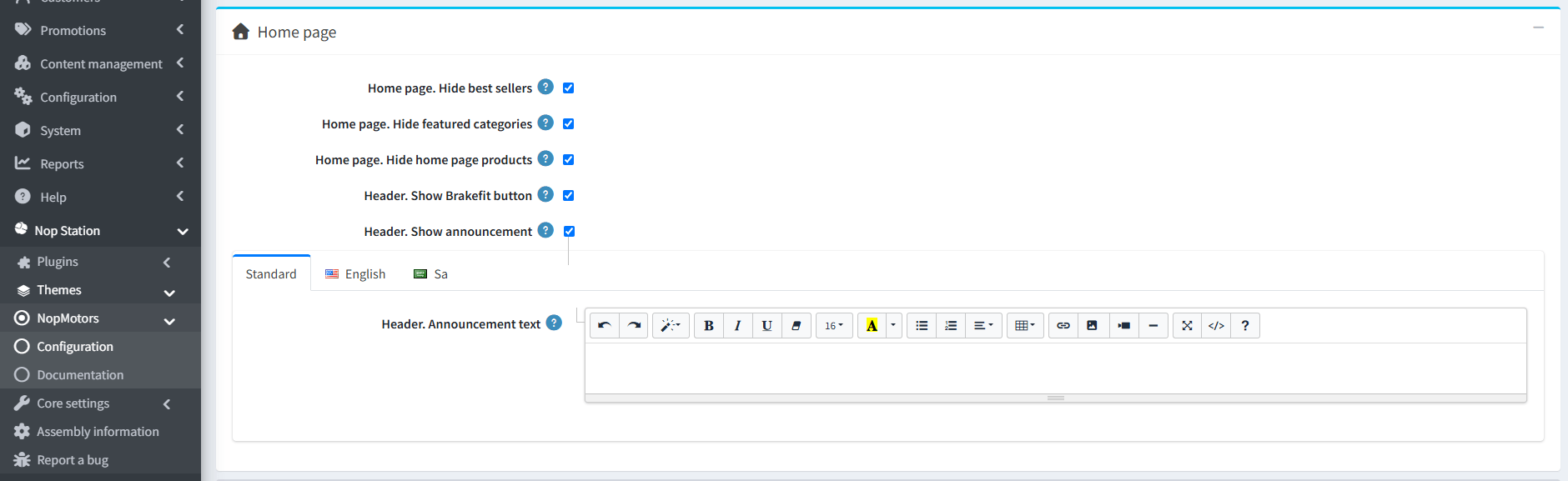
- Home page. Hide best sellers: Enable to hide the Best Sellers section on the home page.
- Home page. Hide featured categories: Enable to hide the Featured Categories section on the home page.
- Home page. Hide home page products: Enable to hide the Home Page Products section.
- Header. Show Brakefit button: Enable to display the Brakefit button in the website header.
- Header. Show announcement: Enable to display the announcement bar in the website header.
- Header. Announcement text: Enter the announcement text to display in the header announcement bar. Supports HTML formatting.
Footer Settings:
Here you can configure total of four description box for the footer.
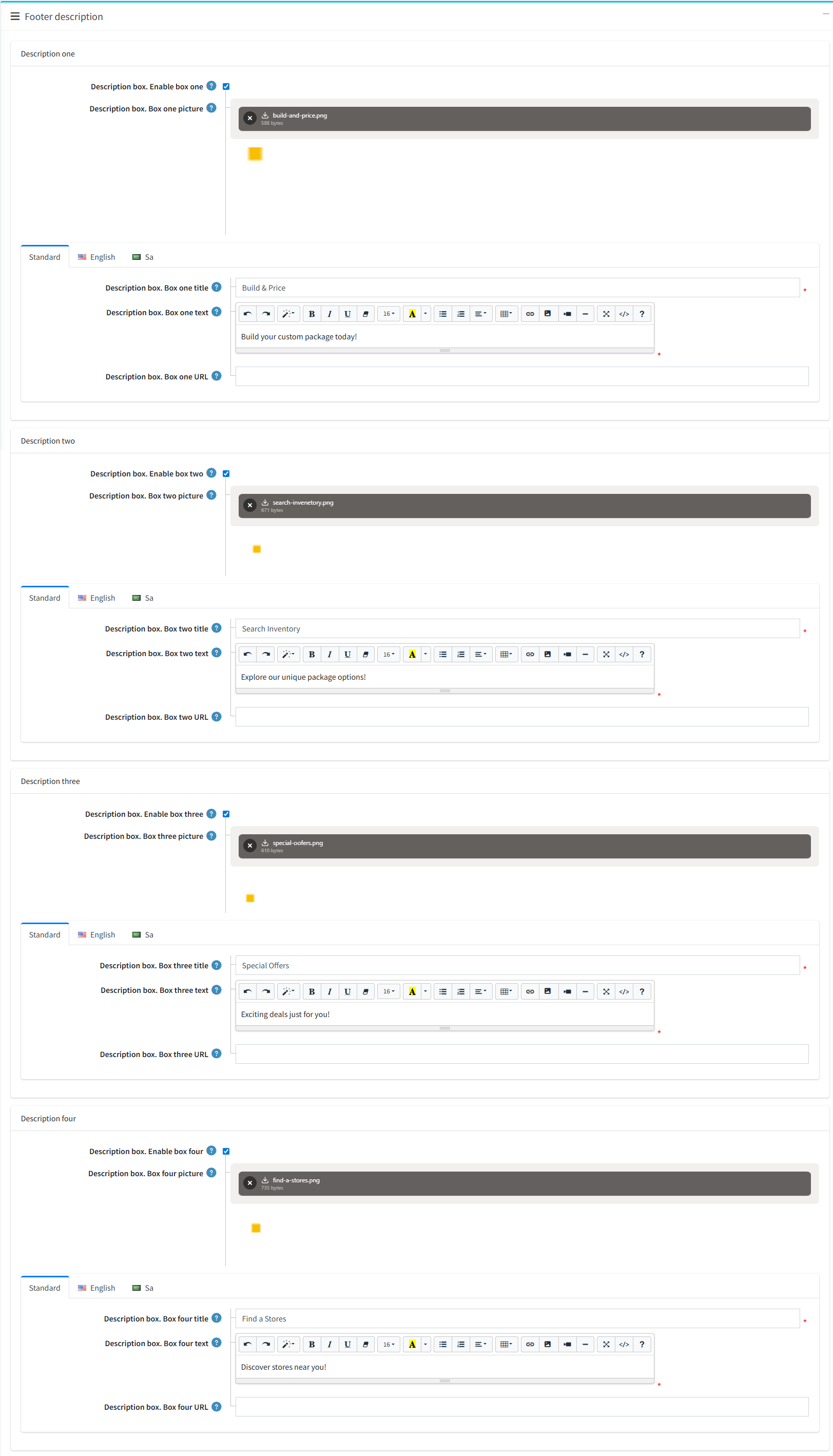
- Description box. Enable: Enable or disable the description box.
- Description box. Picture: Choose and upload the image for the description box.
- Description box. Title: Enter the title for the description box.
- Description box. Text: Enter the description text for the description box.
- Description box. URL: Enter the URL to navigate to when the description box is clicked.
Plugin Configuration:
In this section you can learn about configuring your plugins.
- Advance Cart: See configuration of Advance cart
- Blogs and news: See configuration of Blogs and news
- Category Banner: See configuration of Category banner
- Product ribbon: See configuration of Product ribbon
- Product tab: See configuration of Product tab
- Carousel: See configuration of Carousel
- Deal Carousel: See configuration of Deal carousel
- Slider: See configuration of Slider
- Smart lookbook slider: See configuration of Smart lookbook slider
- Smart mega menu: See configuration of Smart mega menu
Suggested Image Sizes
Suggested Image Sizes for mobile:
· Slider images size img sizes - Width: 1440 px & Height : 630 px
· Smart lookbook slider: Width: 1440 px & Height : 630 px
· Smart megamenu img sizes: Width: 300 px & Height : 300 px
· Categories images size - Width: 180 px & Height : 140 px
· Products images size - Width: 770 px & Height : 664 px
· Latest News images size - Width: 380 px & Height : 280 px
· Blog images size - Width: 1180 px & Height : 563 px
· Manufacturers images size - Width: 179 px & Height : 100 px
· Categories Banner images size - Width: 1180 px & Height : 150 px
Suggested Image Sizes for desktop:
· Slider images size img sizes - Width: 231 px & Height : 393 px
· Smart lookbook slider: Width: 393 px & Height : 302 px
· Smart megamenu img sizes: Width: 300 px & Height : 300 px
· Categories images size - Width: 174 px & Height : 171 px
· Products images size - Width: 363 px & Height : 313 px
· Latest News images size - Width: 363 px & Height : 267 px
· Blog images size - Width: 363 px & Height : 267 px
· Manufacturers images size - Width: 175 px & Height : 100 px