
The nopStation MCP Server plugin turns your nopCommerce store into an AI-powered command center. It opens a secure channel that lets AI assistants like Claude manage your products, orders, customers, and inventory on your behalf. Think of it as giving your store a programmable API that AI tools can understand and use — with full control over who can do what, and a complete record of every action taken.
PRE-REQUISITES
• The plugin requires you to install the Nop-Station Core plugin first.
INSTALLATION
· Download the nopCommerce MCP Server Plugin from our store: https://www.nop-station.com/nopcommerce-mcp-server-plugin
· Go to Administration → Configuration → Local plugins
· Upload the .zip file using the "Upload plugin or theme" button
· Then click on ‘Reload list of plugins’
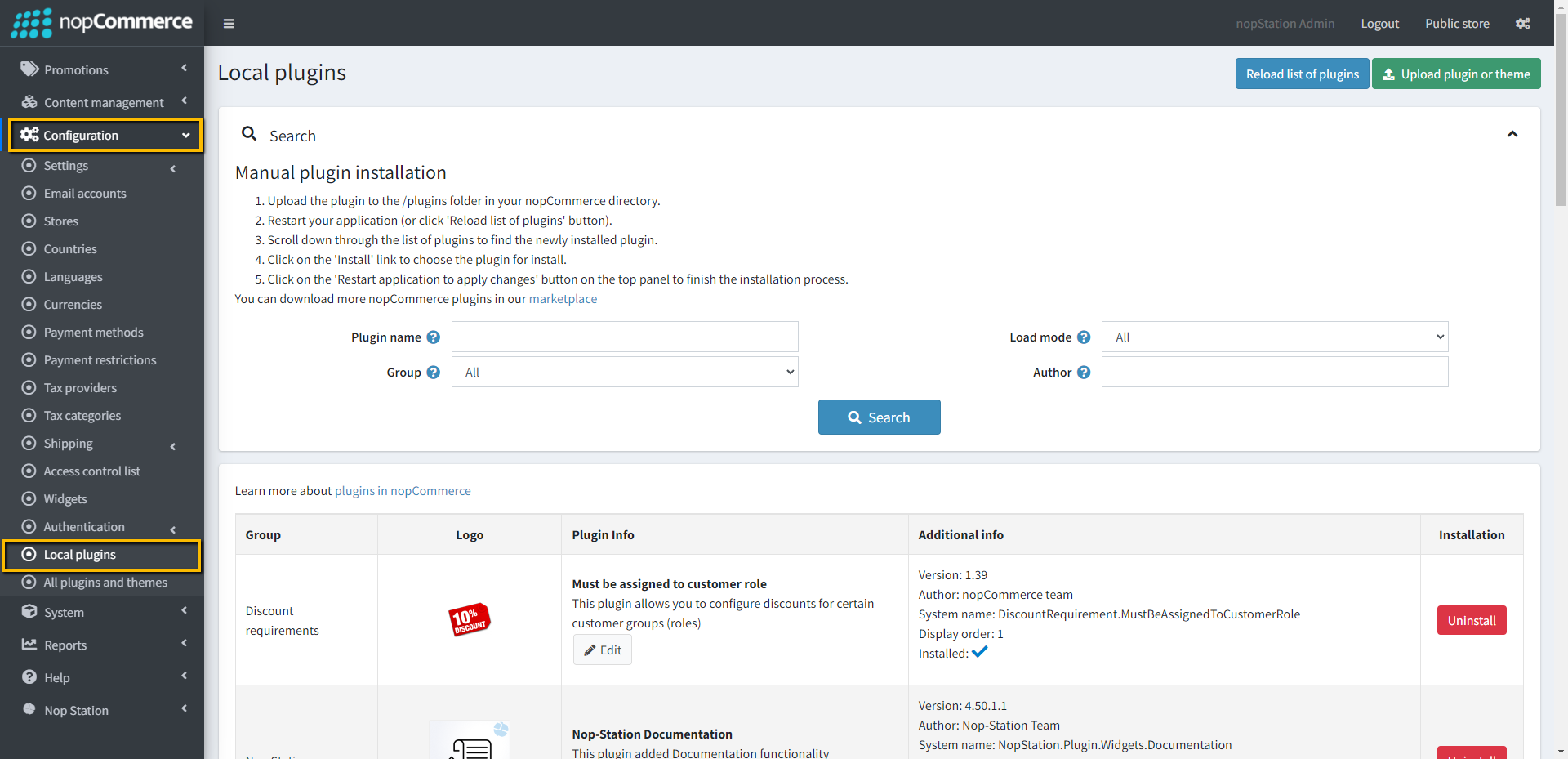
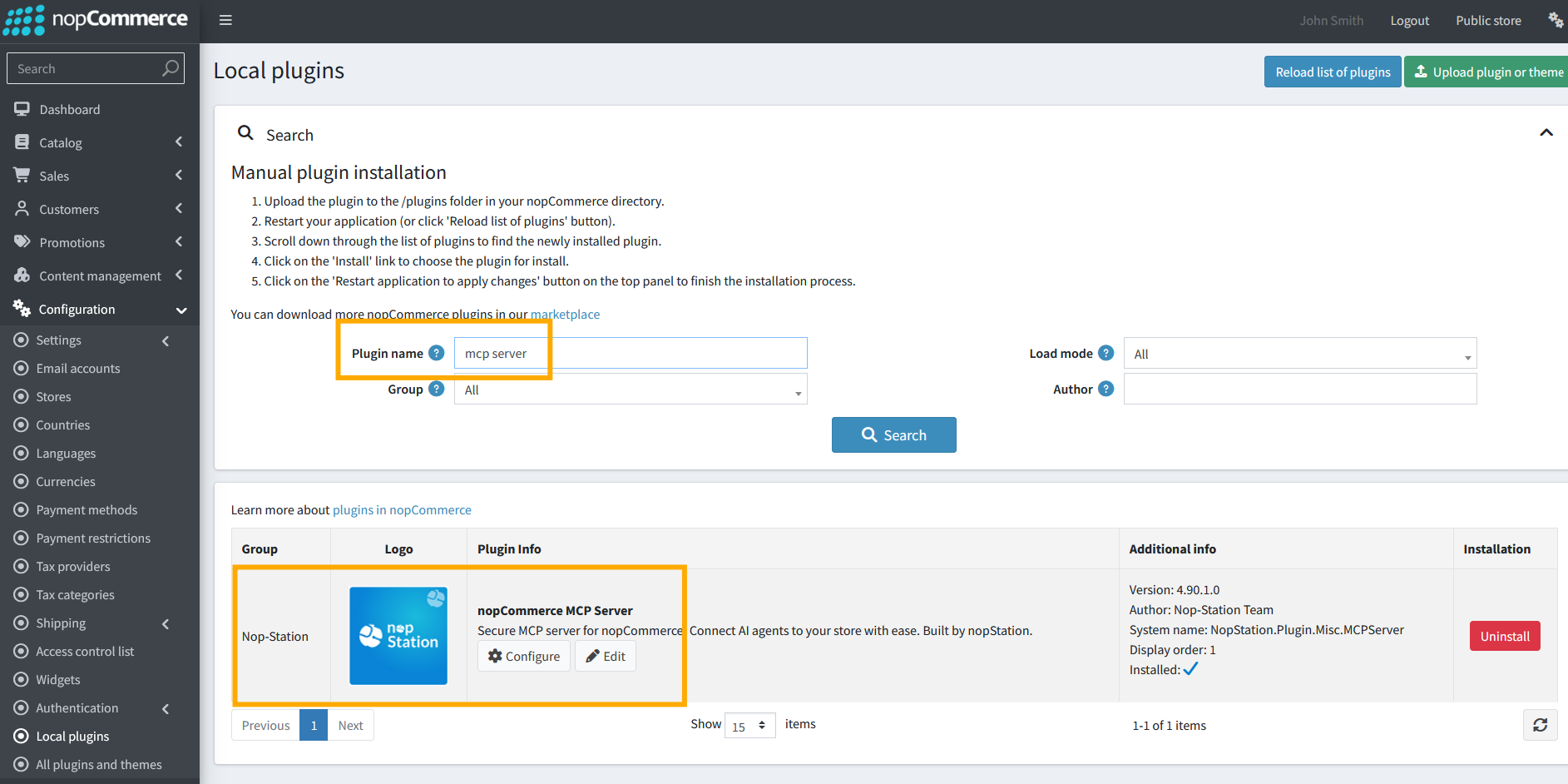
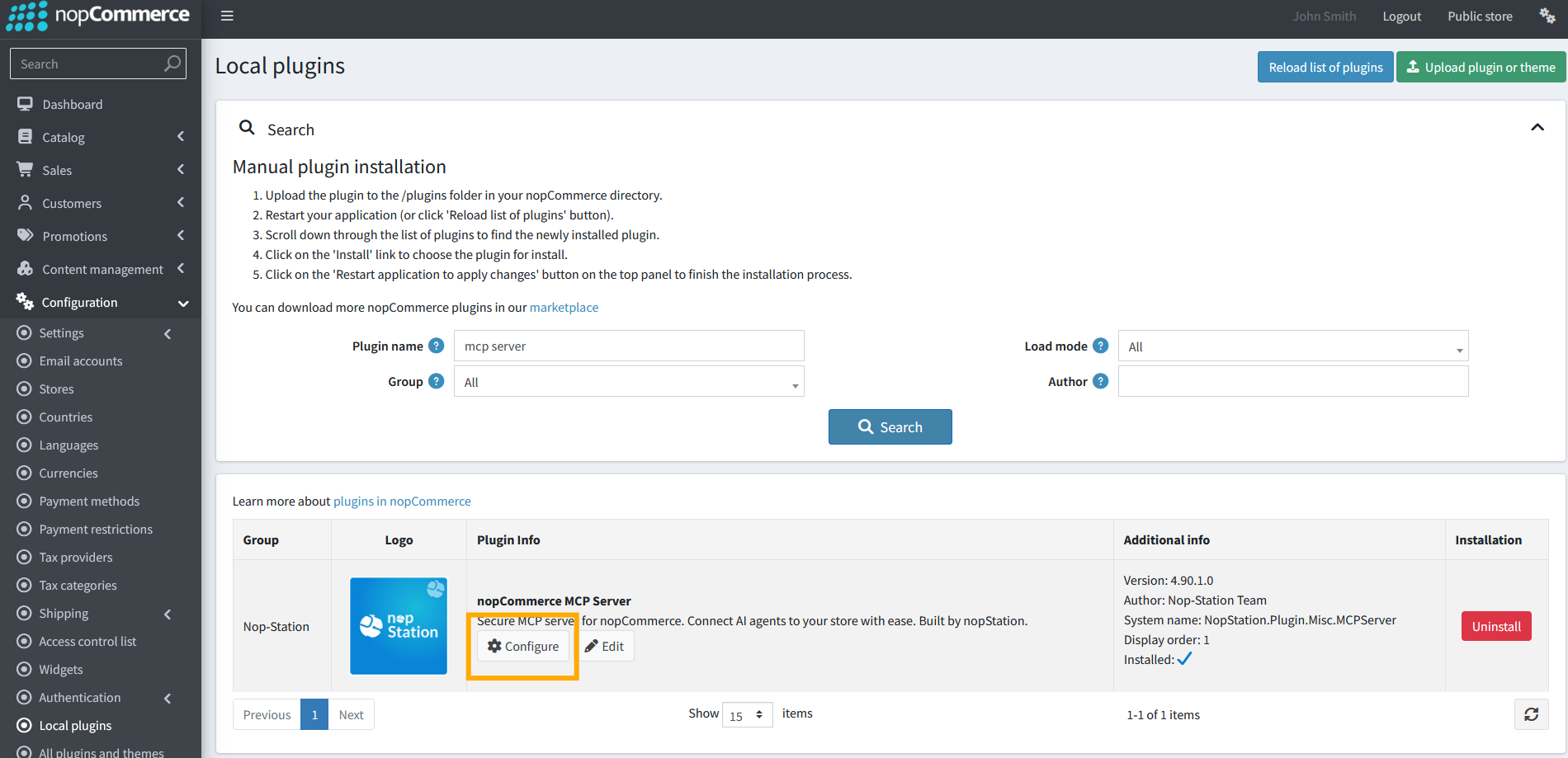
· Go to the Administration and reload the 'list of plugins. Install the 'Nop-Station Core' Plugin and then install the 'MCP Server Plugin'
· To make the plugins functional, restart the application
Required Dependency Updates
This plugin depends on several external assemblies that may not be included with the default nopCommerce installation. To ensure proper functionality, the following DLL files must be copied to the nopCommerce application root directory (the same directory where Nop.Web.dll is located). If any of these assemblies are missing or if older versions are present, the plugin may fail to load, produce runtime errors, or experience authentication and communication issues.
Important: Before proceeding, it is strongly recommended to create a backup of all existing DLL files in the application root directory. If any compatibility issues occur after deployment, having a backup will allow you to quickly restore the previous state and minimize downtime. You may either back up the entire application root directory or at least the DLLs listed below before replacing them.
Download Required Dependencies: Click here to download the dependency package . Extract the package and copy the DLLs listed below to the nopCommerce application root directory, replacing the existing files if prompted.
Copy or update the following assemblies in the nopCommerce application root:
- Microsoft.Bcl.Cryptography.dll
- Microsoft.Extensions.Caching.Abstractions.dll
- Microsoft.Extensions.Configuration.Abstractions.dll
- Microsoft.Extensions.DependencyInjection.Abstractions.dll
- Microsoft.Extensions.Diagnostics.Abstractions.dll
- Microsoft.Extensions.FileProviders.Abstractions.dll
- Microsoft.Extensions.Hosting.Abstractions.dll
- Microsoft.Extensions.Logging.Abstractions.dll
- Microsoft.Extensions.Options.dll
- Microsoft.Extensions.Primitives.dll
- Microsoft.IdentityModel.Abstractions.dll
- Microsoft.IdentityModel.JsonWebTokens.dll
- Microsoft.IdentityModel.Logging.dll
- Microsoft.IdentityModel.Protocols.dll
- Microsoft.IdentityModel.Protocols.OpenIdConnect.dll
- Microsoft.IdentityModel.Tokens.dll
- System.Diagnostics.DiagnosticSource.dll
- System.IdentityModel.Tokens.Jwt.dll
- System.IO.Pipelines.dll
- System.Text.Encodings.Web.dll
- System.Text.Json.dll
After replacing the files, restart the nopCommerce application (or recycle the IIS Application Pool if hosted on IIS) to ensure the updated assemblies are loaded. It is recommended to perform this update in a staging environment first and verify that the store and all installed plugins continue to function correctly before applying the changes to a production environment.
MCP Server Configuration
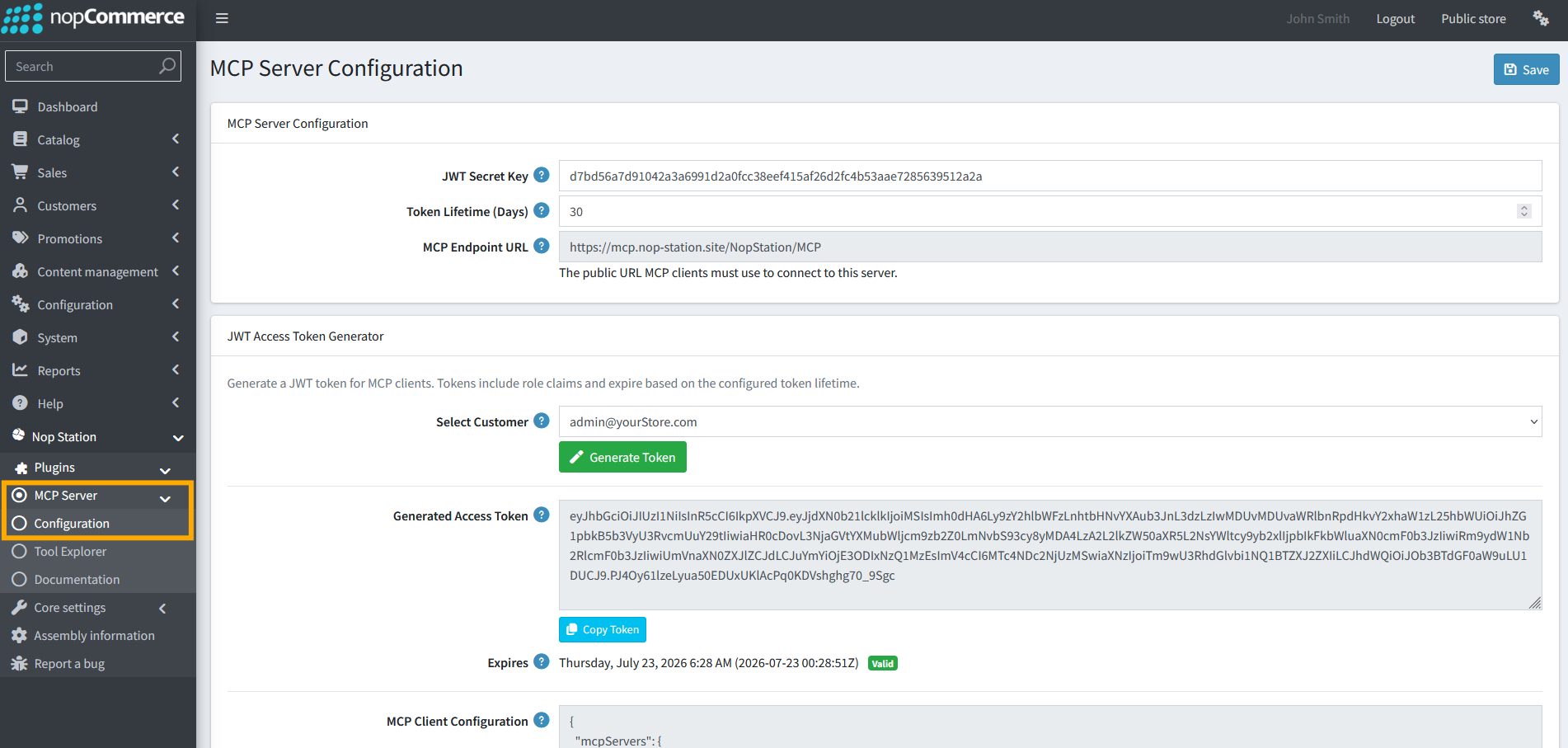
The MCP Server Configuration page allows administrators to configure the Model Context Protocol (MCP) server settings, manage authentication, and generate secure access tokens for MCP clients.
Configuration Fields
JWT Secret Key
The secret key used to sign and validate JSON Web Tokens (JWT) generated by the MCP server.
Purpose:
- Ensures that access tokens are secure and cannot be tampered with.
- Used by the server to verify the authenticity of incoming tokens.
Recommendation:
- Use a strong, unique, and confidential secret key.
- Do not share this key publicly.
Token Lifetime (Days)
Defines how long generated JWT access tokens remain valid before they expire.
Purpose:
- Controls the validity period of client authentication tokens.
- Enhances security by requiring periodic token regeneration.
Example:
- Value: 30
- Result: Generated tokens remain valid for 30 days from their creation date.
MCP Endpoint URL
The public URL that MCP clients use to connect to the MCP server.
Purpose:
- Serves as the connection endpoint for MCP-compatible applications and services.
- Clients must use this URL when configuring their MCP connection.
Example:
https://yourstore.com/mcp
Note:
Ensure the URL is publicly accessible and secured with HTTPS.
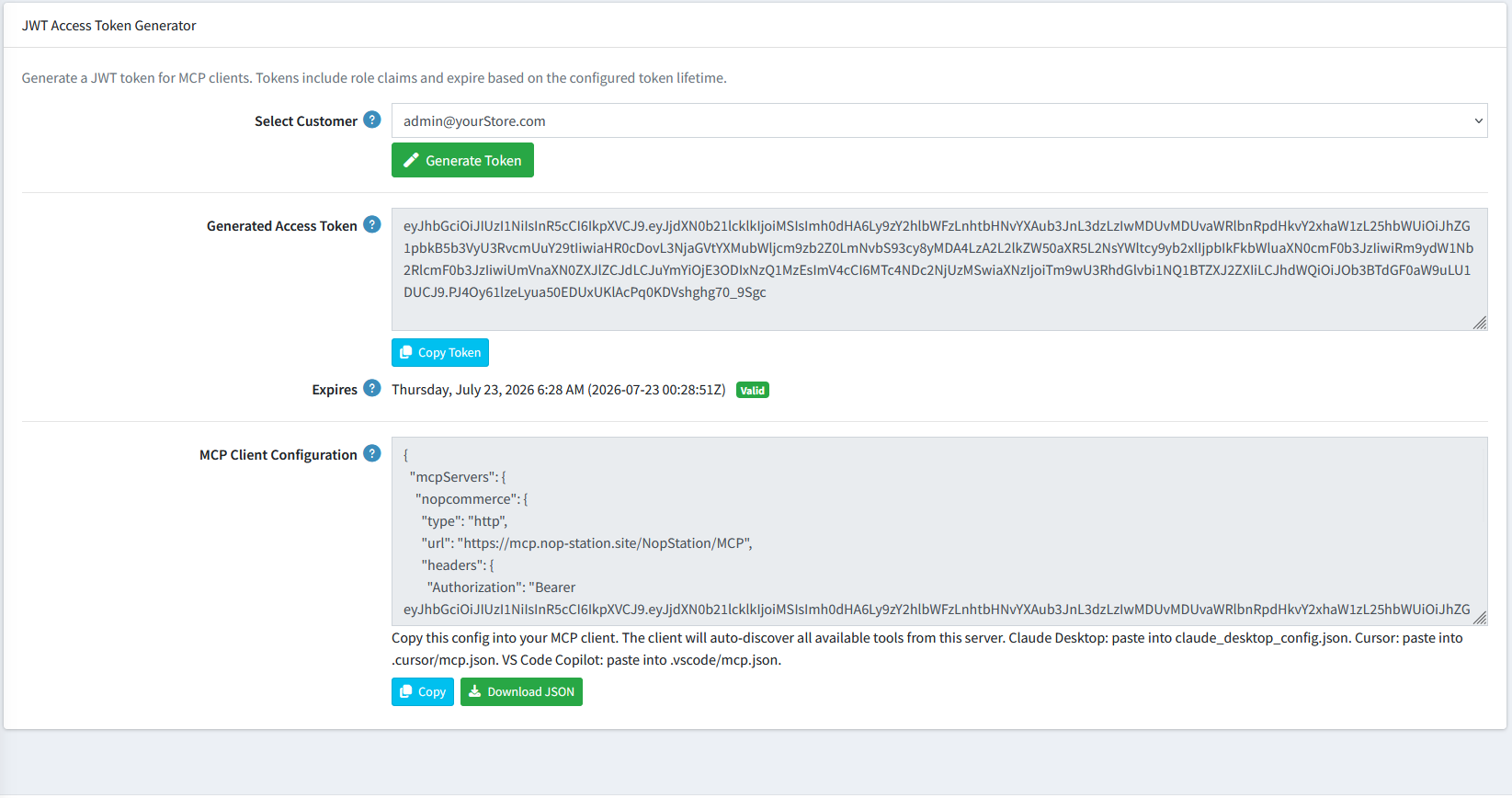
JWT Access Token Generator
The JWT Access Token Generator allows administrators to create authentication tokens for MCP clients.
Generated tokens contain customer and role information and expire according to the configured Token Lifetime setting.
Select Customer
Choose the customer account for which the access token will be generated.
Purpose:
- Associates the generated token with a specific customer.
- Grants permissions based on the selected customer's assigned roles.
Generated Access Token
Displays the JWT token generated for the selected customer.
Purpose:
- Used by MCP clients to authenticate with the MCP server.
- Contains encoded customer identity and role claims.
Example Usage:
Copy the generated token and provide it in the MCP client's authentication configuration.
Expires
Displays the token expiration date and time.
Purpose:
- Indicates when the generated token will become invalid.
- Helps administrators track token validity and renewal requirements.
Status Indicators:
- Valid – Token is active and can be used for authentication.
- Expired – Token is no longer valid and must be regenerated.
MCP Tool Explorer
The MCP Tool Explorer provides a categorized view of all tools available through the MCP Server. These tools allow MCP clients to securely read, create, update, and manage data within the nopCommerce store.
Currently, 32 tools are available across multiple functional areas.
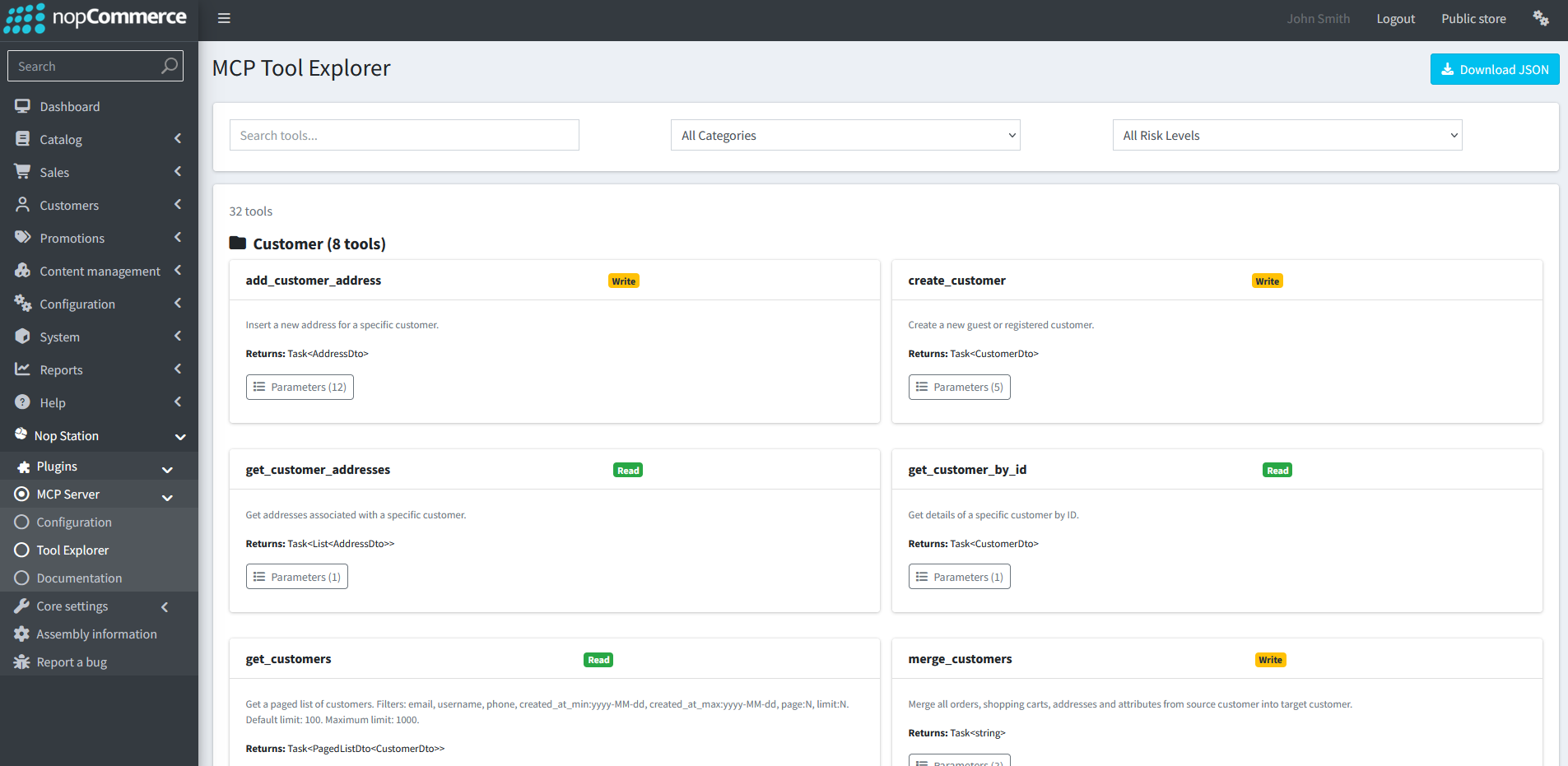
Customer
Tools for managing customer accounts, profiles, and addresses.
- add_customer_address – Add a new address to a customer account.
- create_customer – Create a new guest or registered customer.
- get_customer_addresses – Retrieve all addresses associated with a customer.
- get_customer_by_id – Get customer details by customer ID.
- get_customers – Search and retrieve customer lists with filtering options.
- merge_customers – Merge customer data from one account into another.
- update_customer – Modify existing customer information.
- delete_customer (Disabled) – Soft delete a customer account.
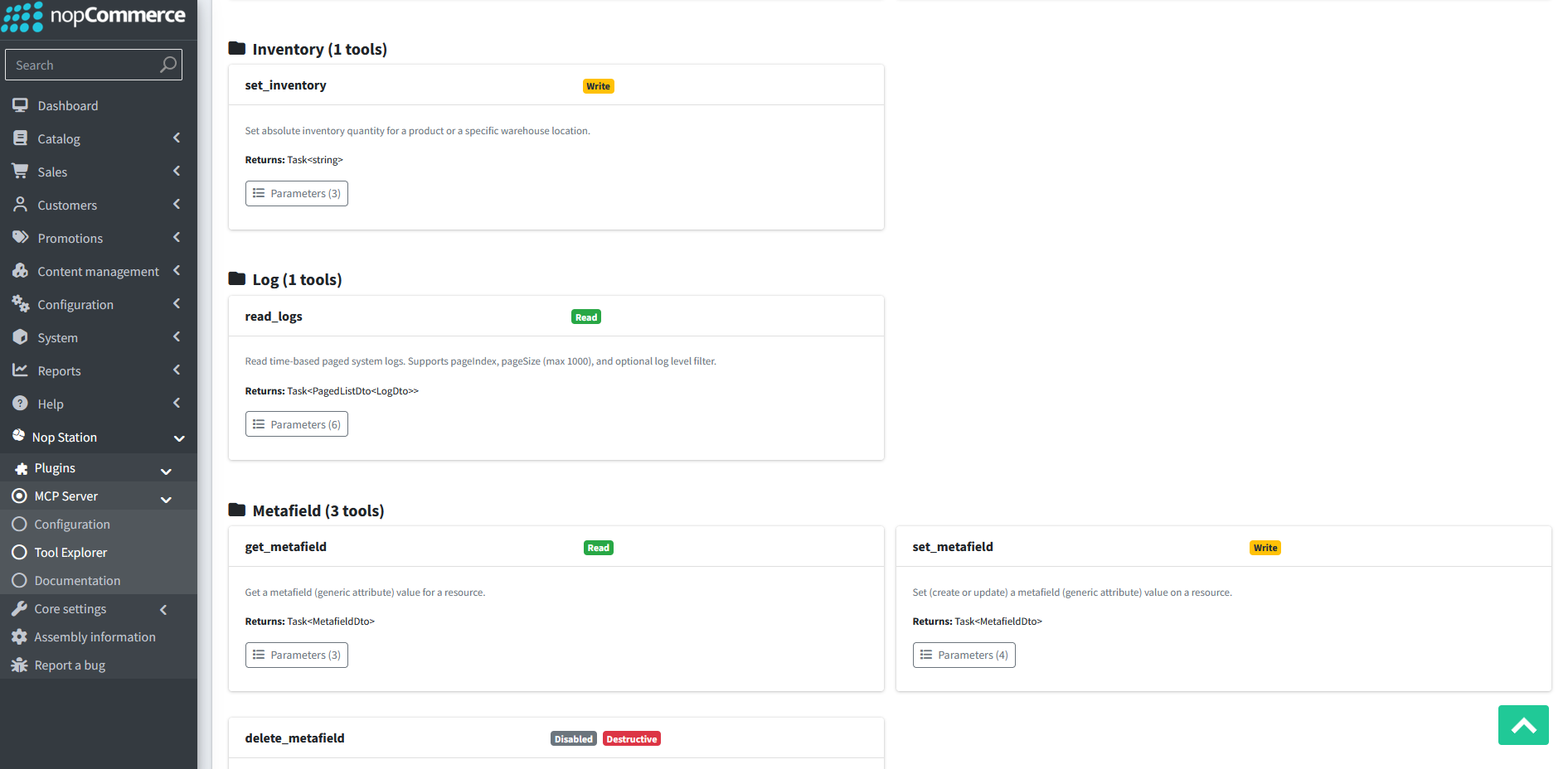
Inventory
Tools for inventory management.
- set_inventory – Update stock quantity for a product or warehouse location.
Log
Tools for monitoring and diagnostics.
- read_logs – View system logs with filtering and pagination support.
Metafield
Tools for managing custom attributes and additional data.
- get_metafield – Retrieve a metafield value from a resource.
- set_metafield – Create or update a metafield.
- delete_metafield (Disabled) – Remove an existing metafield.
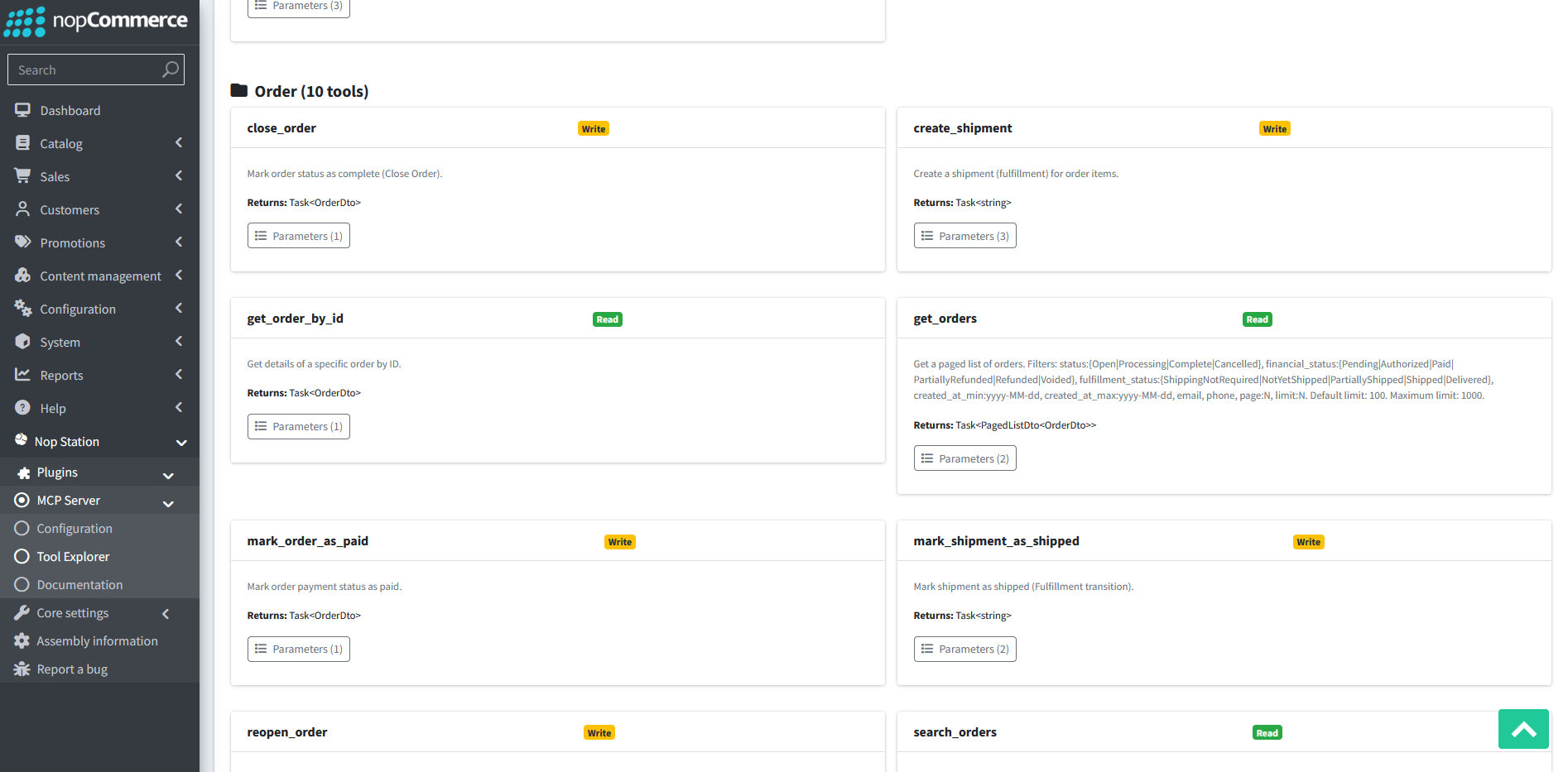
Order
Tools for order processing, fulfillment, and payment management.
- close_order – Mark an order as completed.
- create_shipment – Create a shipment for order items.
- get_order_by_id – Retrieve order details by ID.
- get_orders – Search and retrieve orders using filters.
- mark_order_as_paid – Update an order's payment status to paid.
- mark_shipment_as_shipped – Mark a shipment as shipped.
- reopen_order – Reopen a completed or cancelled order.
- search_orders – Quickly search orders by order number, email, or phone.
- cancel_order (Disabled) – Cancel an order.
- refund_order (Disabled) – Process an offline refund.
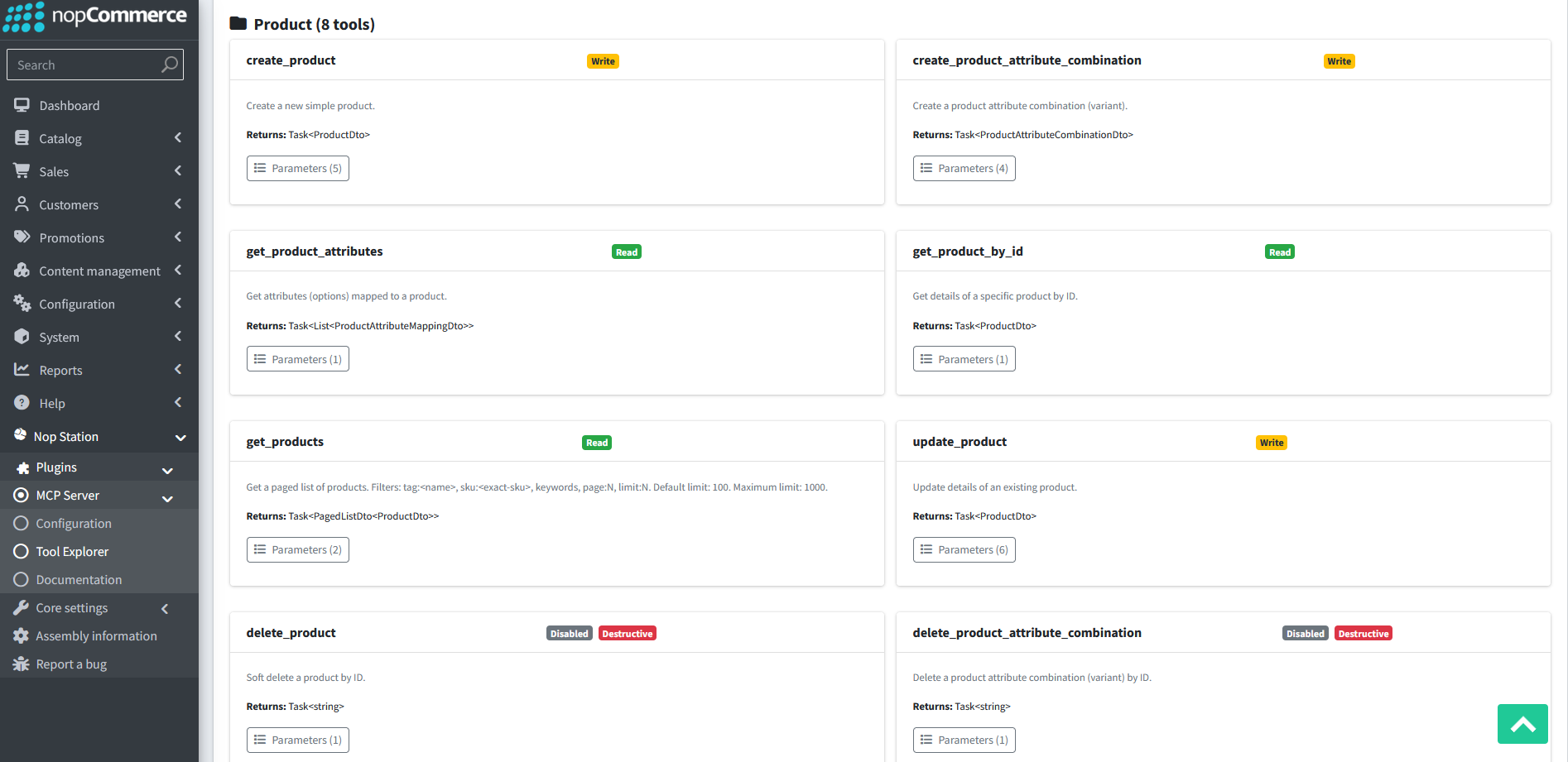
Product
Tools for product catalog management.
- create_product – Create a new product.
- create_product_attribute_combination – Create a product variant or attribute combination.
- get_product_attributes – Retrieve product attribute mappings.
- get_product_by_id – Get product details by ID.
- get_products – Search and retrieve products with filtering options.
- update_product – Modify existing product information.
- delete_product (Disabled) – Soft delete a product.
- delete_product_attribute_combination (Disabled) – Delete a product variant.
Tag
Tools for product tagging and organization.
- manage_tags – Add or remove tags from products.
Tool Status Indicators
The MCP Tool Explorer displays status indicators to help administrators understand the capabilities of each tool:
- Read – Retrieves information without modifying data.
- Write – Creates or updates data within the store.
- Destructive – Performs delete, cancellation, or irreversible operations.
- Disabled – The tool is currently unavailable and cannot be executed.
These categories help MCP clients understand the available operations and permissions when interacting with the nopCommerce store through the MCP Server.