PRE-REQUISITES
- The plugin requires you to install the Nop-Station Core plugin first.
- An Typesense account is needed
INSTALLATION
- Download the Typesense Search Plugin from our store https://nop-station.com/customer/downloadableproducts
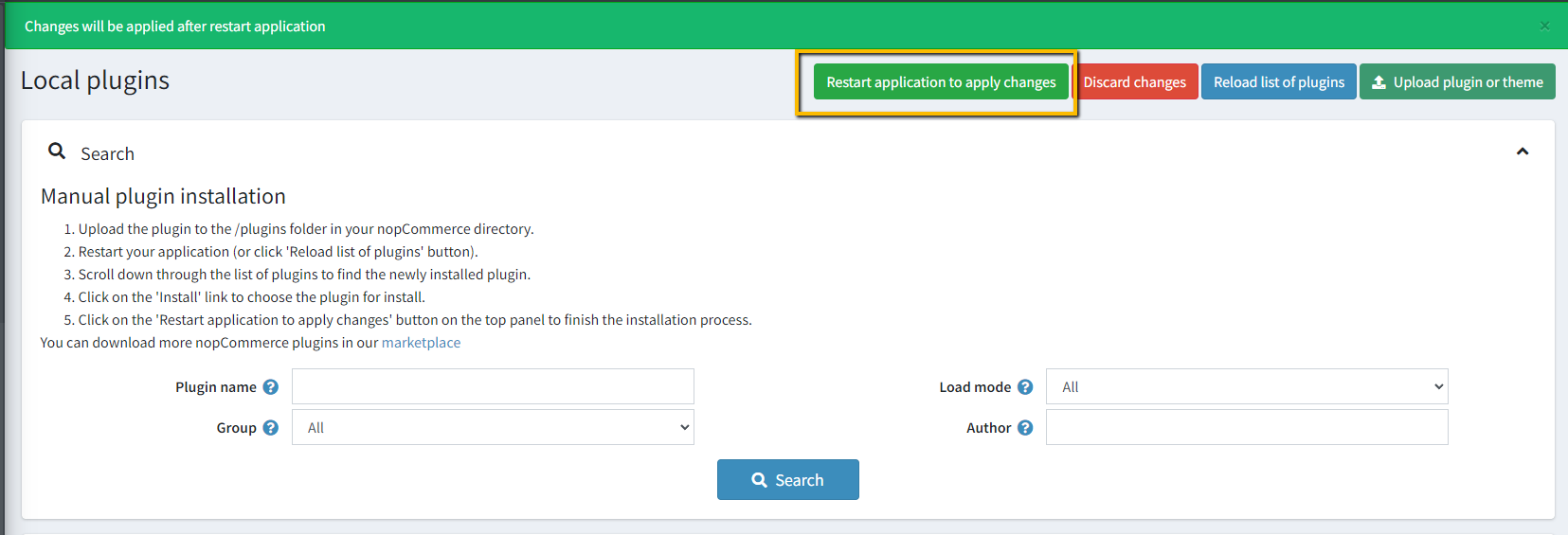
- Go to Administration → Configuration → Local plugins
- Upload the NopStation.TypesenseSearch zip file using the "Upload plugin or theme" button
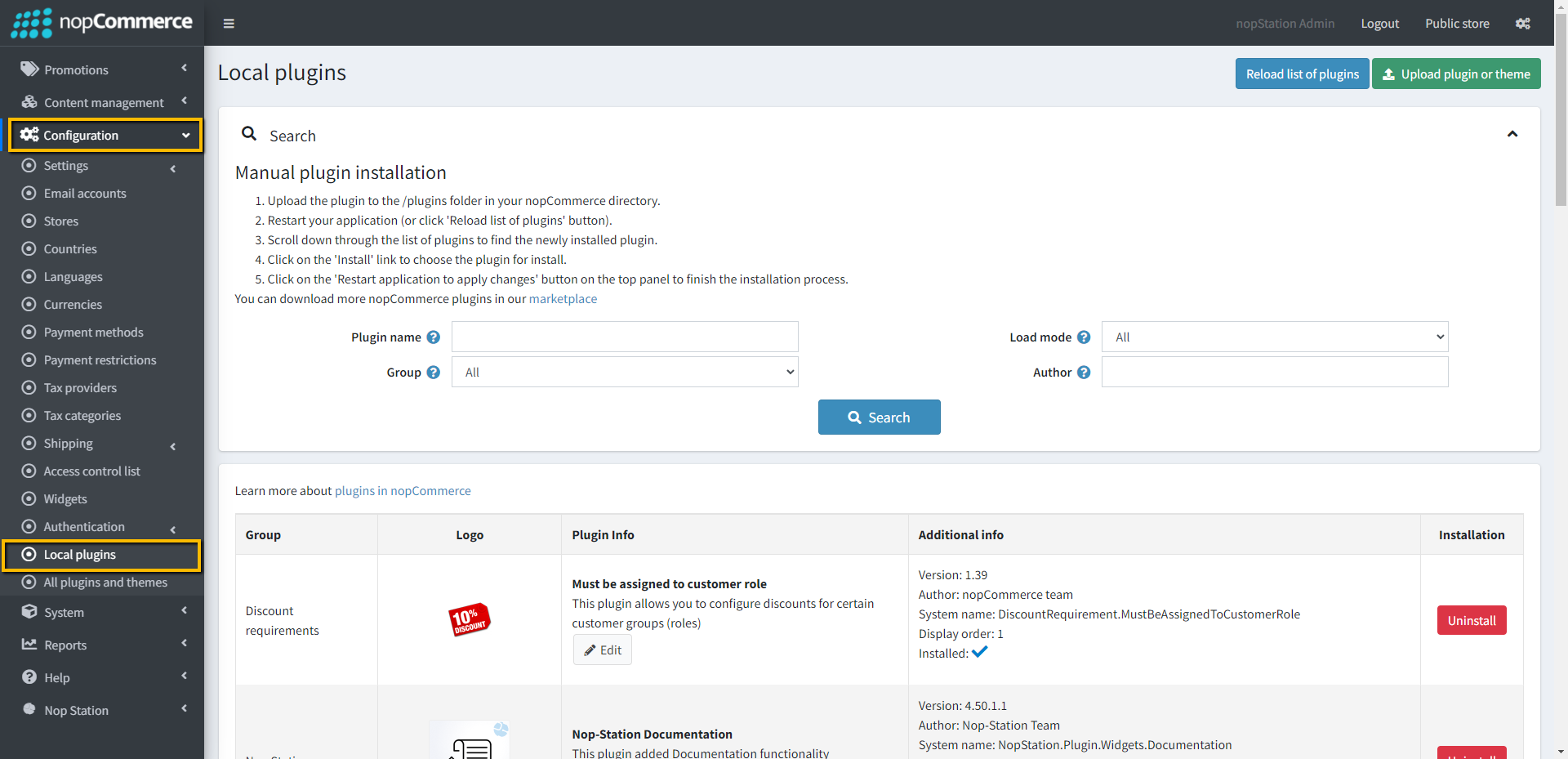
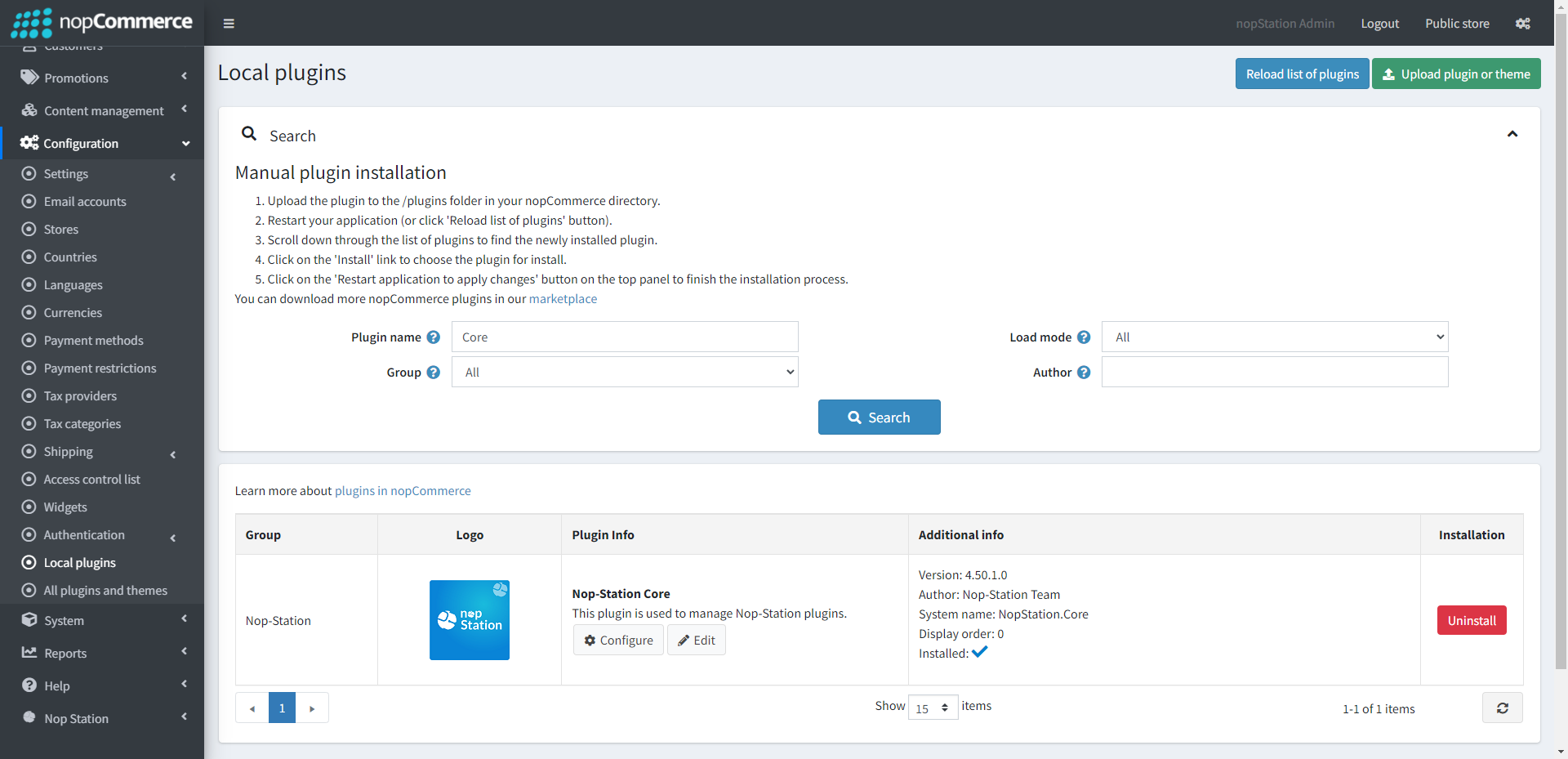
- Go to Administration, reload the 'list of plugins'. Install 'Nop-Station Core' Plugin first and then install 'Nop-Station Typesense Search'

- To make the plugins functional, restart the application
TYPESENSE ACCOUNT CONFIGURATION
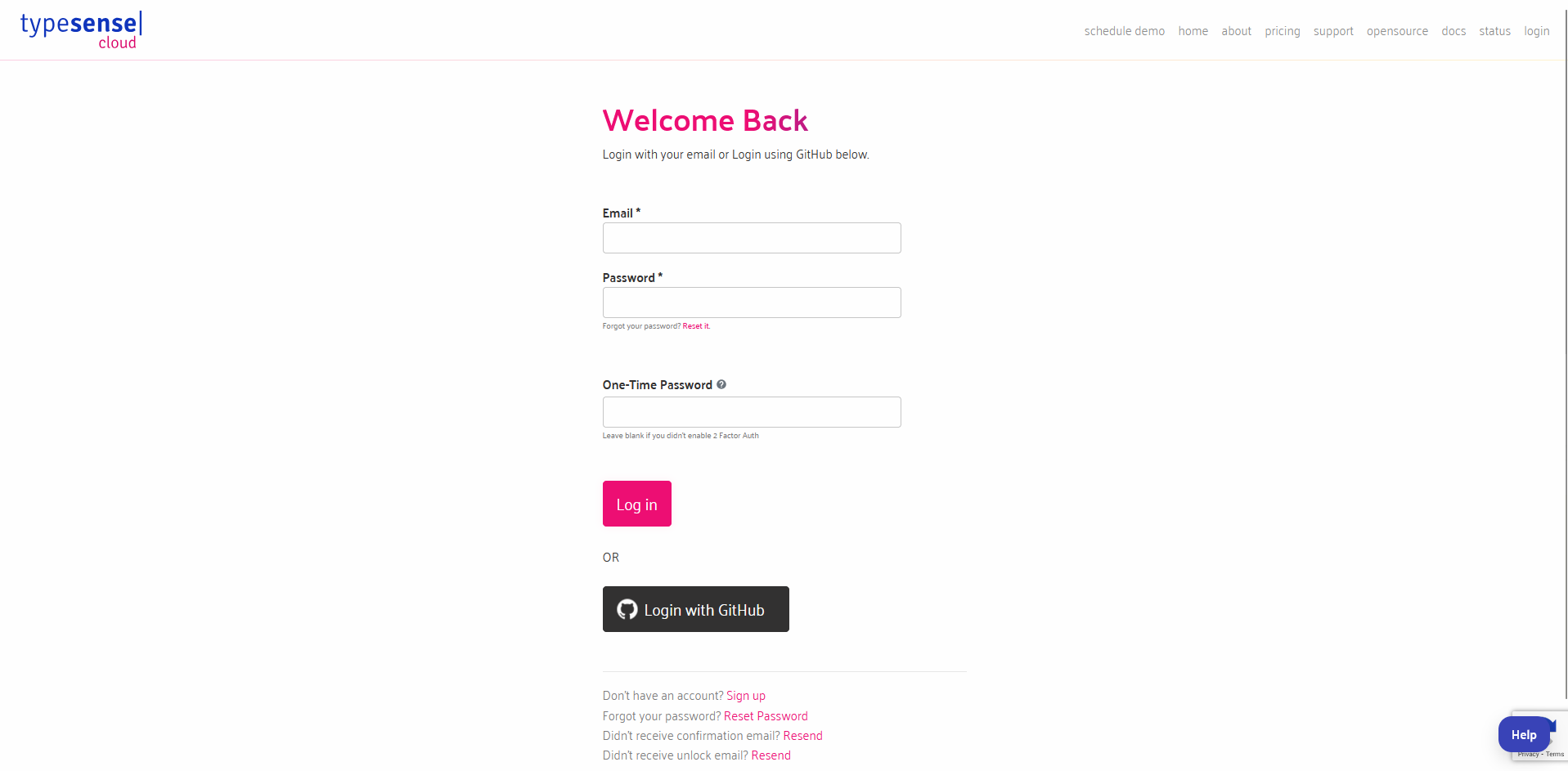
- Register or Login into your Typesense account
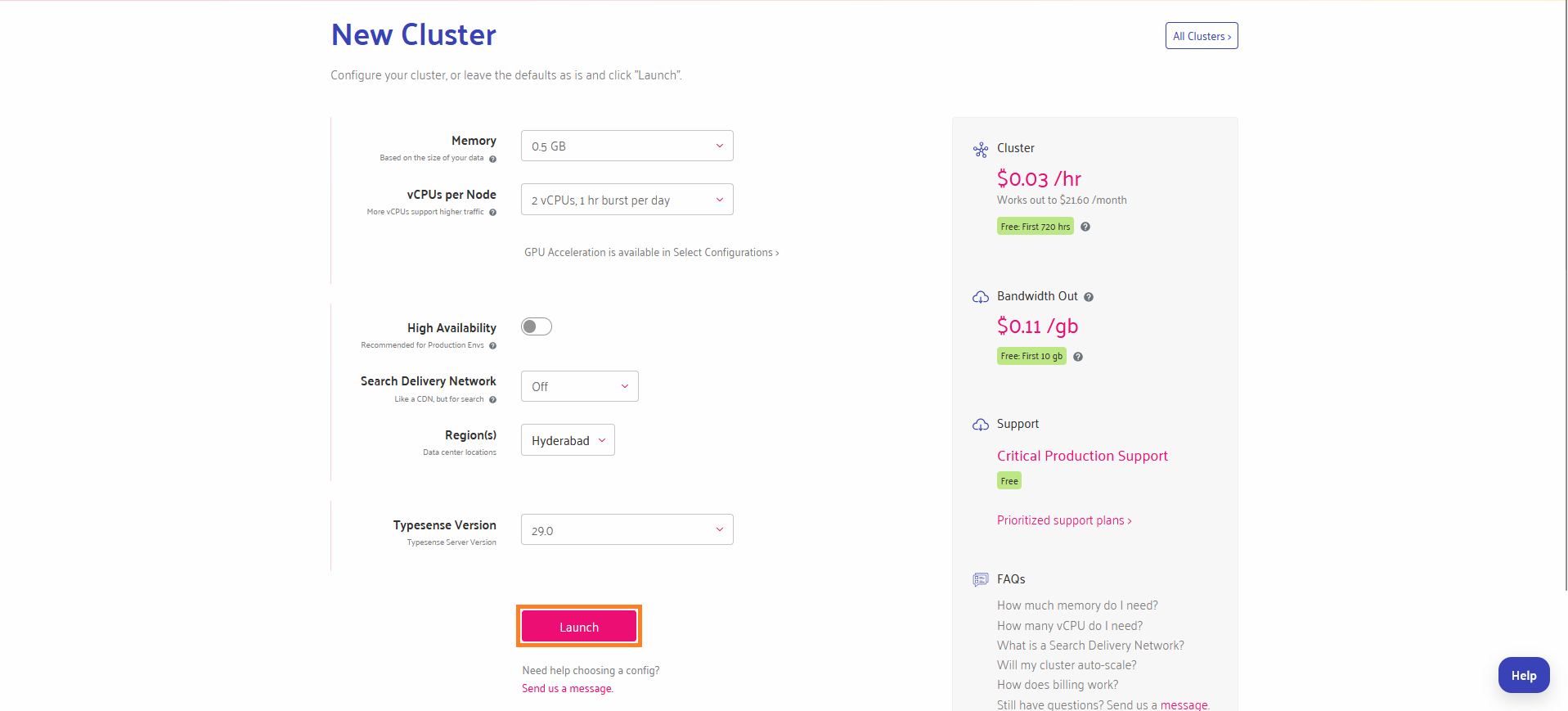
- From the typesensesearch dashboard, go to Clusters and Launch the new cluster.
- Click on Generate API Keys and a text will be downloaded.
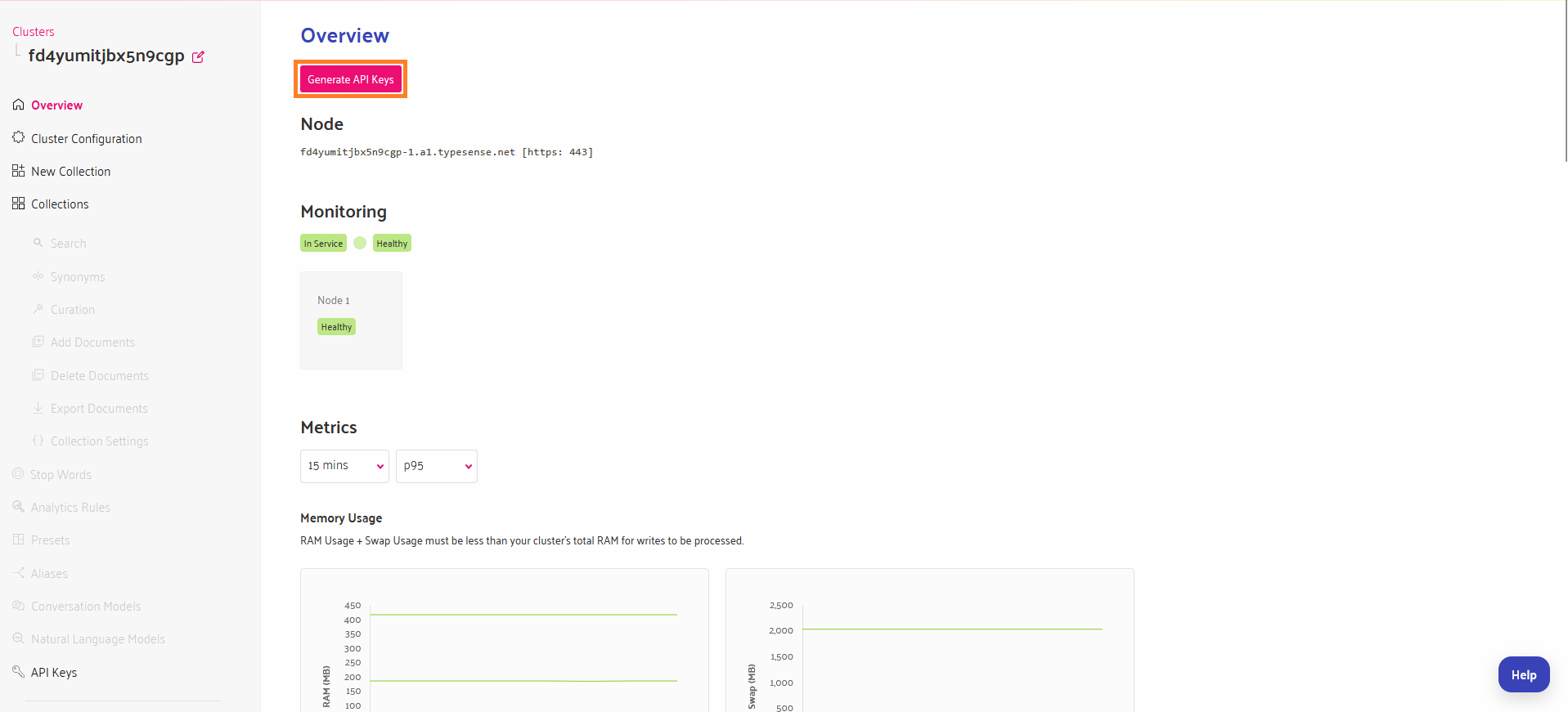
- Copy the Nodes, Admin API Key, Search Only API Key and Port Number from the downloaded text file and paste them into the plugin configuration page.
CONFIGURATION
- Go to Admin → Nop Station → Plugins → Typesense Search → Configuration
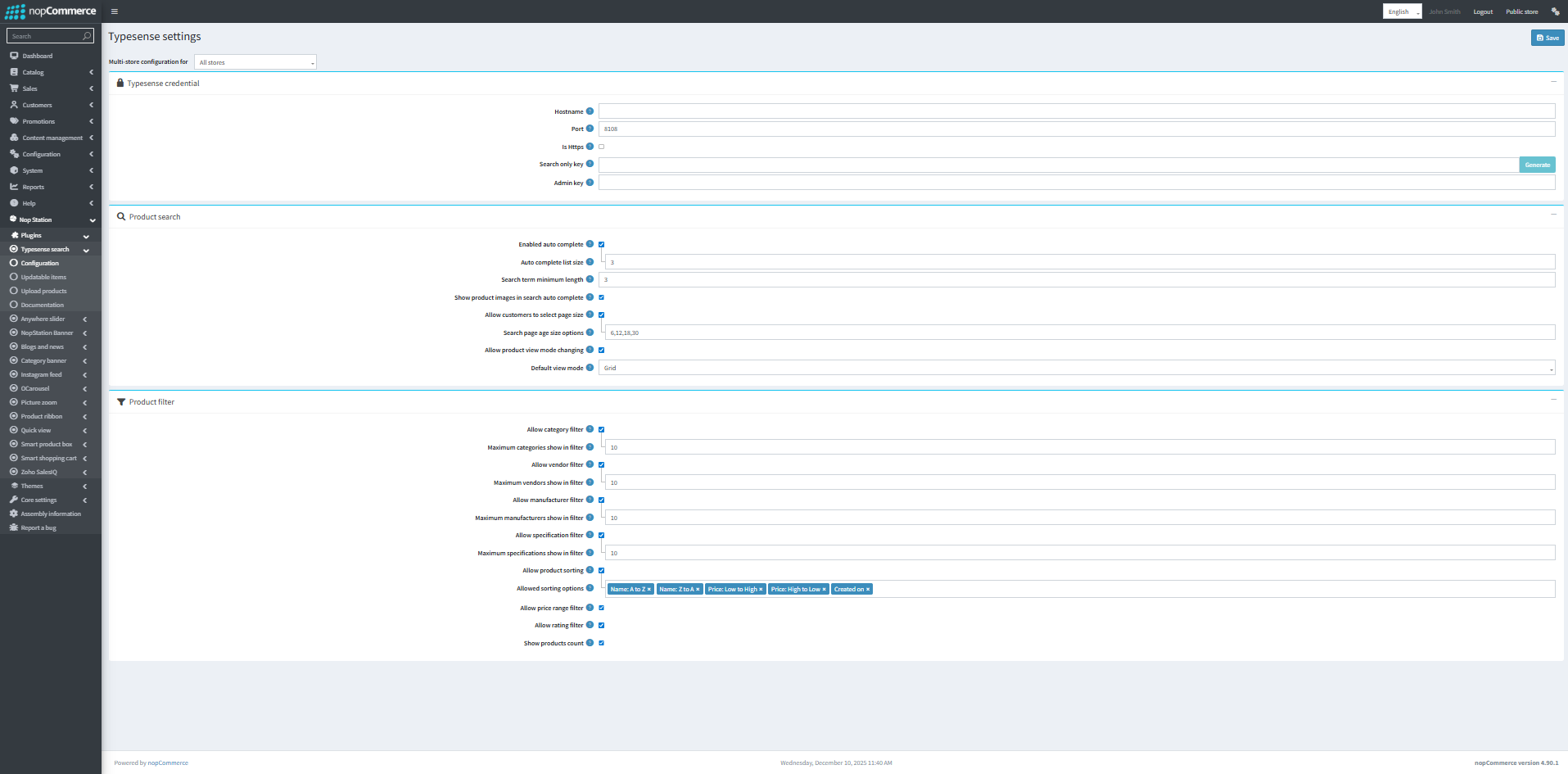
- Click on Update collection to create a collection.
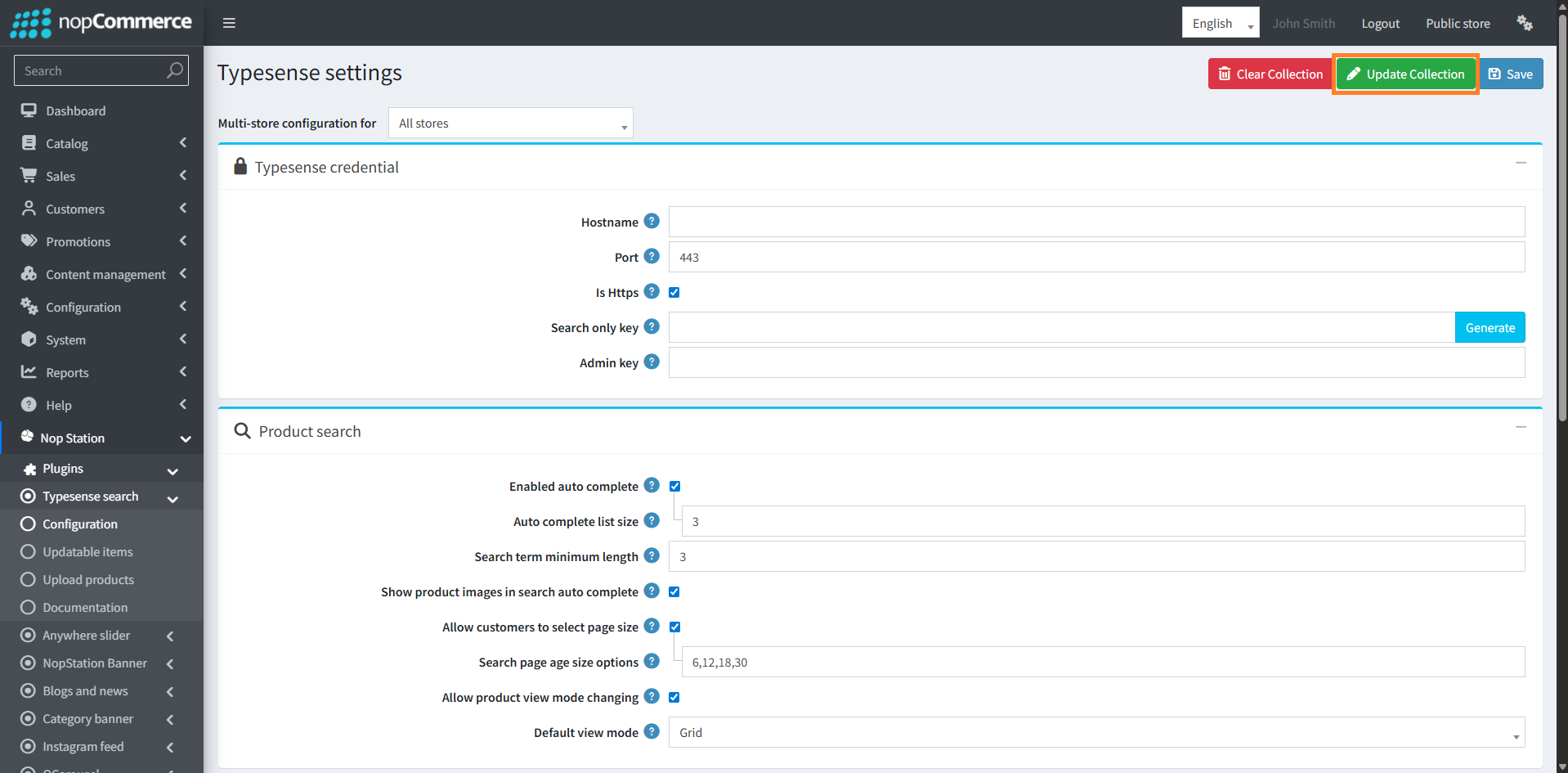
- Enter the Typesensesearch Hostname as copied from Nodes
- Enter the Port
- Check Is Https if your Typesense cluster uses HTTPS
- Enter the Search only key
- Enter the Admin key
- Check to allow customers to filter by product categories.
- Maximum number of categories show in filter.
- Check to allow customers to filter by product vendors.
- Maximum number of vendors show in filter.
- Check to allow customers to filter by product manufacturers.
- Maximum number of manufacturers show in filter.
- Check to allow customers to filter by product specifications.
- Maximum number of specifications show in filter.
- Check to allow customers to sort products. Click 'Update index' if the value of this property is changed.
- Allowed sorting options. Click 'Update index' if the value of this property is changed.
- Check to allow customers to filter by product price range.
- Check to allow customers to filter by product rating.
- Check to show products count on product search page.
- Click Save button
- Click Update index button to update Typesense index according to the plugin configuration
UPDATABLE ITEMS
- Here you can see all the products, categories, manufacturers, vendors list which are not yet updated with typesense.
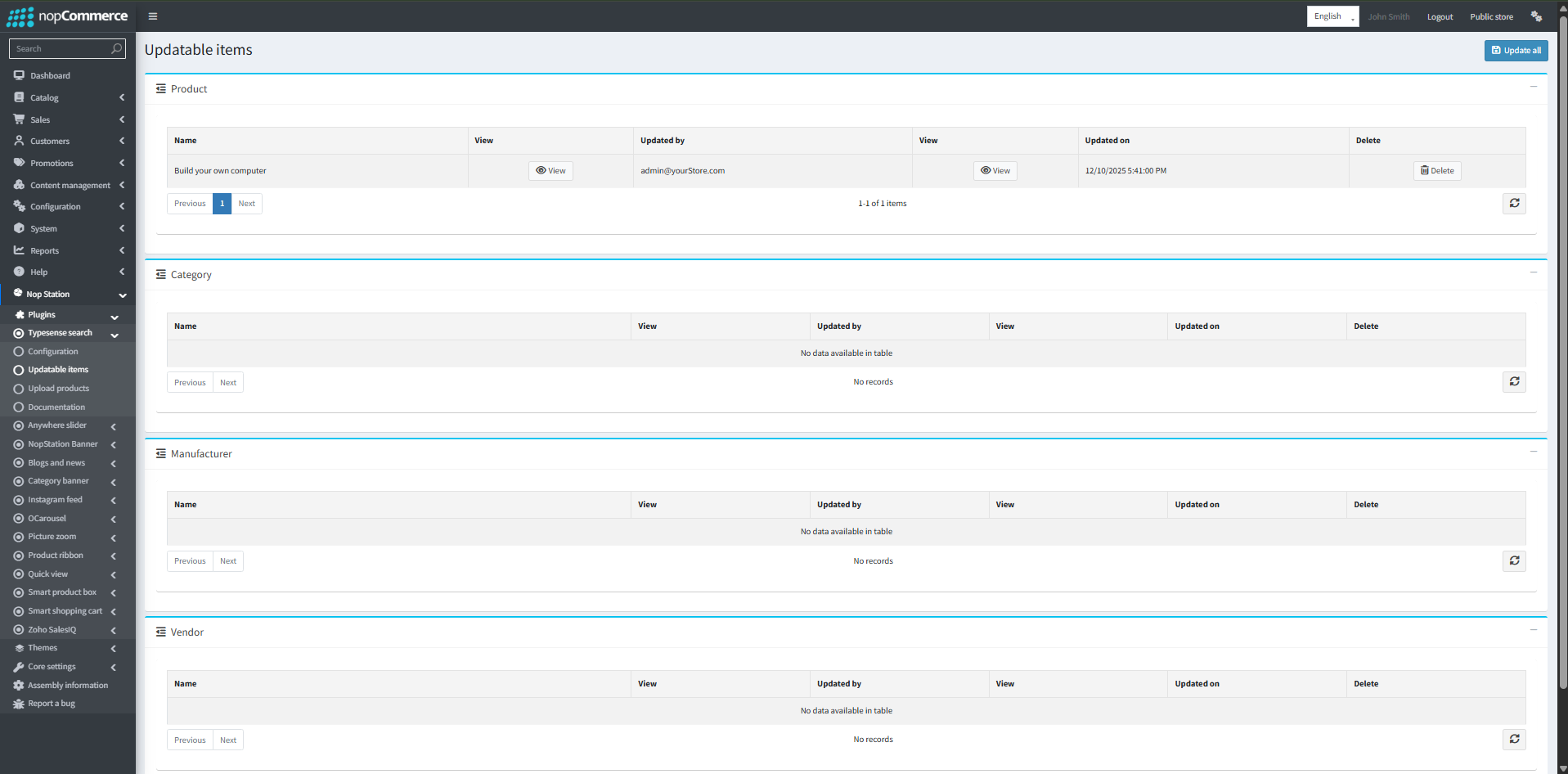
- Click Update all button to update
UPLOAD EXISTING PRODUCTS
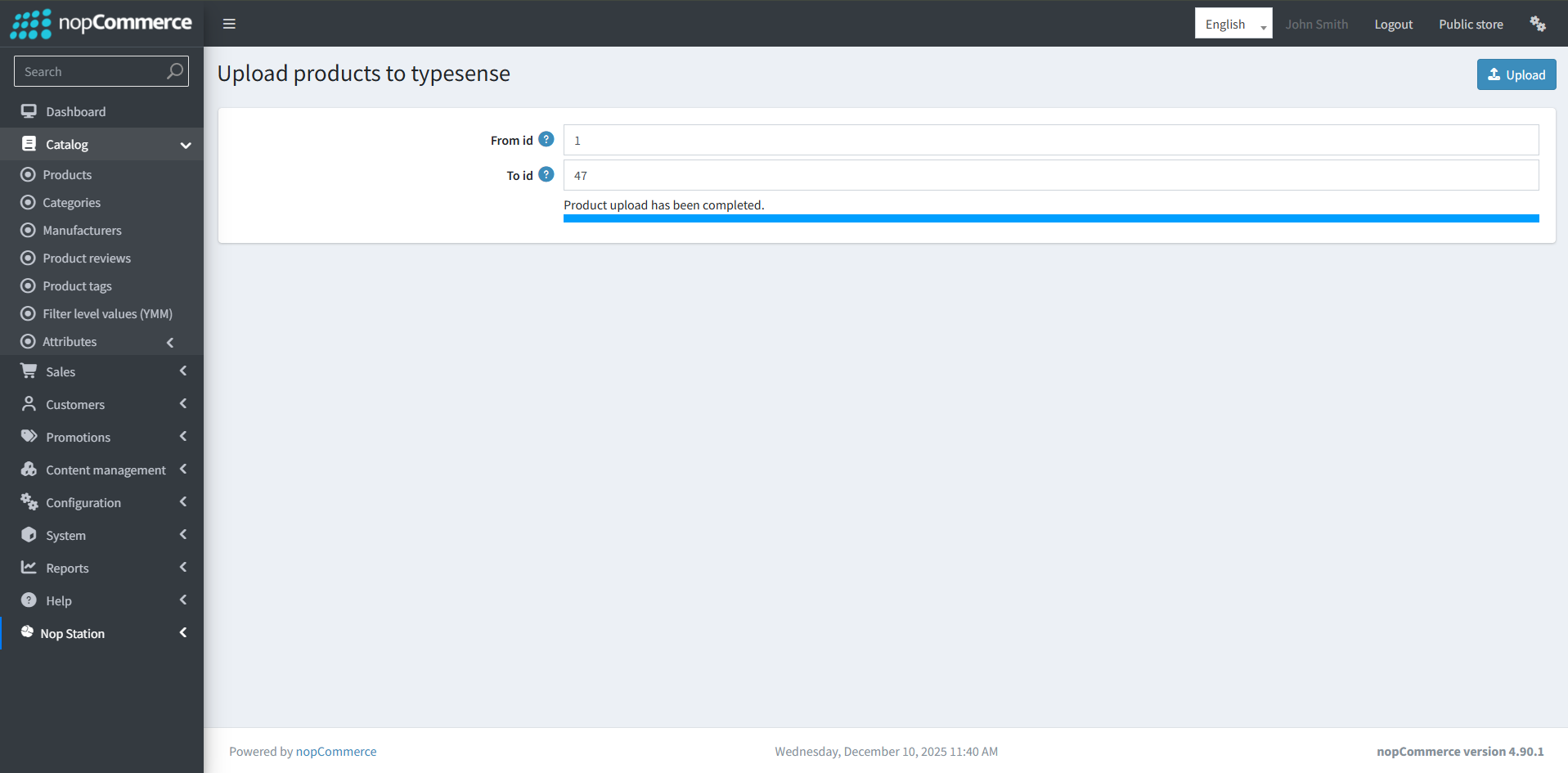
- Go to Admin → Nop Station → Plugins → Typesense Search → Upload Products
- Enter product id range
- Click Upload button