nopStation's Melrose Labs SMS Integration Plugin empowers nopCommerce-based online stores to seamlessly integrate with Melrose Labs' reliable SMS messaging services. Melrose Labs, a trusted provider of messaging and communication solutions, delivers secure and scalable SMS capabilities to businesses worldwide. This plugin allows store owners to enable SMS-based notifications for key events such as orders, shipments, payments, and promotions using fully customizable SMS templates. By leveraging Melrose Labs’ robust messaging infrastructure, businesses can boost customer engagement with real-time, dependable SMS alerts that enhance the overall shopping experience
PRE-REQUISITES
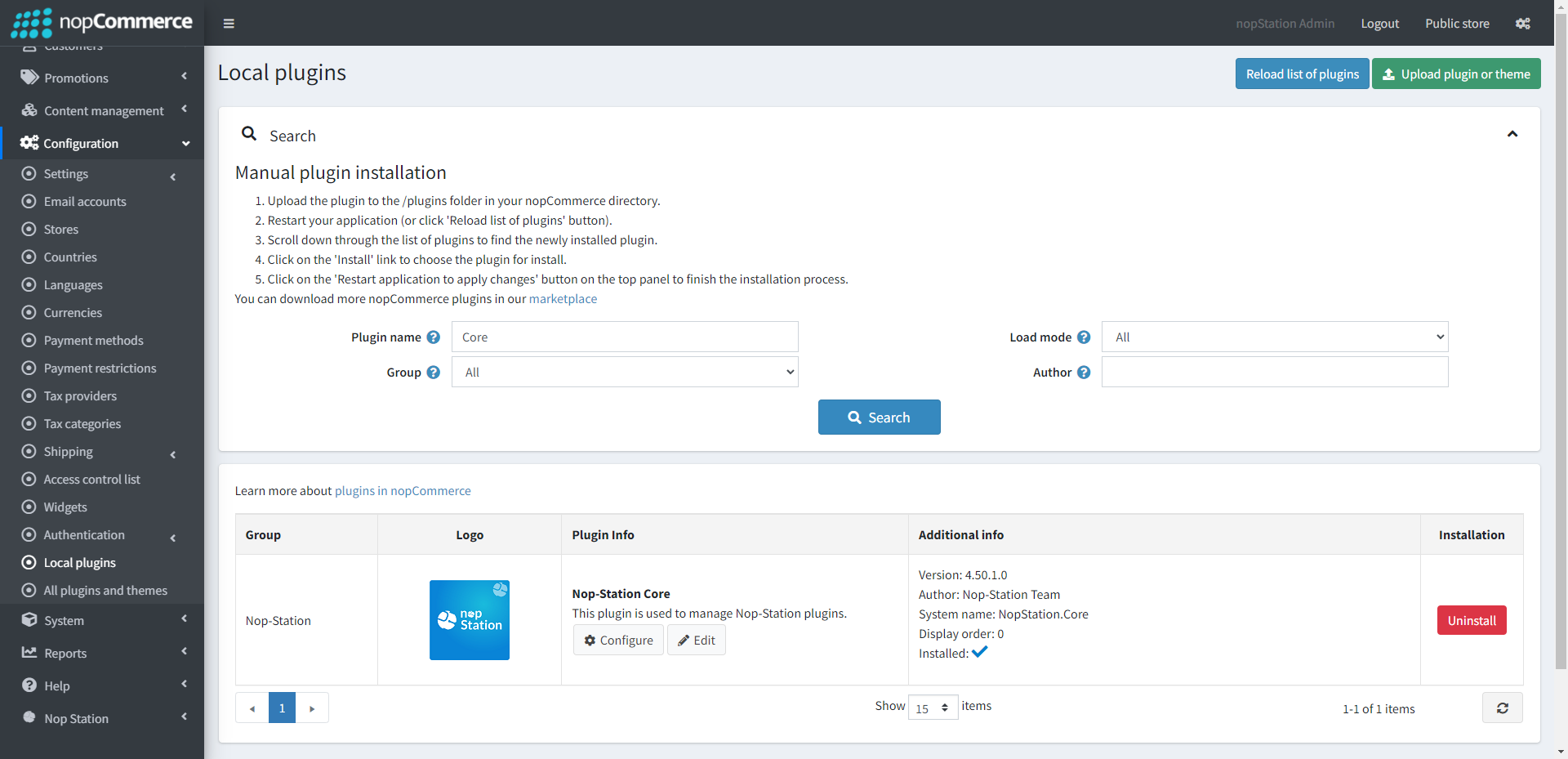
The plugin requires you to install the Nop-Station Core plugin first.
Also, you need a subscription to Melrose Labs SMS API
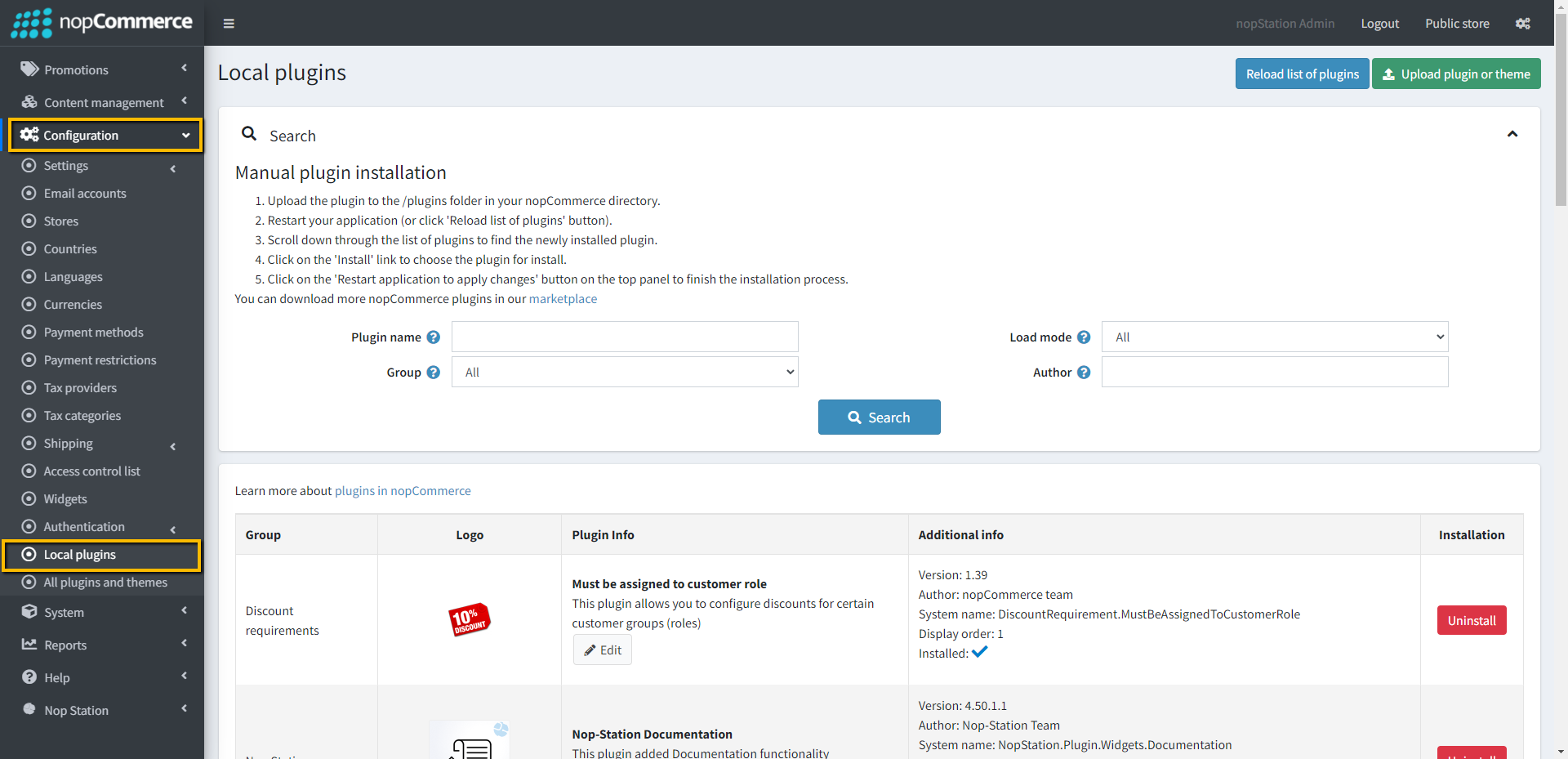
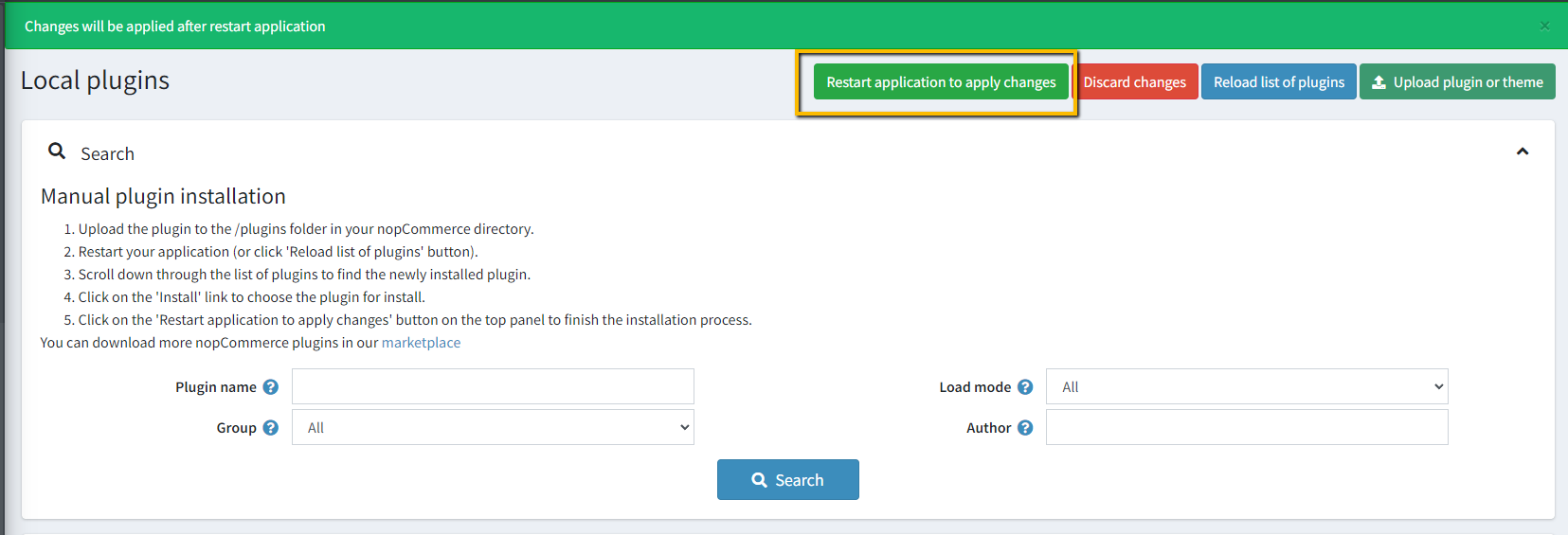
Go to Administration → Configuration → Local plugins
Upload the Nop-Station. Melrose Labs zip file using the "Upload plugin or theme" button
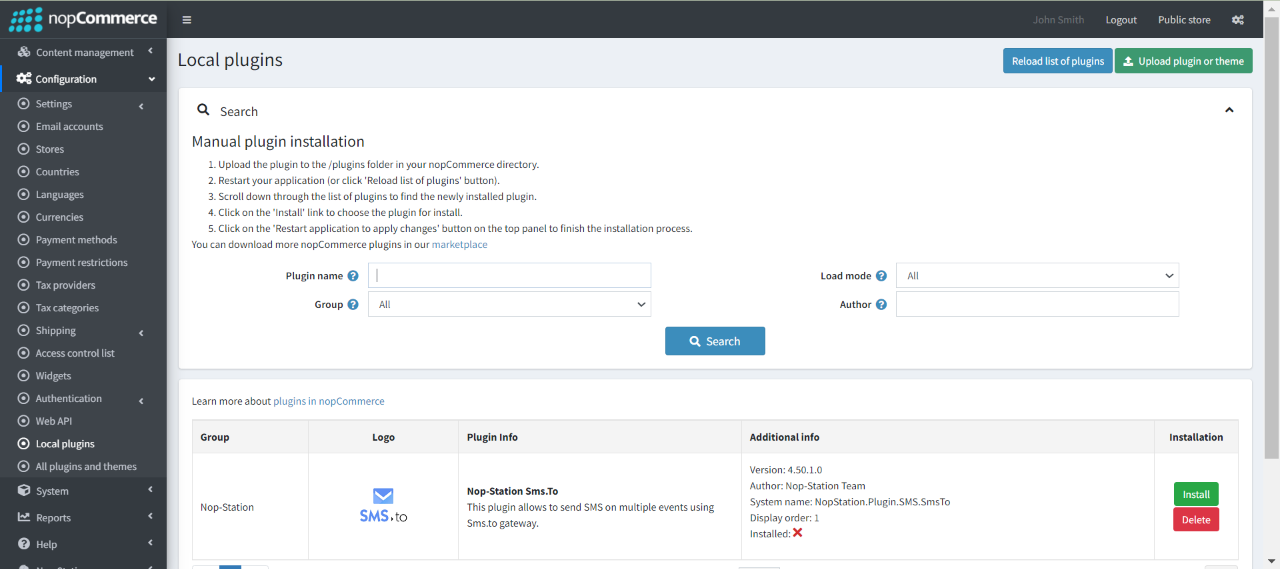
Go to Administration, reload the 'list of plugins'. Install'Nop-Station Core' Plugin first and then install 'Nop-Station. Melrose Labs' plugin
To make the plugins functional, restart the application.
CONFIGURE
Sign up to Melrose Labs Account and API Key and SenderId from melroselabs.com
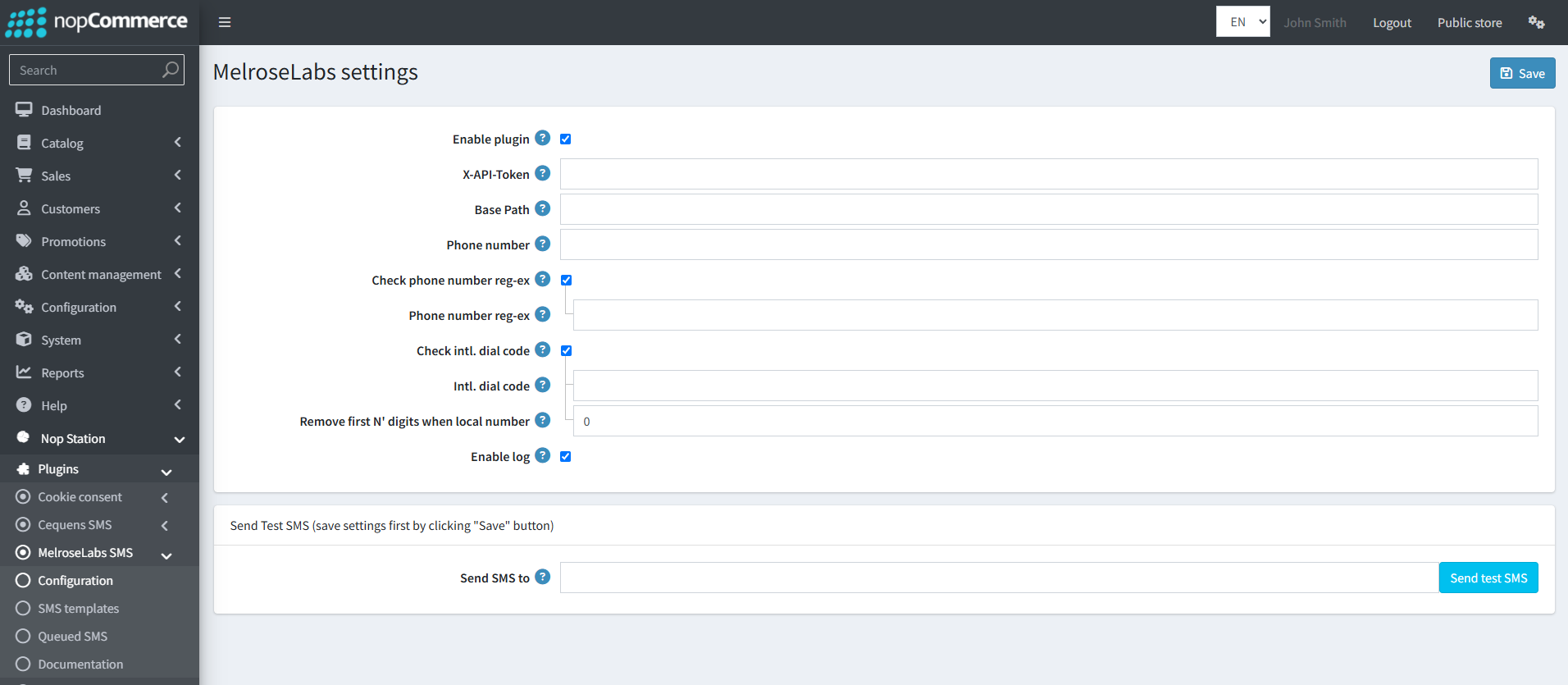
Go to Admin → NopStation → Plugins → Melrose Labs SMS → Configuration
Check the Enable Plugin checkbox to enable the SMS Plugin
Enter the API Key and SenderId info into the API Key and SenderId fields
Enter the From field value, it's a value that represents the name or number the message should be sent from.
Note that alphanumeric SenderIds are not supported in all countries, see Global Messaging for more details. If alphanumeric, spaces will be ignored. Numbers are specified in E.164 format
Check phone number reg-ex to validate phone number using regular expression
Check intl. dial code to validate phone number using country code
Remove first N' digits when local number to remove any start digit from local phone number
SMS TEMPLATE
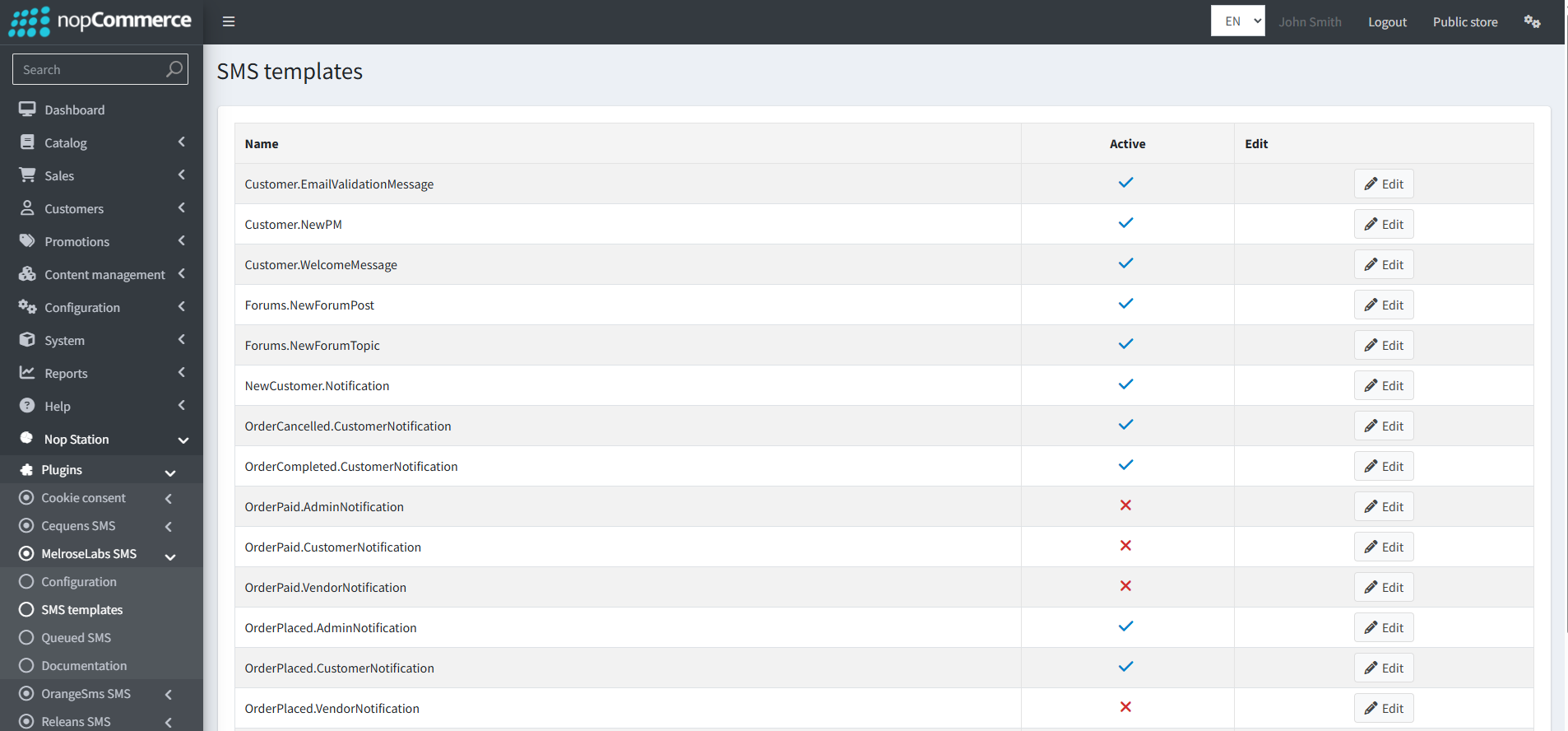
The plugin provides a total of 19 SMS templates that you can use.
Go to Admin → NopStation → Plugins → Melrose Labs SMS → SMS templates to view all the available templates.
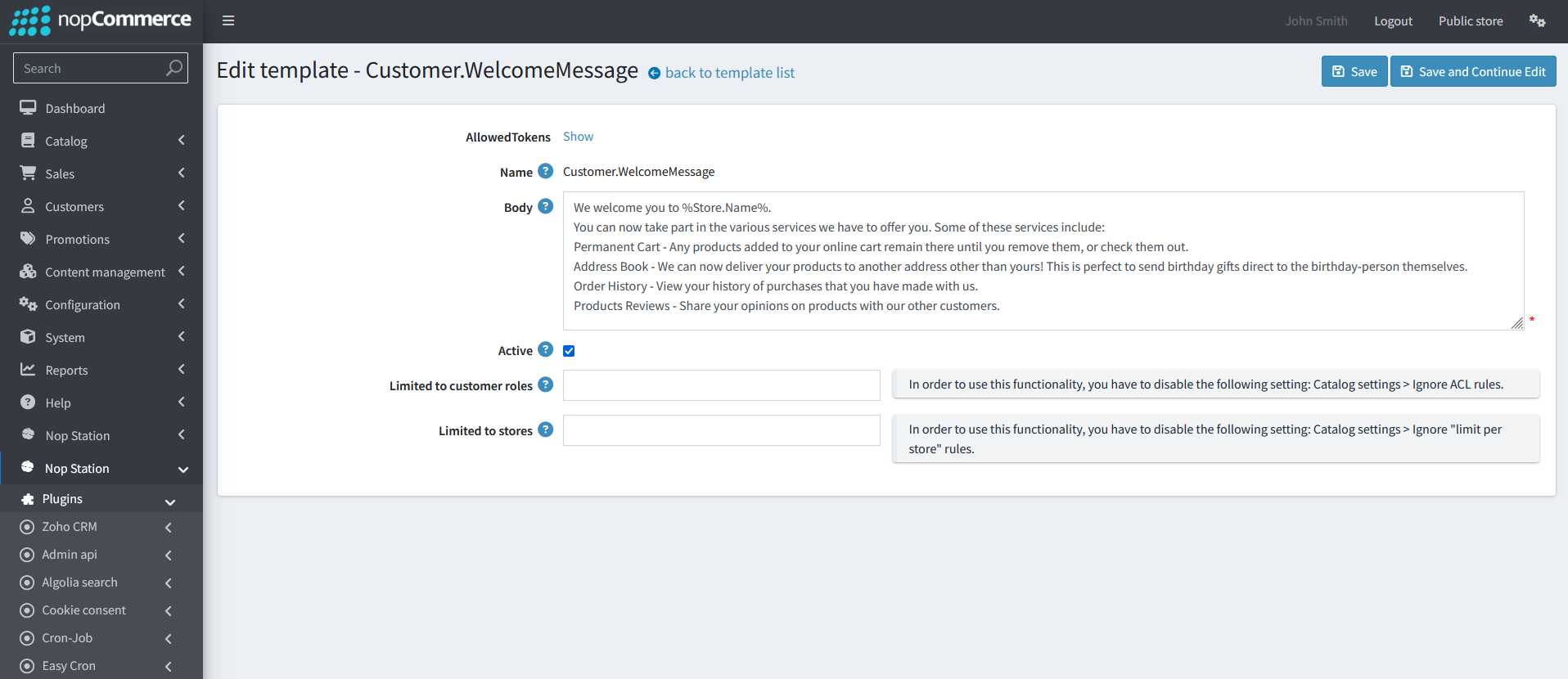
You can enable/disable or modify the templates based on your requirements
You can also set this to limited customer roles and limited stores
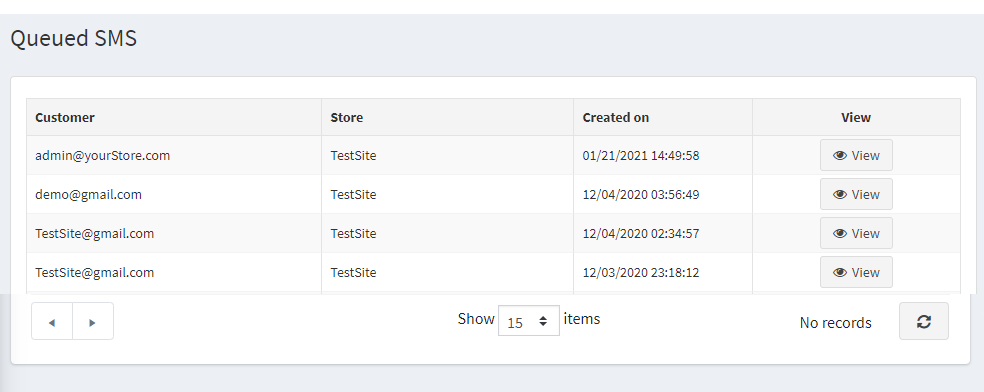
QUEUED SMS
Go to Admin → NopStation → Plugins → Melrose Labs → Queued SMS
Here you can see the messages queue that has already been sent to the customer
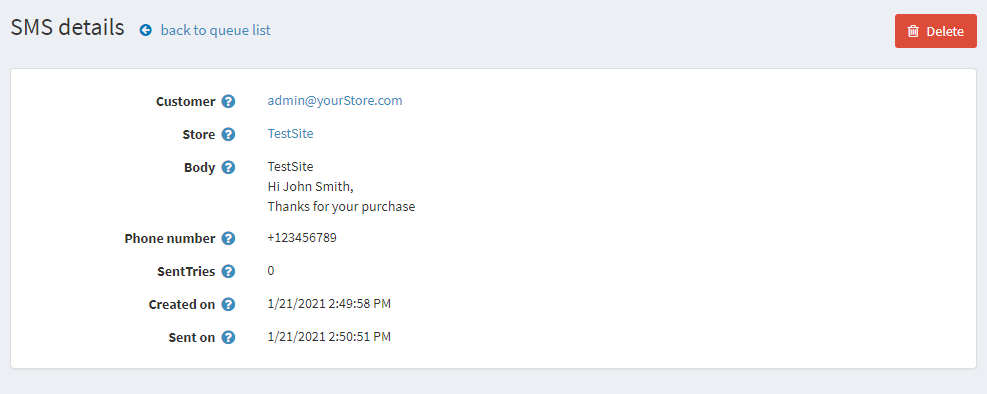
You will get the details of the Sent SMS by clicking on the View button on Queued SMS page