nopStation's OCarousels plugin is developed to let nopCommerce based store owners create and manage different types of carousels for their online storefront. Carousels are an attractive visual tool which helps make websites attractive and dynamically showcase products, offers or announcements. After a simple nopCommerce plugin download and installation, store owners can create and manage carousels of Featured Products, Bestsellers, Recently Viewed Products, also Purchased Products as well as show product item boxes. This plugin not only makes the storefront look attractive but adds powerful functionality with the help of product carousels.
PRE-REQUISITES
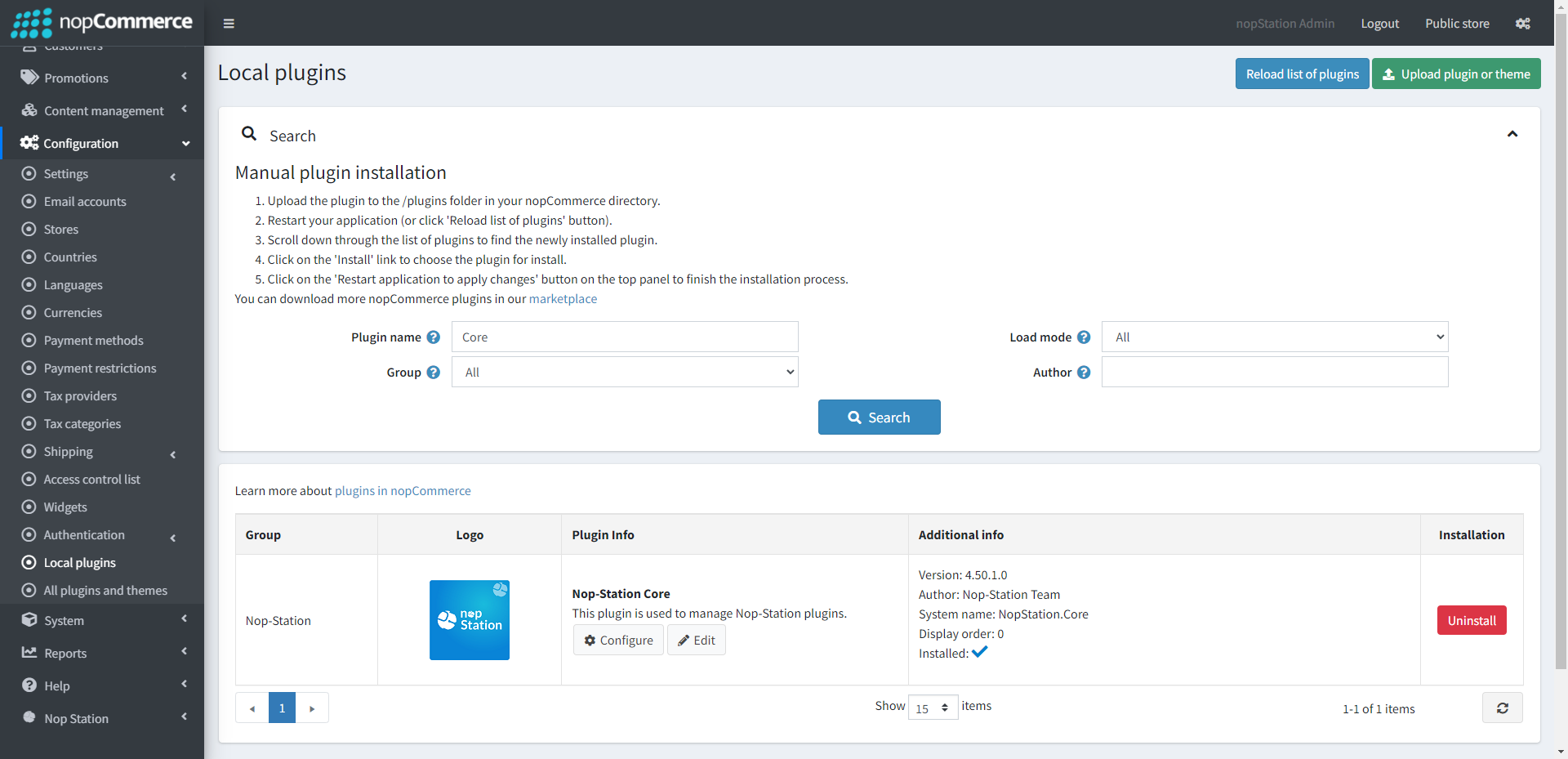
The plugin requires you to install the Nop-Station Core plugin first.
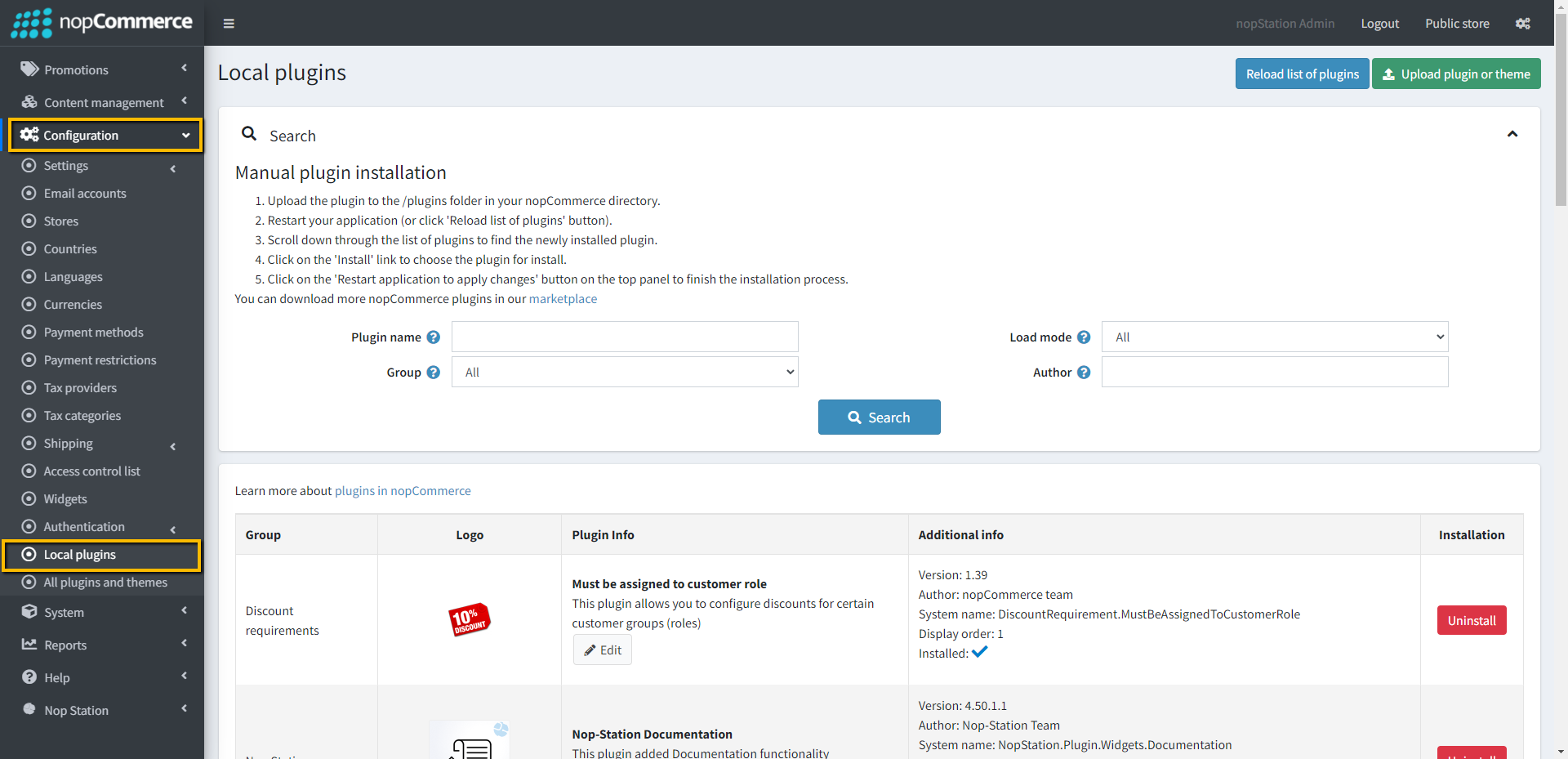
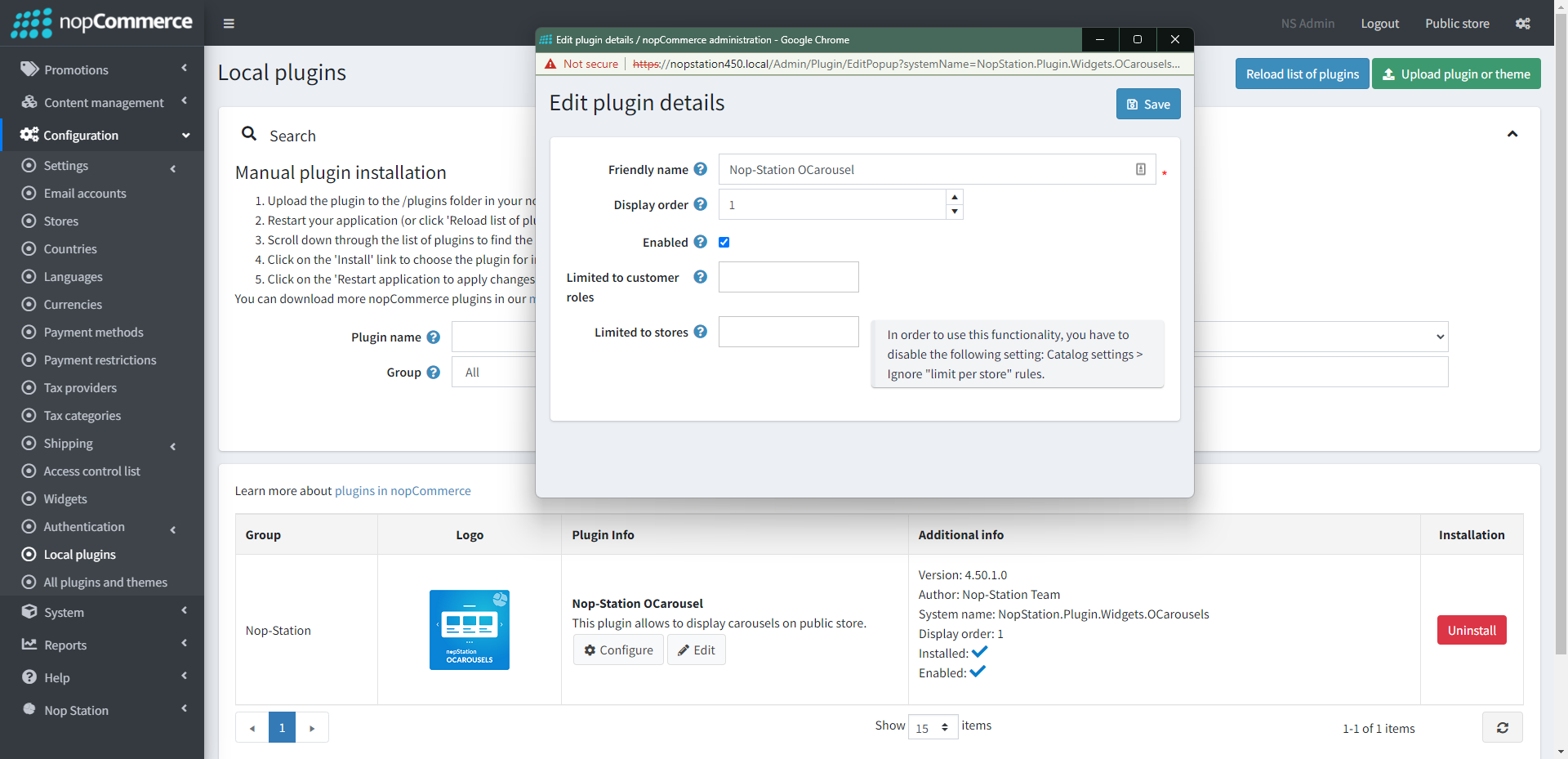
Go to Administration → Configuration → Local plugins
Upload the NopStation.OCarousels zip file using the "Upload plugin or theme" button
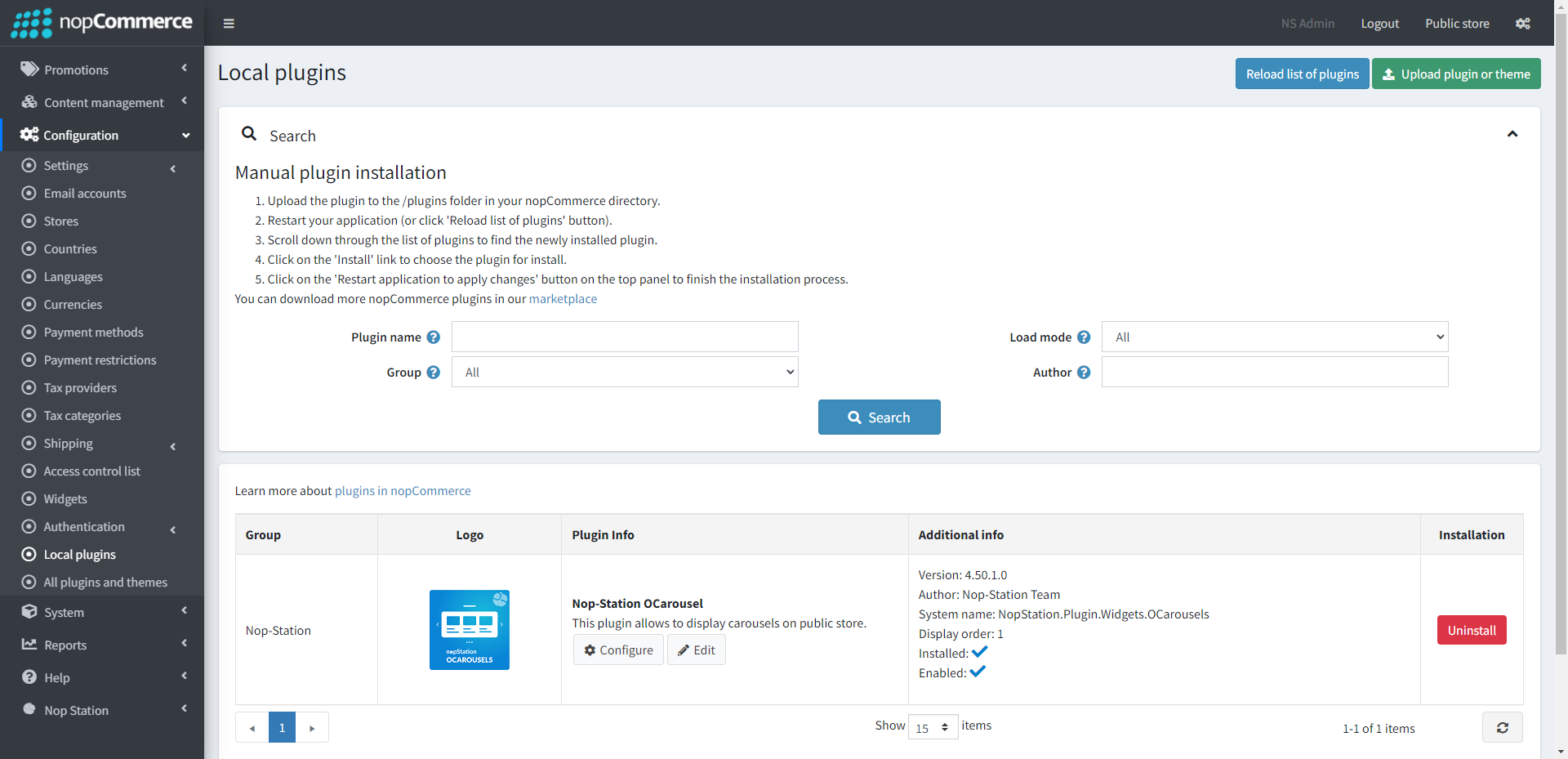
Go to Administration, reload the 'list of plugins'. Install 'Nop-Station Core' Plugin first and then install 'Nop-Station OCarousels'
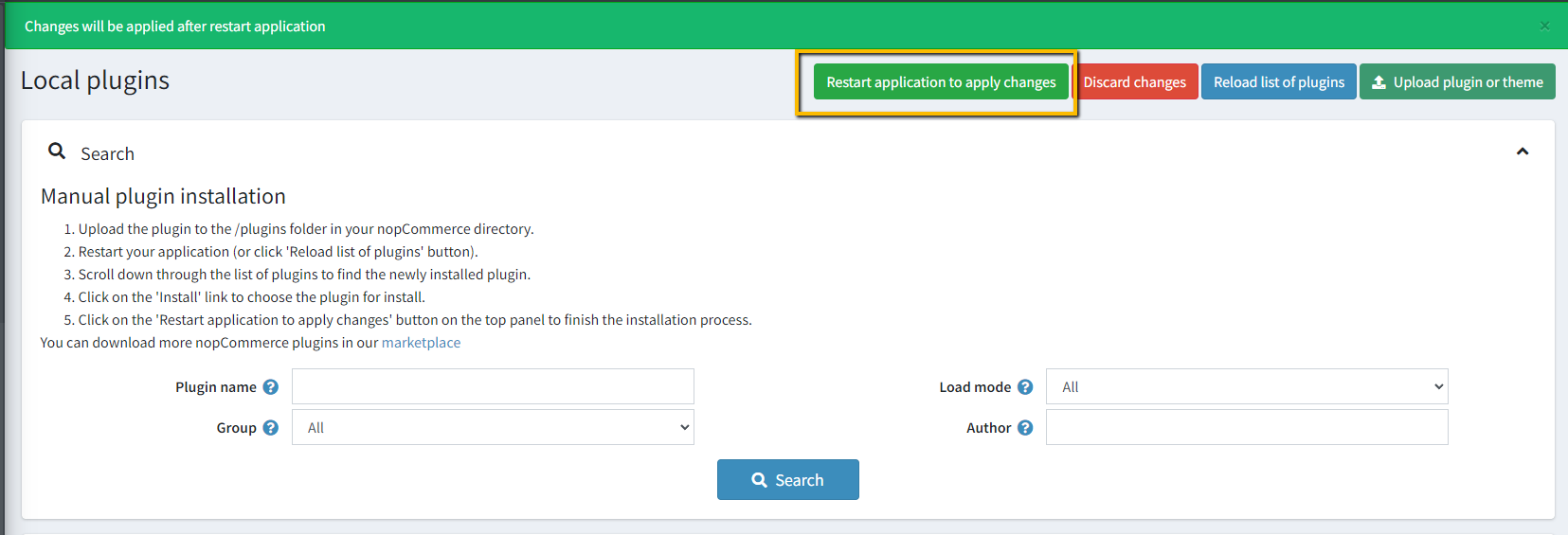
To make the plugins functional, restart the application.
Enable the plugin with 'Edit' option and Configure it.
CONFIGURATION
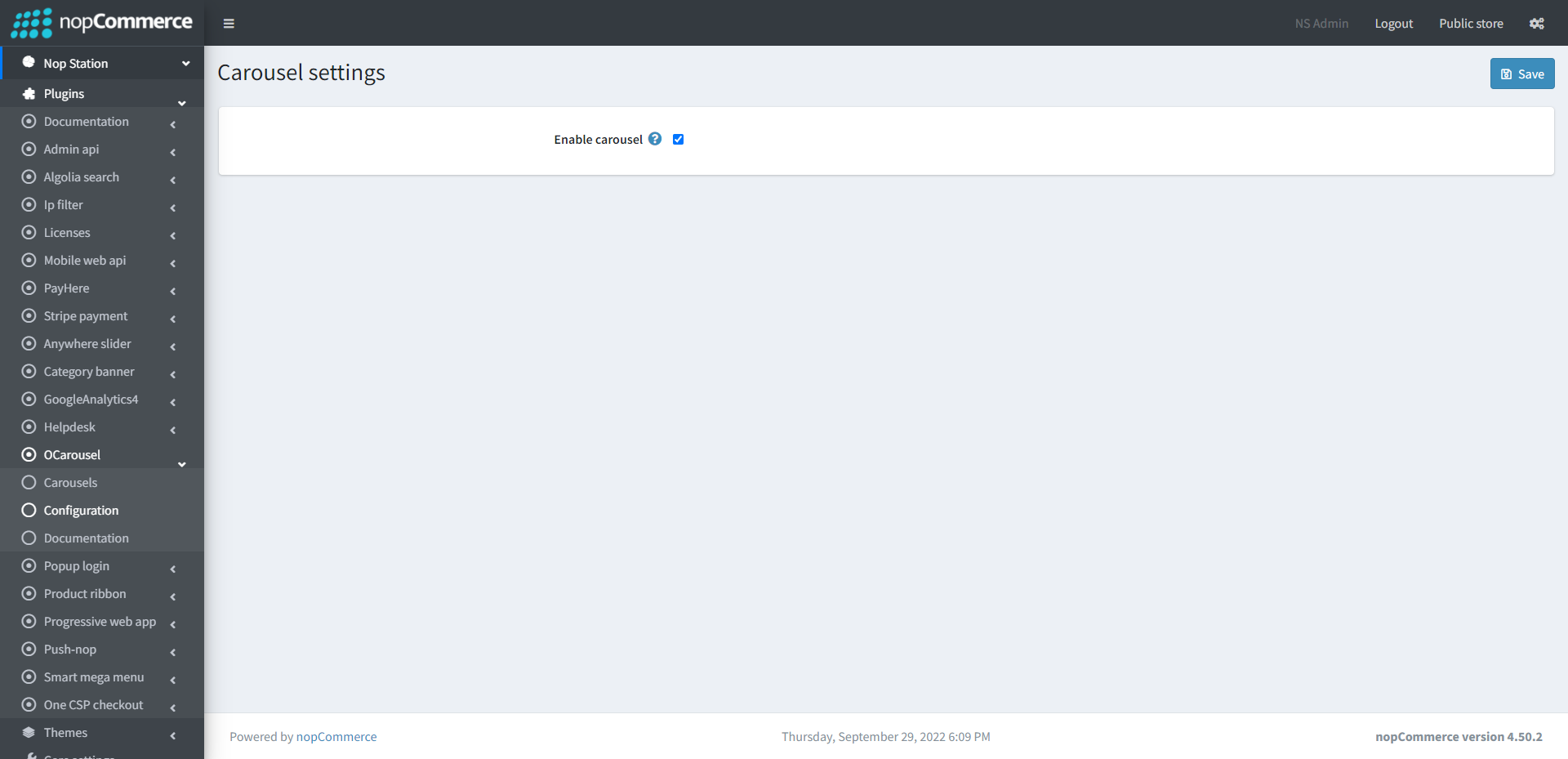
Go to Admin → Nop Station → Plugins → Ocarousel → Configuration
Enable carousel: Check enable carousel to enable the plugin
Carousels
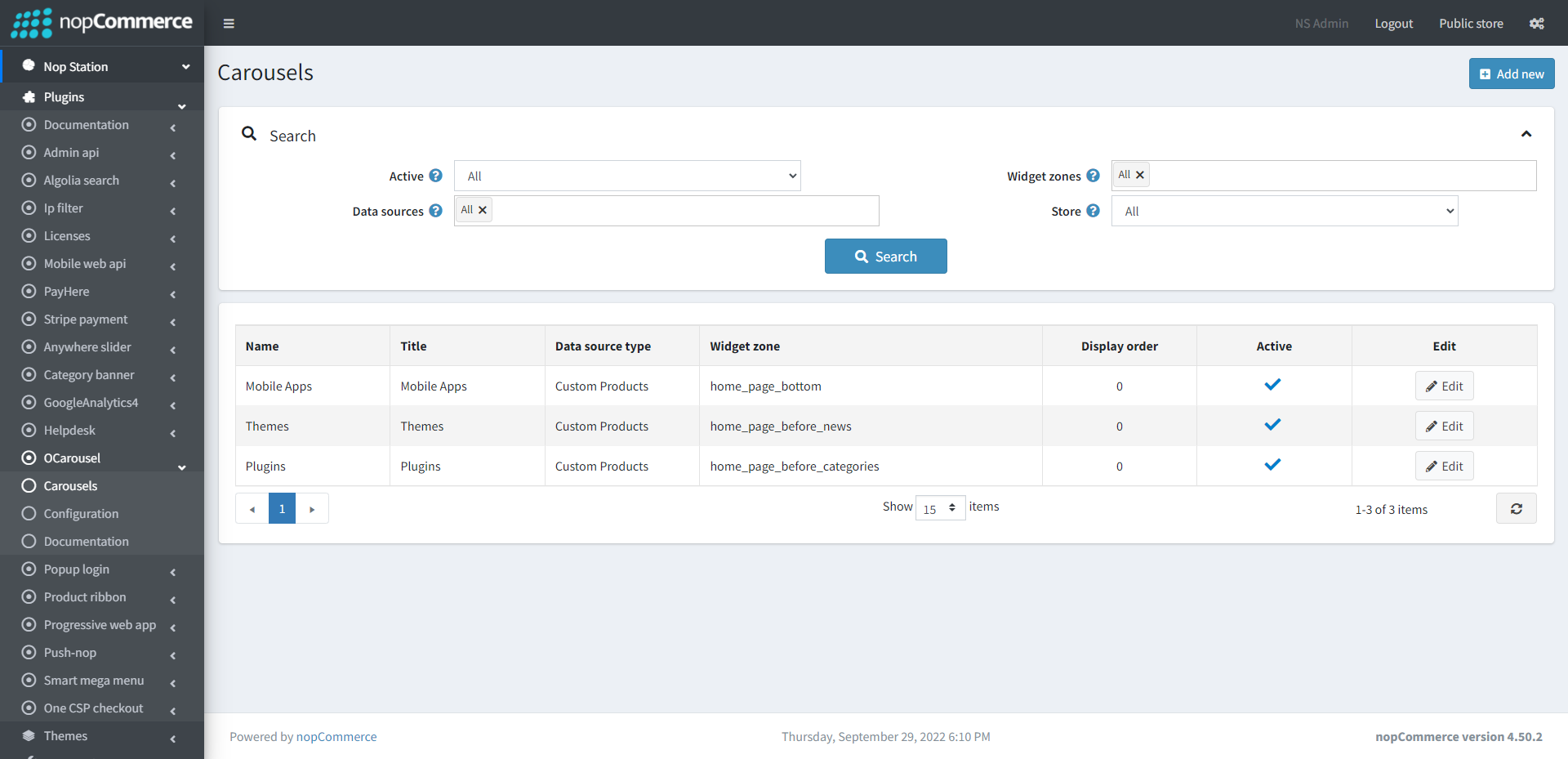
Go to Admin → Nop Station → Plugins → Ocarousel → Carousels
In this section you can show your list of active and inactive carousels
On the top you can search carousels by three fields Active, Data sources, Widget zones and Store
CREATE/EDIT CAROUSEL
Create: To create a new carousel, go to carousels list page Admin → Nop Station → Plugins → OCarousels → Carousels and then click Add new button
To edit an existing slider, click on Edit button from slider list table
INFO
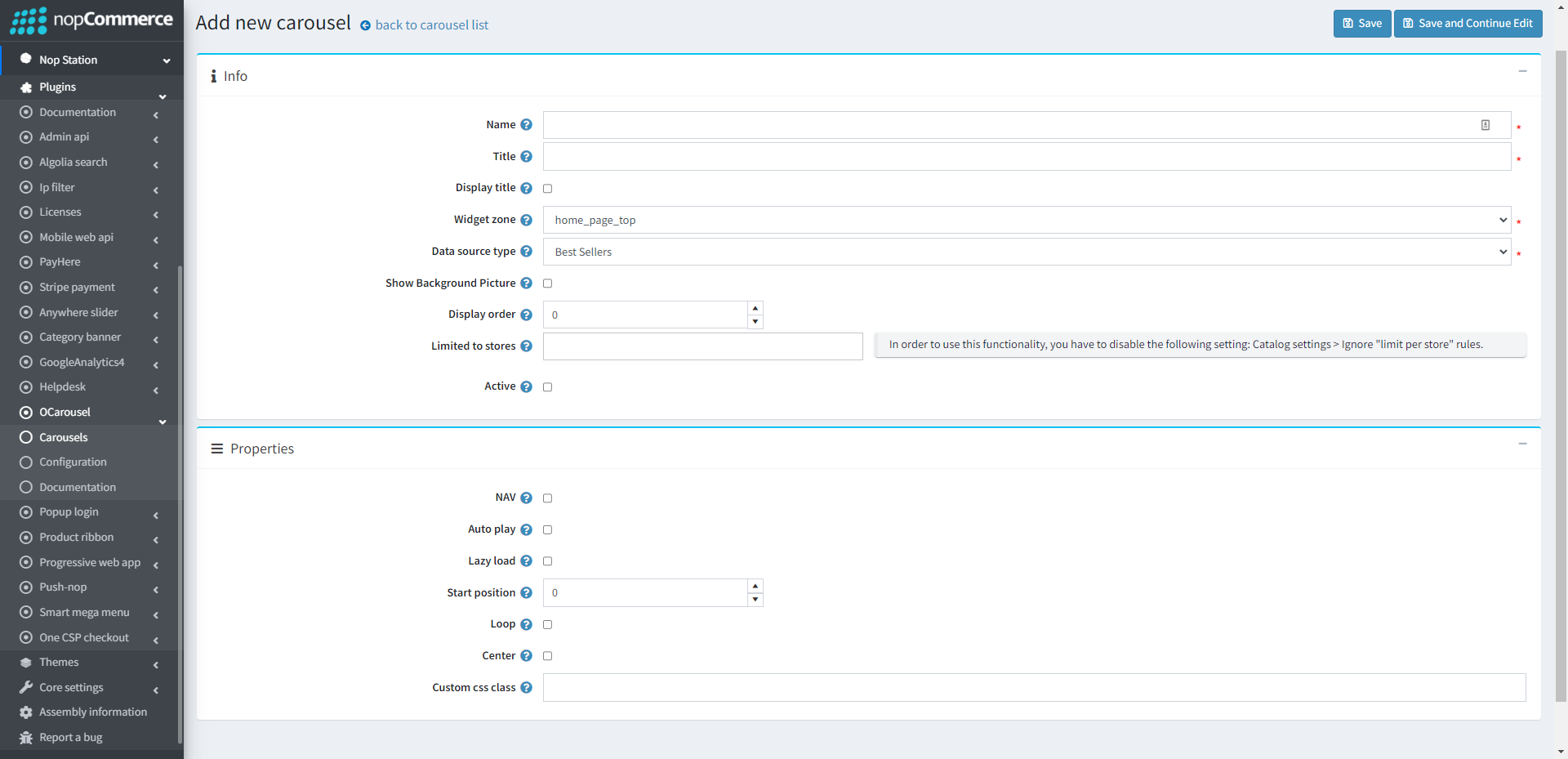
Name: The carousel name
Widget zone: From the list of Widget Zones you can select the locations in which you want your carousel to appear in your public store. If you want to add the carousel to widget zones click the drop-down select your desired widget zone
Background picture: If you want to play carousel without a homepage_top area, you can put a background image
Limited to stores: Option to limit this carousel to a certain store, if you have multiple stores choose one or several from the list if you don’t use this option just leave this field empty
Display order: Display order is the order list of the carousel, like 1 value represents the top of the carousel
Active: Determines whether this carousel will be active
PROPERTIES
NAV: By checking this property, it will display next/previous button on carousel. If you want to hide these buttons, uncheck it
Autoplay: By checking this property, it enables auto play
Auto play timeout: It defines the duration of carousel autoplay interval timeout (in miliseconds) Auto play hover pause: It defines whether the carousel autoplay will be paused on slider hover
Lazy load: Check to image lazy load for carousel items
Loop: Check this property, if you want to continue autoplay