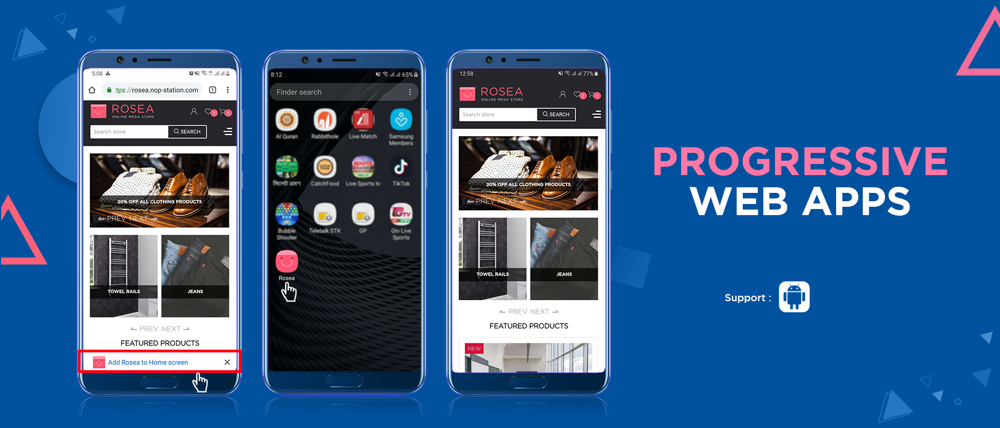
nopStation's Progressive Web App with push notification plugin is developed to help store owners turn their online stores built using nopCommerce into Progressive Web Apps. Progressive Web Apps or PWAs are websites with app like functionalities such as push notifications that work on any device with a supported browser. This plugin lets a nopCommerce store owner turn their website into a cross platform PWA and reduce development costs while increasing store accessibility.
PRE-REQUISITES
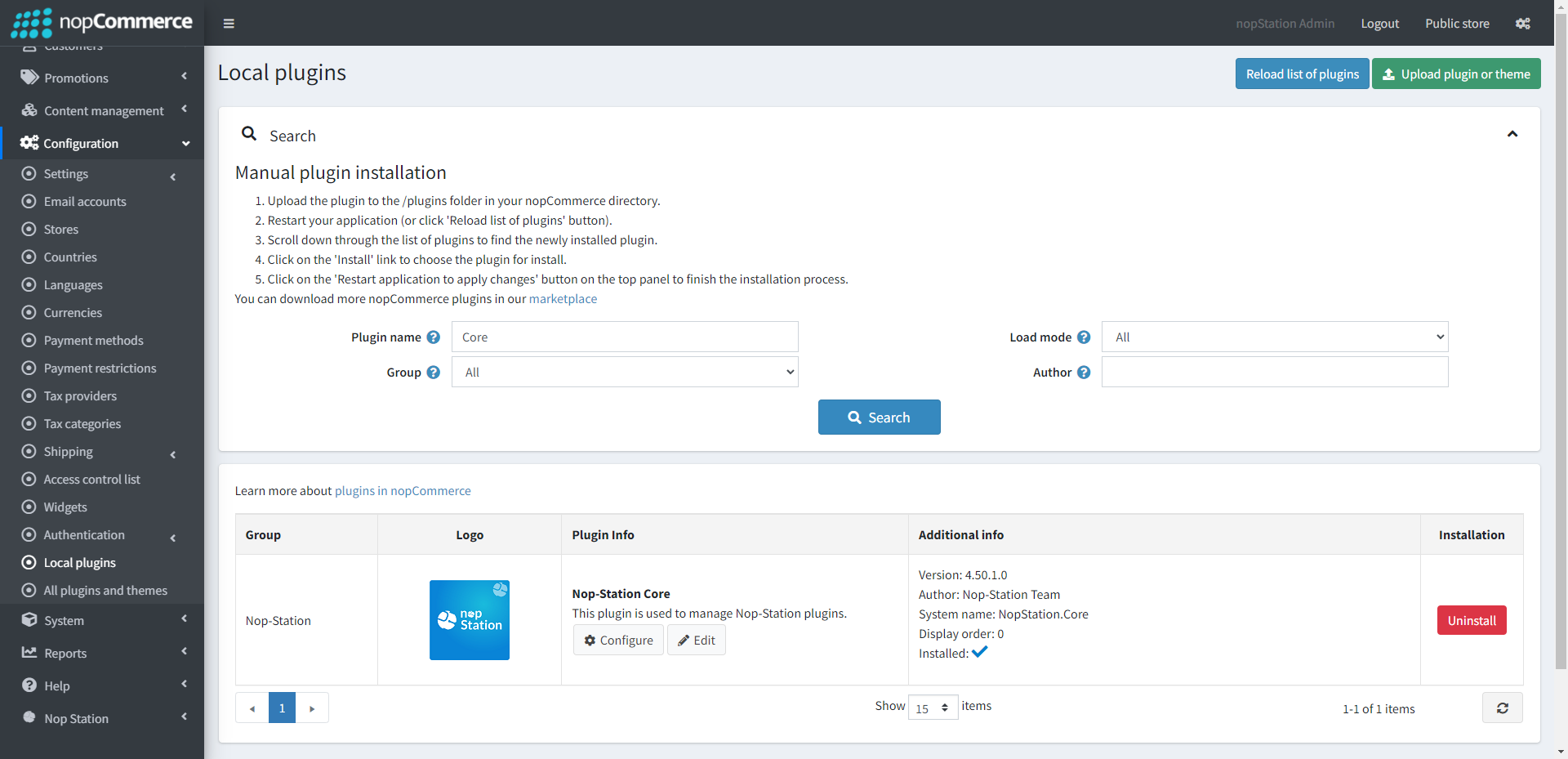
The plugin requires you to install the Nop-Station Core plugin first.
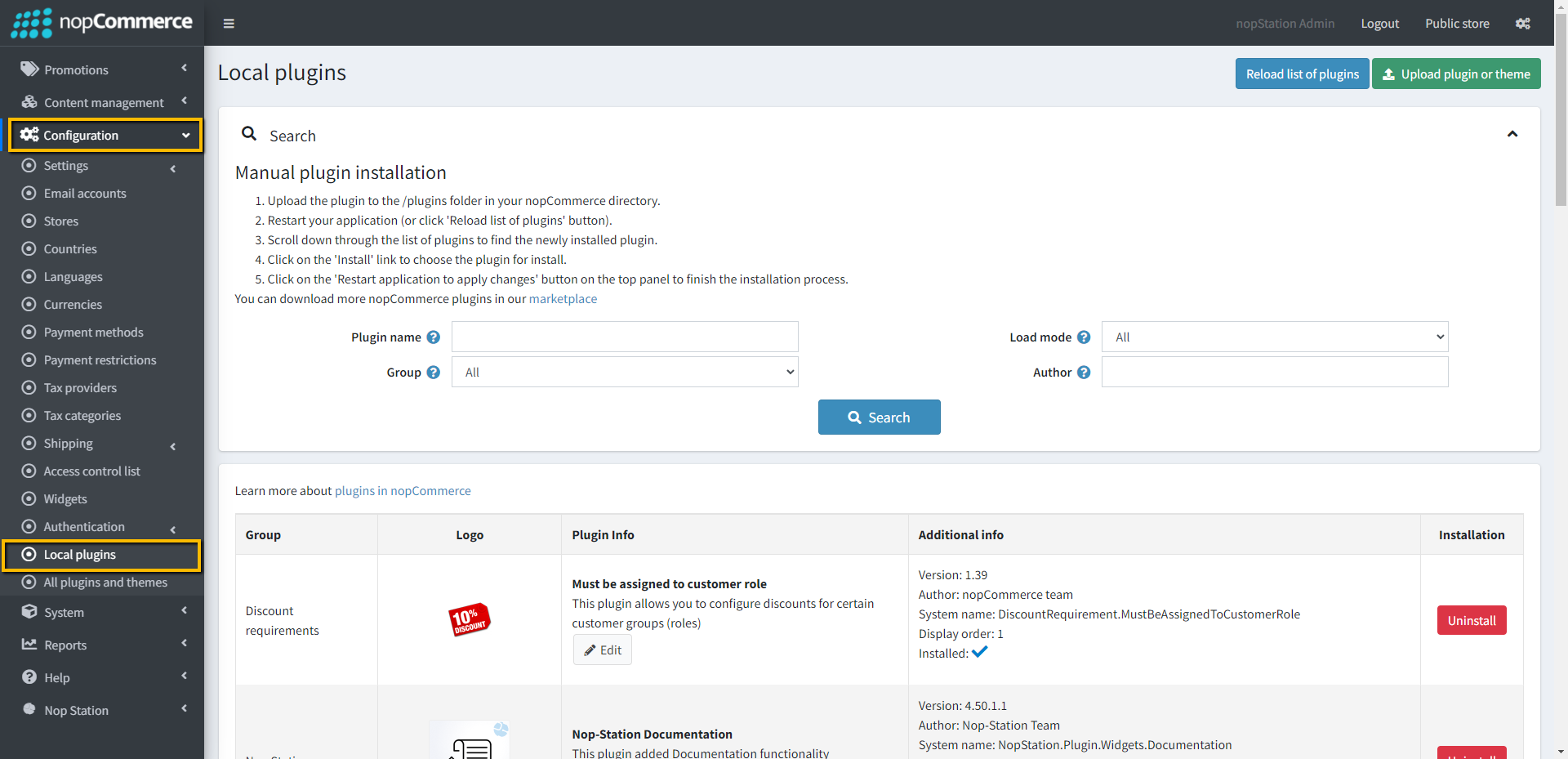
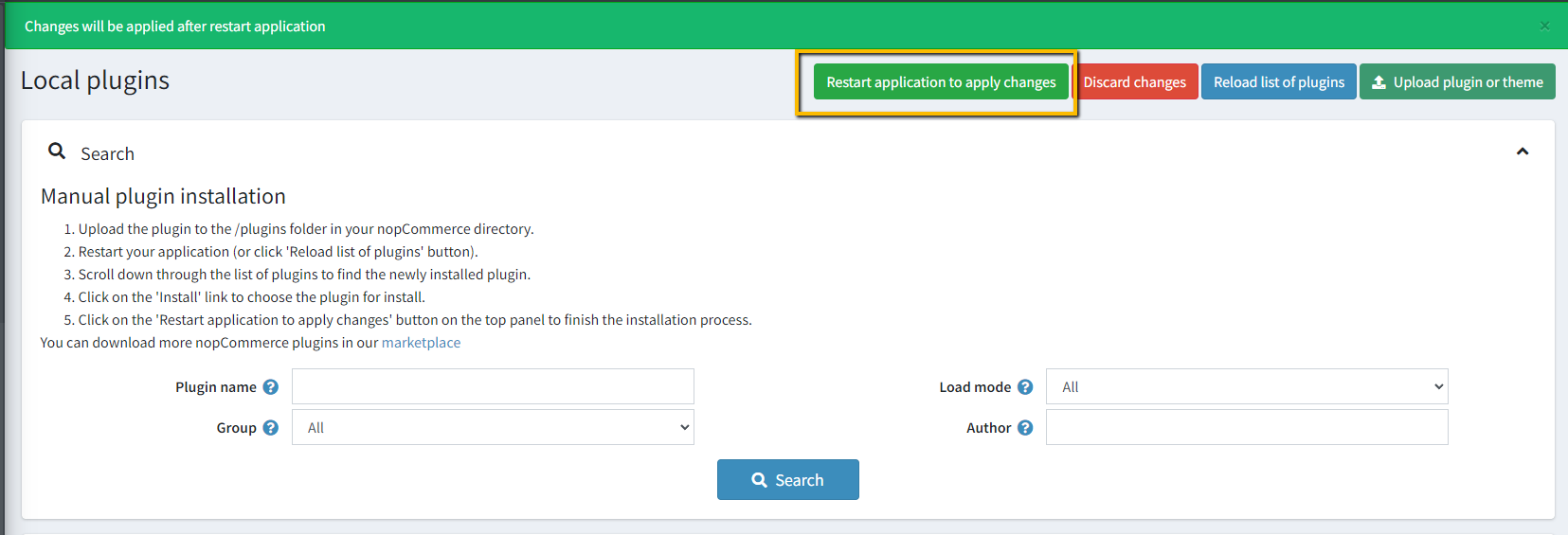
Go to Administration → Configuration → Local plugins
Upload the NopStation.PWA zip file using the "Upload plugin or theme" button
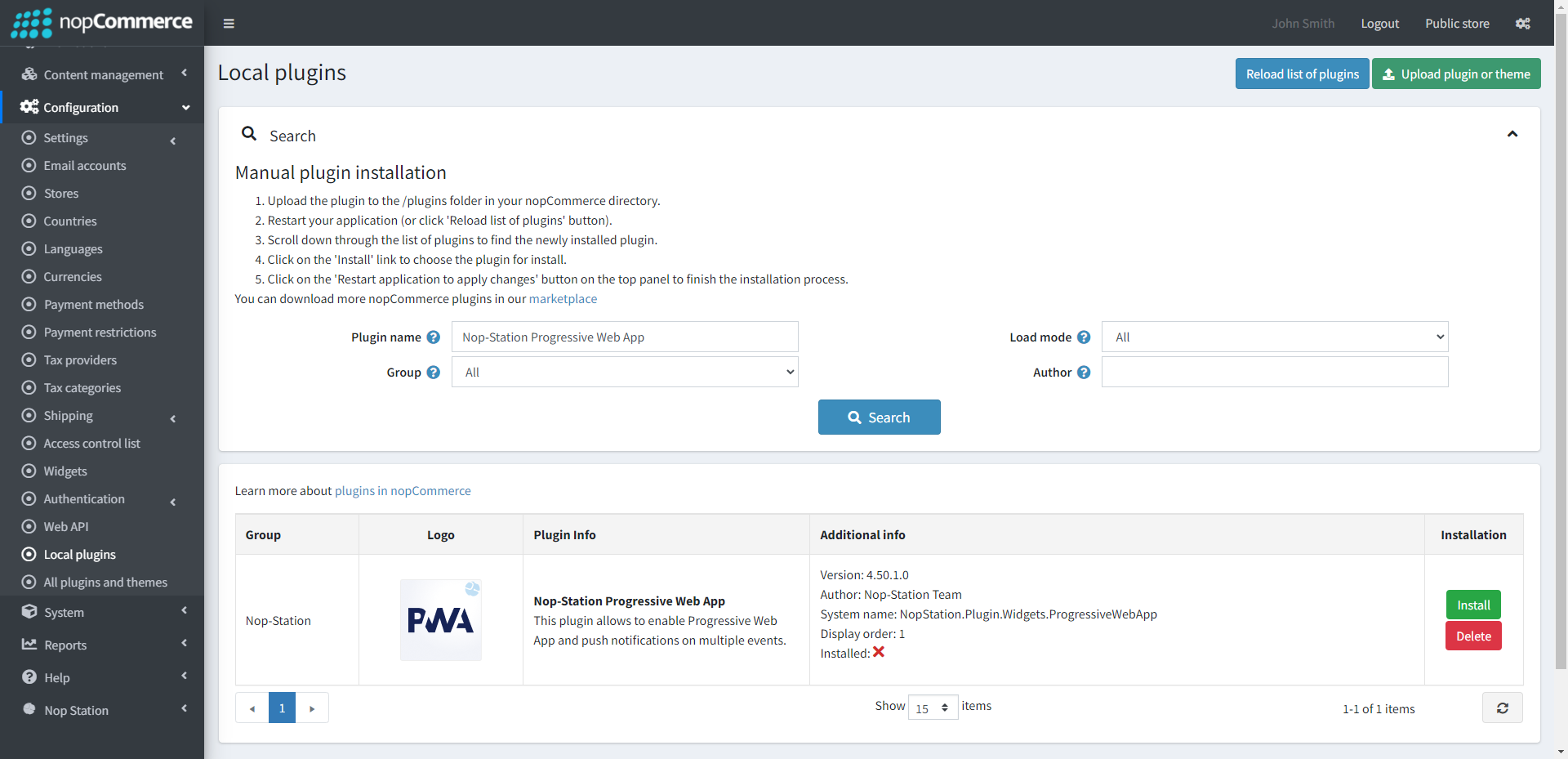
Go to Administration, reload the 'list of plugins'. Install 'Nop-Station Core' Plugin first and then install 'Progressive Web App'
To make the plugins functional, restart the application.
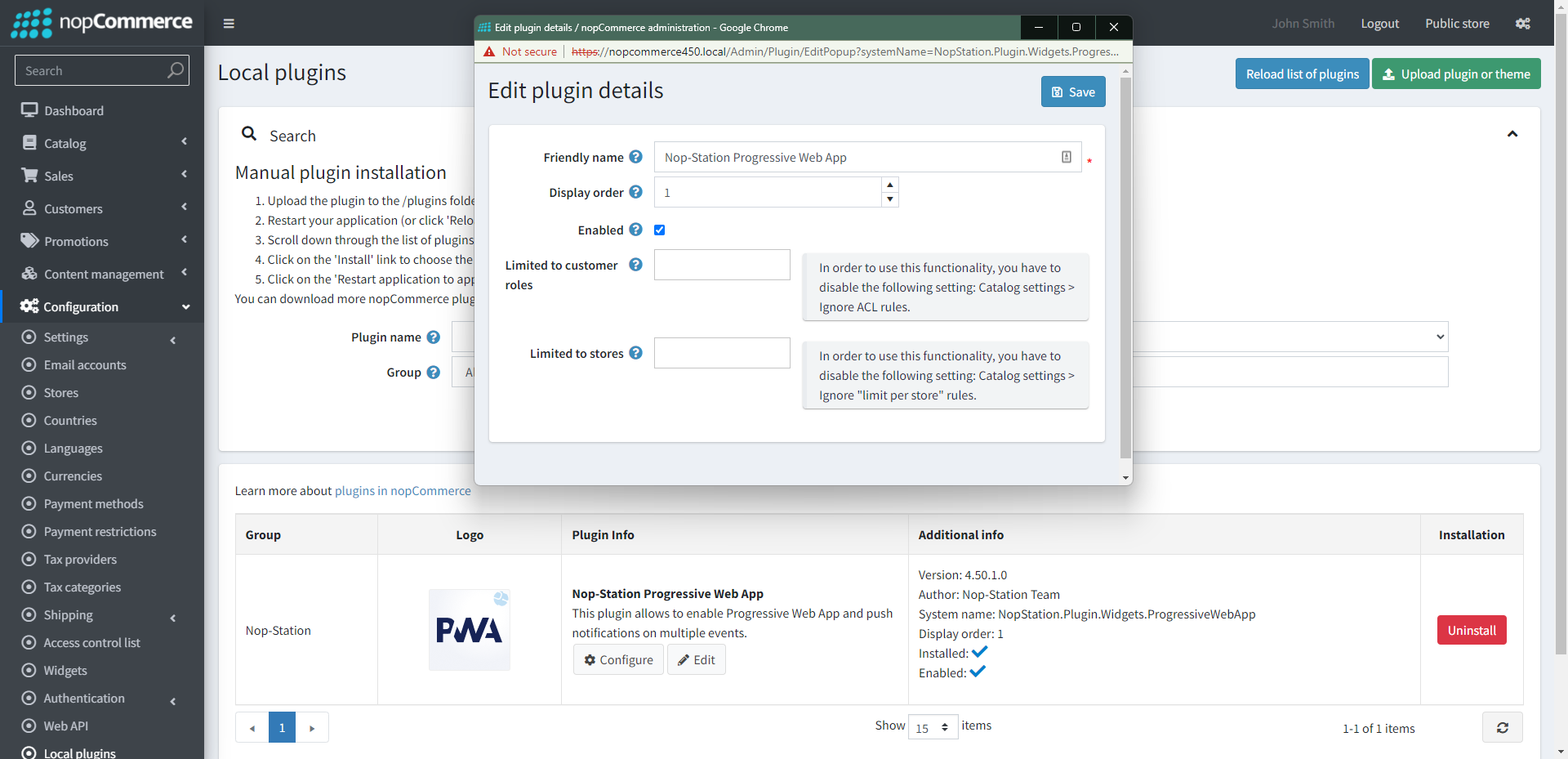
Enable the plugin with 'Edit' option and Configure it.
CONFIGURATION
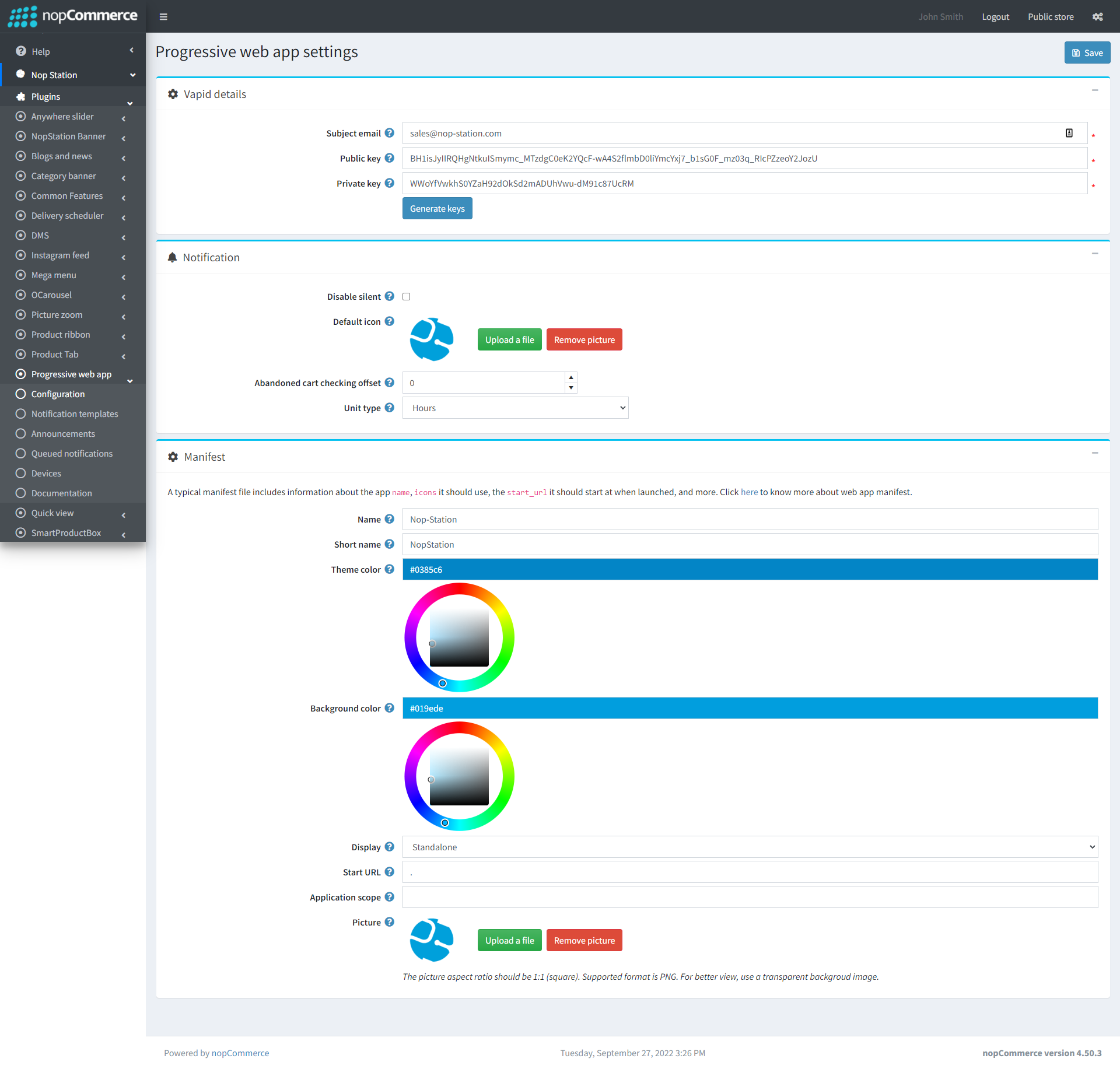
Go to Admin → Nop Station → Plugins → Progressive Web App → Configuration
Subject email: Enter subject email for vapid details, i.e [email protected].
Public key: Enter public key for vapid details.
Private key: Enter private key for vapid details.
Disable silent: Click to disable silent notification
Default icon: Select the default notifdication icon
Abandoned cart checking offset: Enter offset for abandoned cart
Unit type: Select unit type
Name: The name is used in the app install prompt.
Short name: The short name is used on the user's home screen, launcher, or other places where space may be limited, when it is provided.
Theme color: It sets the color of the tool bar, and may be reflected in the app's preview in task switchers.
Background color: This property is used on the splash screen when the application is first launched.
Display: This property helps customize what browser UI is shown when your app is launched. For example, you can hide the address bar and browser chrome. Or games may want to go completely full screen.
Start URL: The start url tells the browser where your application should start when it is launched, and prevents the app from starting on whatever page the user was on when they added your app to their home screen.
Application scope: It defines the set of URLs that the browser considers to be within your app, and is used to decide when the user has left the app.
Picture: The picture for the icons. "icons" is an array of image objects. Each object should include the src, a sizes property, and the type of image.
Notification templates
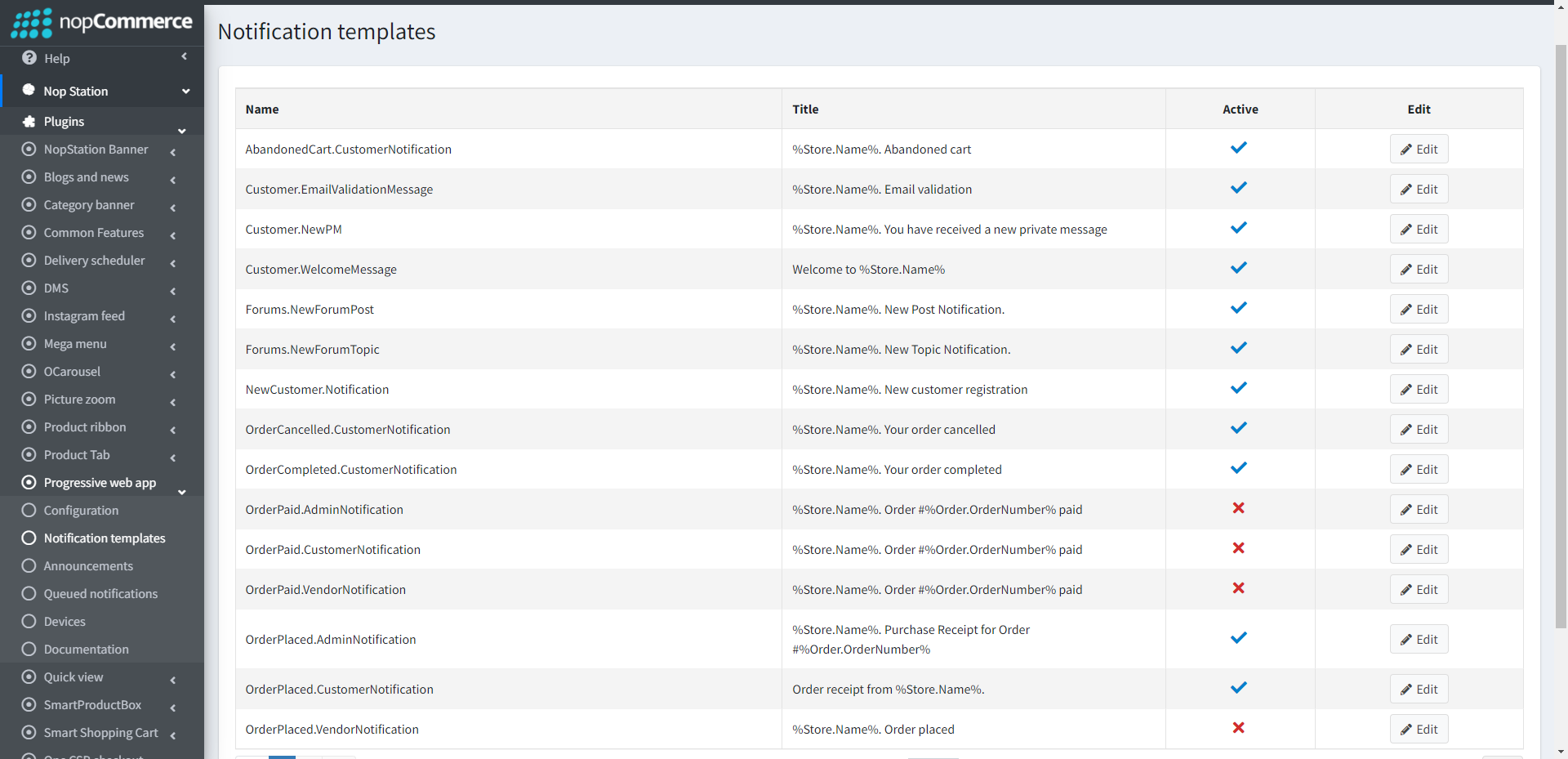
Go to Admin → Nop Station → Plugins → Progressive Web App → Notification templates
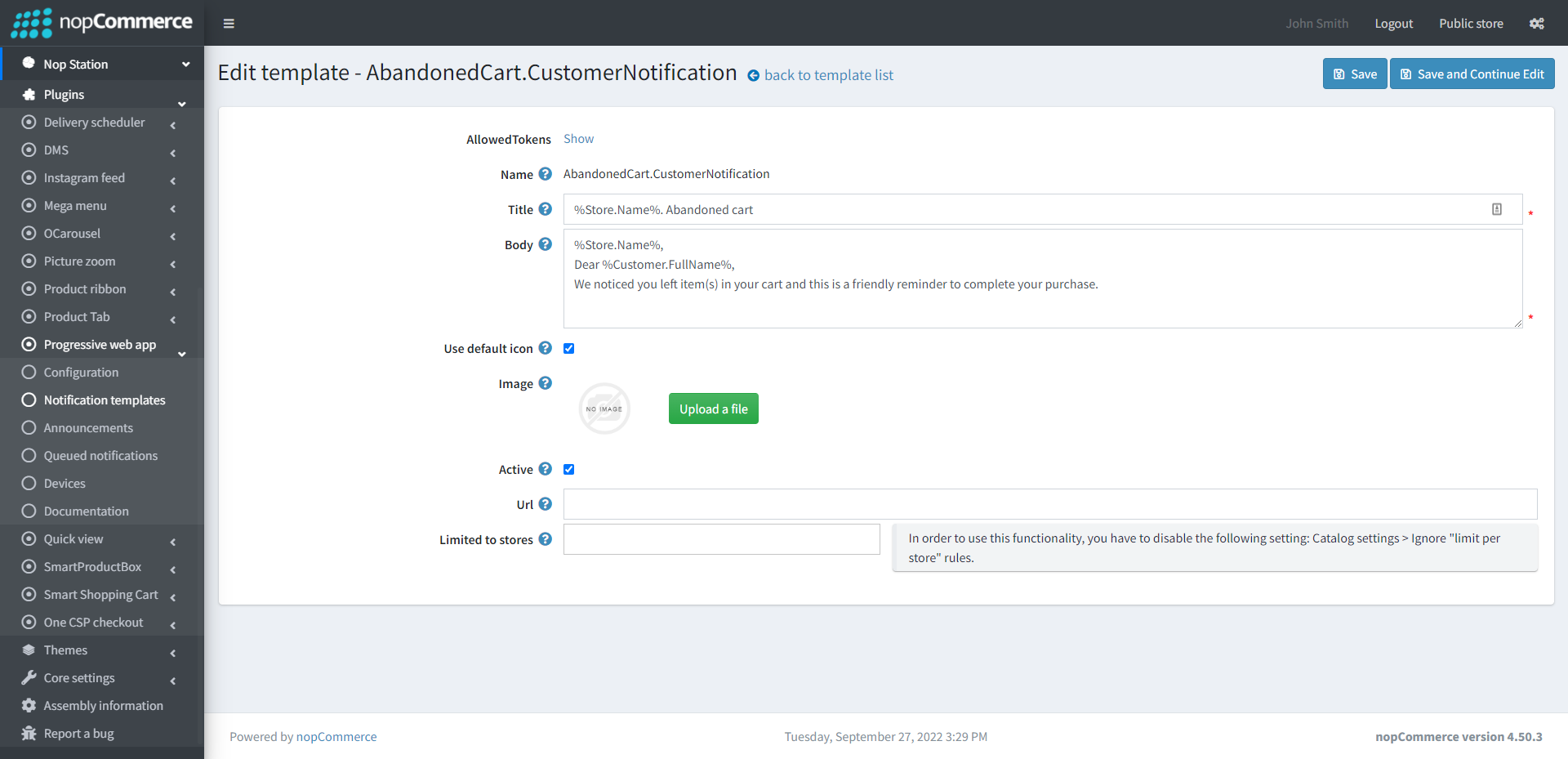
Here shows the list of notification templates which are used across the plugin
You can also edit the existing notificatrion template by clicking on the Edit button
Announcements
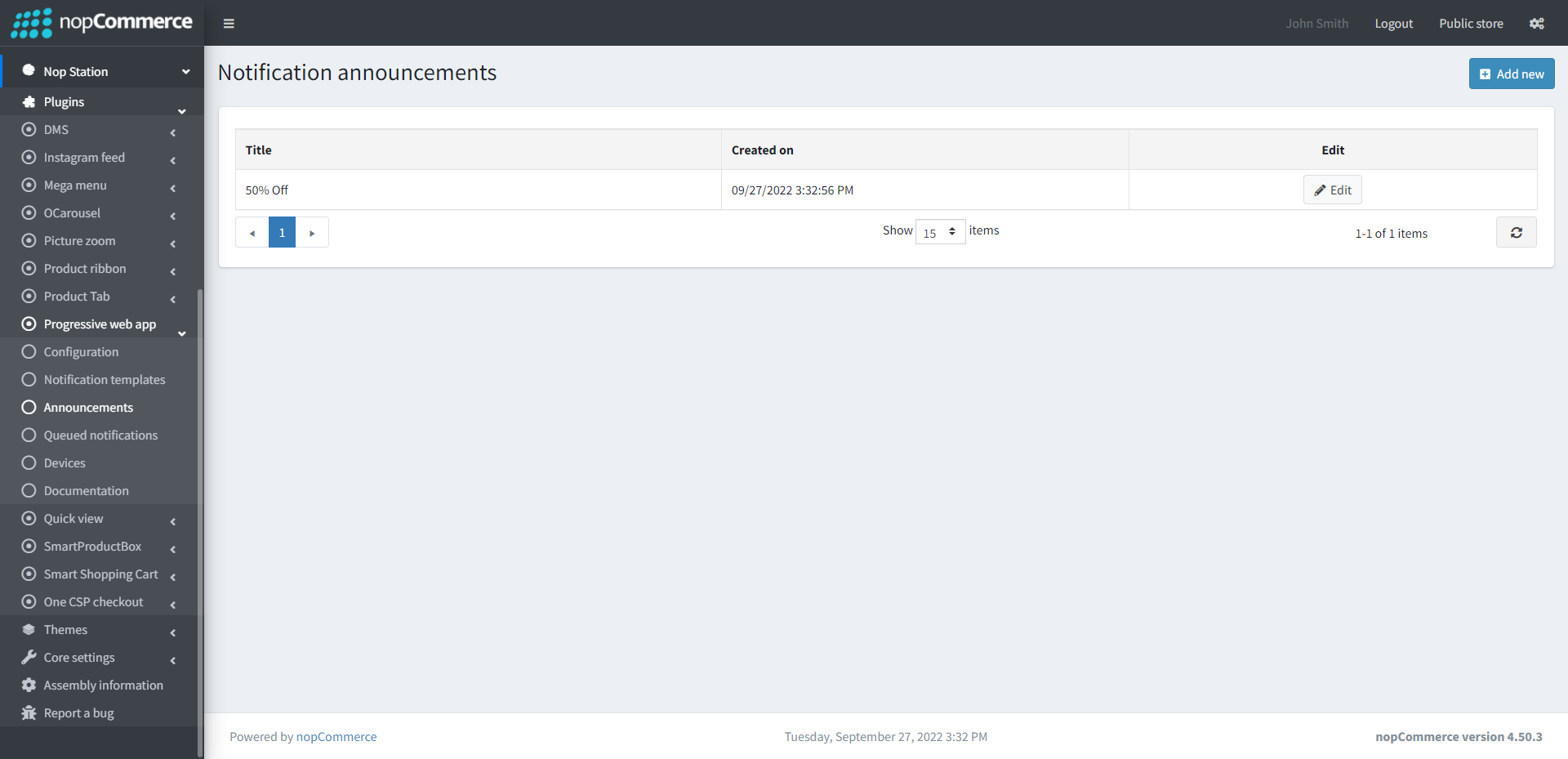
Go to Admin → Nop Station → Plugins → Progressive Web App → Announcements
Here shows the list of Announcements which will show to the users
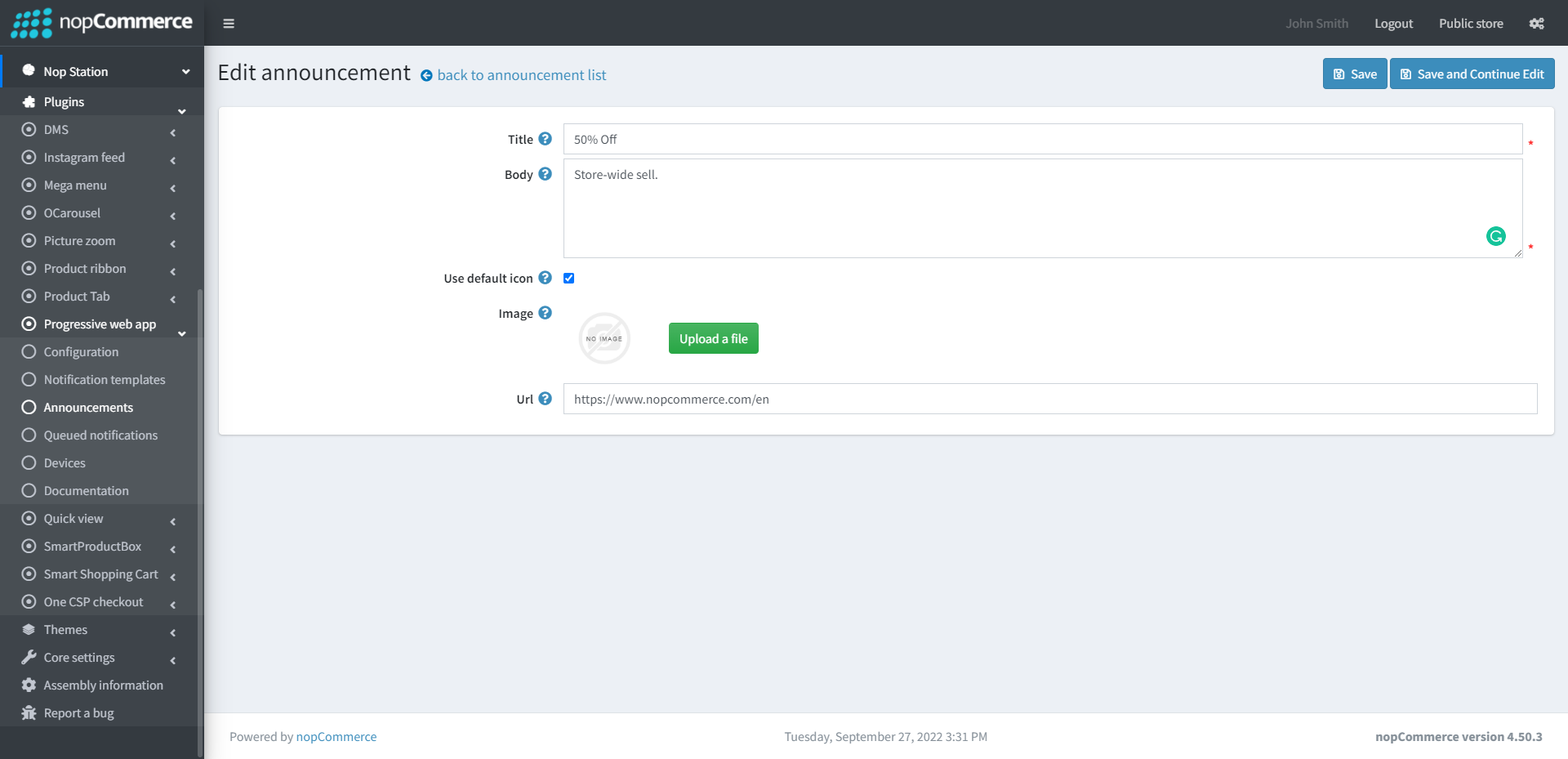
You can also add new announcement by clicking on Add new button
Title: Title of the announcements
Body: Body of the announcements
Use default icon: Check to use default icon
Icon: The notification announcement icon
Image: The notification announcement image
Url: The notification announcement url
Queued notifications
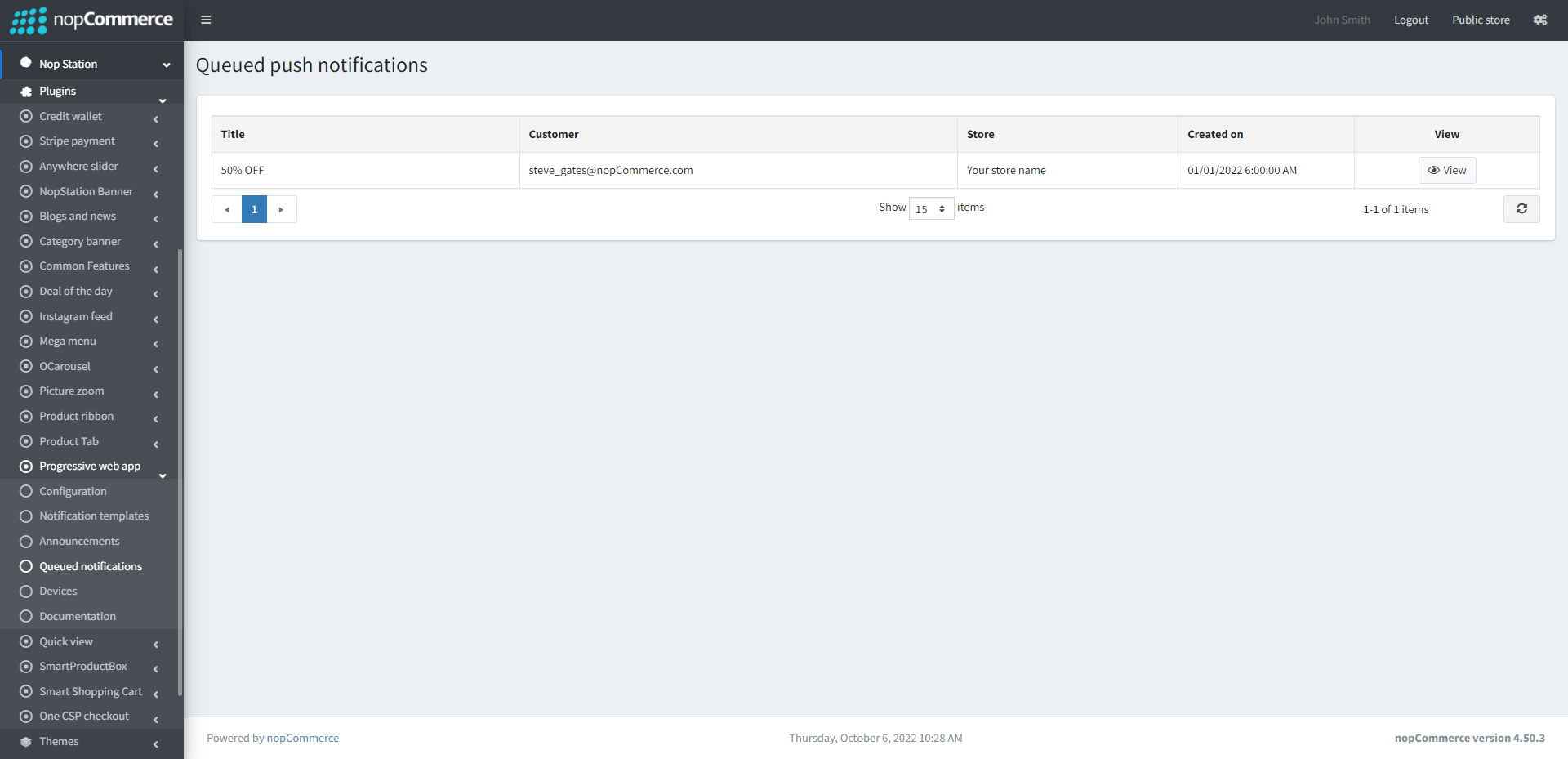
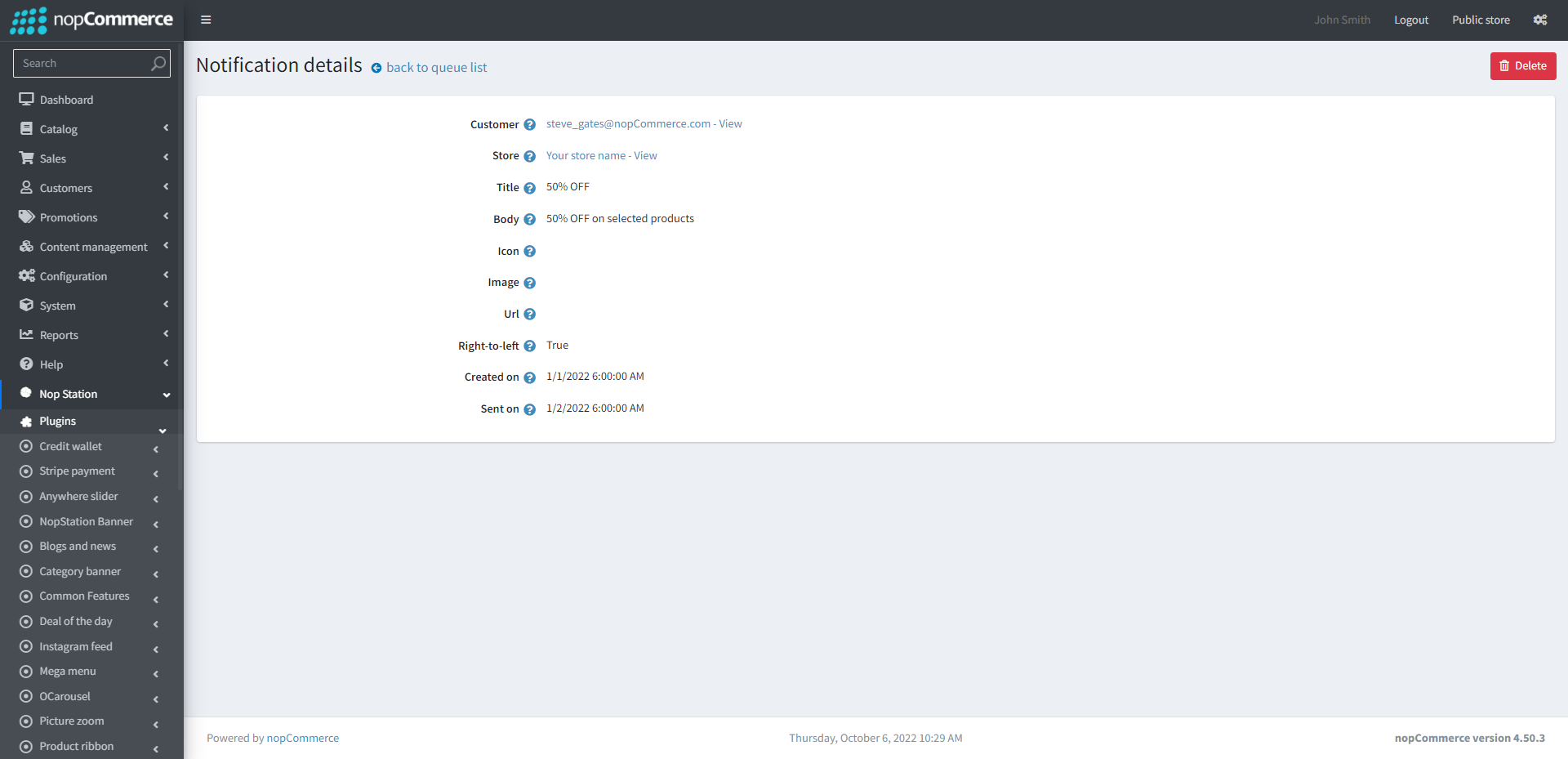
Here shows the list of push notifications which are queued to show to the customers
By clicking on the View button you can see the notification details
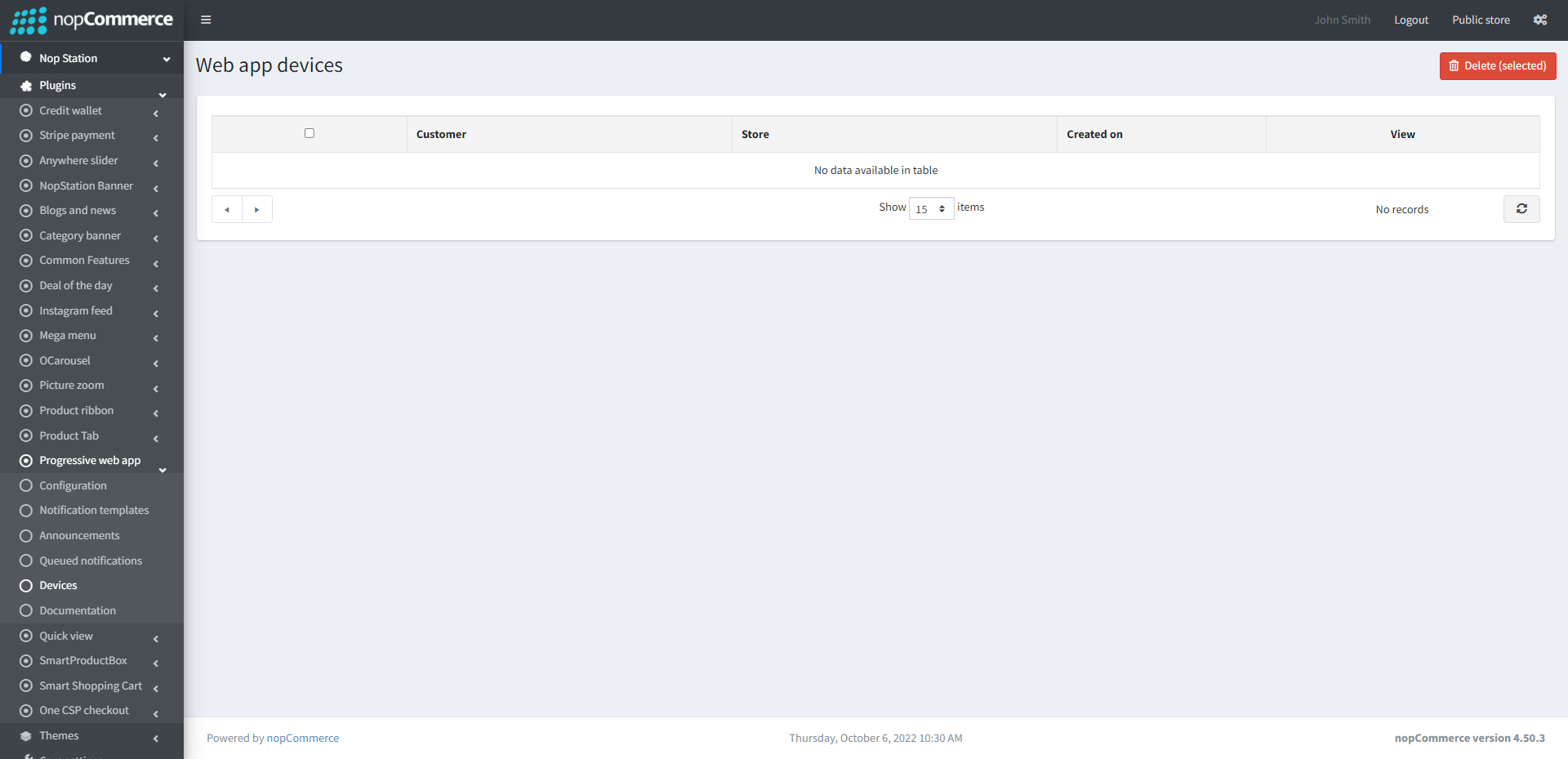
Devices
Here shows the list of devices from which customers have viewed your application