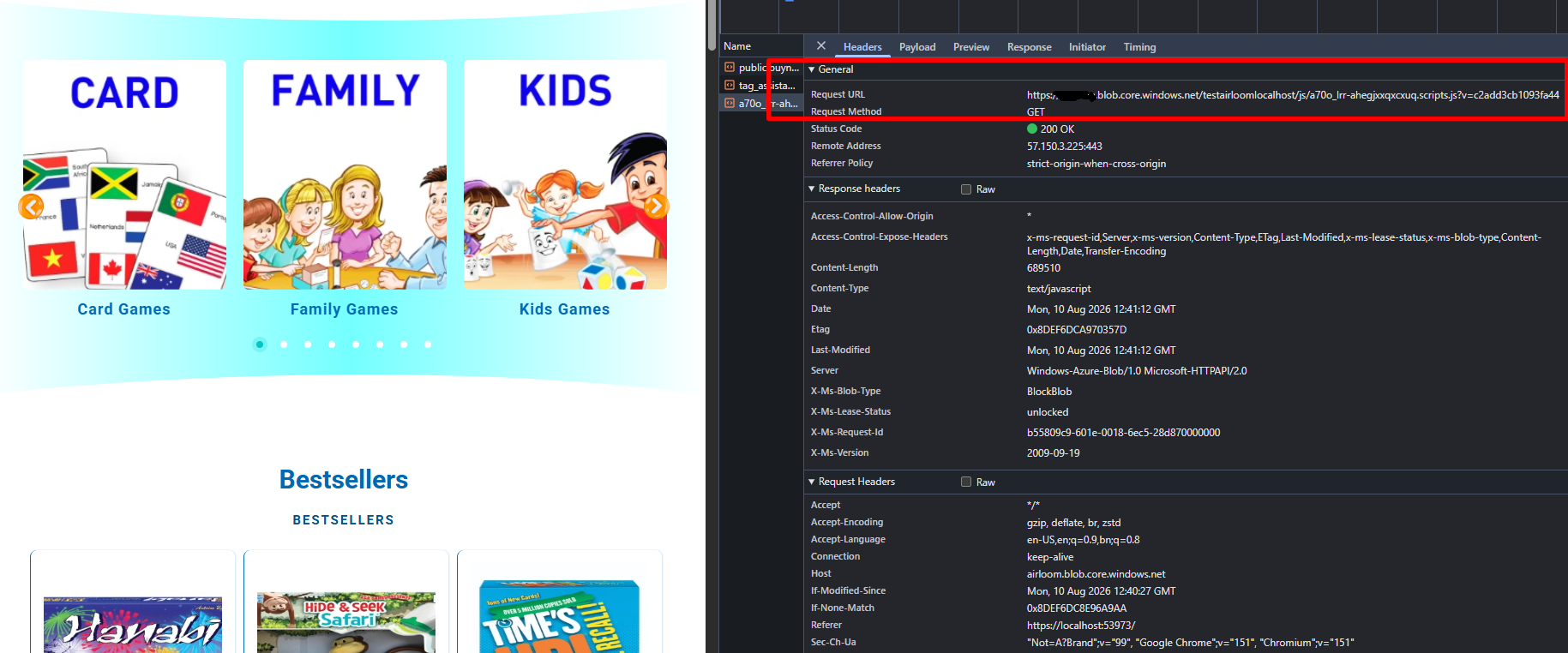
Faster Images, Smarter Asset Delivery, and Better Storefront Performance for nopCommerce
INSTALLATION
· Download the Azure CDN (Image & Asset Optimizer) from our store
· Go to Administration → Configuration → Local plugins
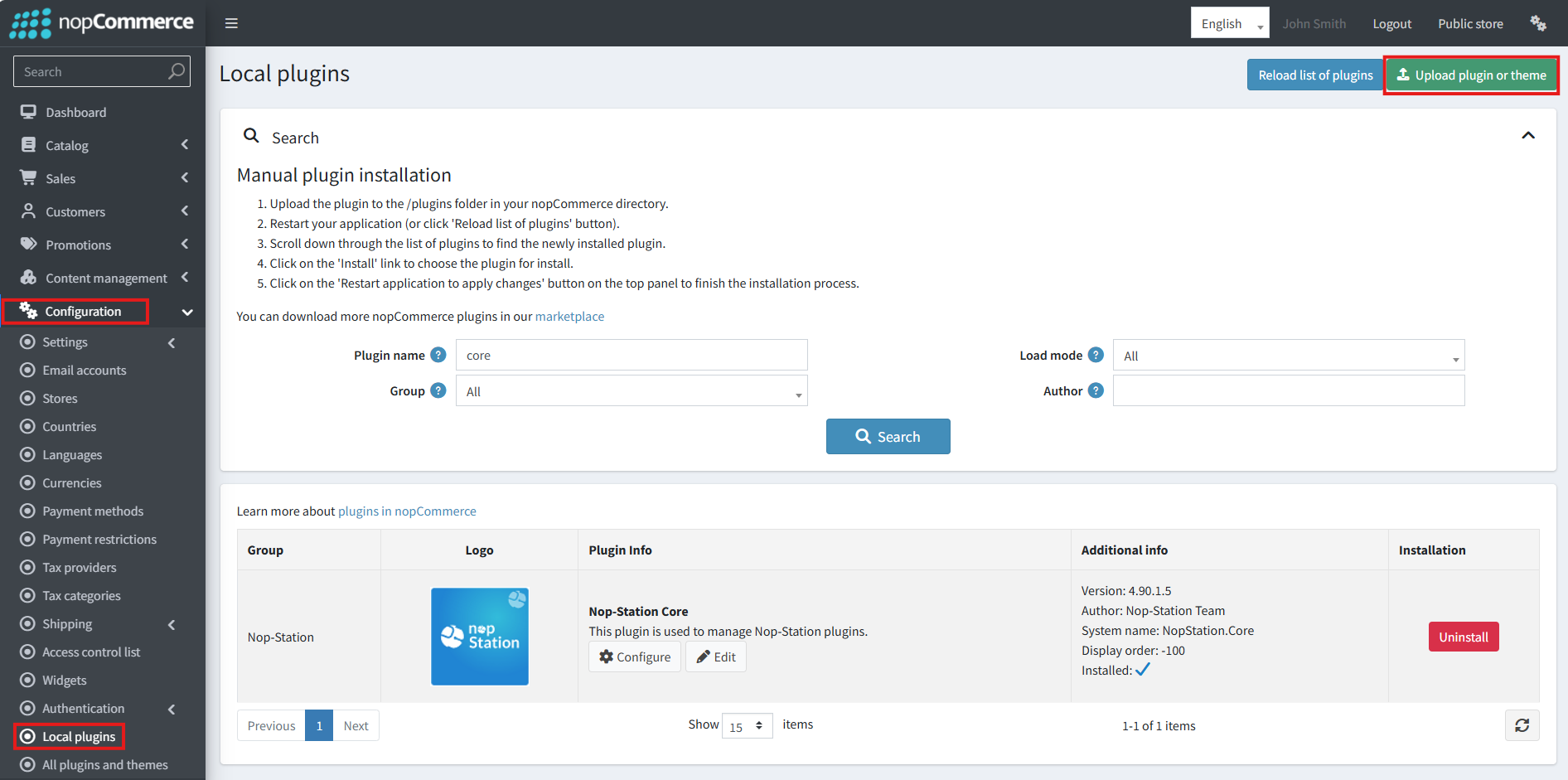
· Select the NopStation.Core file and upload it by clicking the 'Upload plugin or theme' button.
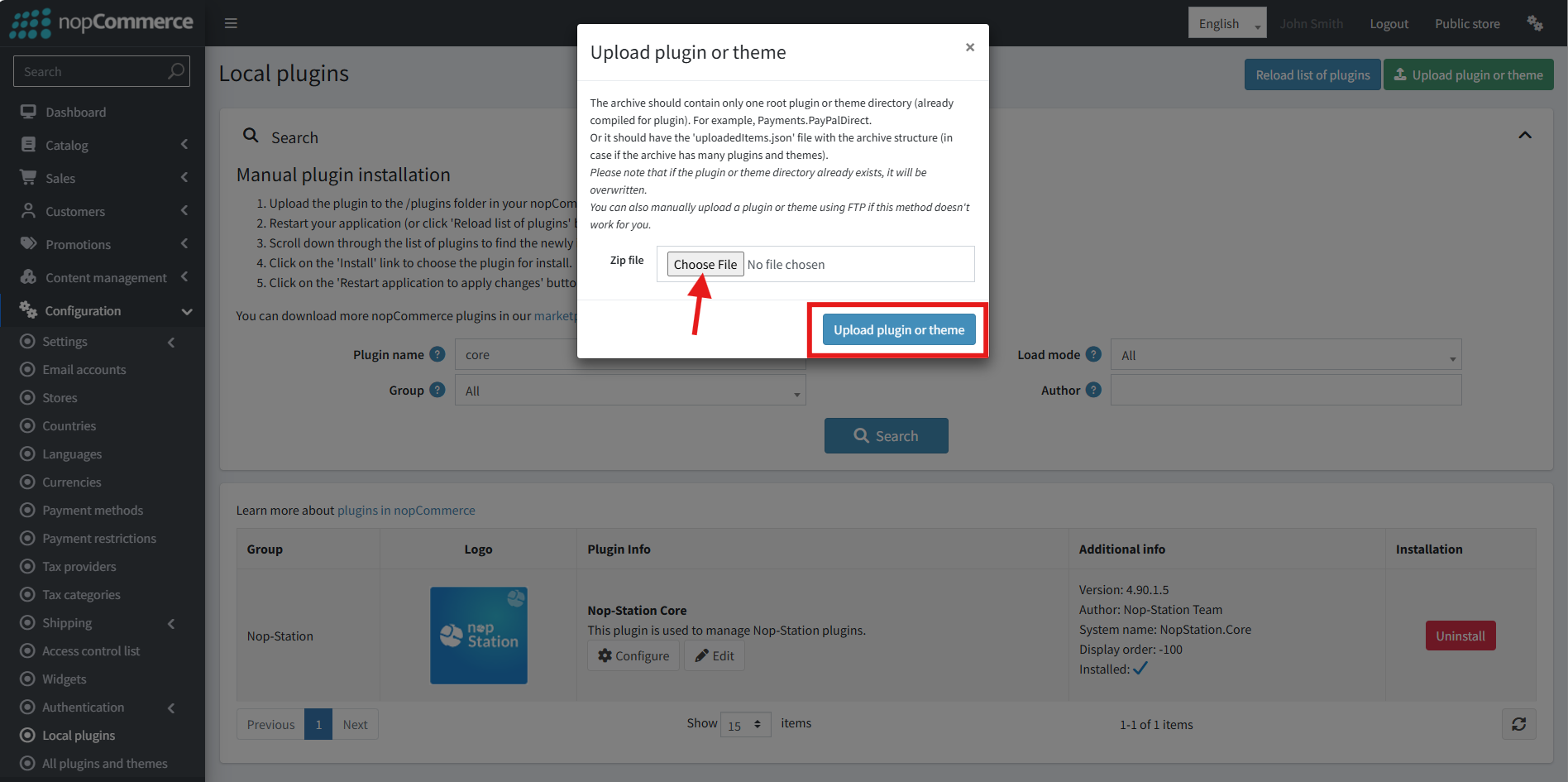
· Select the NopStation. Azure CDN (Image & Asset Optimizer) file.
· Upload the file using the 'Upload plugin or theme' button.
· After uploading the plugin, go to the Administration. Install 'Nop-Station Core' Plugin first and then install ' NopStation. Azure CDN (Image & Asset Optimizer)’ plugin.
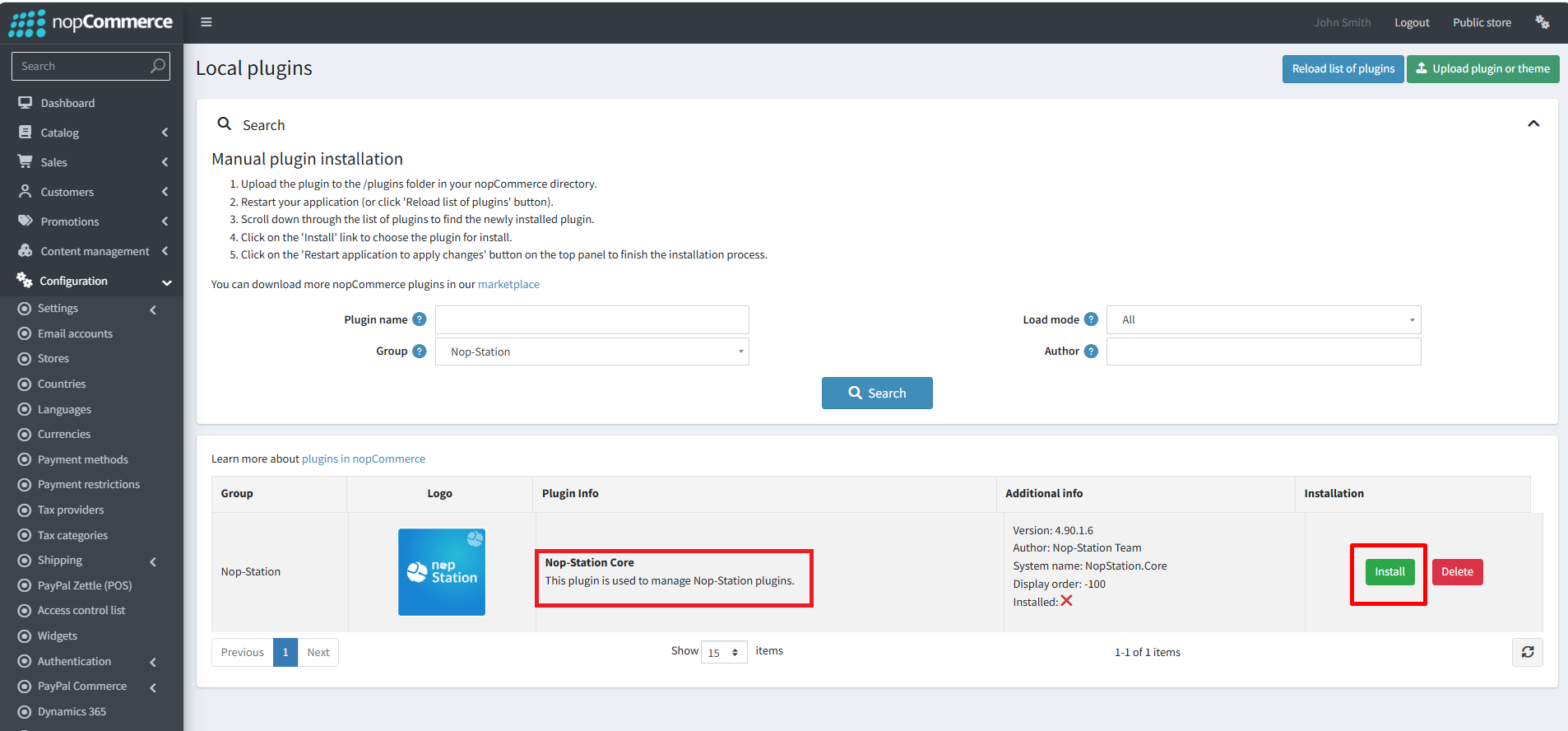
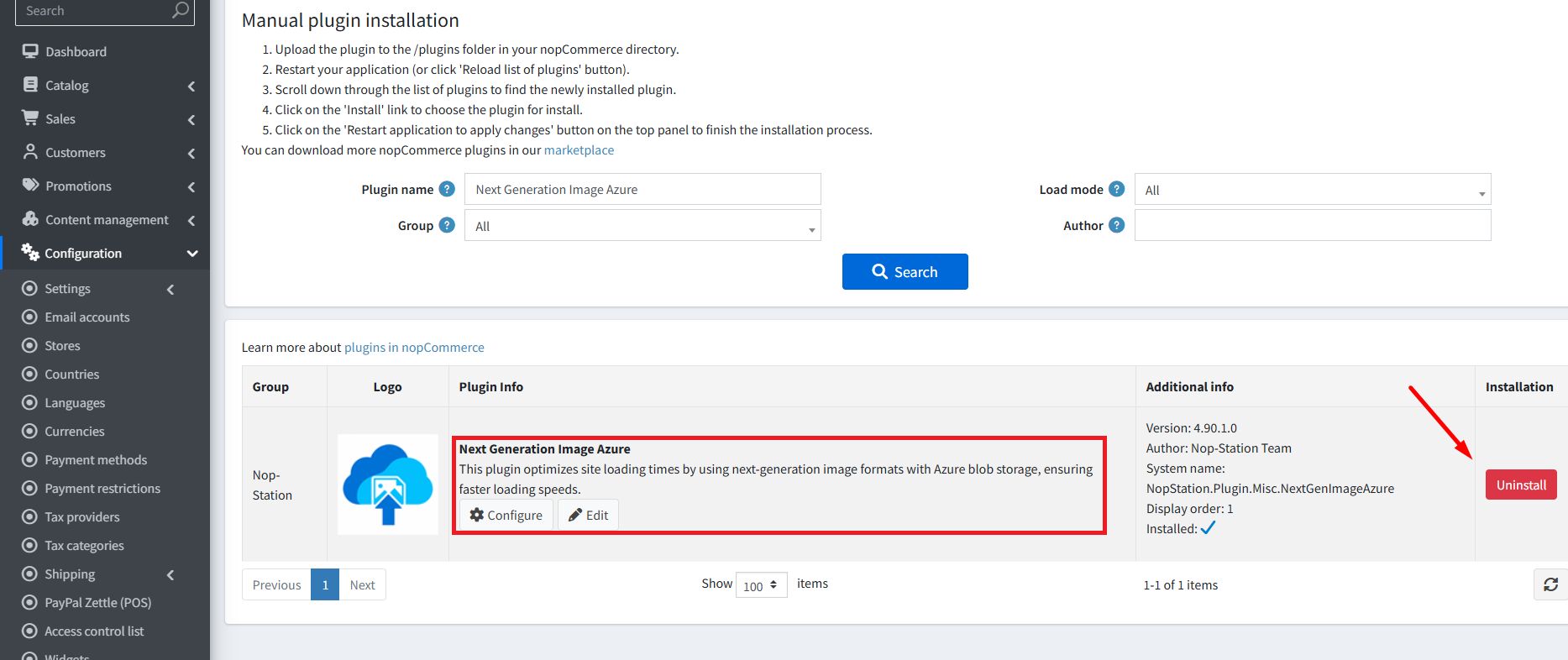
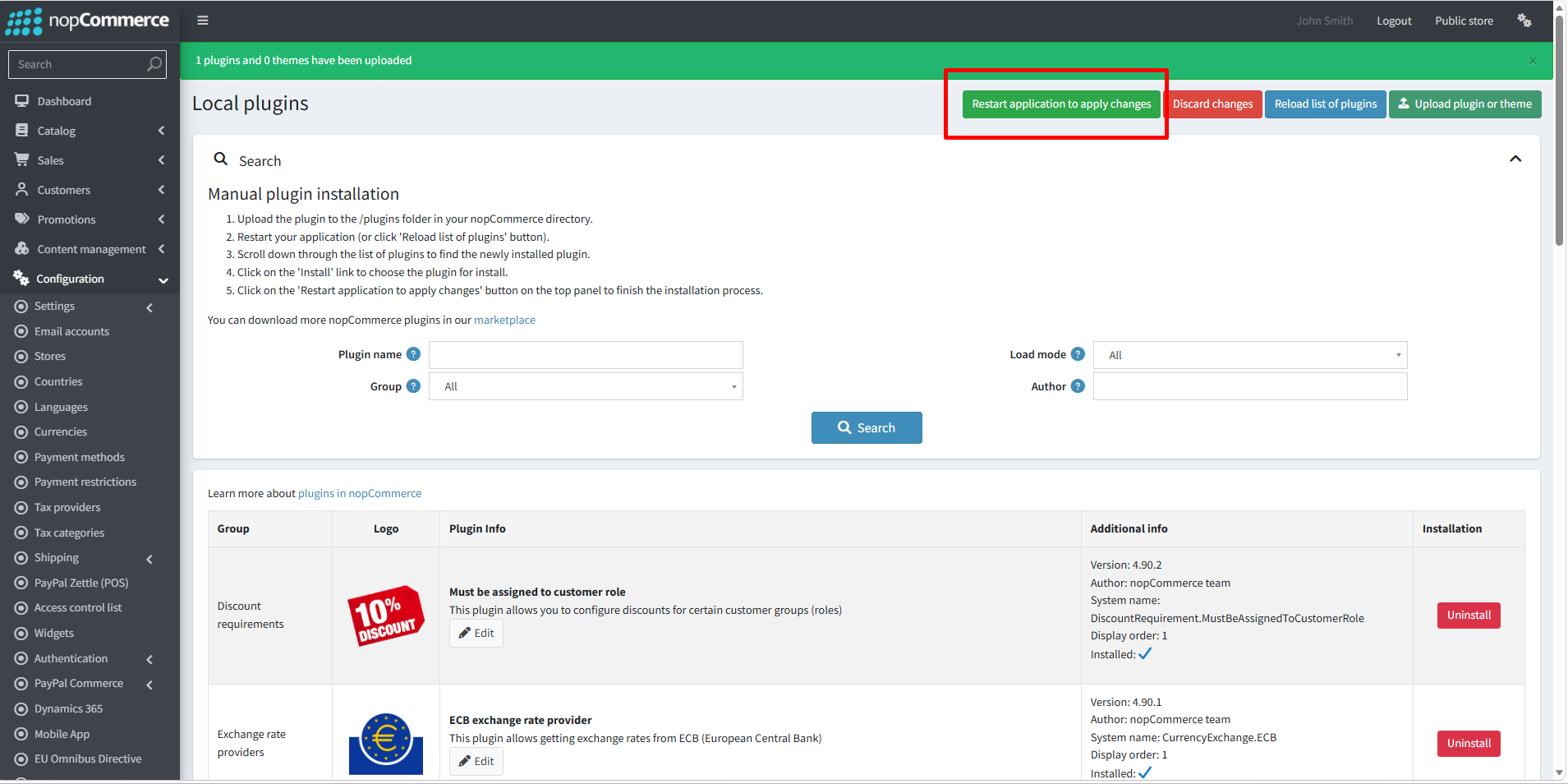
· To make the plugins functional, restart the application
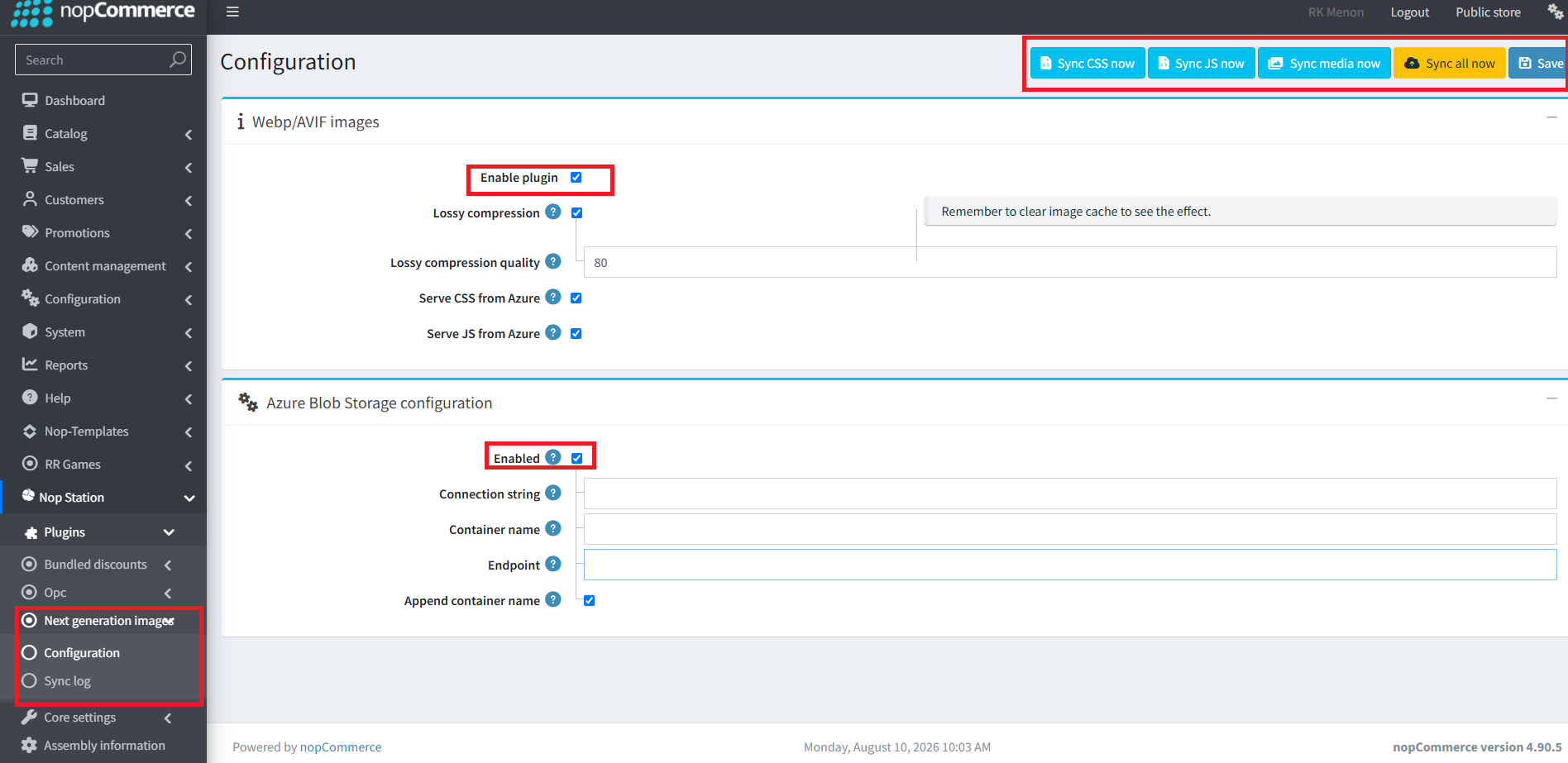
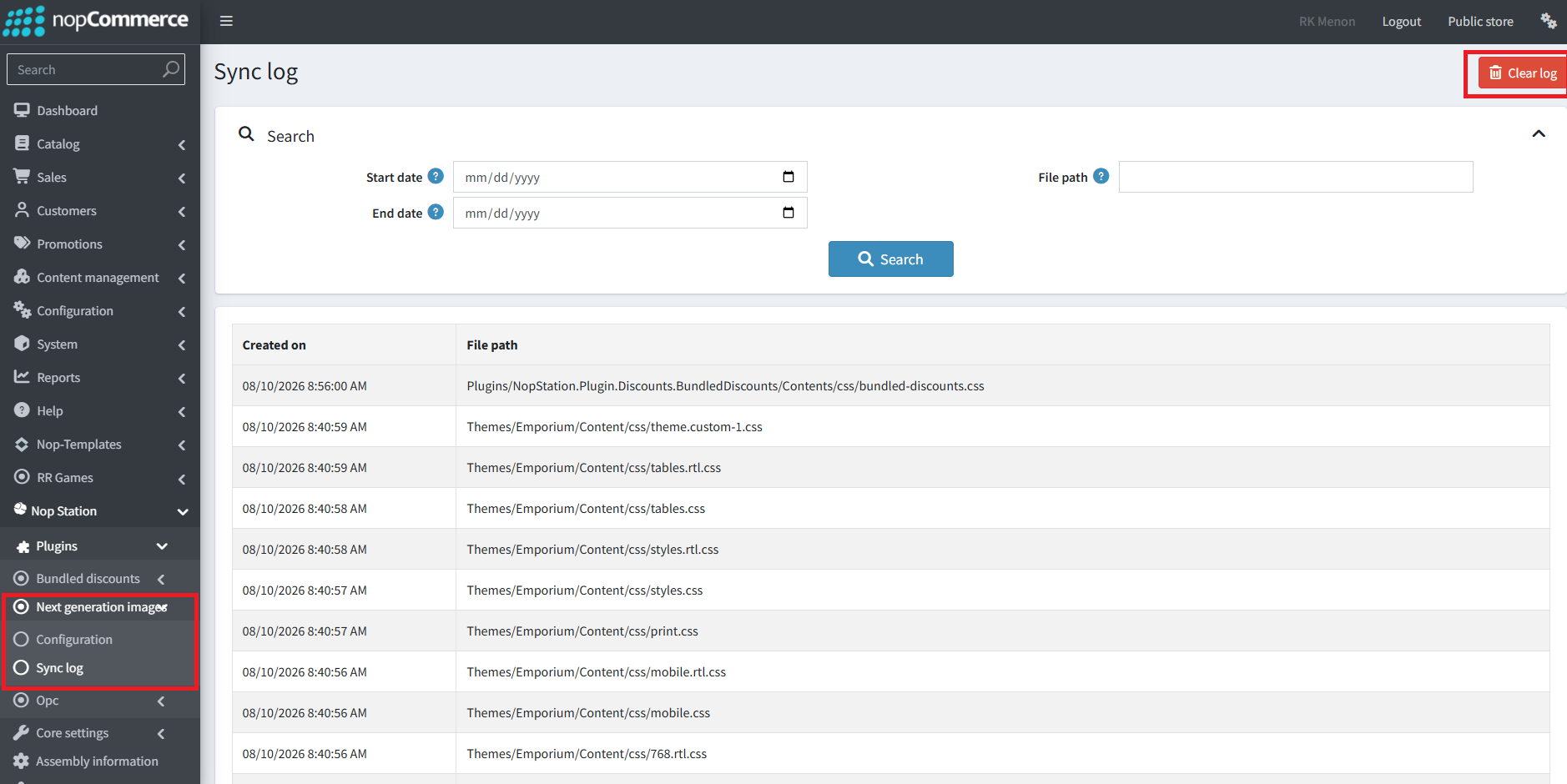
· You can configure the plugin by clicking on Configure from the Local Plugins page. Alternatively, go to nopStation → Plugins→ NopStation. Azure CDN (Image & Asset Optimizer) → Configure NopStation. Azure CDN (Image & Asset Optimizer), enable the required options, and click Save
· Public View: