
PRE-REQUISITES
- This plugin requires the Nop-Station Core plugin to be installed and enabled.
INSTALLATION
- Ensure the Nop-Station Core plugin is installed and enabled.
- Navigate to Administration → Configuration → Local plugins
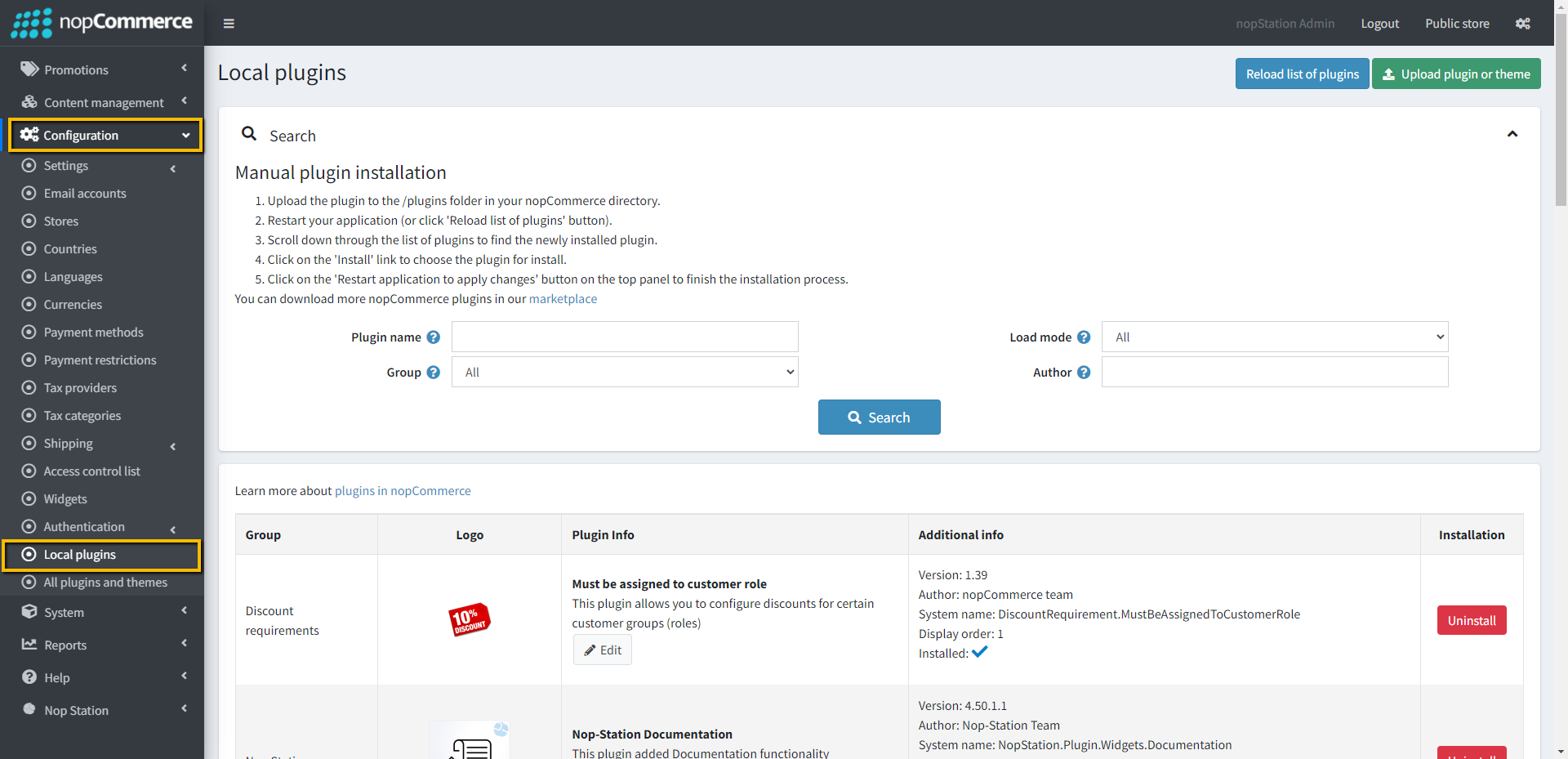
- Locate the Nop Fair Price plugin (Group: Nop-Station).
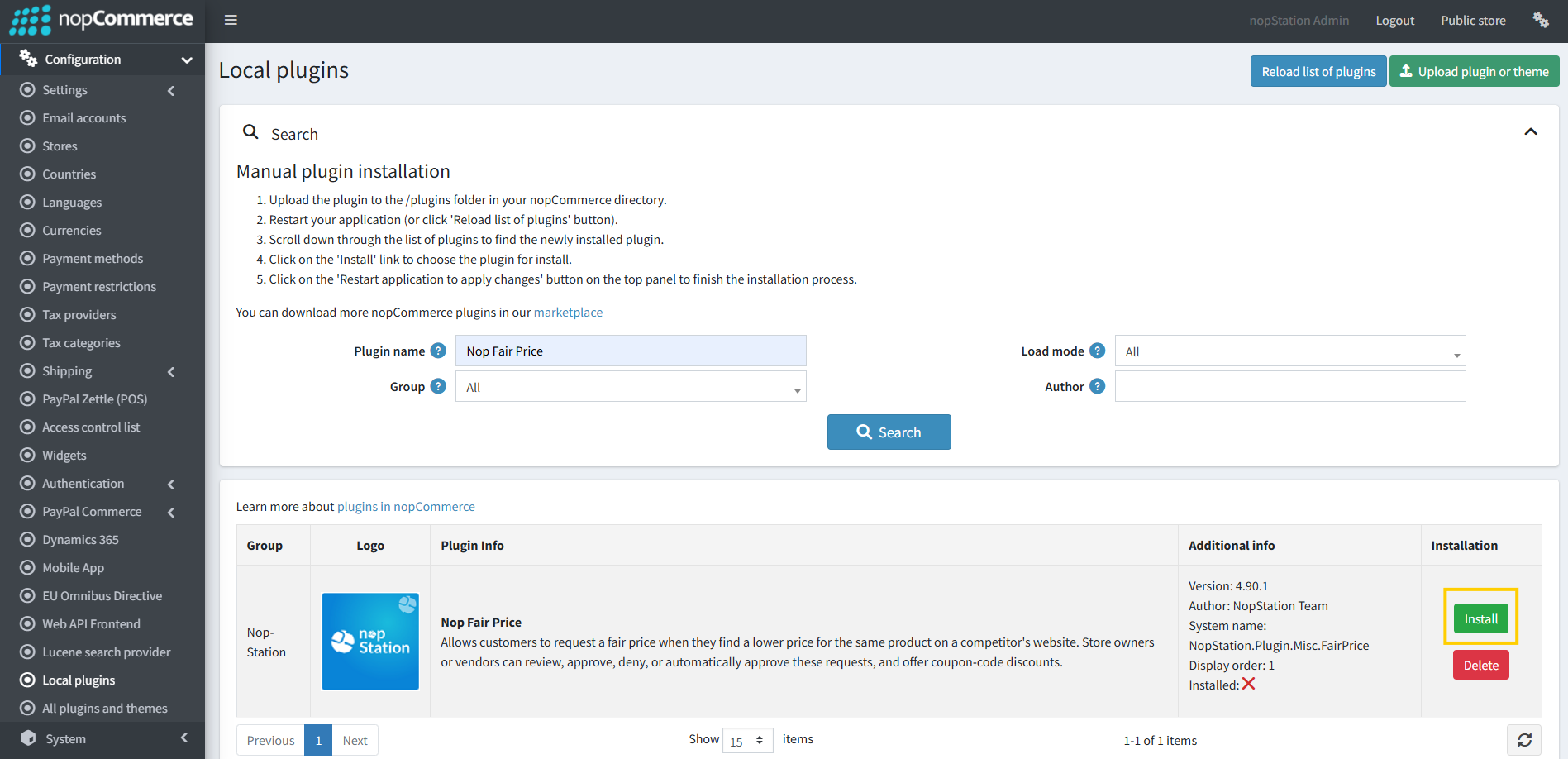
- Click Install.
- To make the plugins functional, Restart the application.
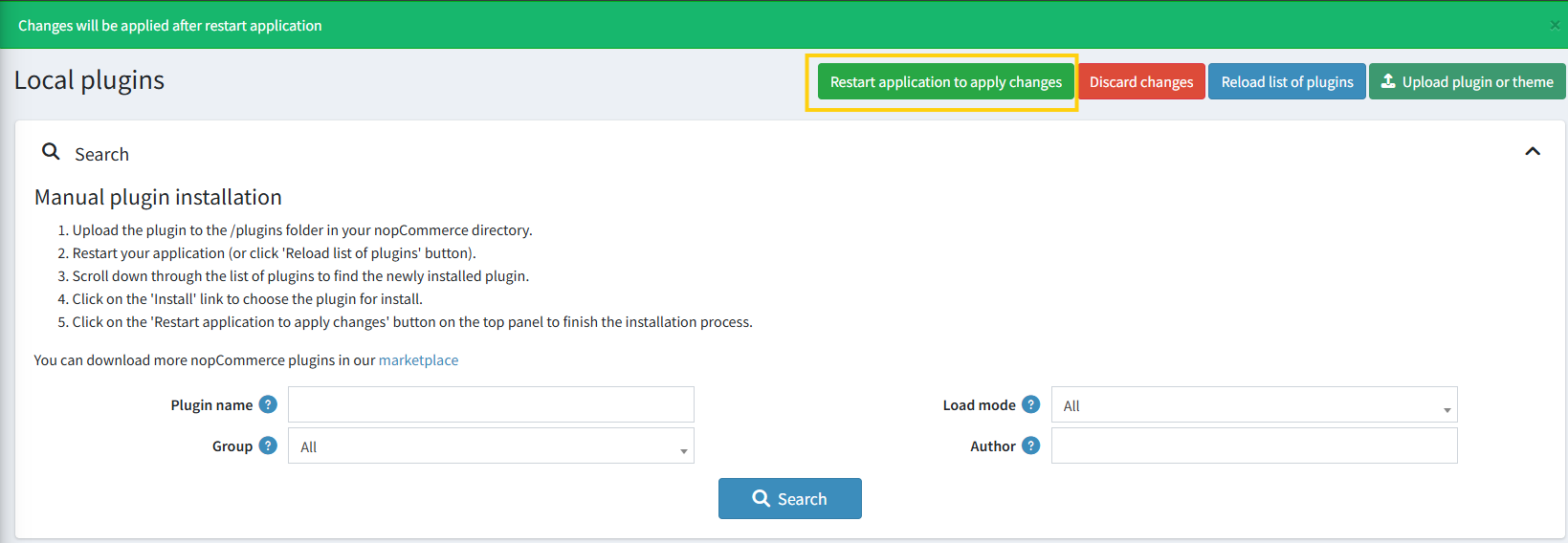
Note: The plugin automatically installs required permissions, localization resources, and email message templates during installation.
CONFIGURATION
- Access the configuration page via Admin → Nop Station → Fair Price → Configuration
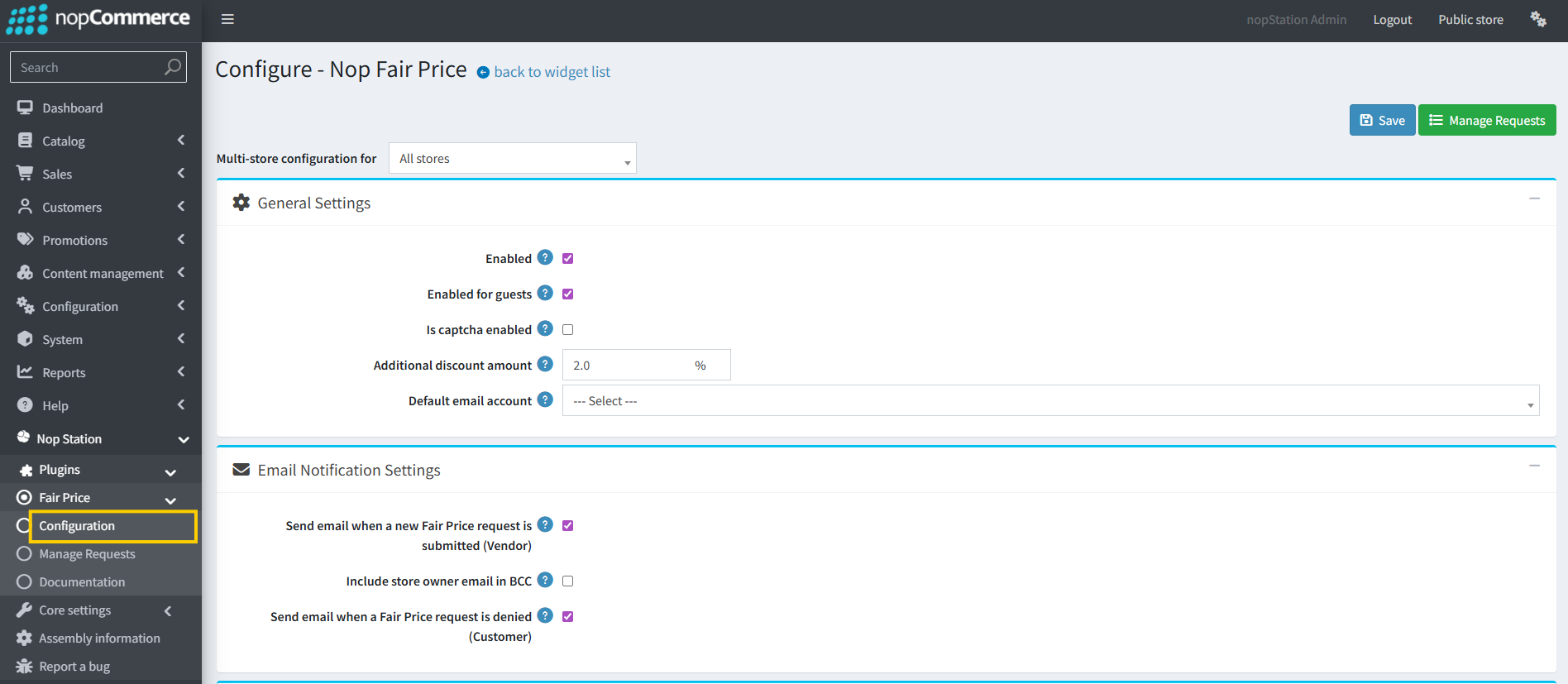
The configuration page is organized into collapsible cards. Click on a card header to expand or collapse it. Auto-Approval and Widget Zone settings are marked as "Advanced" and may be collapsed by default.
CUSTOMER EXPERIENCE
Submitting a Fair Price Request
- Navigate to a product page on the store
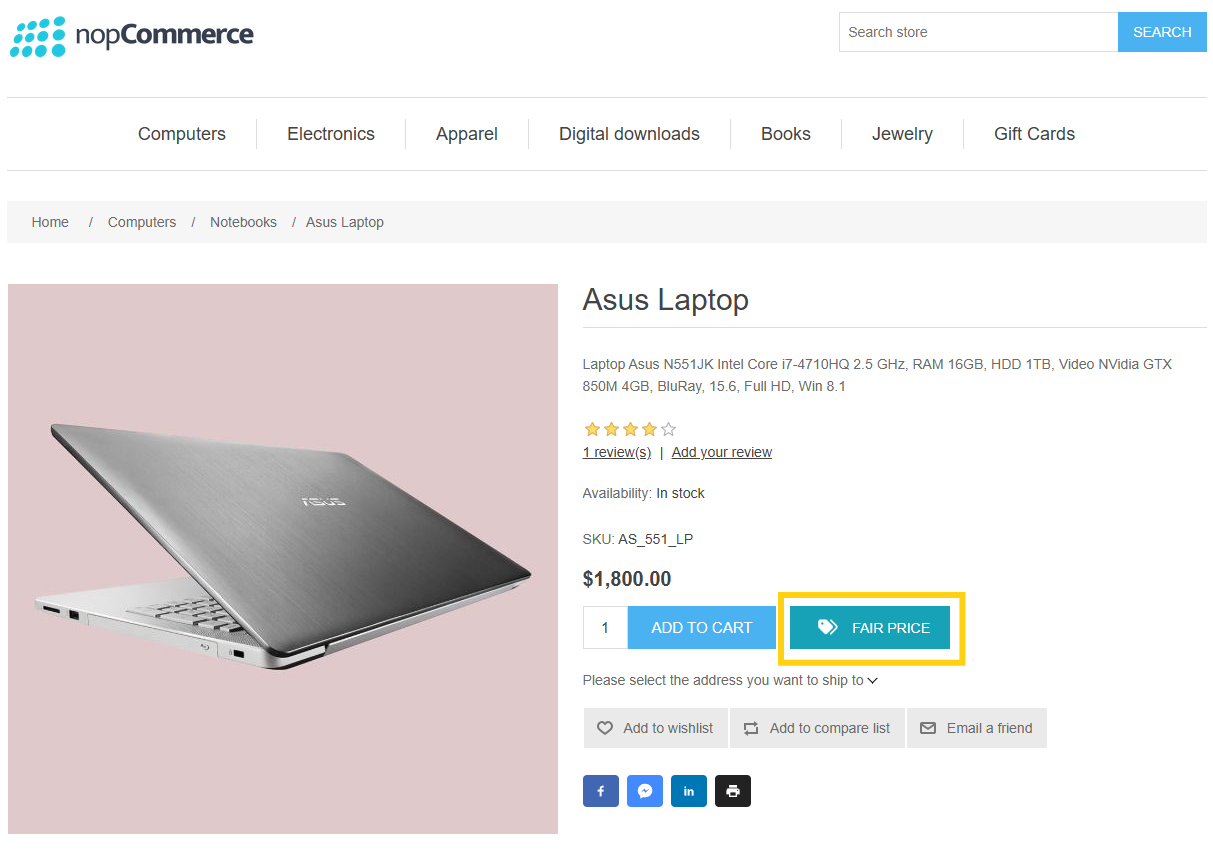
- Click the "Fair Price" button (location depends on widget zone configuration)
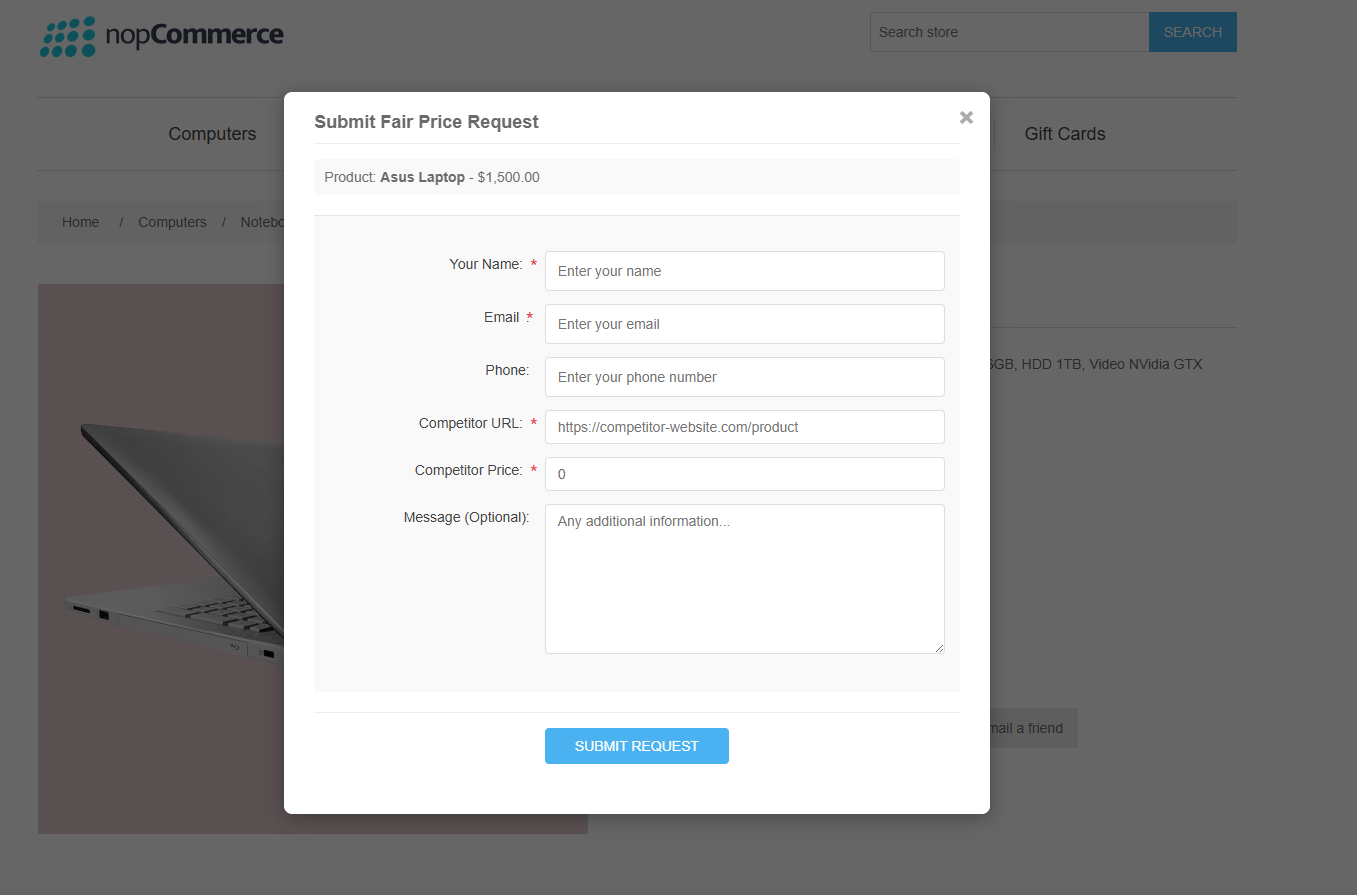
- Fill in the required information:
- Your Name: Customer's name
- Email: Contact email address
- Phone (optional): Contact phone number
- Competitor URL (required): Link to the competitor's product page
- Competitor Price (required): The lower price found at the competitor
- Message (optional): Any additional information
- Complete CAPTCHA if enabled
- Click "Submit Request"
Note: If the product has attributes (e.g., Size, Color), the selected attributes are automatically captured and saved with the request.
AUTO-APPROVAL
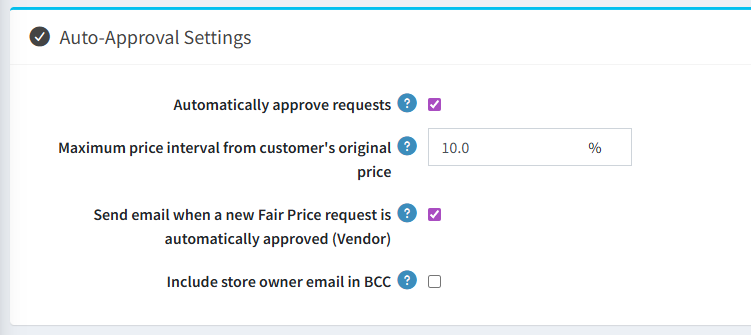
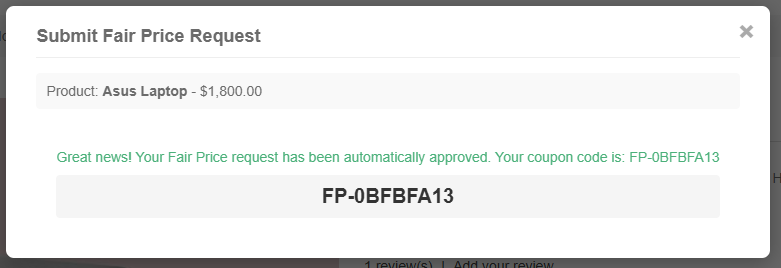
If auto-approval is enabled and the price difference is within the configured threshold, the customer will immediately receive a coupon code. Otherwise, they will see a confirmation message that their request is under review.
VIEWING REQUEST HISTORY
Registered customers can view their fair price request history:
- Log in to your account
- Navigate to My account → My fair price requests
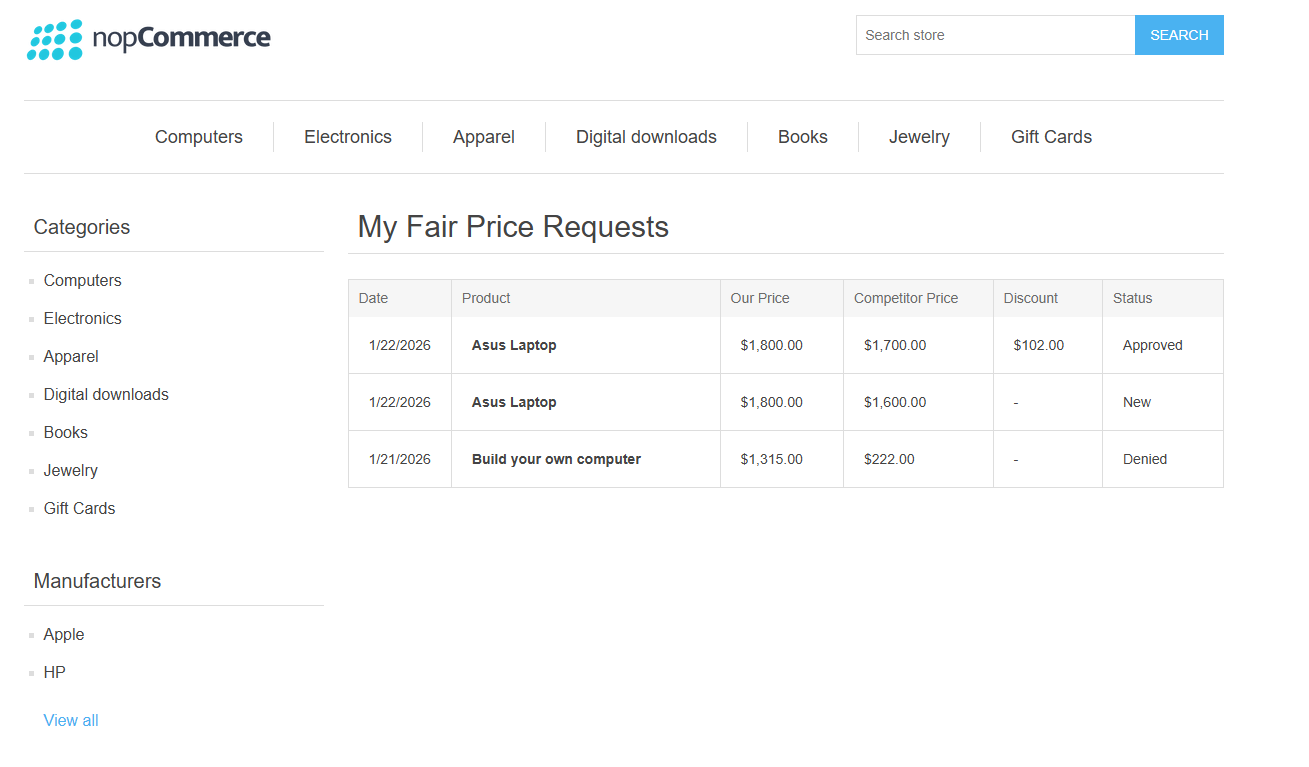
- View a table showing:
- Date submitted
- Product name
- Your store's price
- Competitor's price
- Discount amount (if approved)
- Status (New, Approved, or Denied)
ADMIN PANEL OPERATIONS
Reviewing Requests
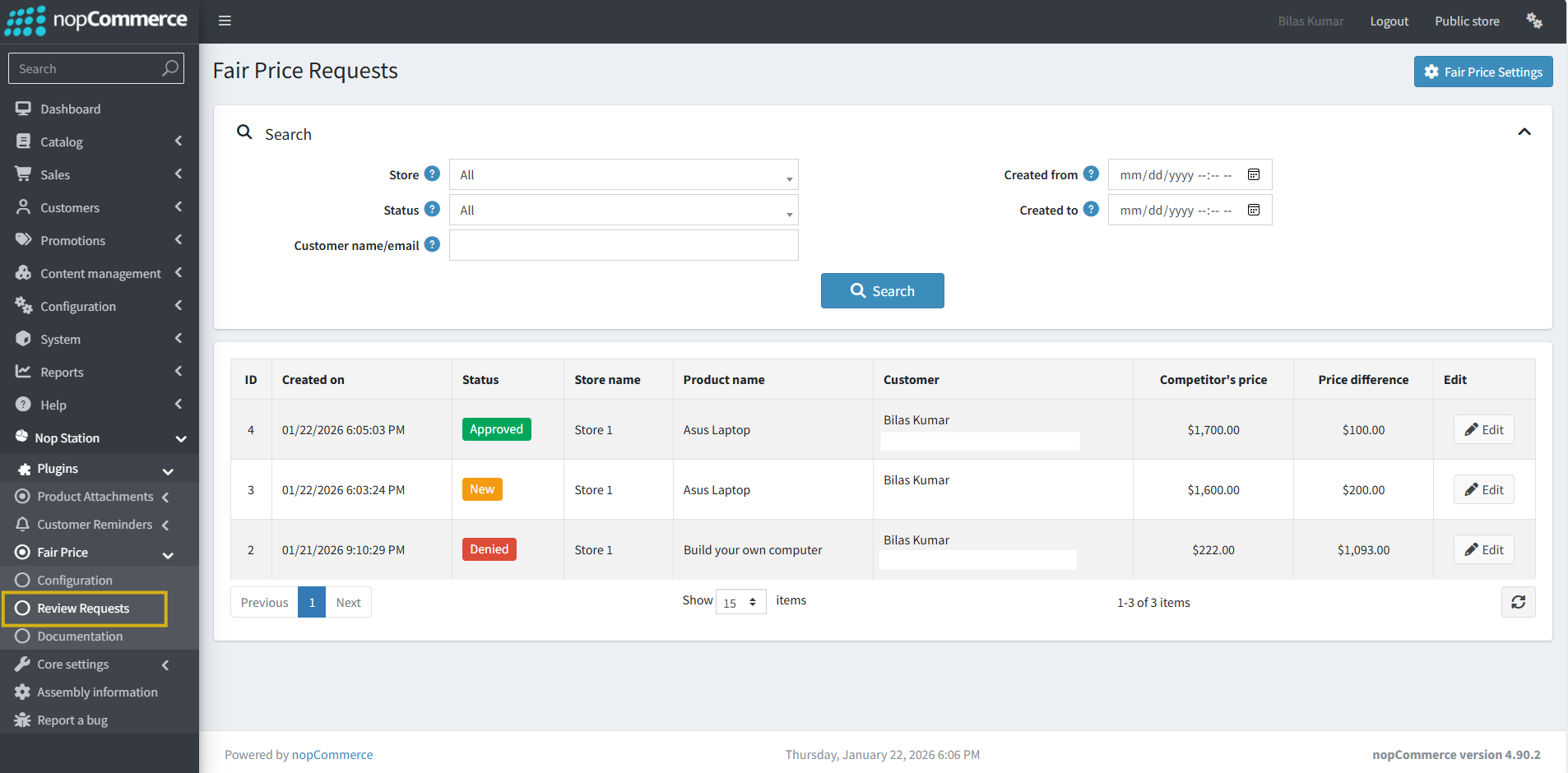
Access the request management page via: Admin → Nop Station → Fair Price → Review Requests
Approving a Request
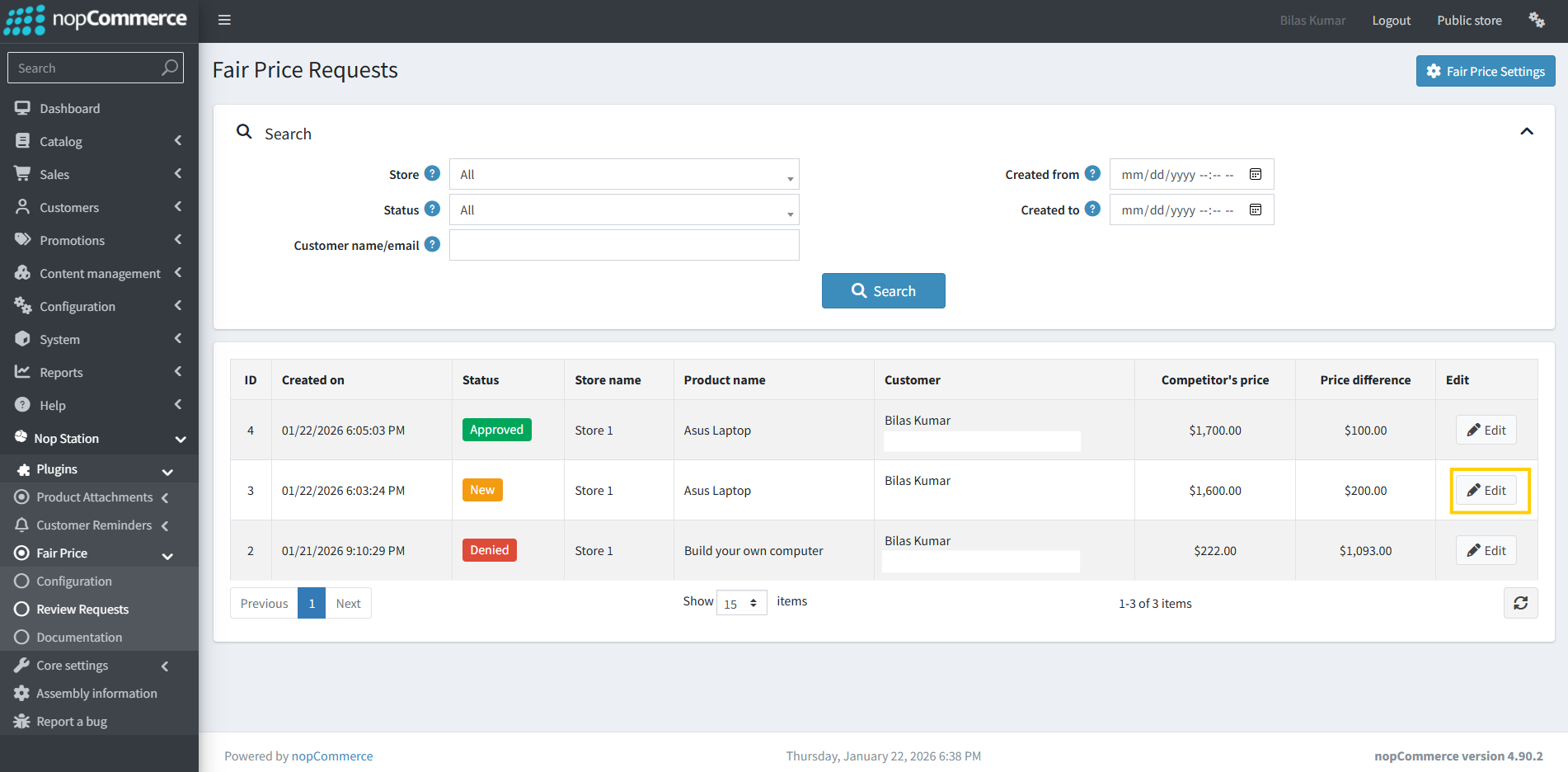
- From the request list, click Edit on a "New" request
- Review the request details:
- Request Details: Date, status, store, product (including attributes)
- Customer Details: Name, email, phone, message
- Price Details: Product price, competitor price, competitor URL, price difference
- In the "Approve Request - Discount Settings" section:
- Suggested discount amount: Auto-calculated based on price difference + additional discount percentage
- Discount amount: The actual discount amount to offer (can be modified)
- Discount end date (required): When the coupon expires (default: 30 days from approval)
- Discount usage limitation (required): How many times the coupon can be used (default: 1)
- Additional information: Message to include in the approval email
- Reviewer notes: Internal notes (not sent to customer)
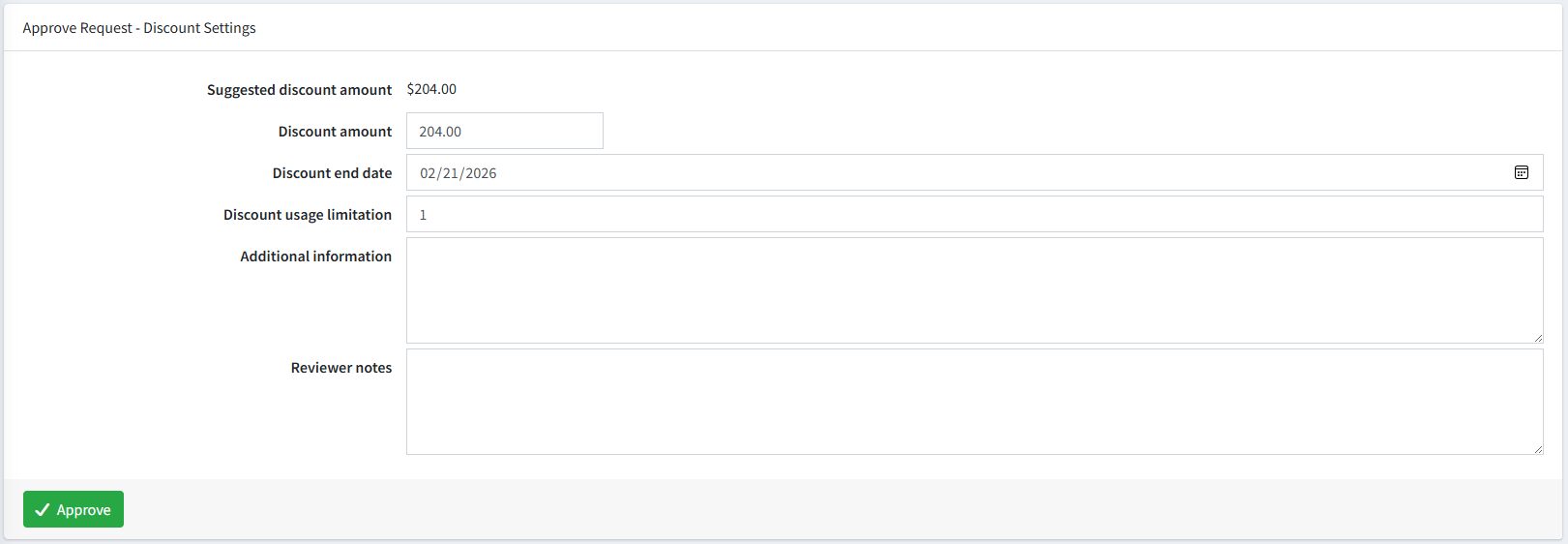
- Click Approve
The system will
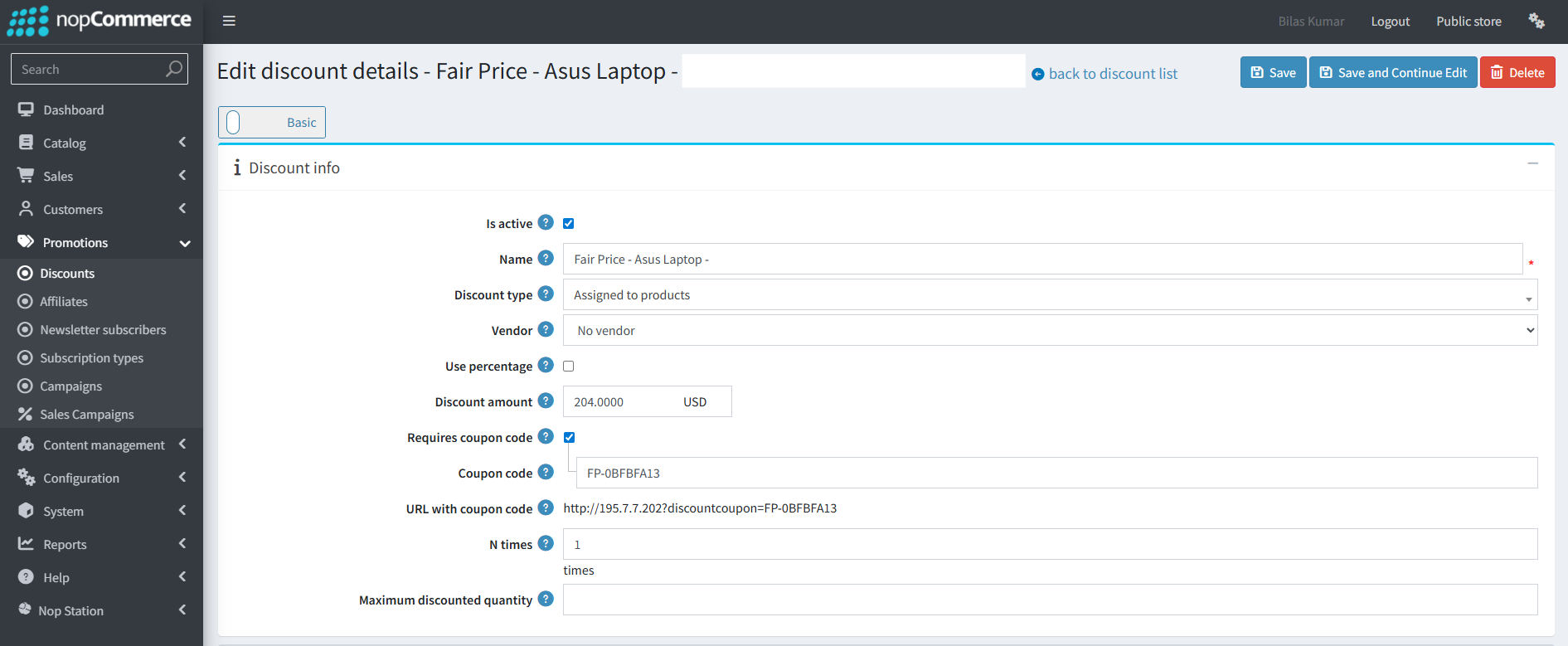
- Create a unique coupon code for the customer (prefixed with "Fair Price - ")
- Send an approval email with the coupon code
- Update the request status to "Approved"
Denying a Request
- From the request edit page, scroll to the "Deny Request" section
- Optionally fill in:
- Additional information: Reason or message for the customer
- Reviewer notes: Internal notes
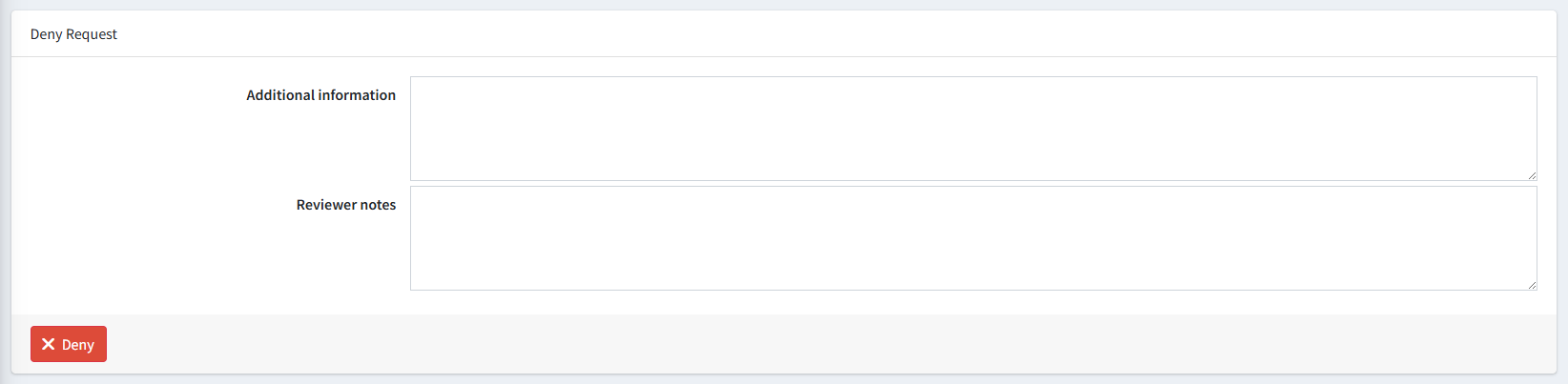
- Click Deny
The system will:
- Update the request status to "Denied"
- Send a denial notification email (if enabled in settings)
Deleting a Request
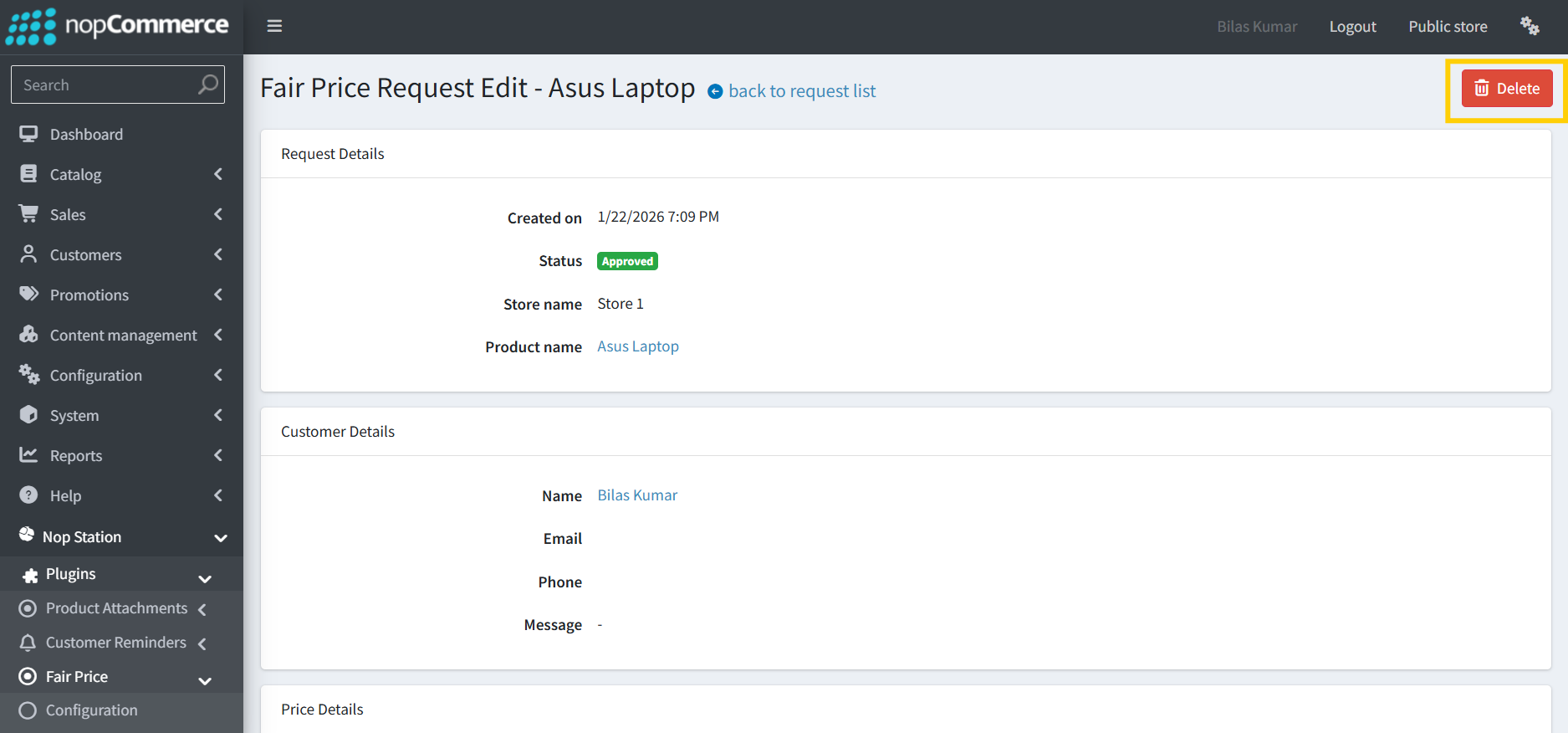
Click the Delete button at the top of the edit page to permanently remove a request.
Customize Email Templates
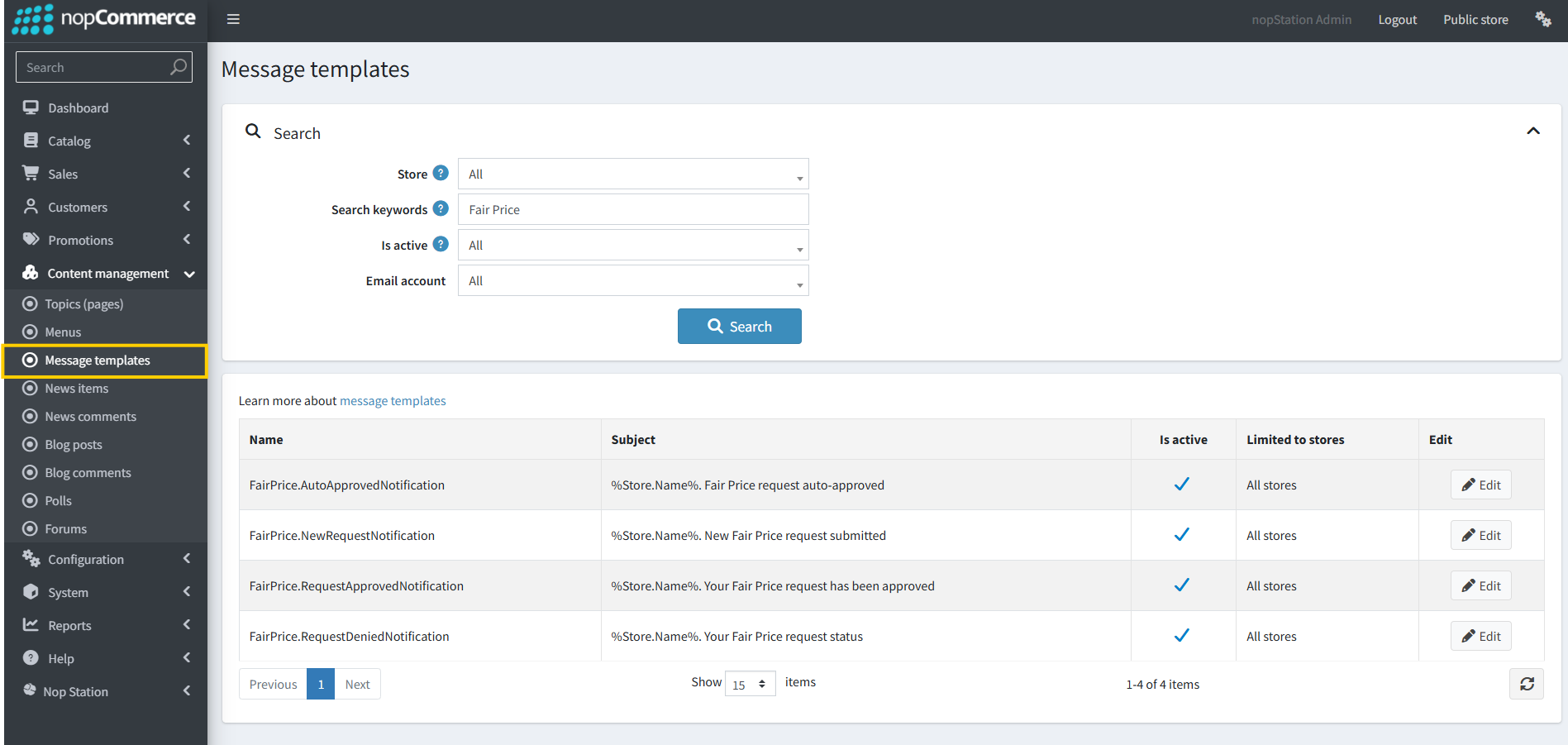
To customize email templates: Admin → Content Management → Message templates → Search for "FairPrice"
Troubleshooting
Plugin cannot be installed
- Ensure the NopStation.Core plugin is installed and present in the plugins folder.
- Check the System Log for dependency errors.
Fair Price button not appearing
- Verify the plugin is installed and enabled
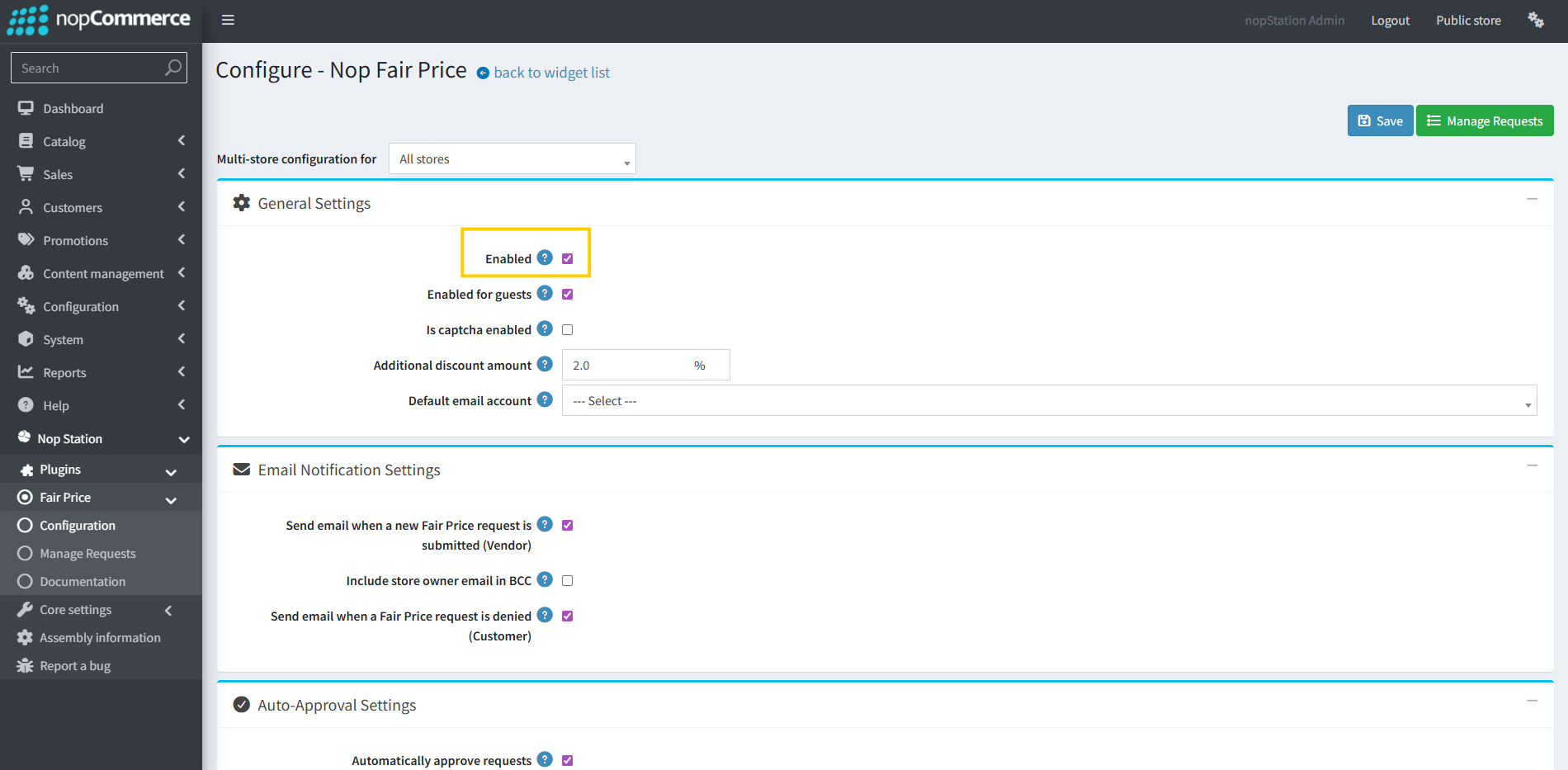
- Check that "Enabled" is set to Yes in configuration
- Verify the widget zones are correctly configured
- Try different widget zone options if the button doesn't appear in the expected location
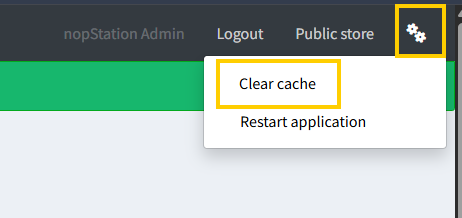
- Clear the cache.
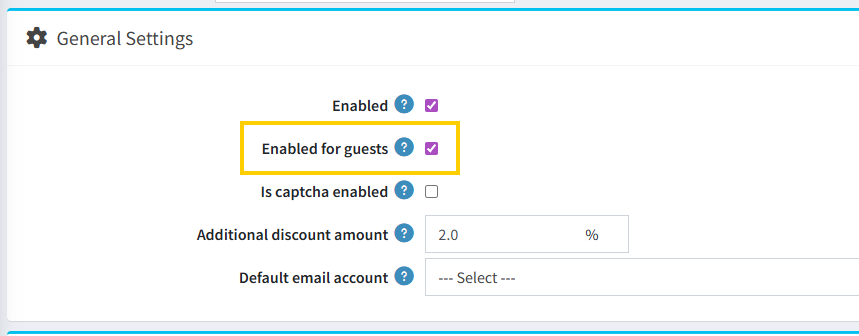
Guests cannot submit requests
- Check that "Enabled for guests" is set to Yes
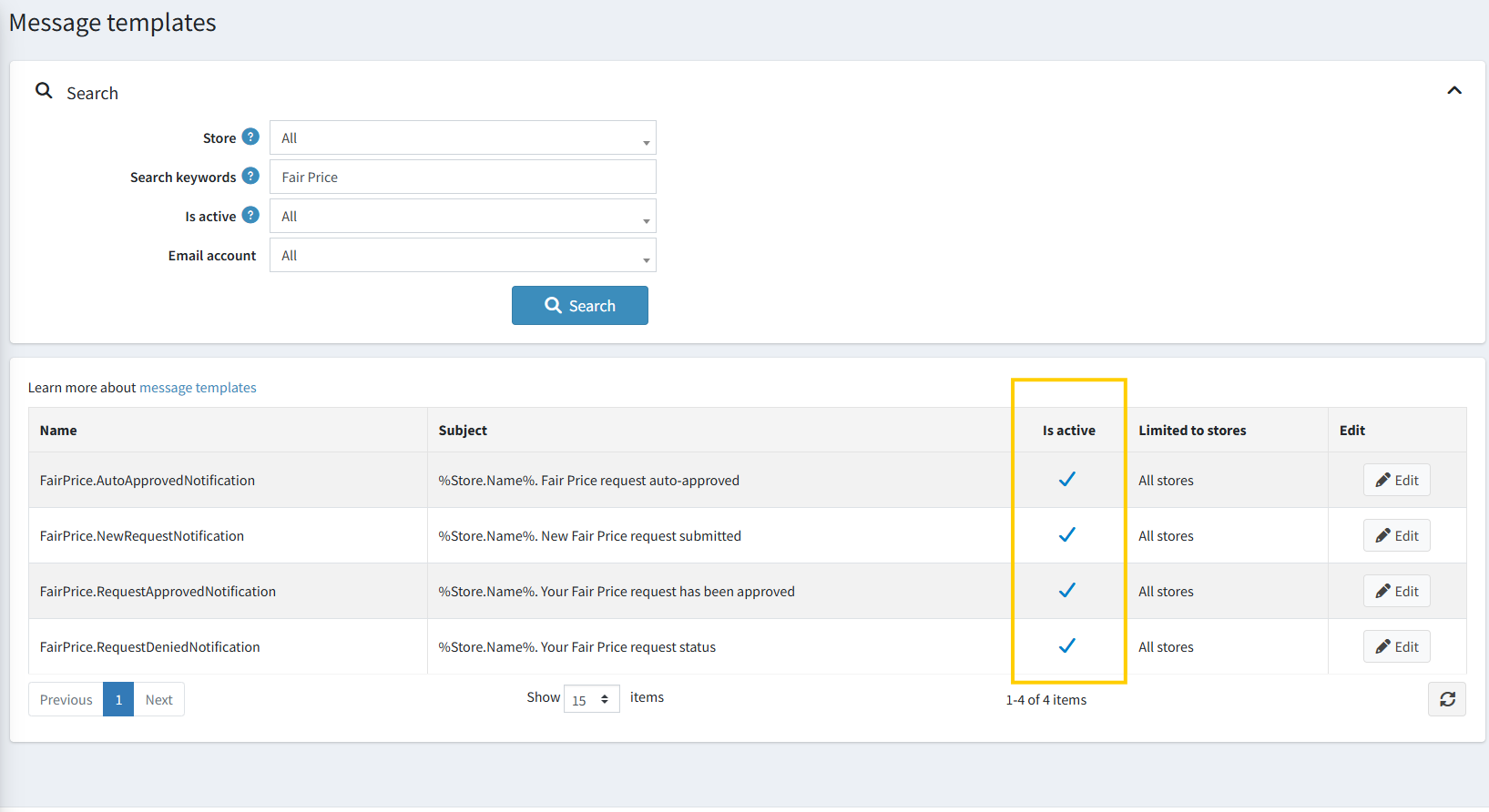
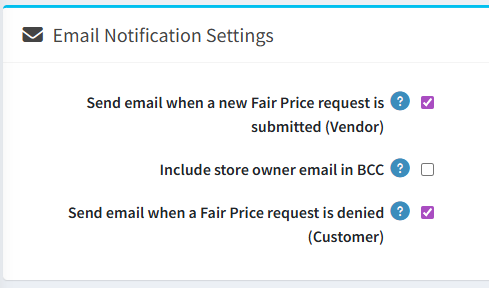
Emails not being sent
- Verify email settings in Admin → Configuration → Email accounts
- Check that the message templates are active: Admin → Content management → Message templates (Search "FairPrice")
- Verify "Send email..." options are enabled in plugin configuration
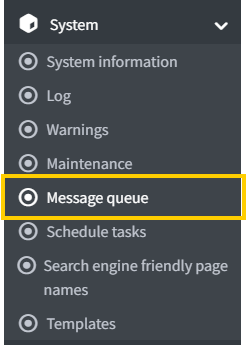
- Check the message queue: Admin → System → Message queue
Auto-approval not working
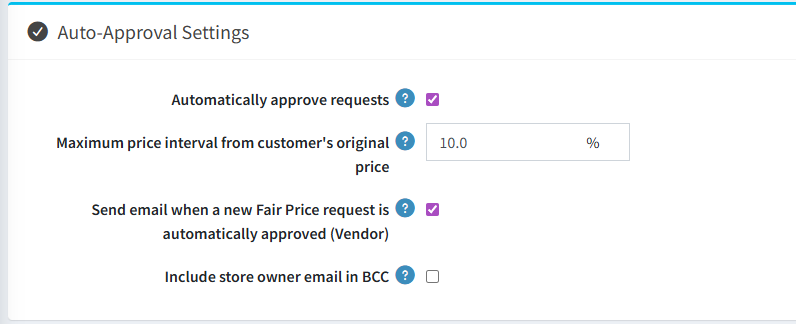
- Verify "Automatically approve requests" is enabled
- Check the "Maximum price interval" threshold
- Auto-approval only works when the price difference percentage is less than or equal to the configured threshold
Discount code issues
- Discount codes are valid only for the specific product in the request
- Default validity is 30 days and usage limit is 1 (set during approval)
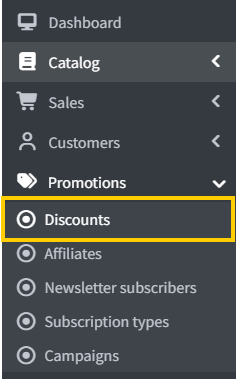
- Check the discount in: Admin → Promotions → Discounts
- Look for discounts prefixed with "Fair Price - "
Widget zone not working correctly
- If the button appears in the wrong location, adjust the widget zone settings
- Product details and grouped products can use any of the 9 available zones
- Account navigation can use either account_navigation_before or account_navigation_after