PRE-REQUISITES
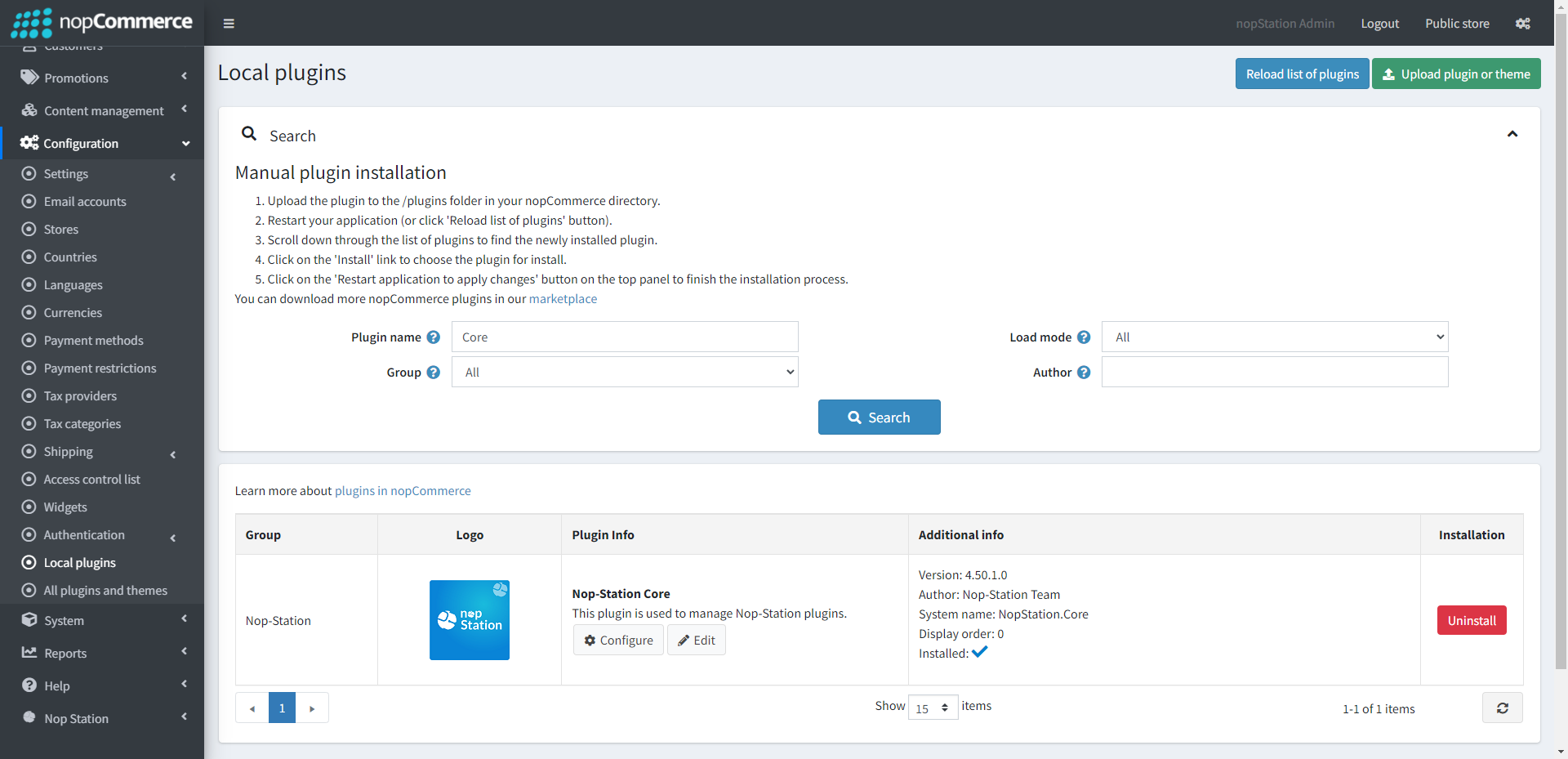
- The plugin requires you to install the Nop-Station Core plugin first.

INSTALLATION
- Download the Customer Credit Wallet Plugin from our store https://nop-station.com/customer/downloadableproducts
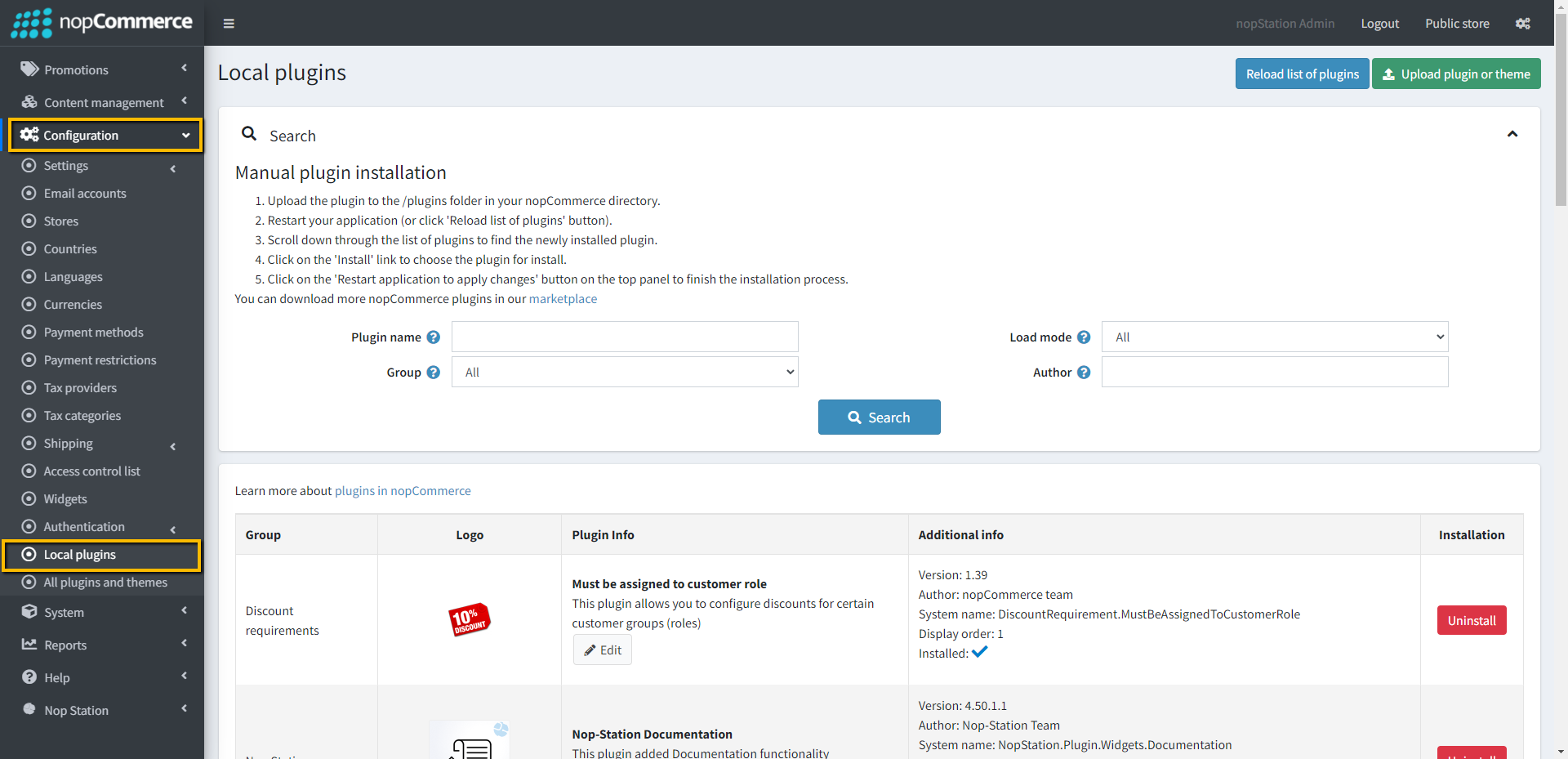
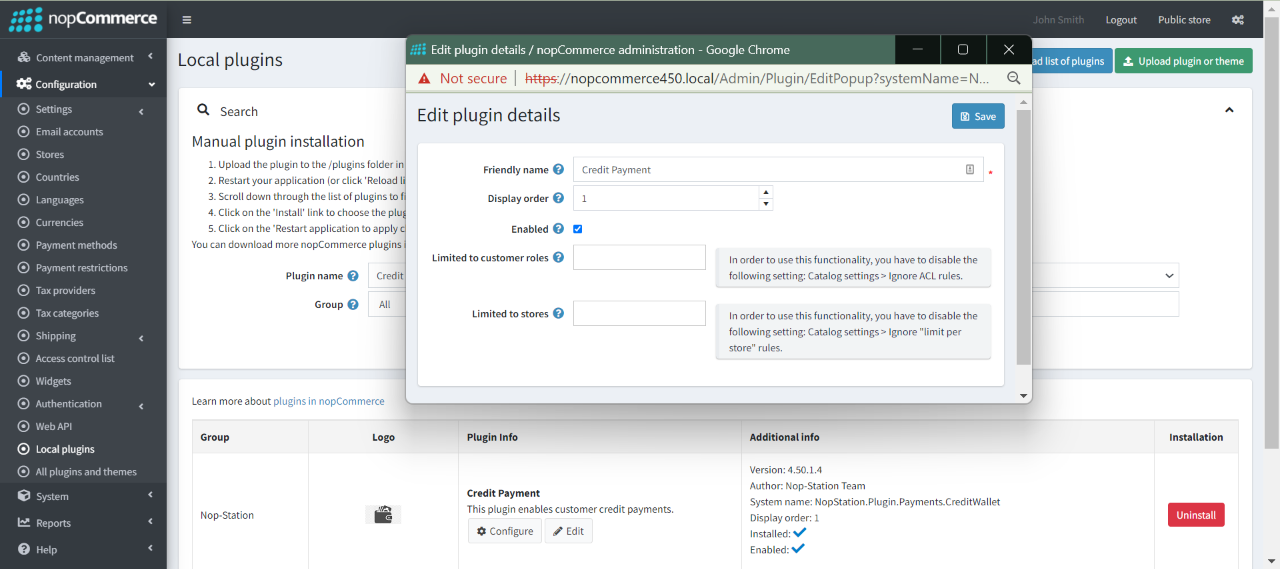
- Go to Administration → Configuration → Local plugins
- Upload the NopStation.CustomerCreditPayment zip file using the 'Upload plugin or theme' button

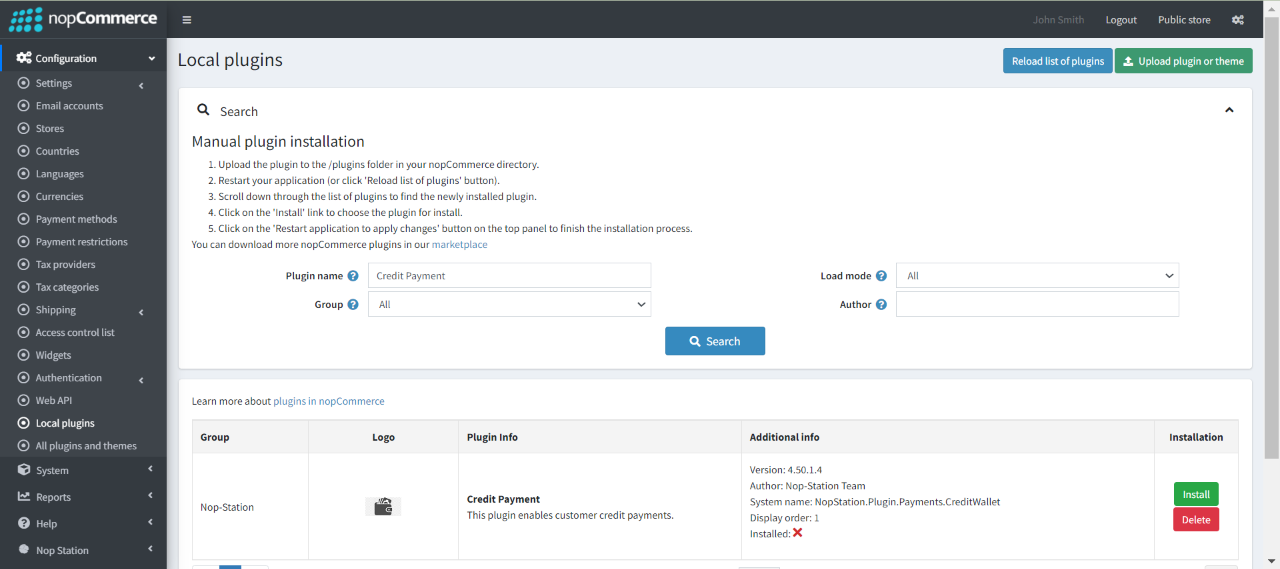
- Click on, 'Reload list of plugins' button. The Customer Credit Wallet Plugin will appear in the plugin list.
- Install 'Nop-Station Core' Plugin first. Then install 'Customer Credit Wallet Plugin'


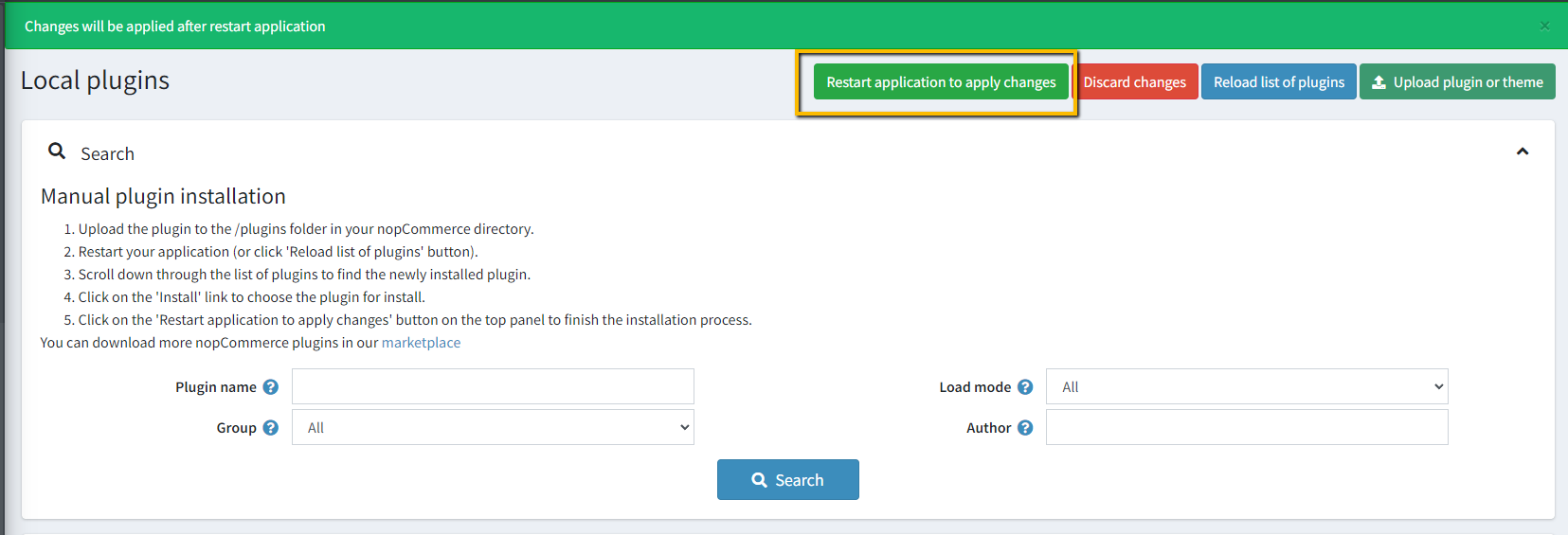
- To make the plugins functional, restart the application

- Enable the plugin with 'Edit' option and Configure it.

CONFIGURATION
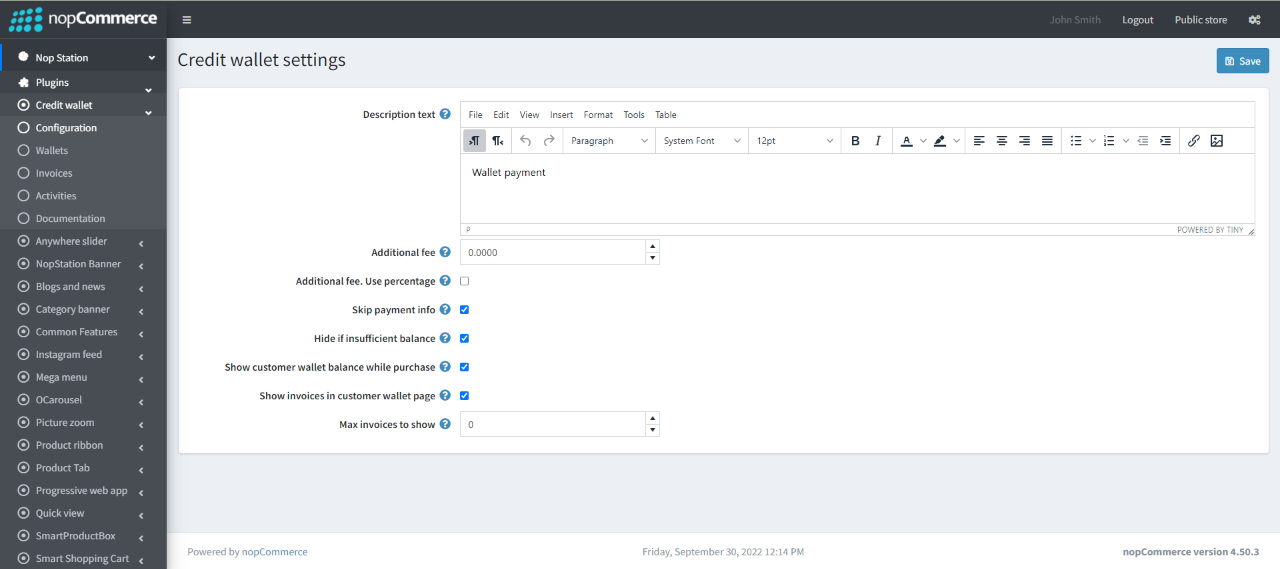
- Configure Credit Wallet: Go to Admin → Nop Station → Plugins → Credit Wallet → Configuration

- Description text: Enter payment method description text. It will be displayed in checkout payment info step.
- Skip payment info checkbox: Check/uncheck the checkbox to enable/disable Payment Info at the checkout page.
- Hide if insufficient balance: Hide payment method if balance is lower than cart amount.
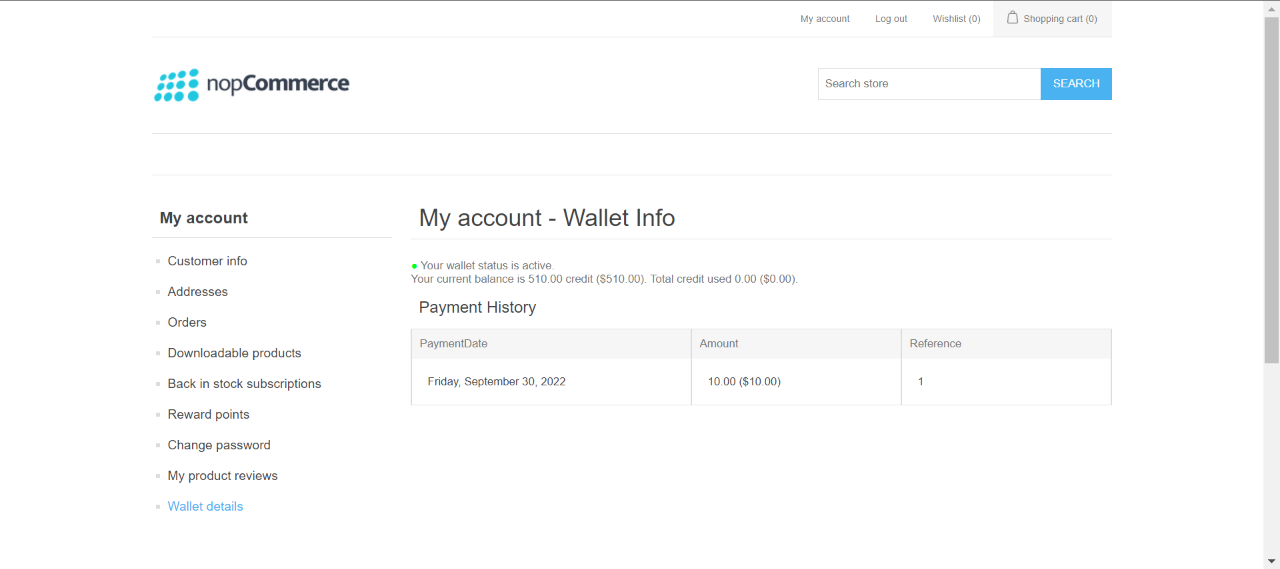
- Show customer wallet balance while purchase: Show available credit while purchase.
- Show invoices in customer wallet page: Check to show invoices in customer wallet page.
- Max invoices to show: Define max invoices to show in customer wallet page.
WALLETS
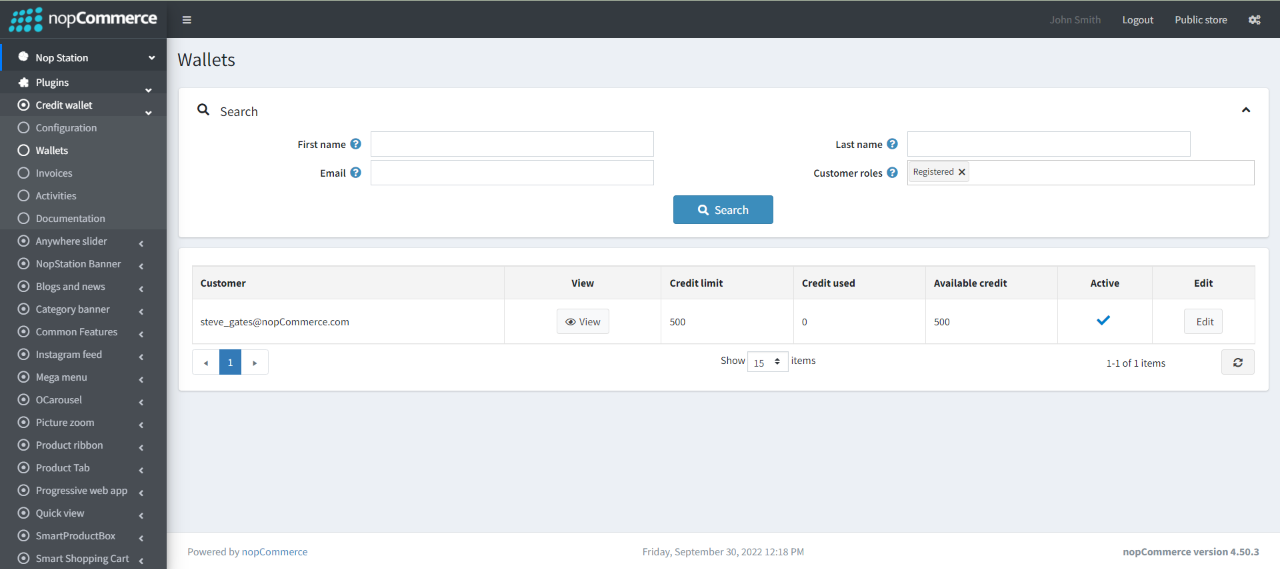
- Go to Admin → Nop Station → Plugins → Credit Wallet → Wallets

- Here you will find the list of customer wallet which are configured
- To configure a customer specific wallet go to Admin → Customers → Customers
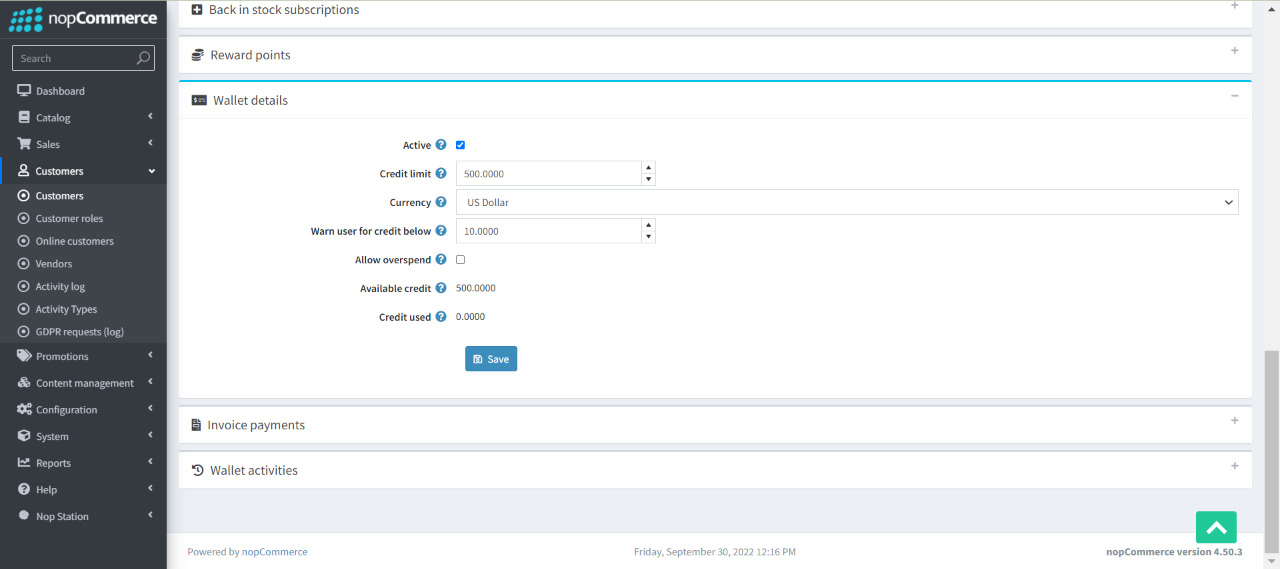
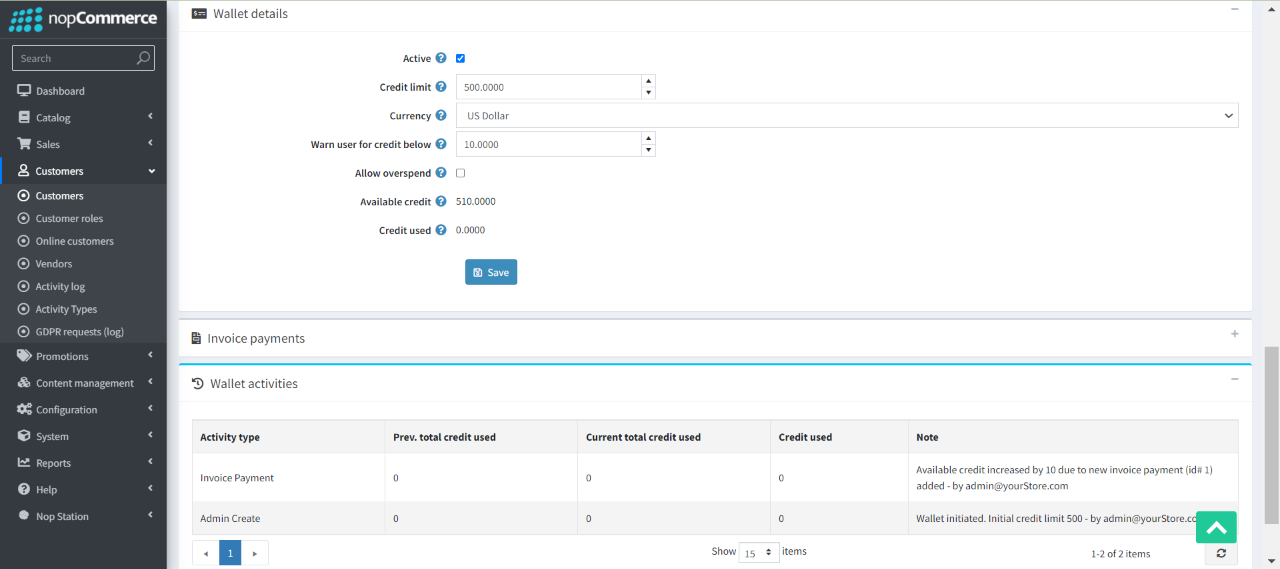
- Create or click edit to one of the customer and you will find Wallter details section at the bottom

- Active: Check to mark the wallet as active.
- Credit limit: Define credit limit for this wallet.
- Currency: Select currency for this wallet.
- Warn user for credit below: When the available credit falls below (reaches) this quantity, the customer will see a warning in customer wallet page.
- Allow overspend: Check to allowover spend by this wallet.
- Available credit: Available credit for this wallet.
INVOICES
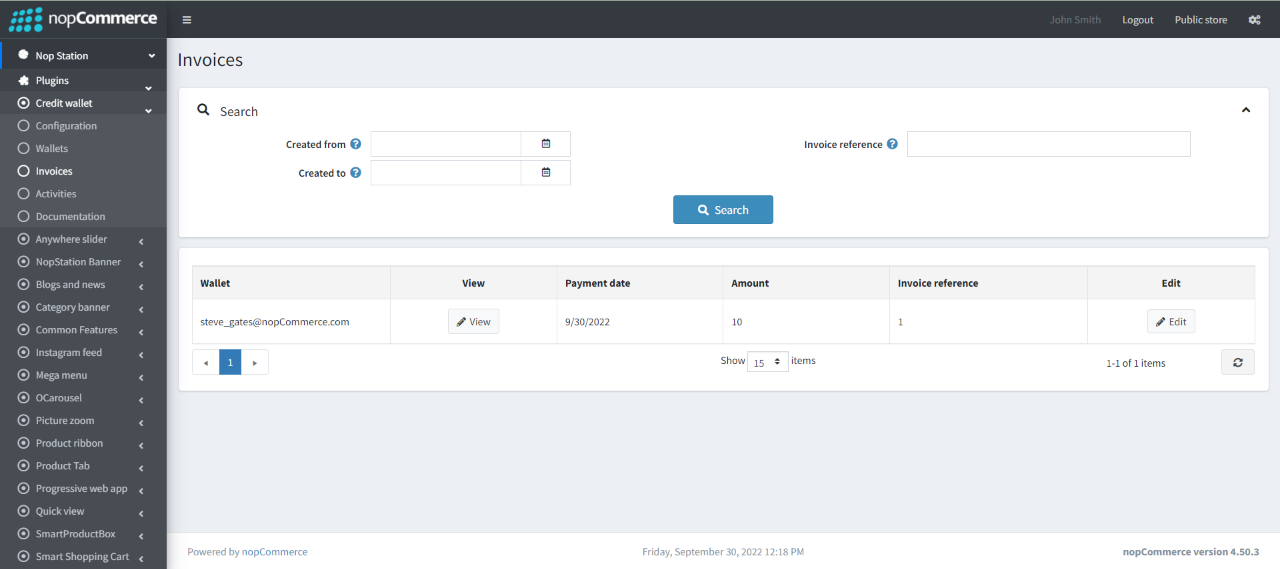
- Go to Admin → Nop Station → Plugins → Credit Wallet → Invoices

- Here you will find the list of customer wallet invoices which are configured
- To configure a customer specific wallet go to Admin → Customers → Customers
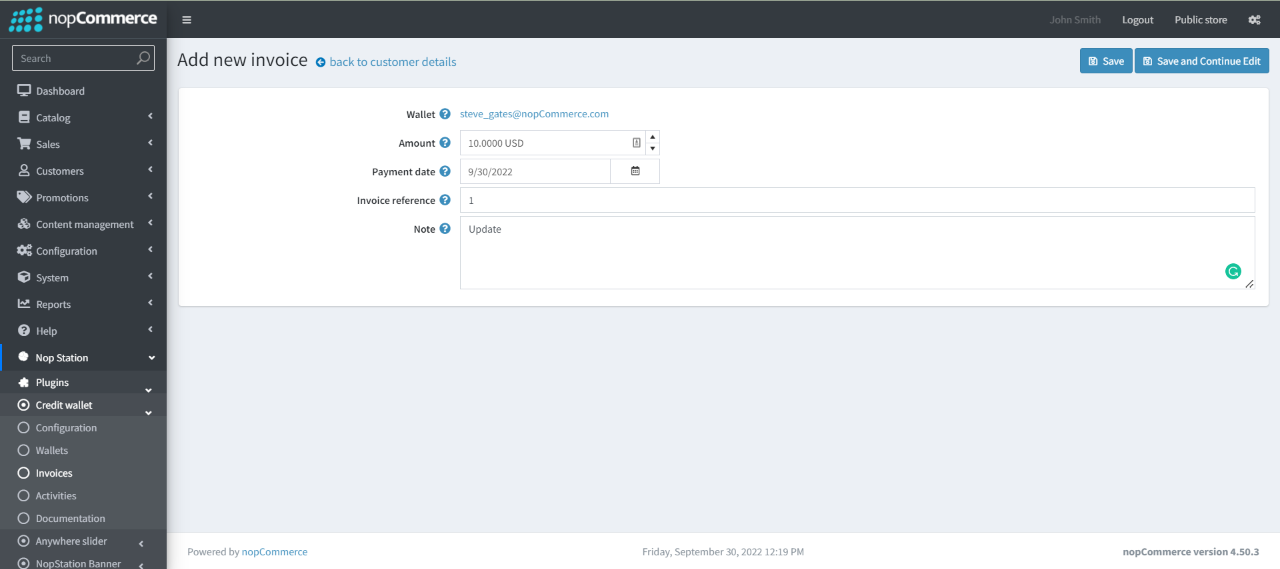
- Create or click edit to one of the customer and you will find Invoices section at the bottom
- Click on Add new invoice to create a new invoice for the customer

ACTIVITIES
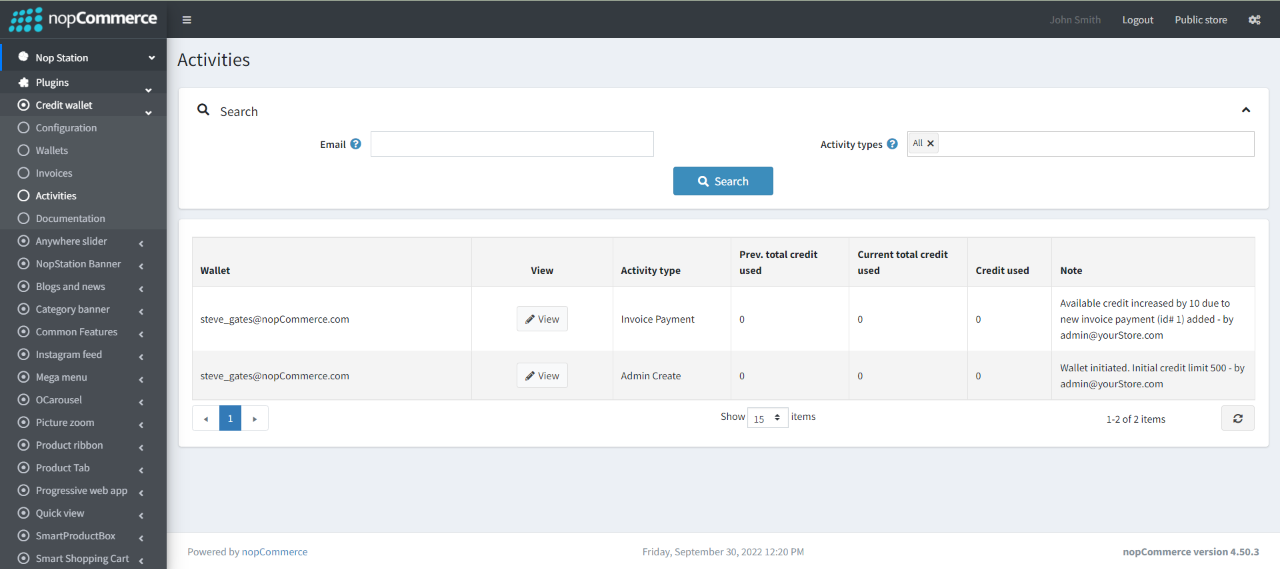
- Go to Admin → Nop Station → Plugins → Credit Wallet → Activities

- Here you will find the list of customer wallet activities
- To see a customer specific activities go to Admin → Customers → Customers
- Click edit to one of the customer for whom you have configured a creadit wallet and you will find activities section at the bottom

PUBLIC VIEW