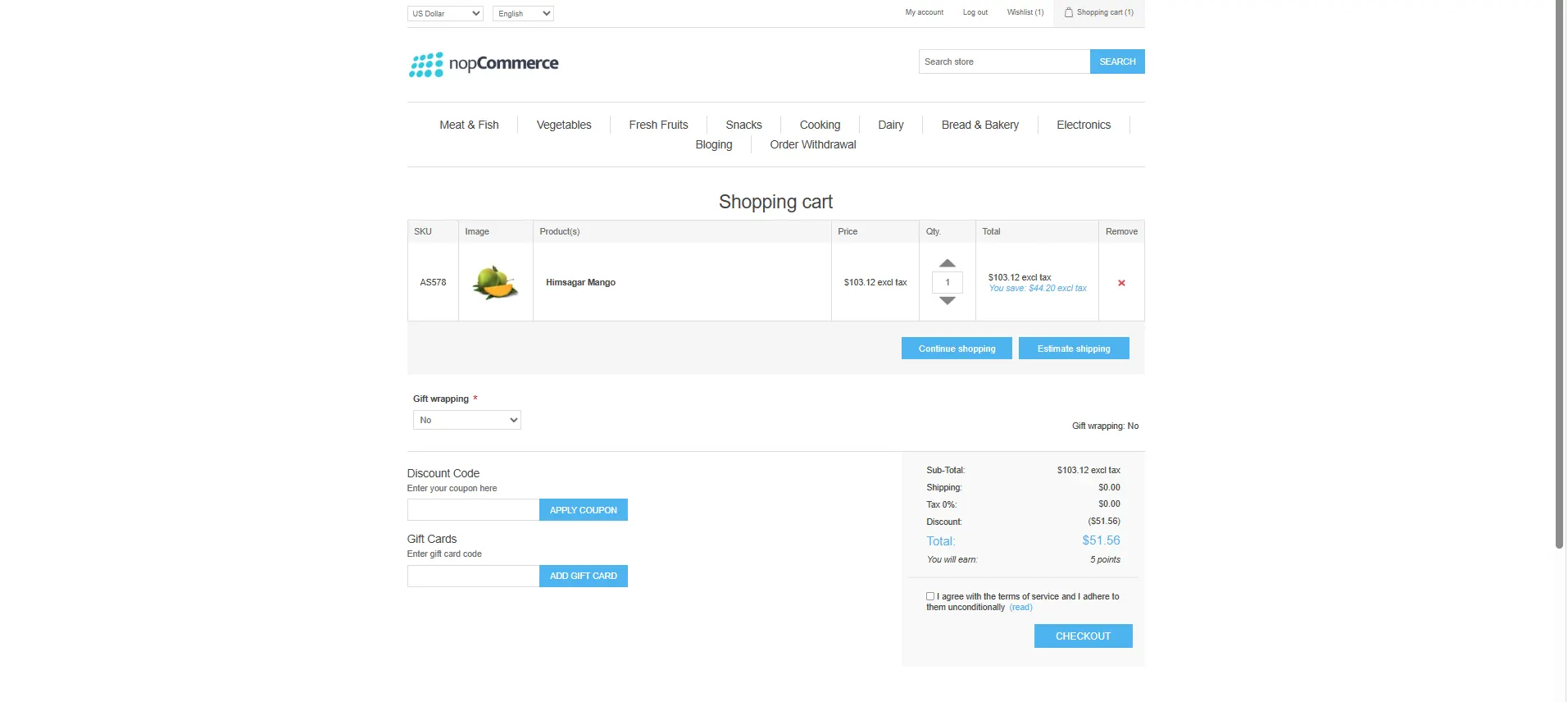
The Discount Manager Plus plugin is a powerful solution designed to enable sophisticated promotional strategies across your e-commerce storefront. This guide explores five primary rule categories that support the most common business promotion scenarios.
PRE-REQUISITES
• The plugin requires you to install the Nop-Station Core plugin first.
INSTALLATION
· Download the Discount Manager Plugin from our store
· Go to Administration → Configuration → Local plugins
· Upload the .zip file using the "Upload plugin or theme" button
· Then click on ‘Reload list of plugins’
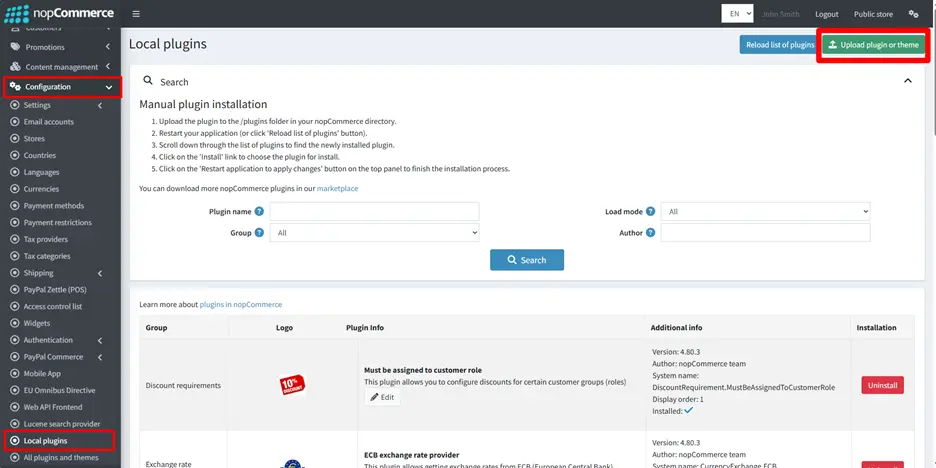
· Go to the Administration and reload the 'list of plugins. Install the 'Nop-Station Core' Plugin and then install the 'Discount Manager Plugin'
· To make the plugins functional, restart the application
· After uploading the plugin go to Administration. Install 'Nop-Station Core' Plugin first and then install 'NopStation.Plugin.Misc.DiscountManagerPlus ’ plugin.
CONFIGURATION
· Go to NopStation >Discount Manager Plus
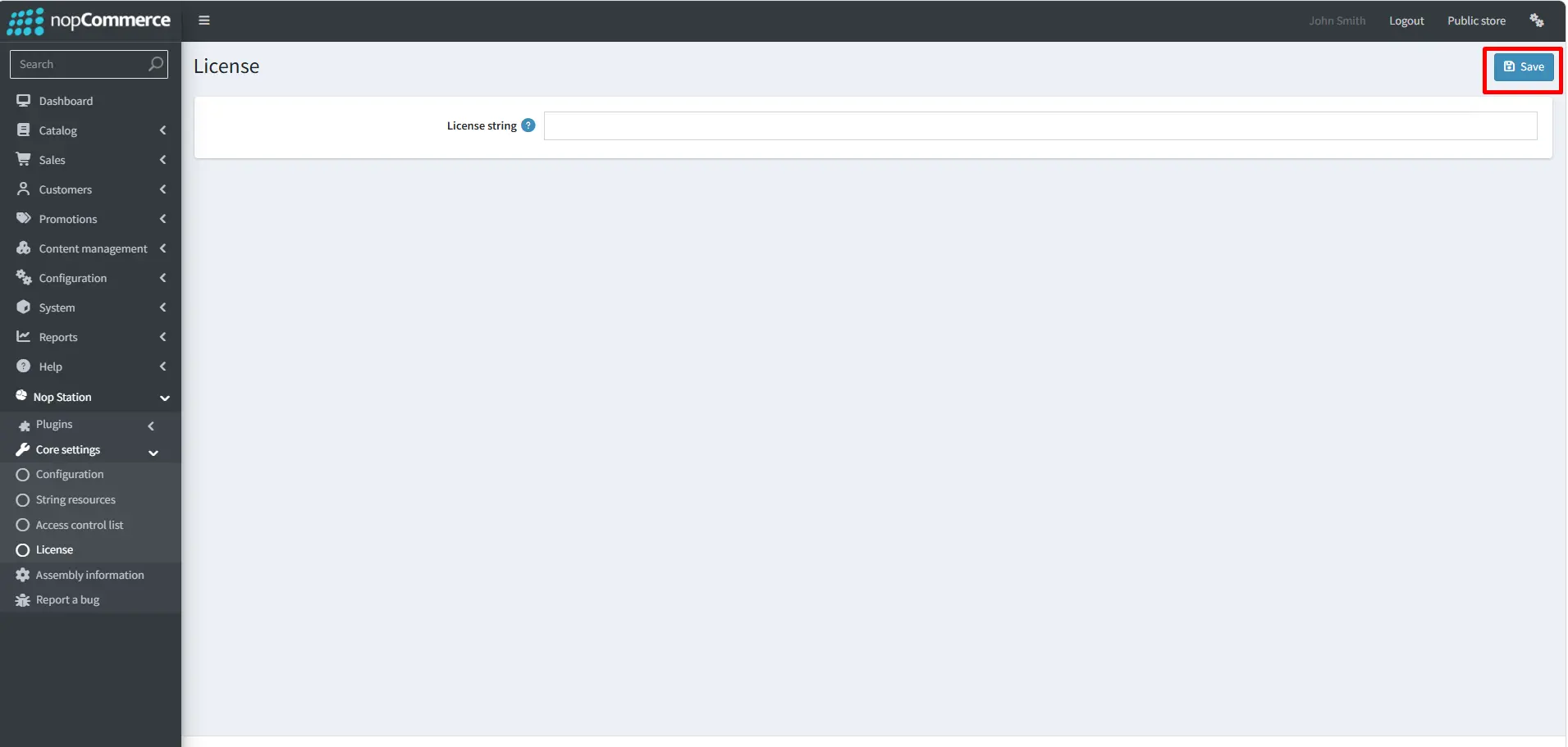
· Automatically redirect to Core settings>> License
· Give the license string than save it
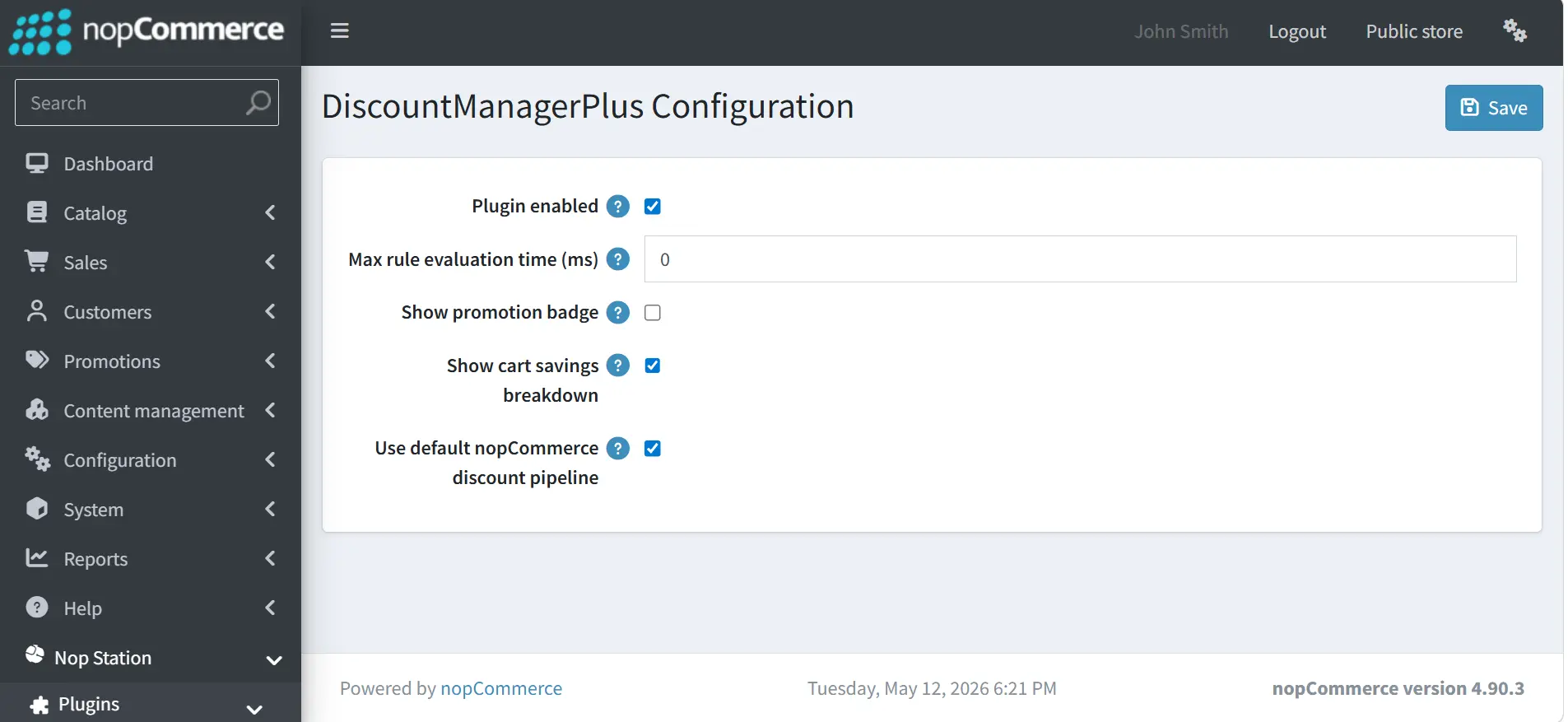
· Now go to the Discount Manager Plugin > Configuration.
Discount Rules
1. RuleType: Buy X Get Y Free
· Go to Promotions >> Discounts >> Add new
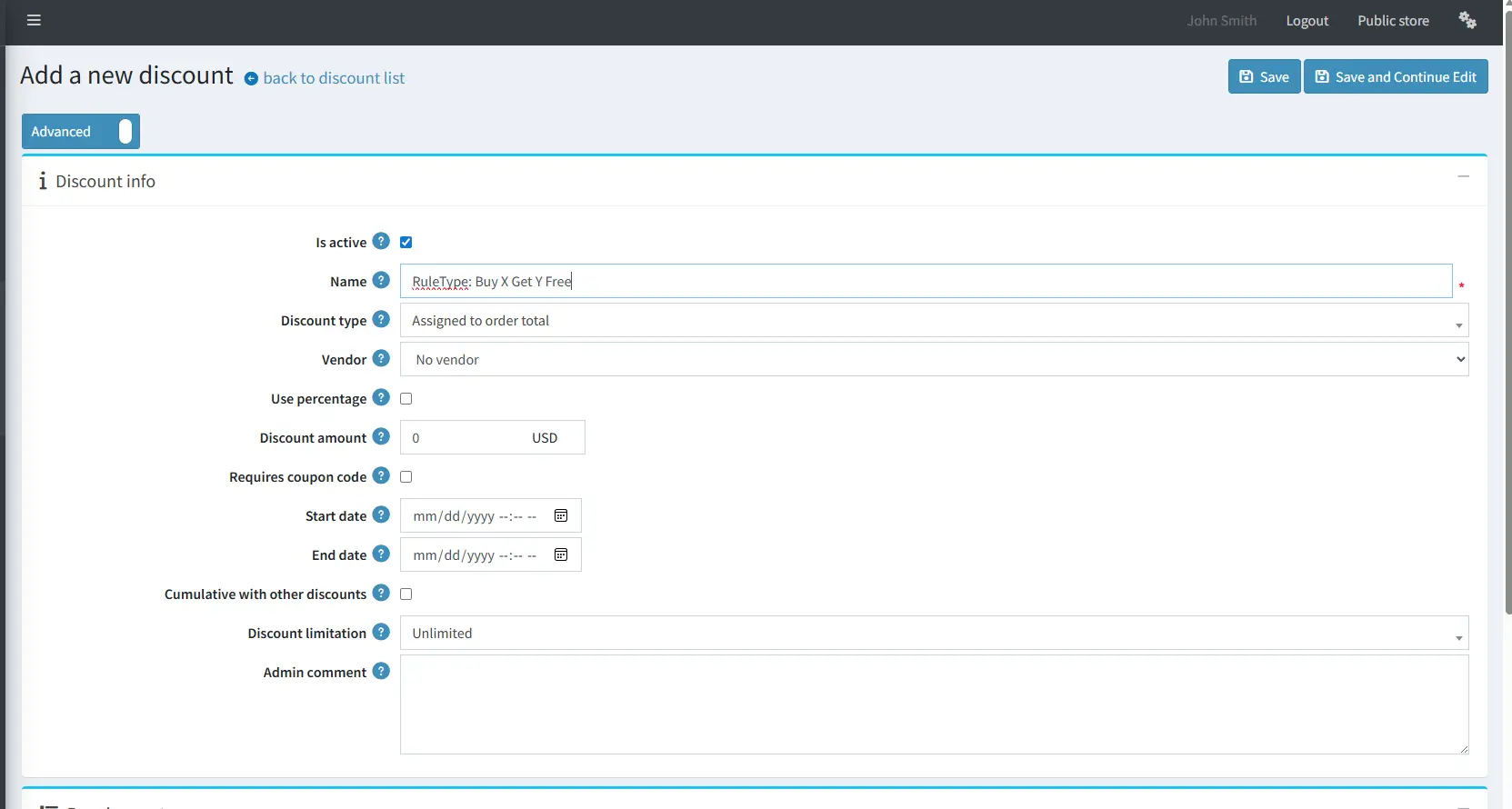
· Sample: Buy 2 product, get 1 product free.
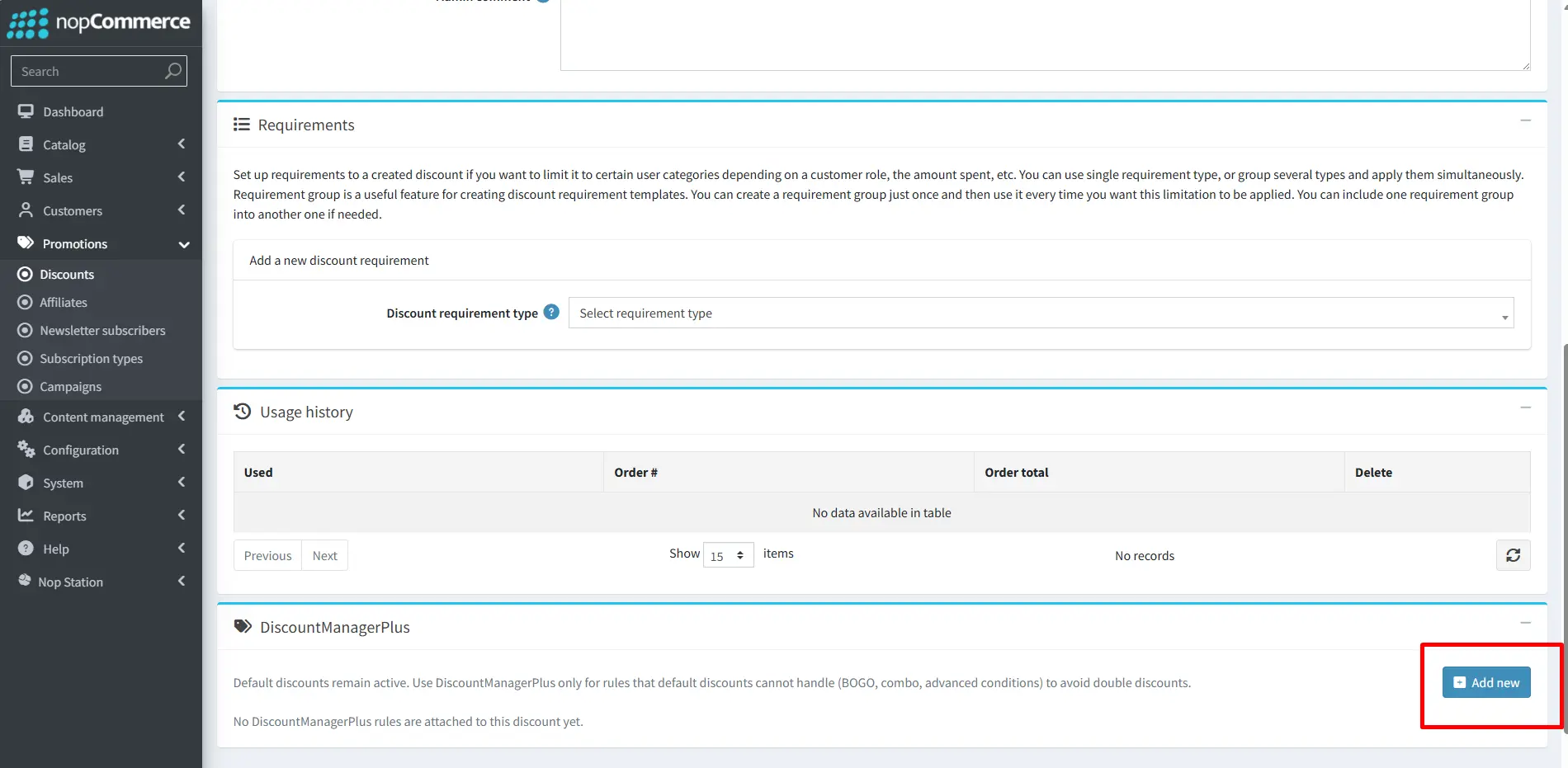
· Click on the add new on the discount manager plus
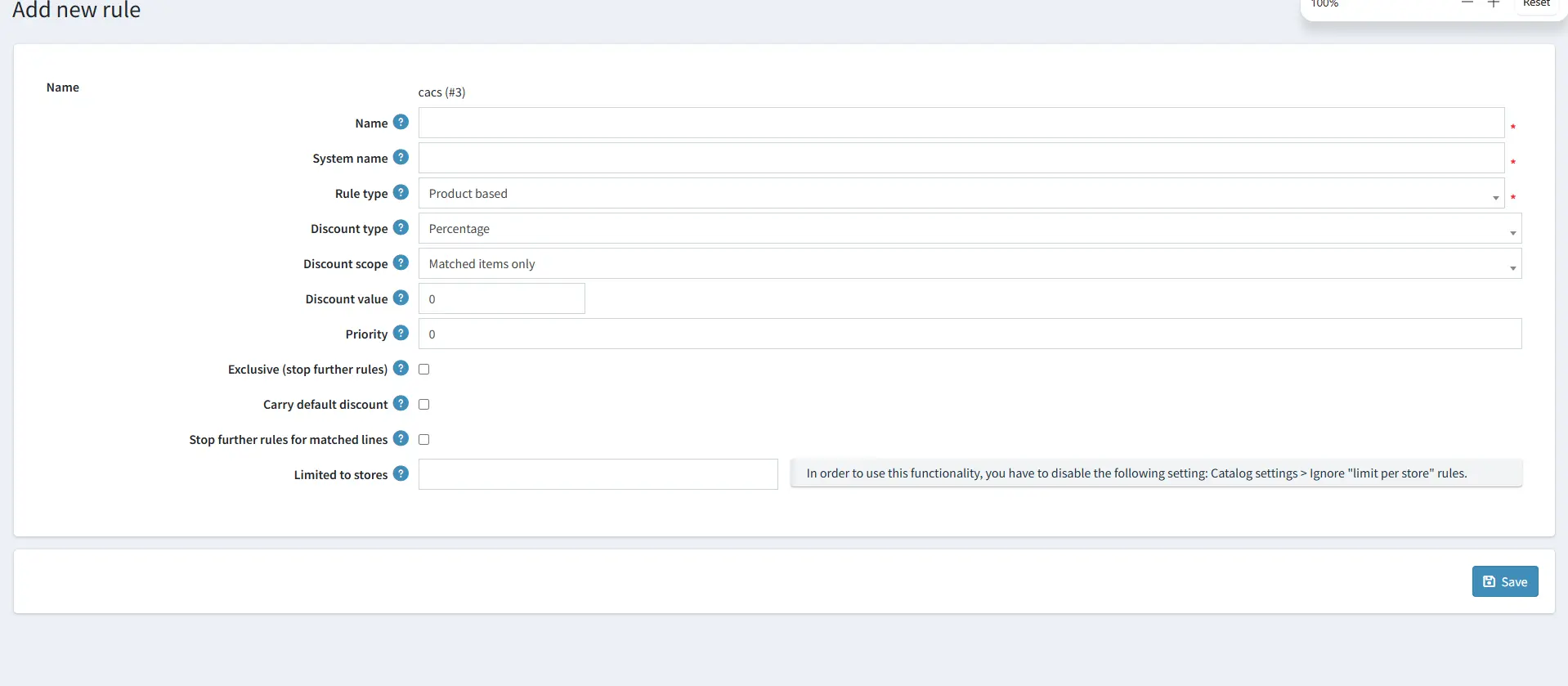
· After filling all the required fields and clicking the Save button
· Click Open full rule editor
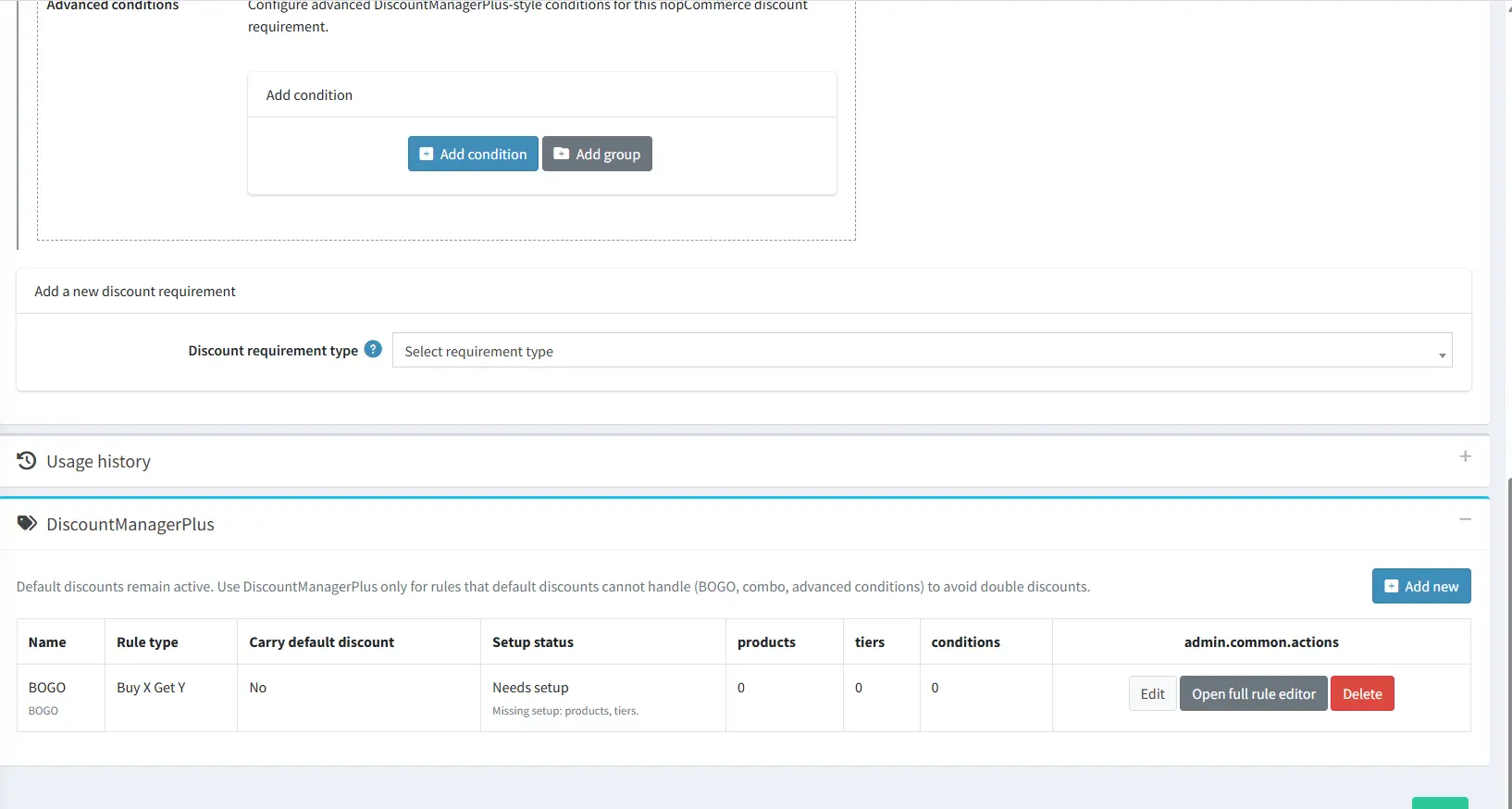
· Click add new for adding products
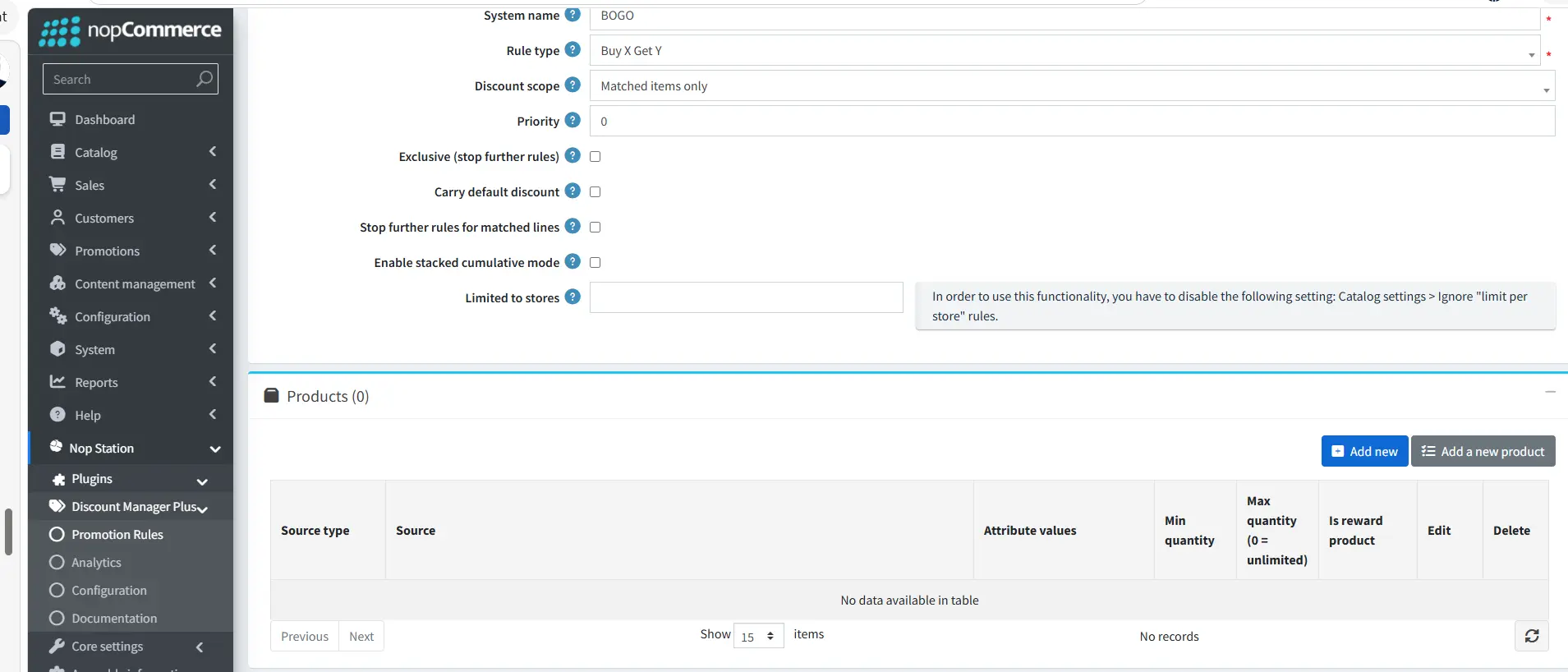
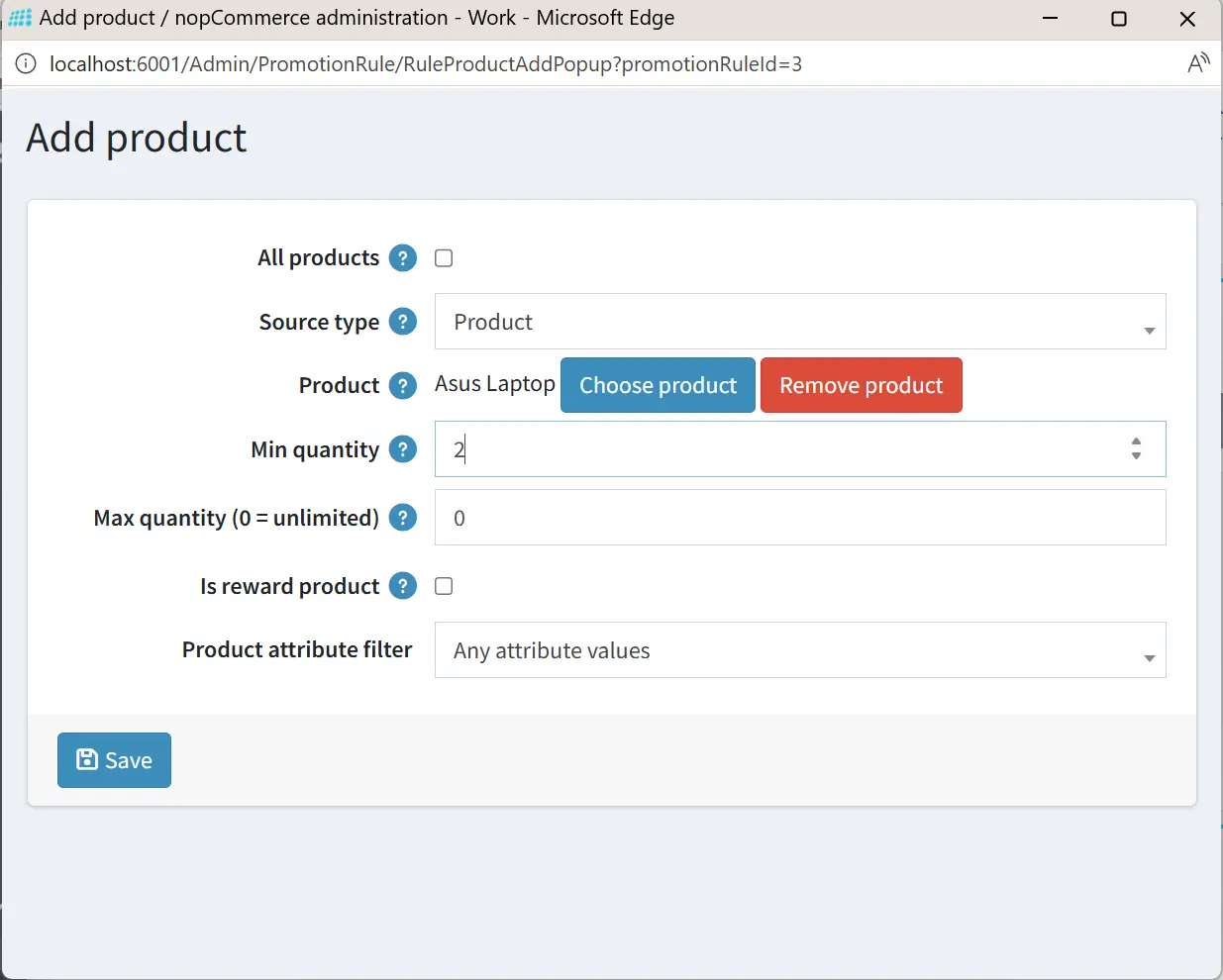
· Now, we must add two products
1.For first product
2.For second product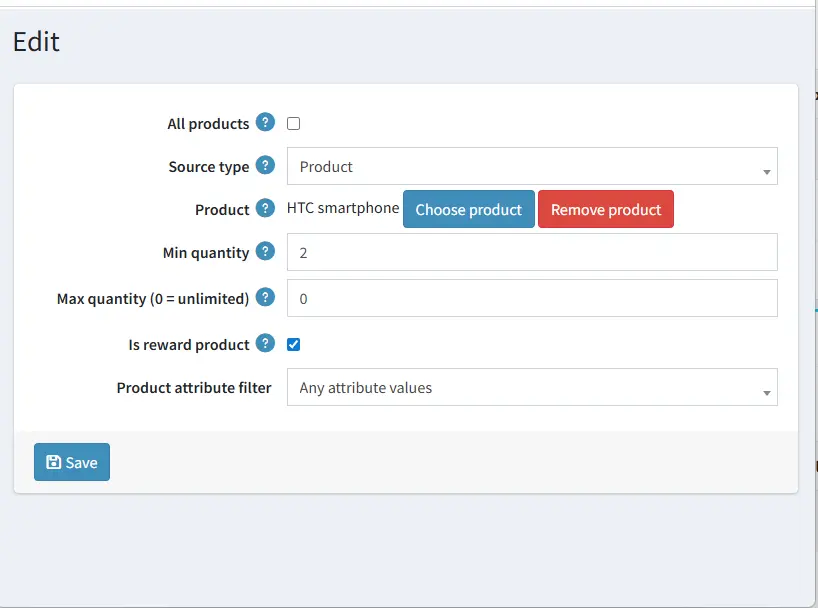
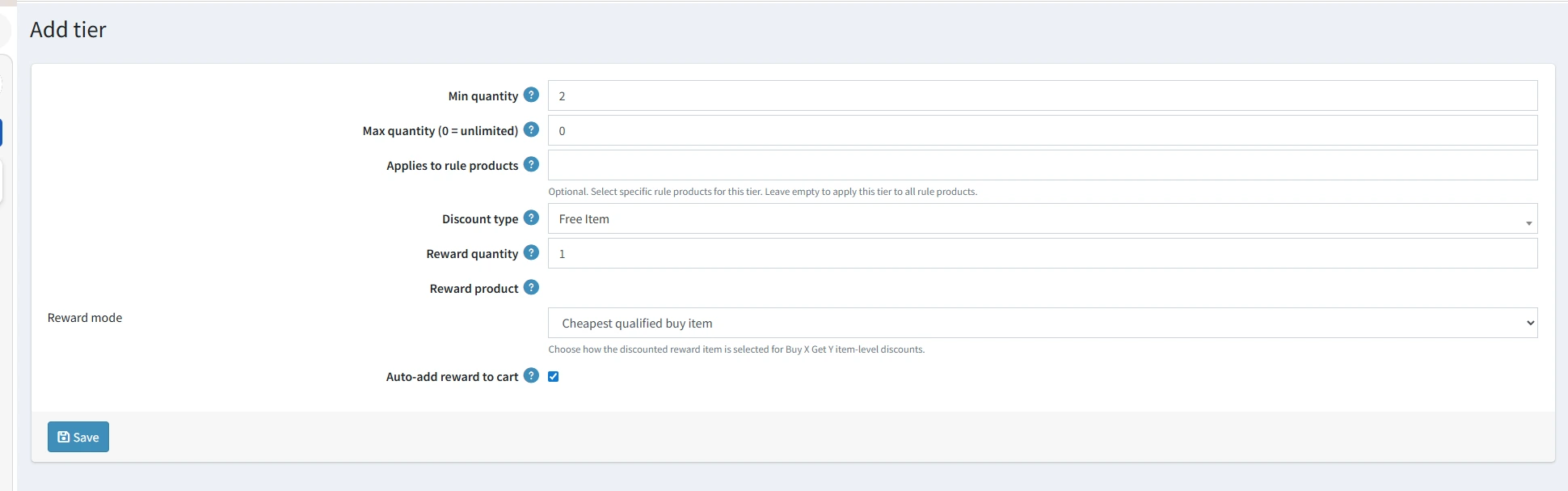
· Now for tier click on the add new from the tier section
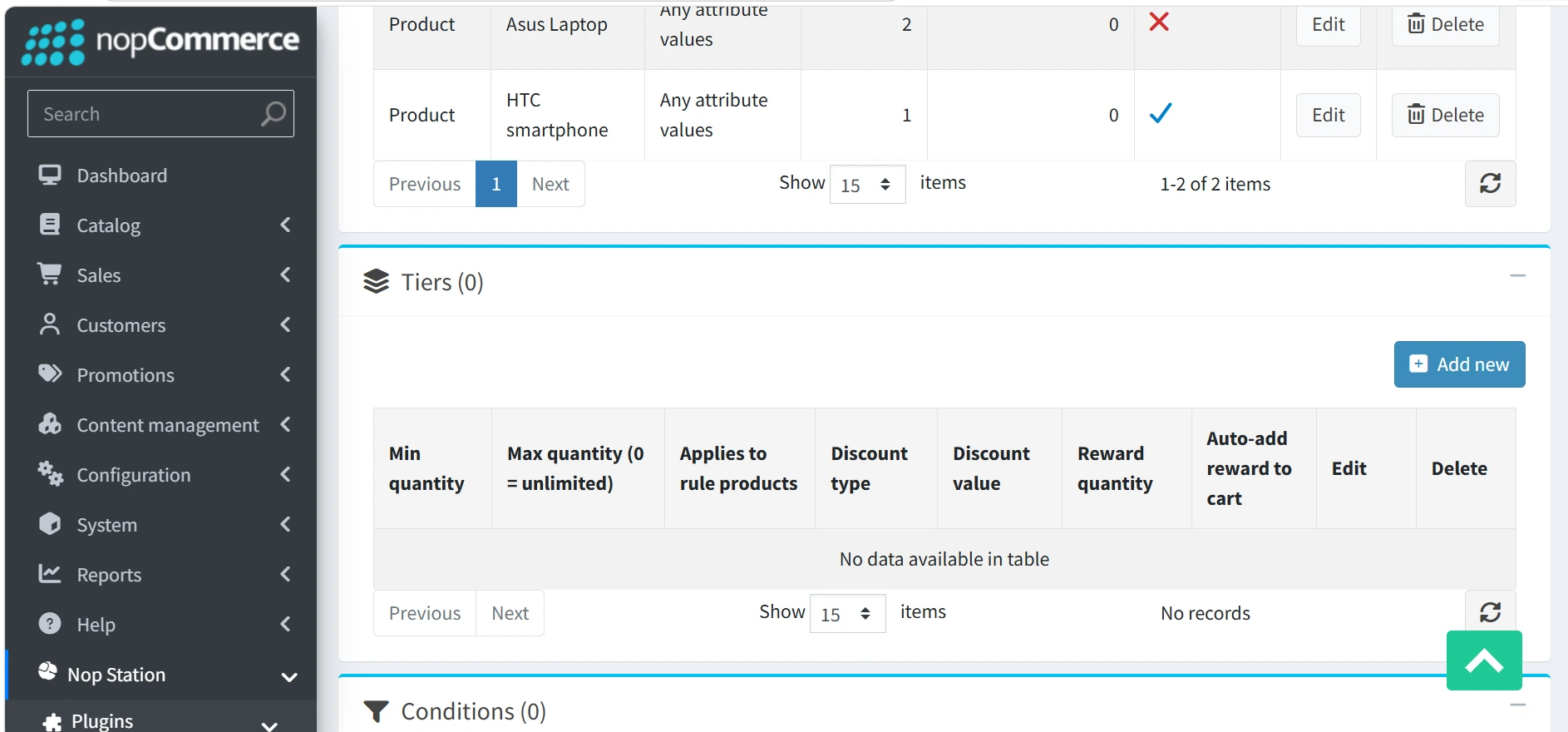
· Now , add tier calculation for the rules
· Click save and go to storefront
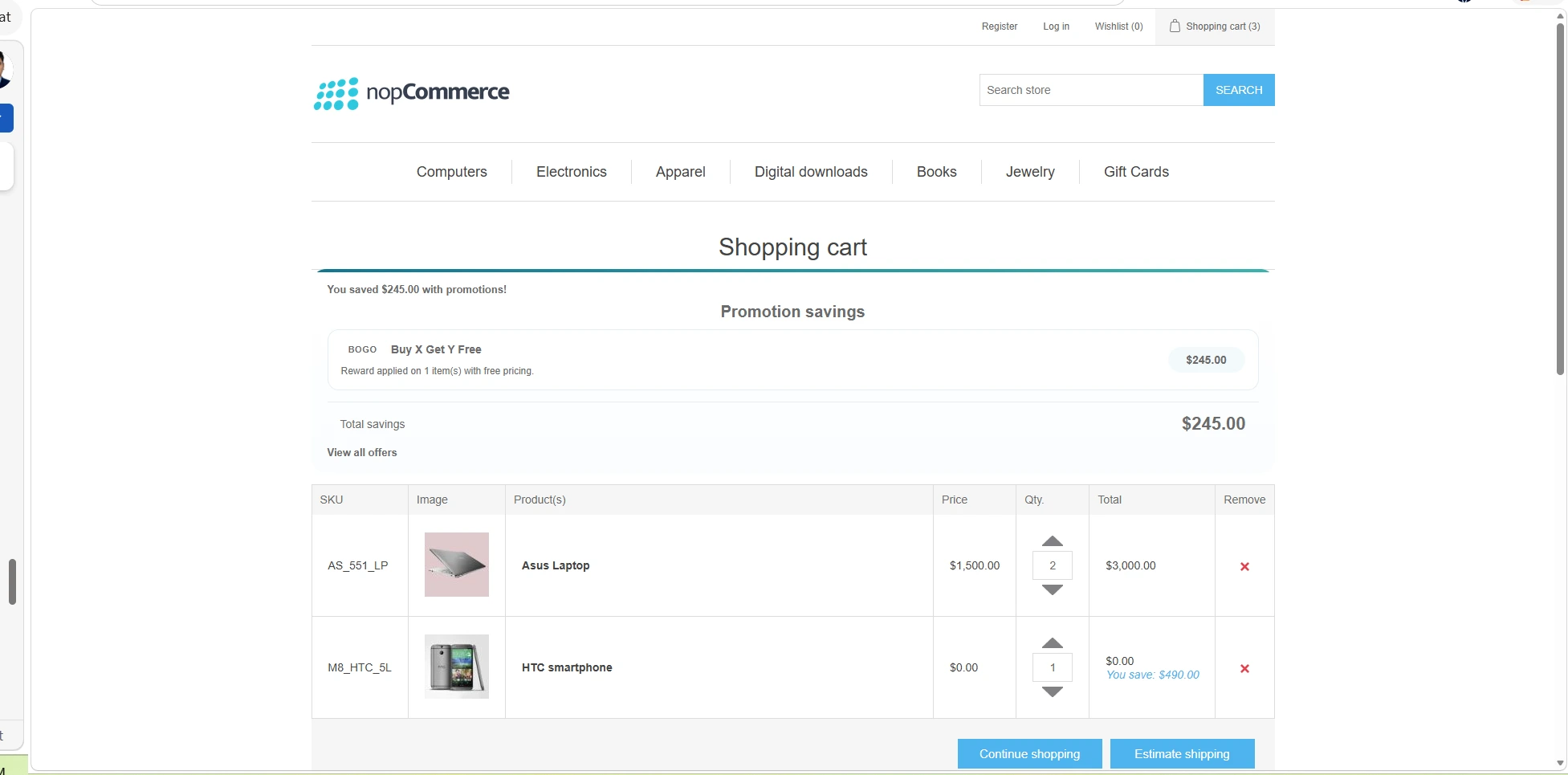
· Now add to cart those product from the storefront and discount will show in the cart
2.RuleType: CartCondition
· Go to Promotions>> Discounts>>Add new for adding Discount rules
· Sample: 5+ total items => 10% off.
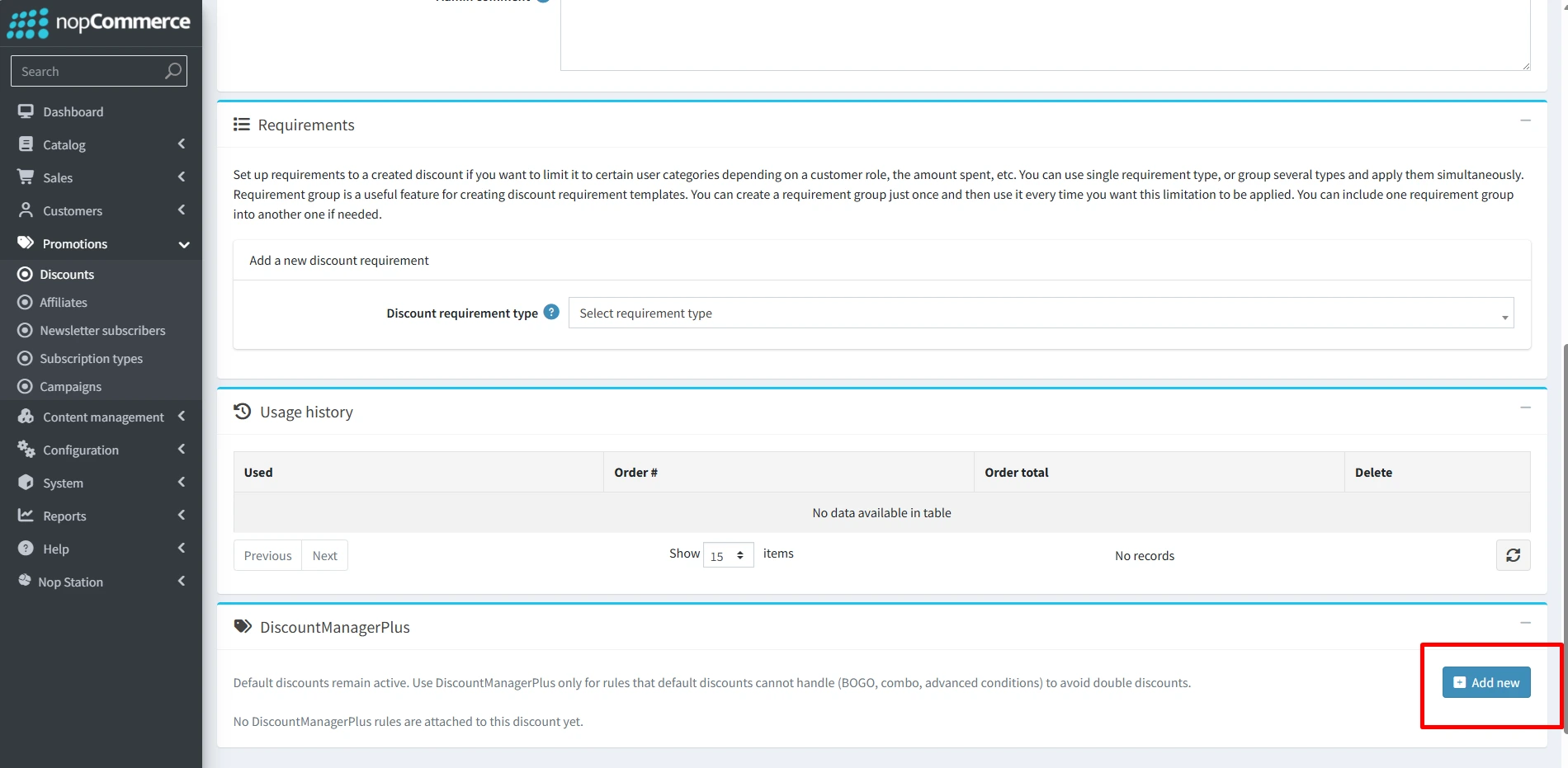
· Click on the add new on the discount manager plus
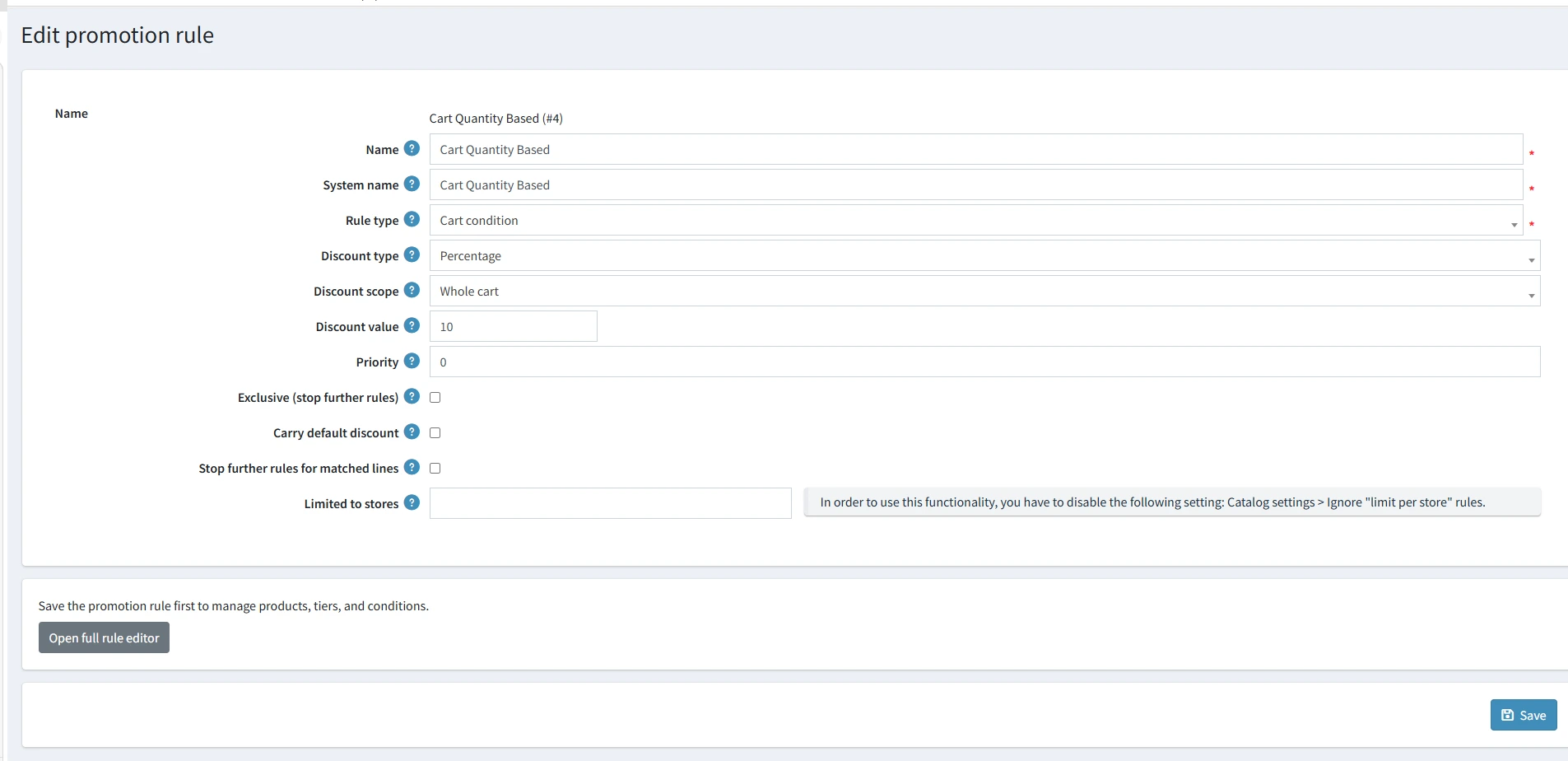
· After filling all the required fields and clicking the Save button
· Click Open full rule editor
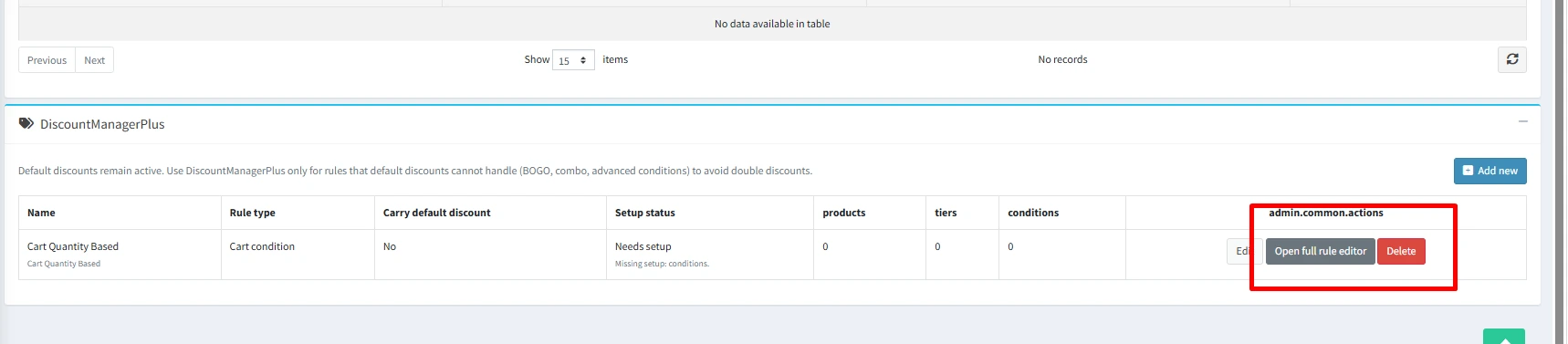
· Click add new for adding conditions
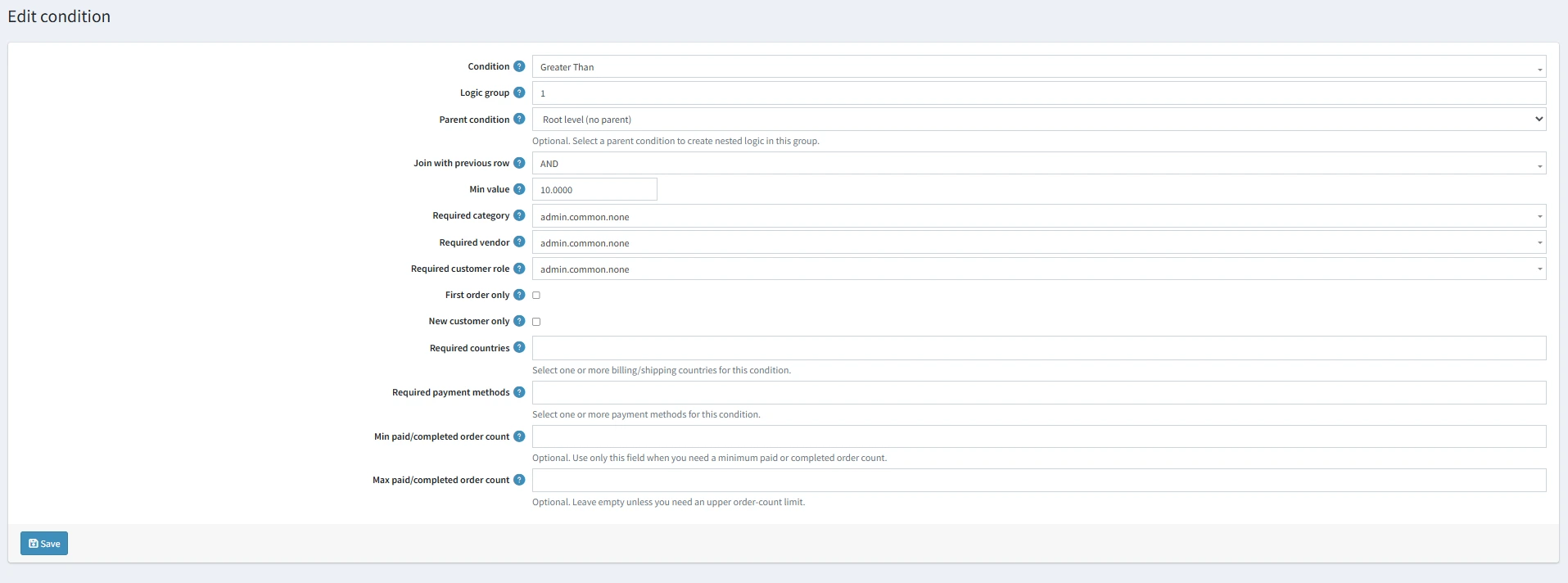
· Click save and go to storefront
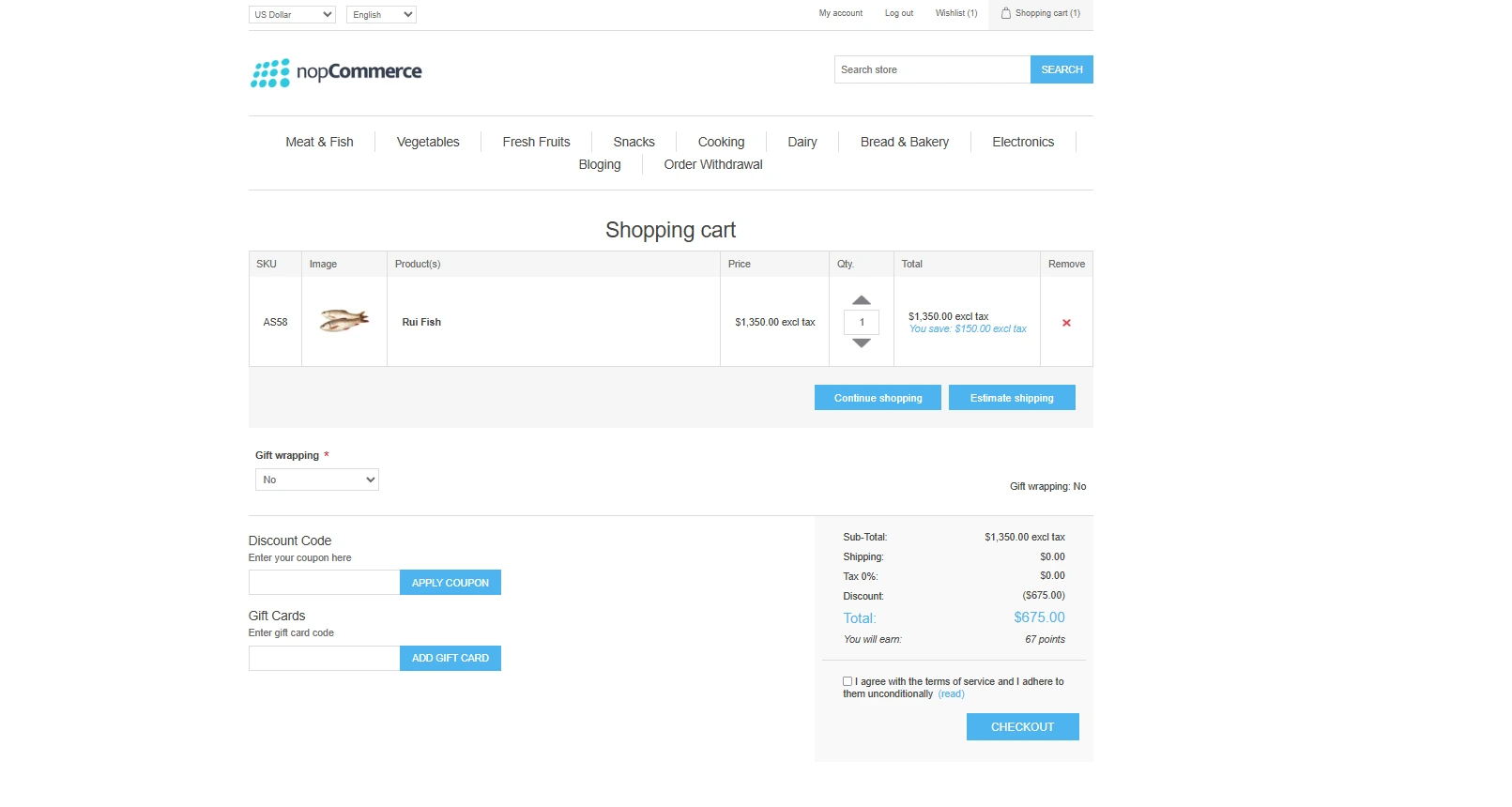
· Now add to cart product from the storefront and discount will show in the cart
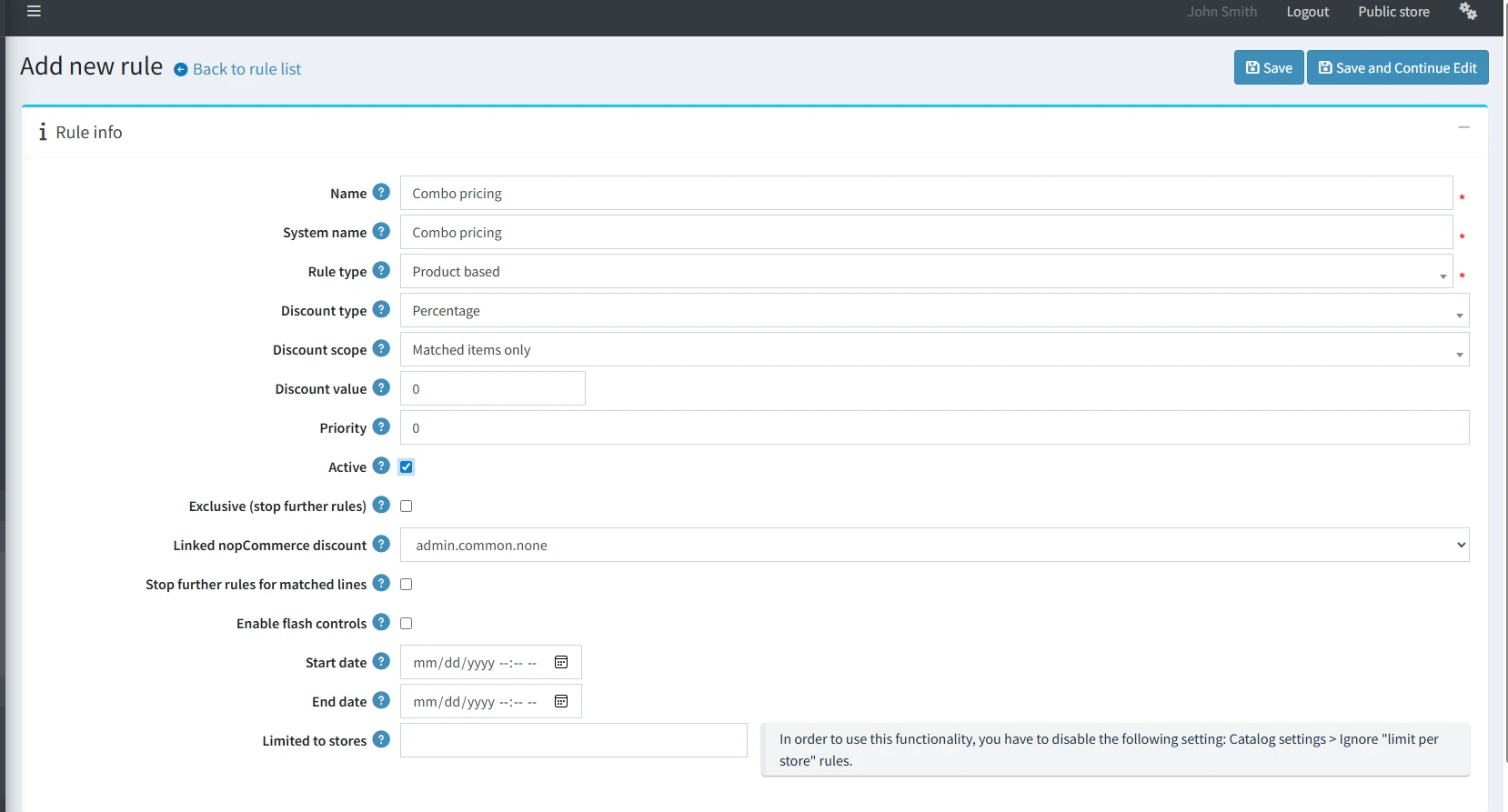
3. RuleType: Combo Pricing
· Go to Promotions >> Discounts >> Add new
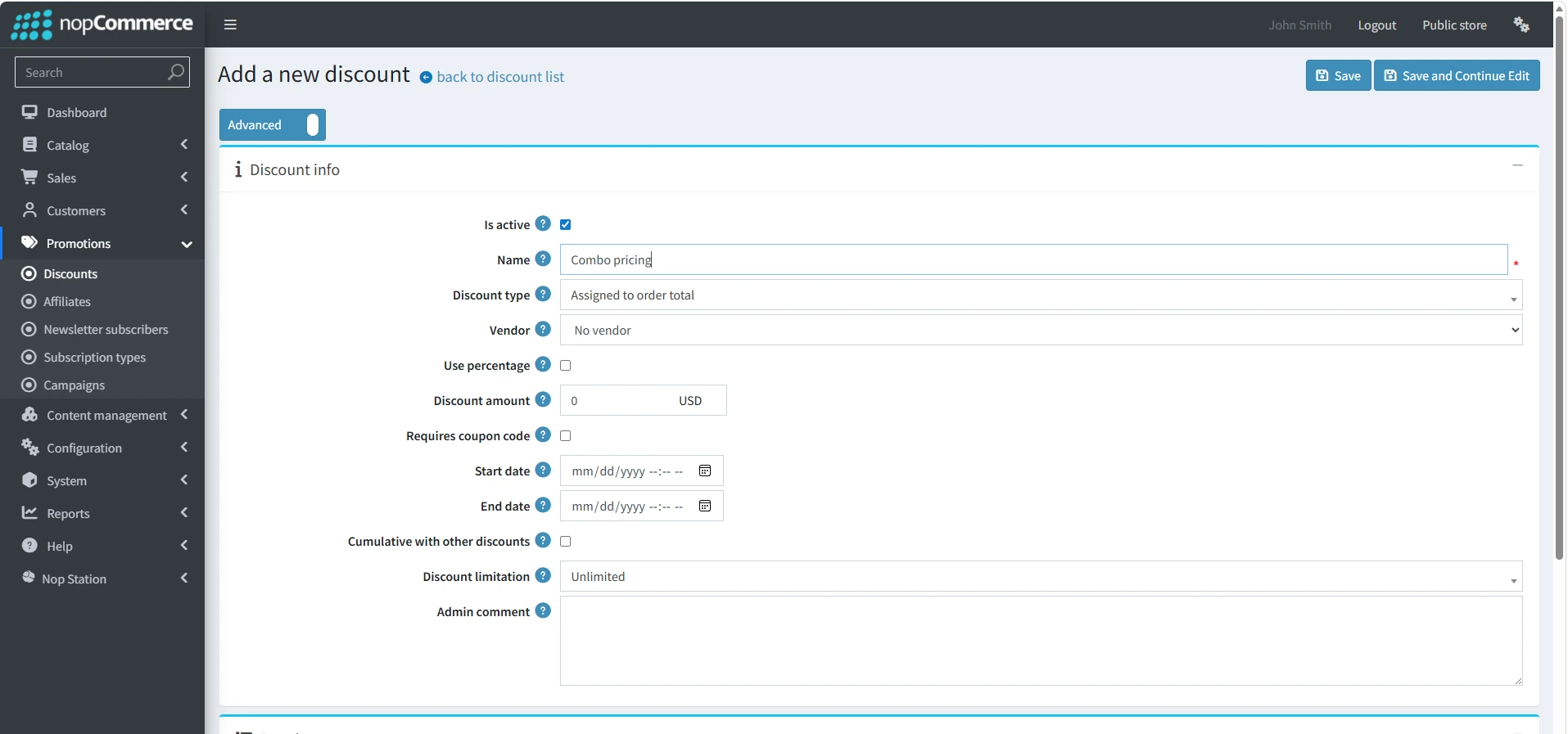
· Sample: Buy product-A + product-B => 10% off.
· Click Open full rule editor
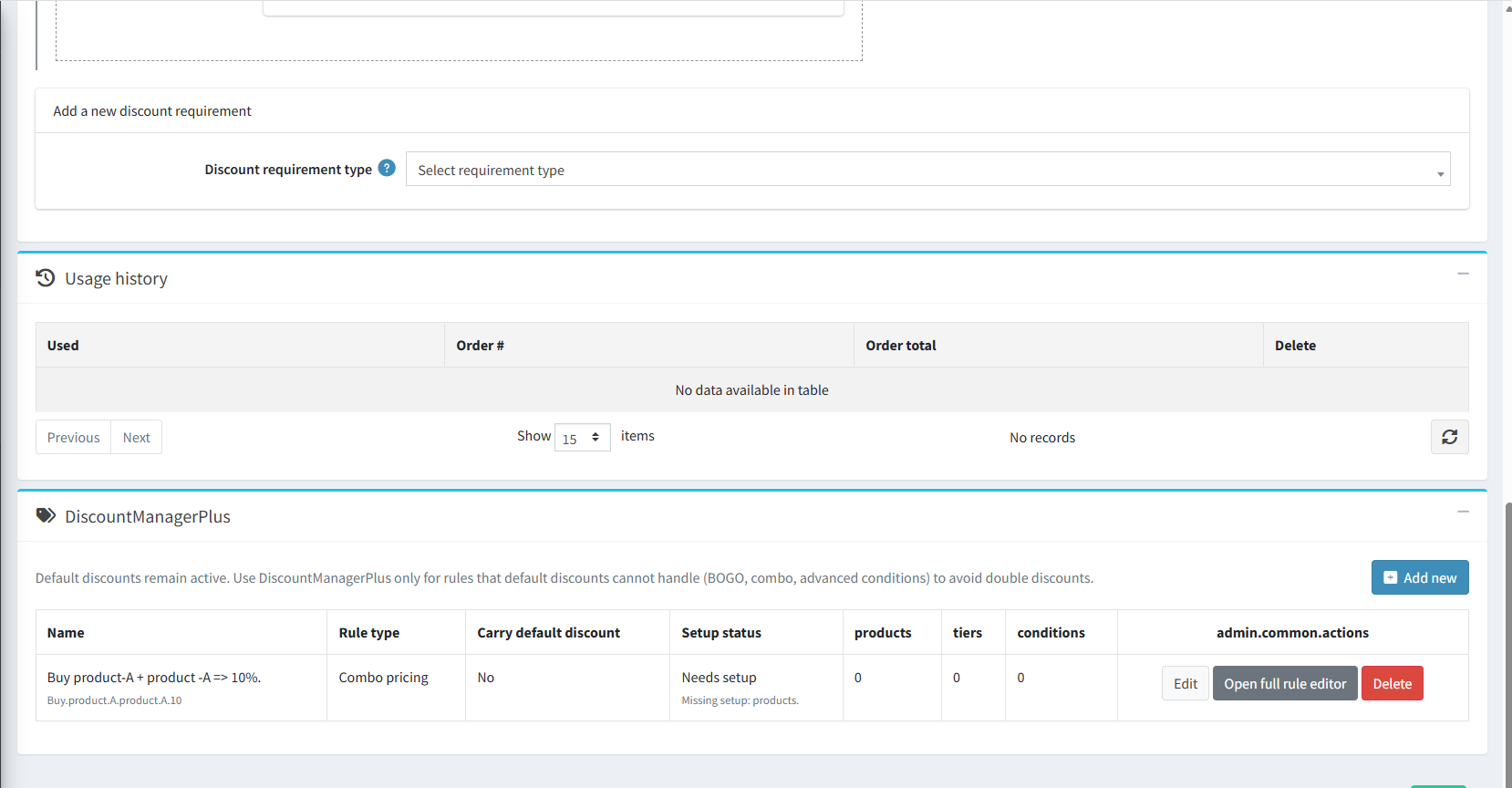
· Click add new for adding products/category
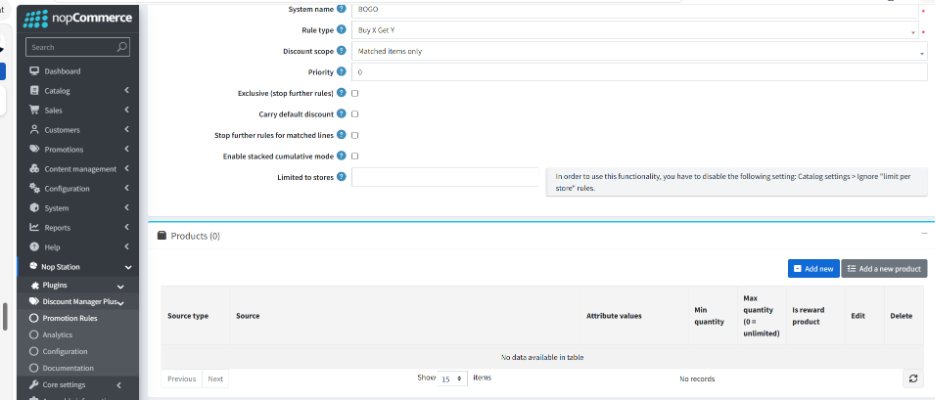
· Now, we must add category and manufacture
1.For first category
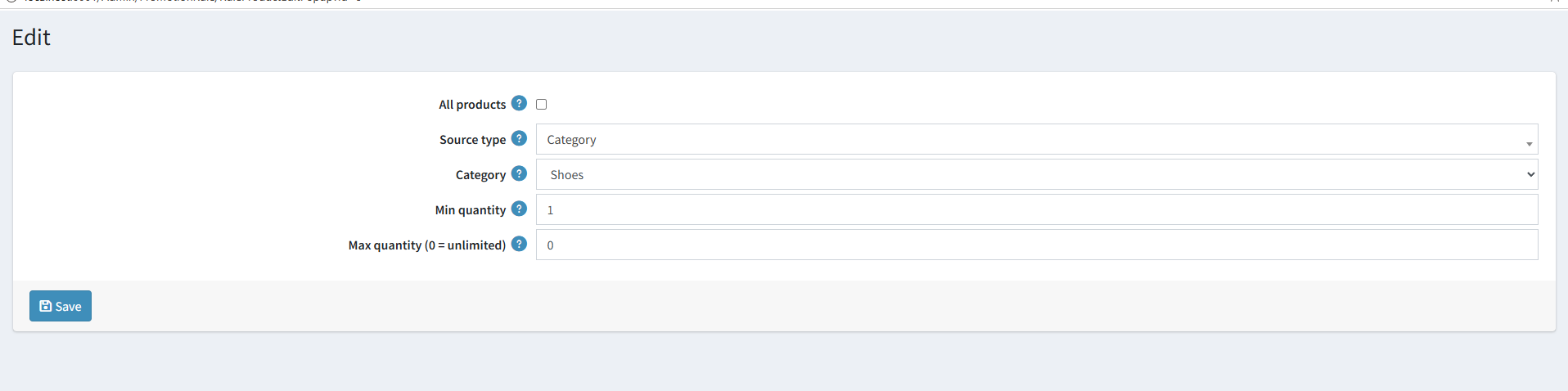
2.For Second manufacturer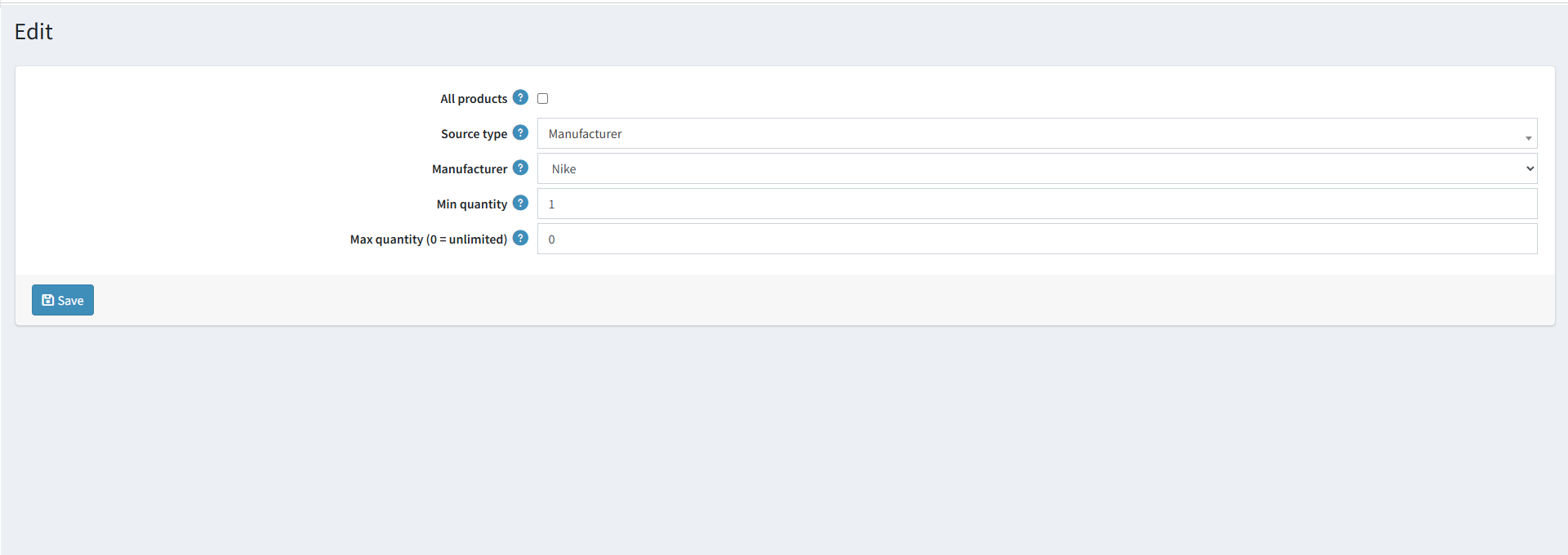
· Click save and go to storefront
· Now add to cart those categorized product from the storefront and discount will show in the cart
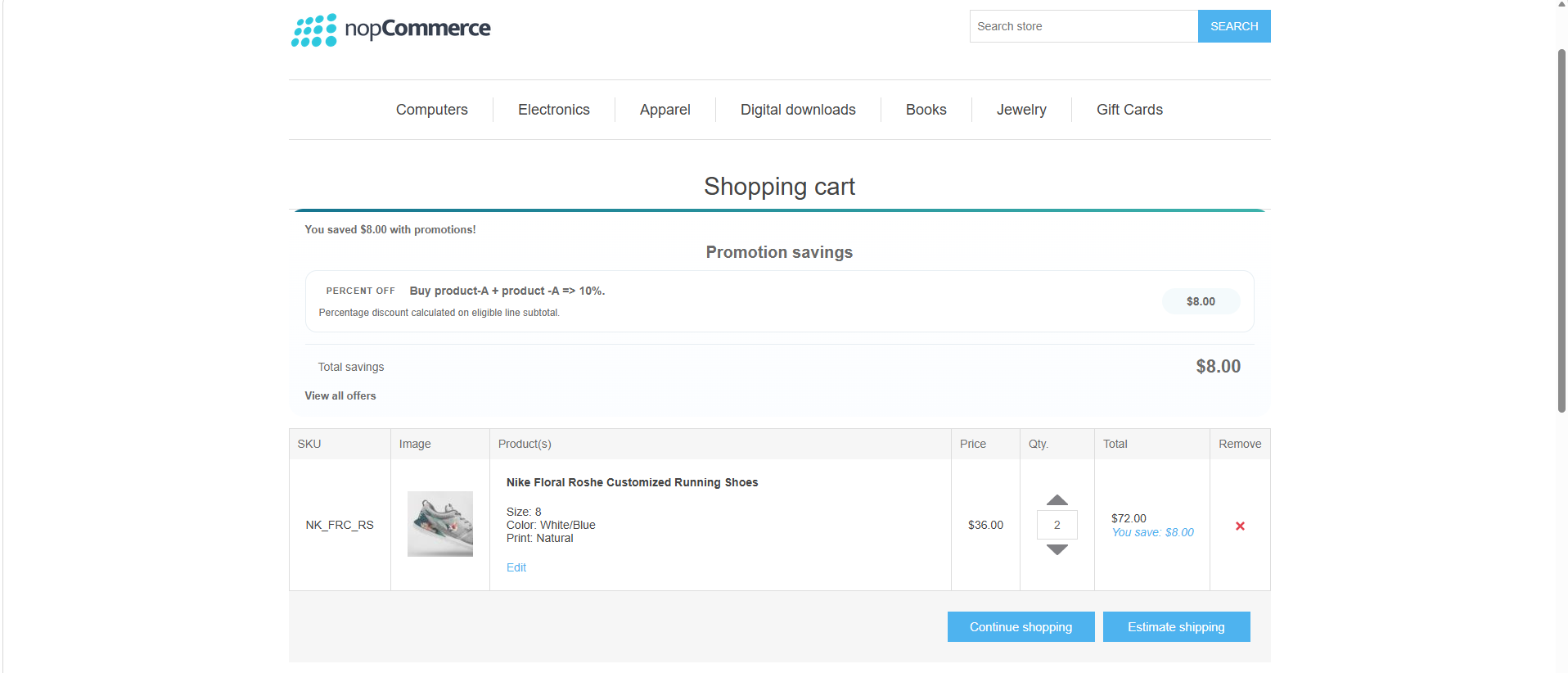
4. RuleType: ProductBased
· Go to Promotions >> Discounts >> Add new
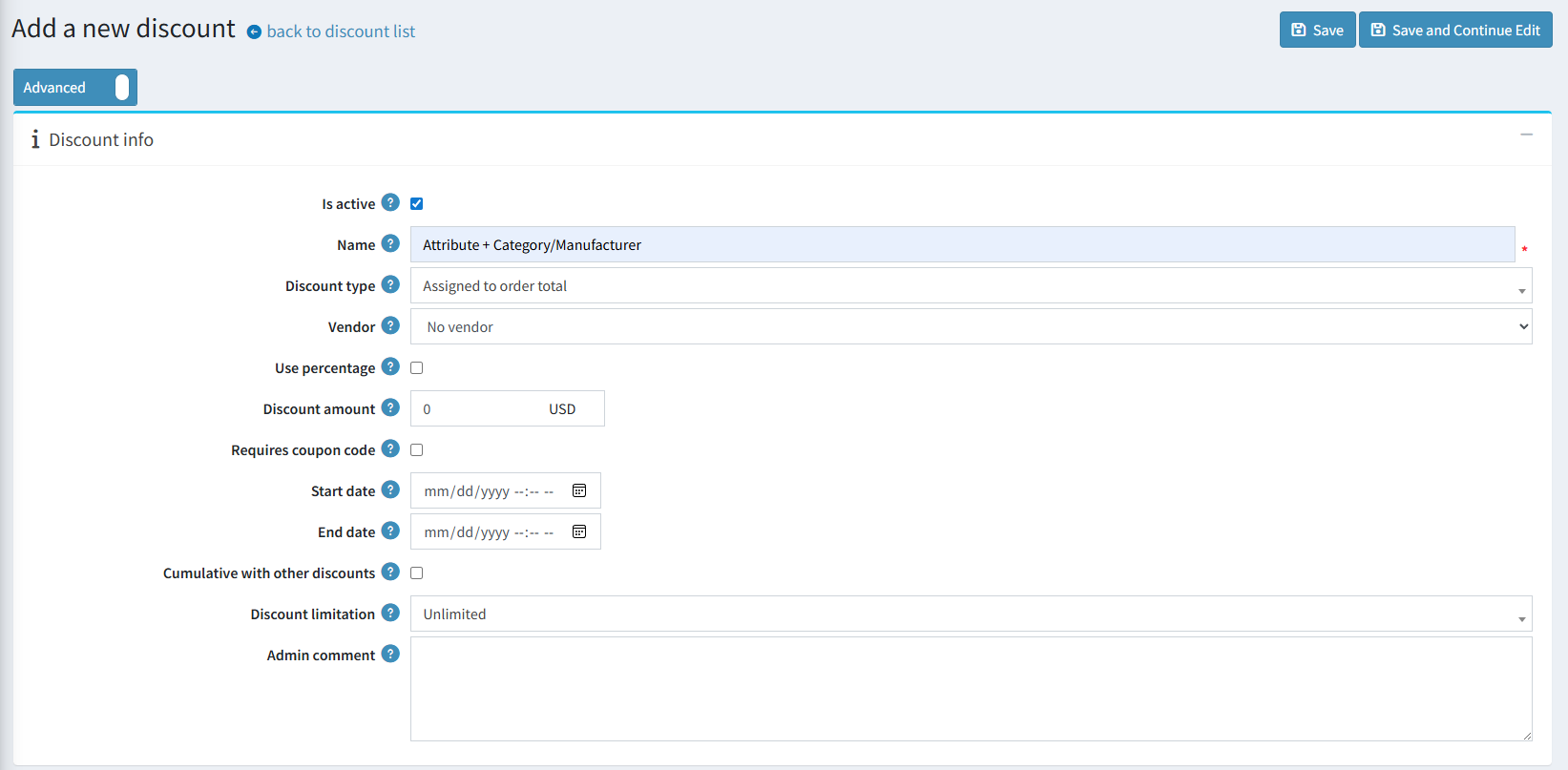
· Sample: Blue Nike shoes => 15% off.
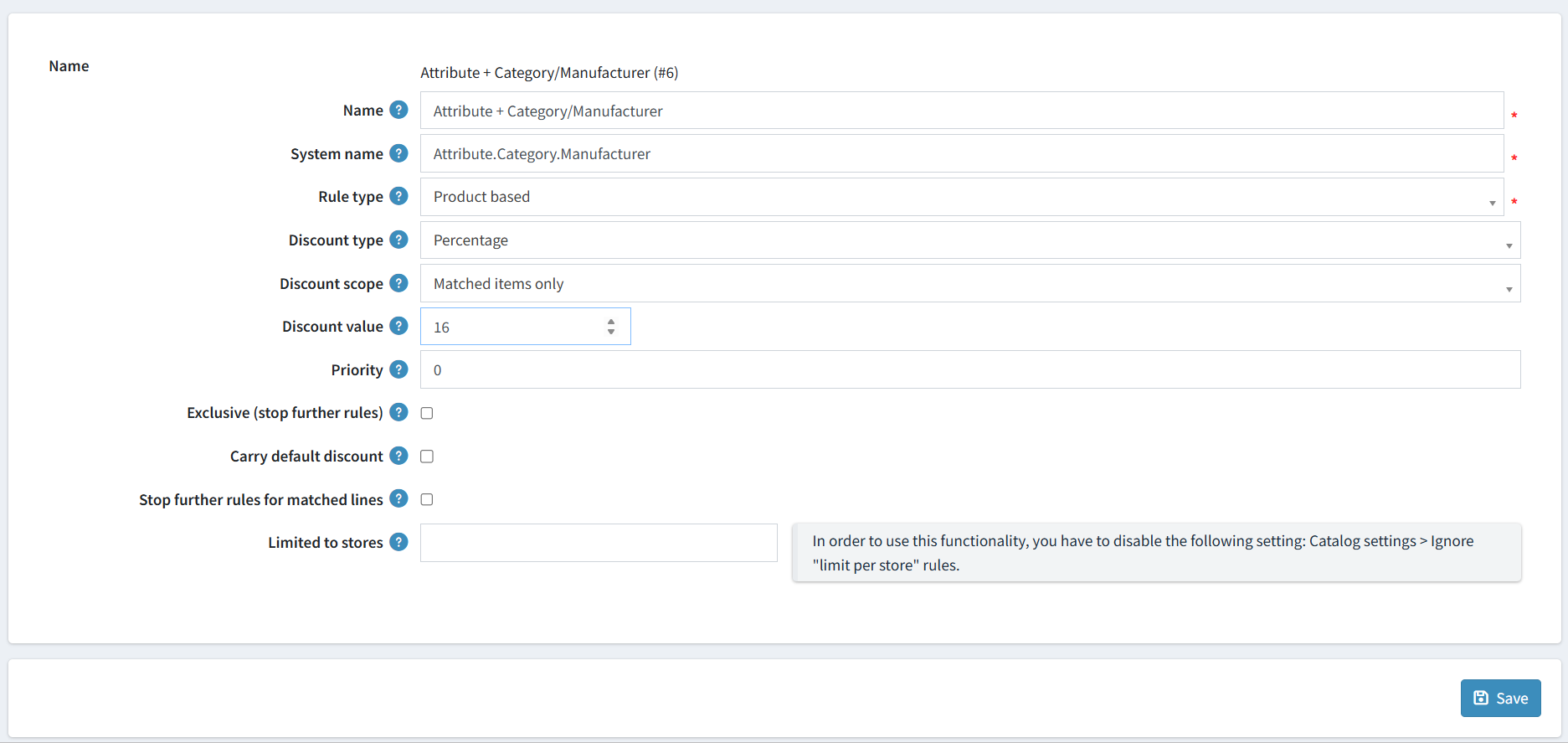
· After filling all the required fields and clicking the Save button
· Click Open full rule editor
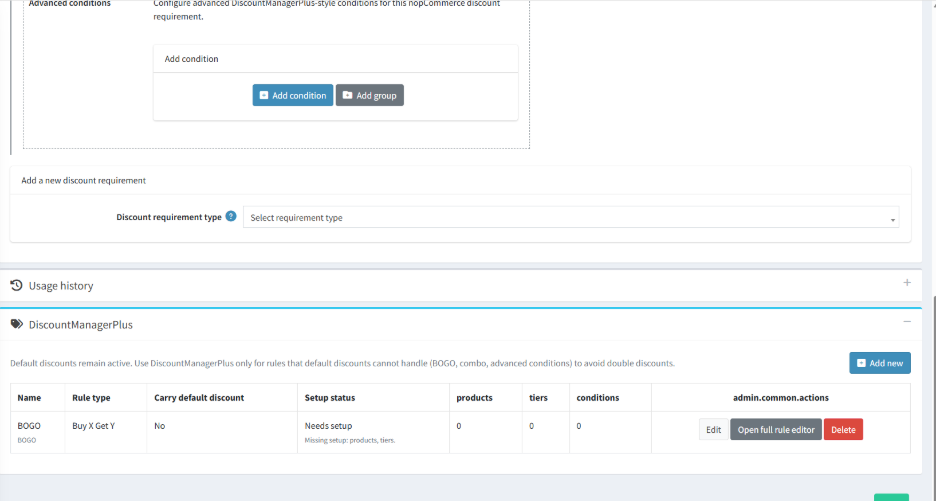
· Click add new for adding category/products
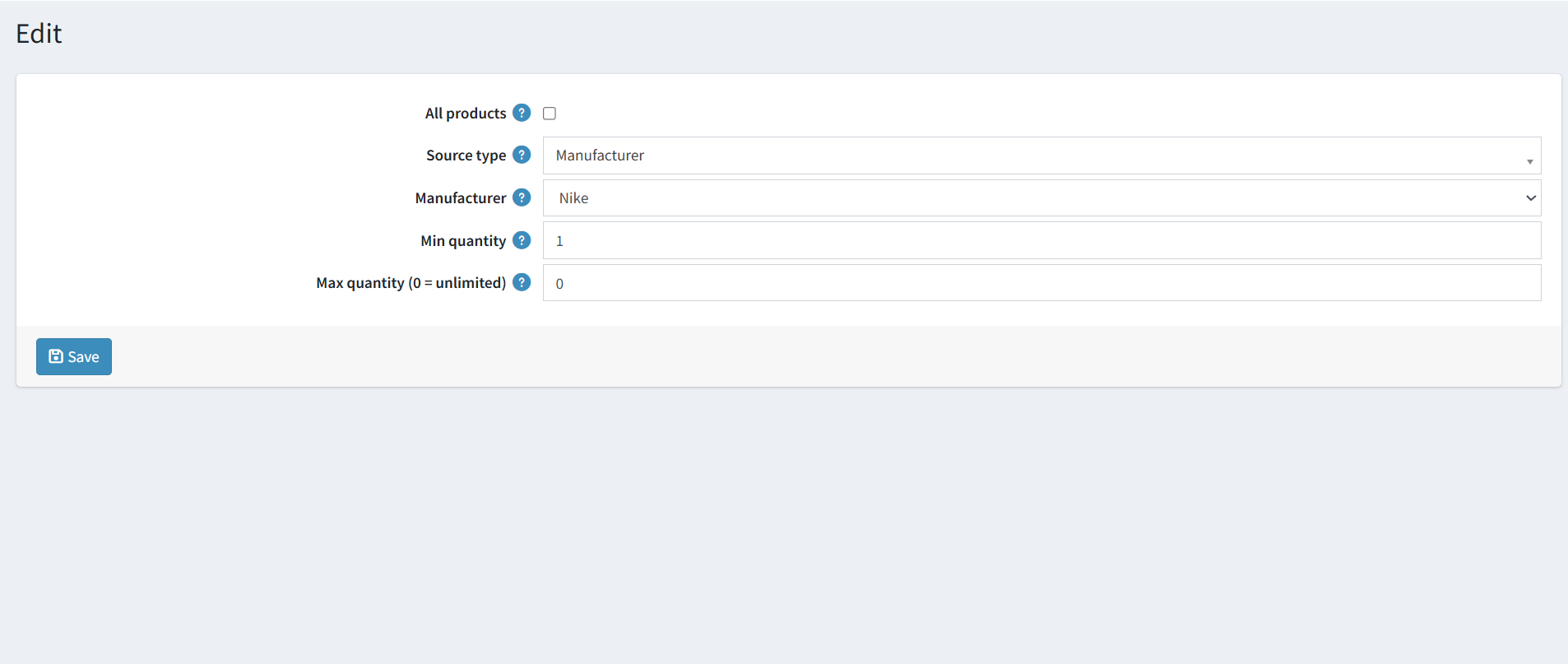
· Click save and go to storefront
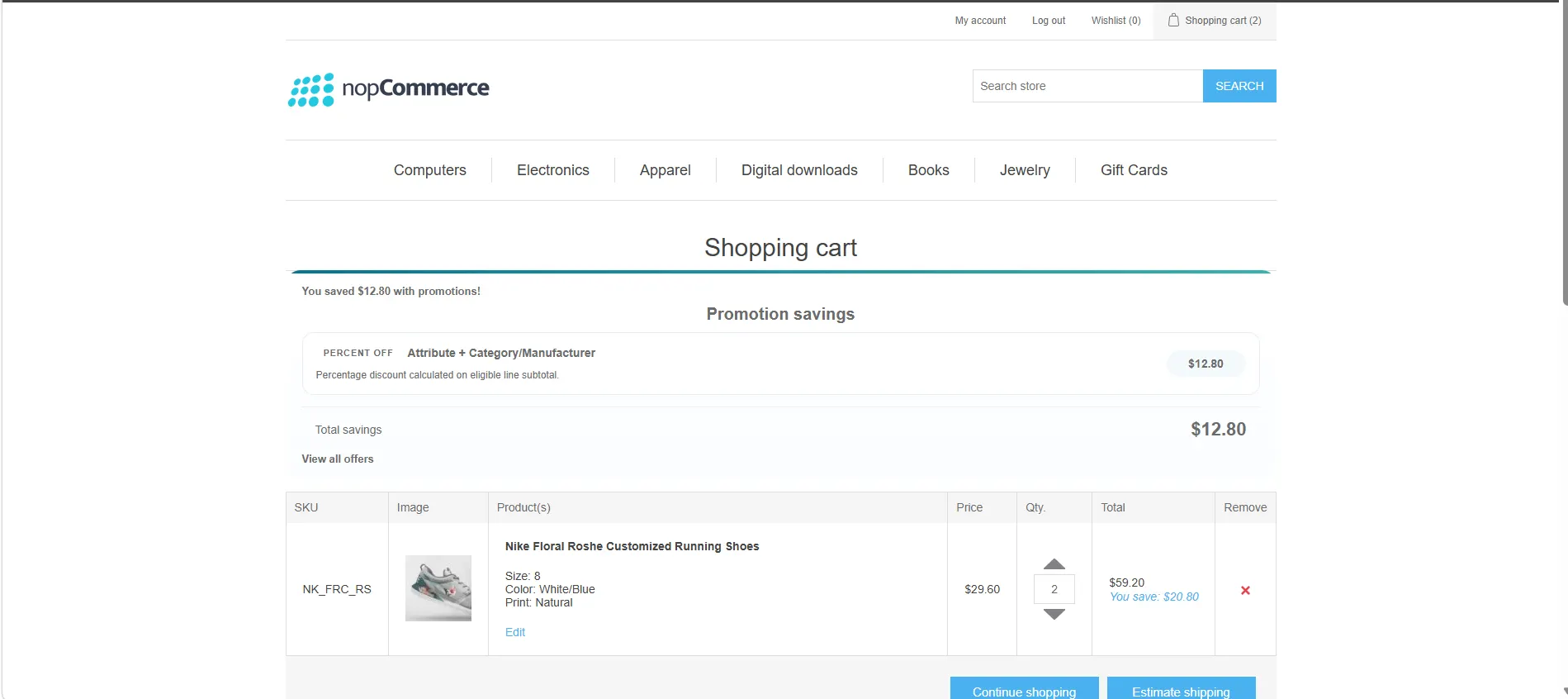
· Now add to cart those product from the storefront and discount will show in the cart
5. RuleType:Subtotal
· Go to Promotions>> Discounts>>Add new for adding Discount rules
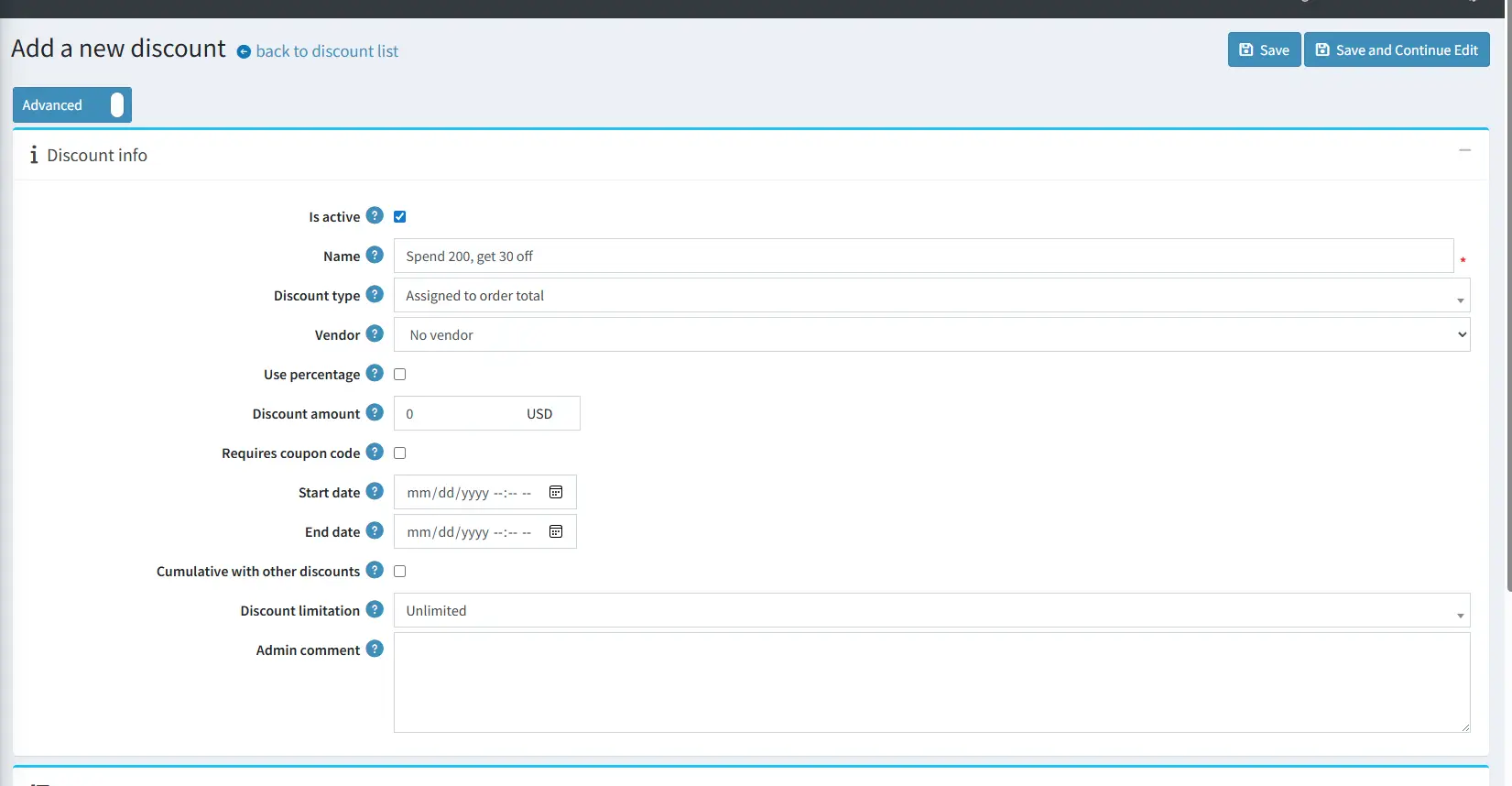
· Sample: Spend 200, get 30 off
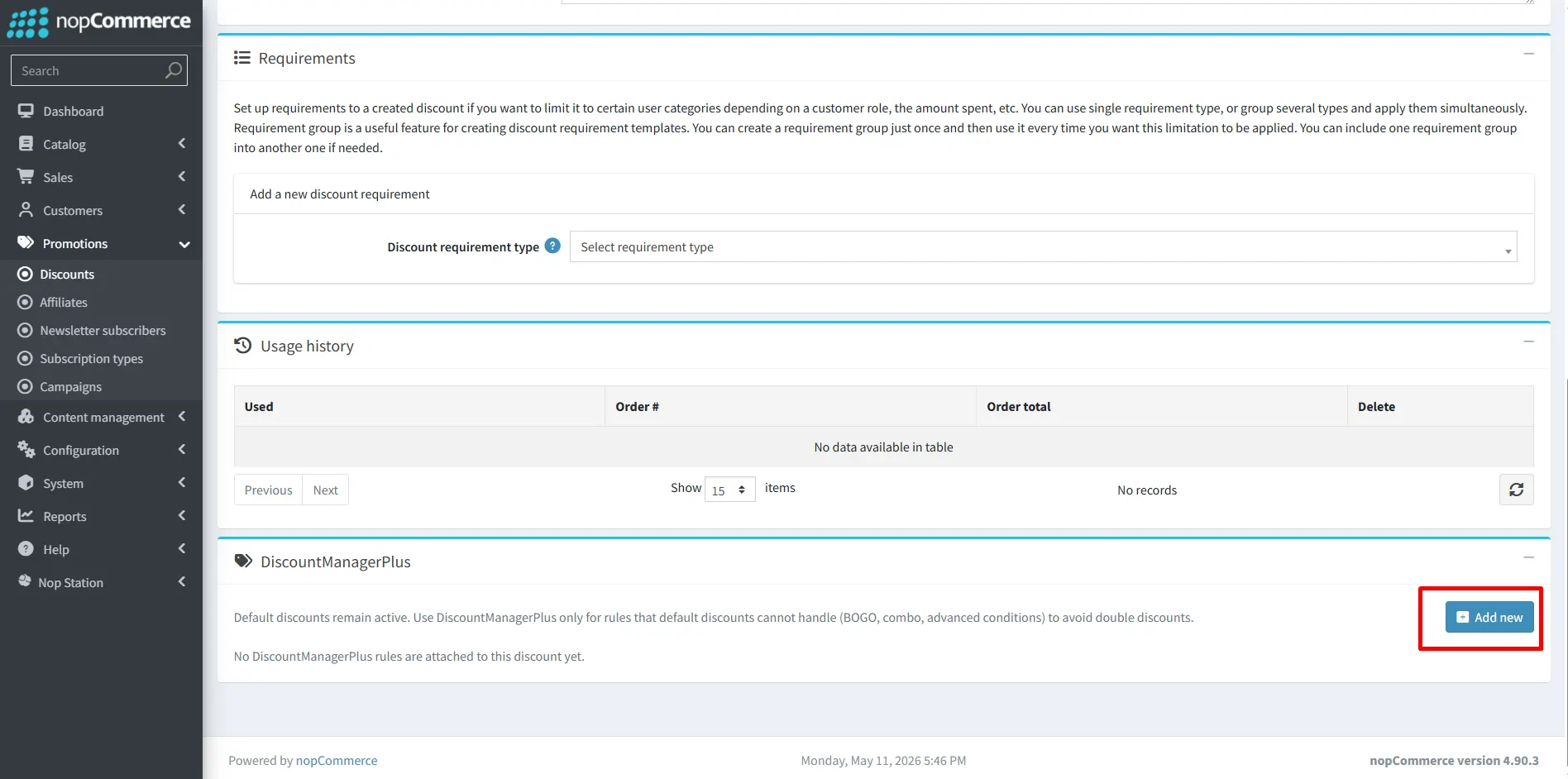
· Click on the add new on the discount manager plus
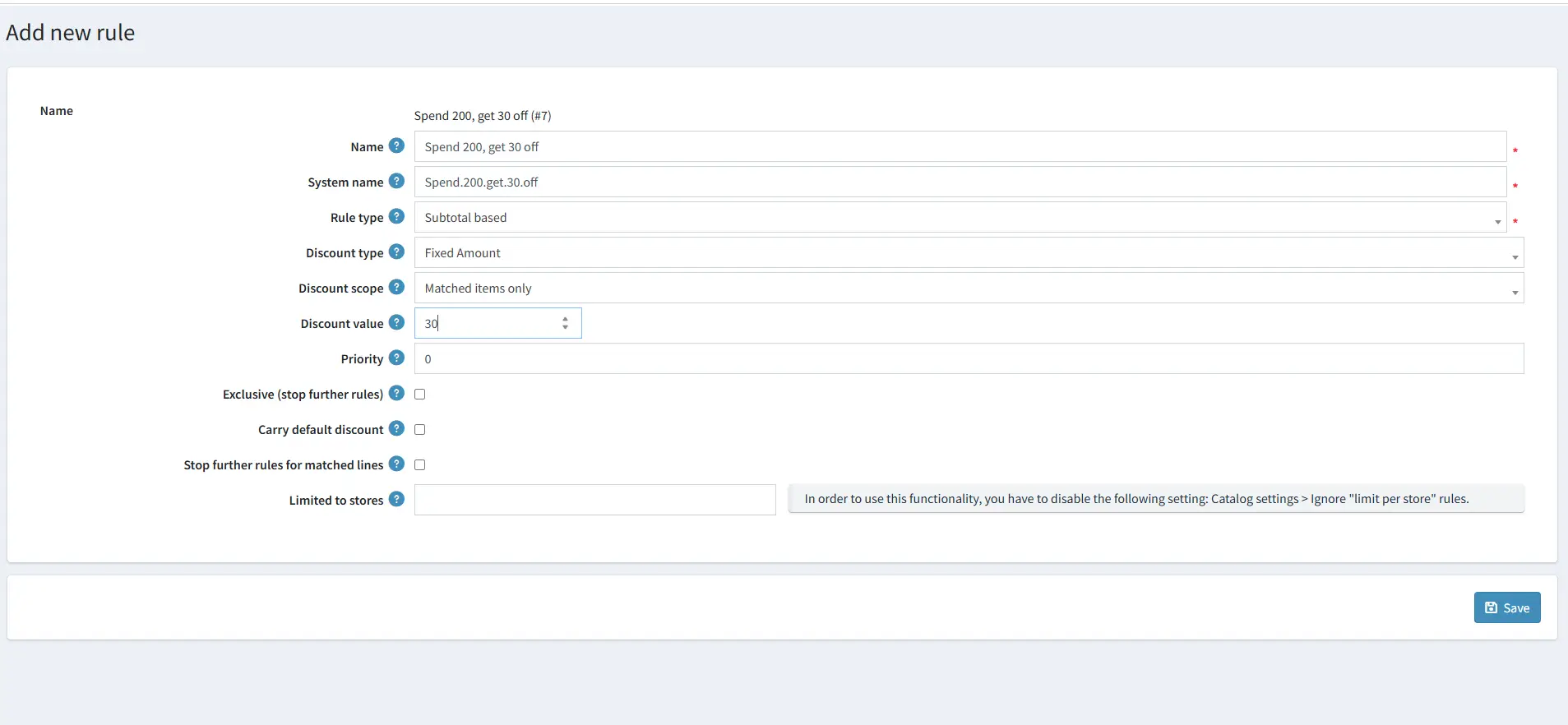
· After filling all the required fields and clicking the Save button
· Click Open full rule editor
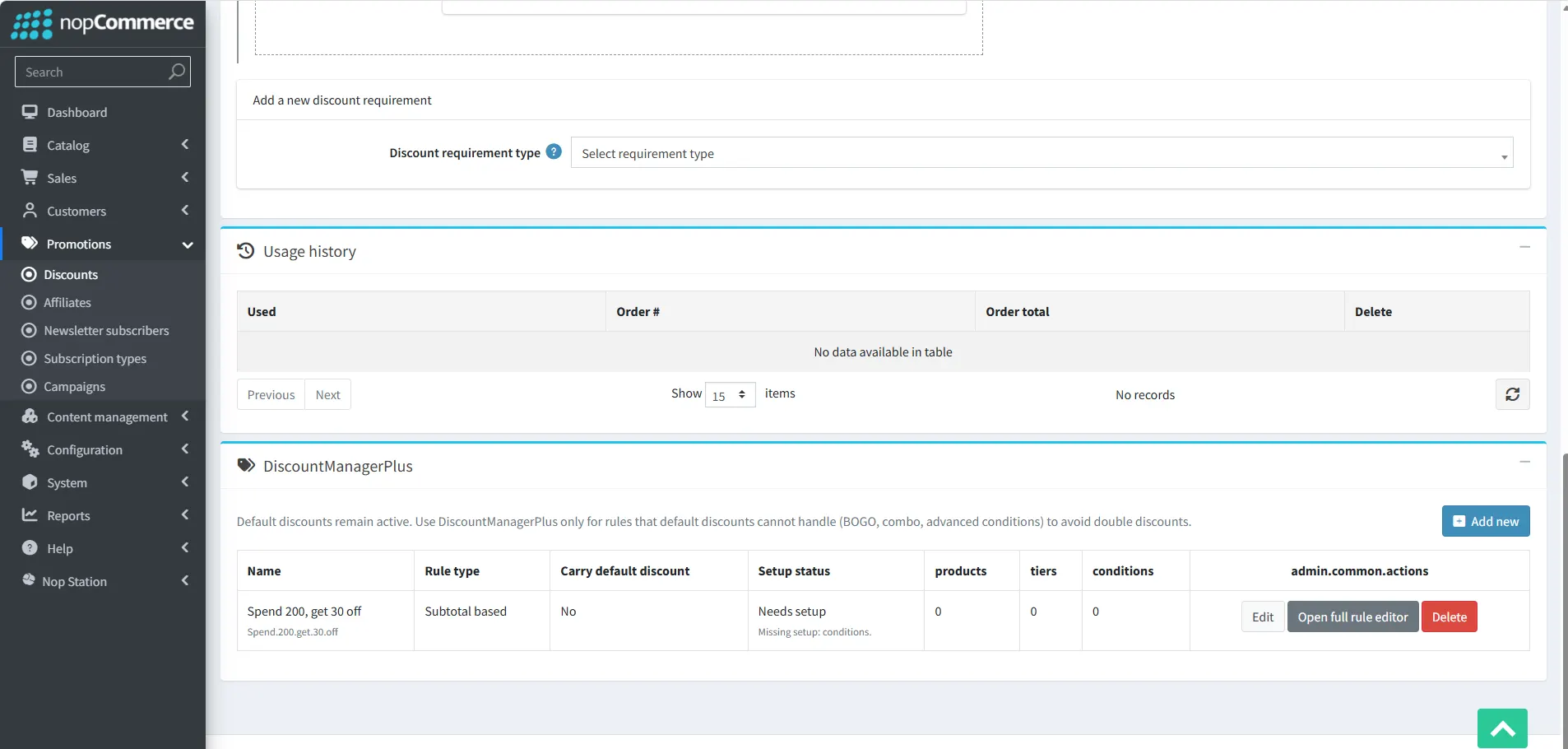
· Click add new for adding new conditions
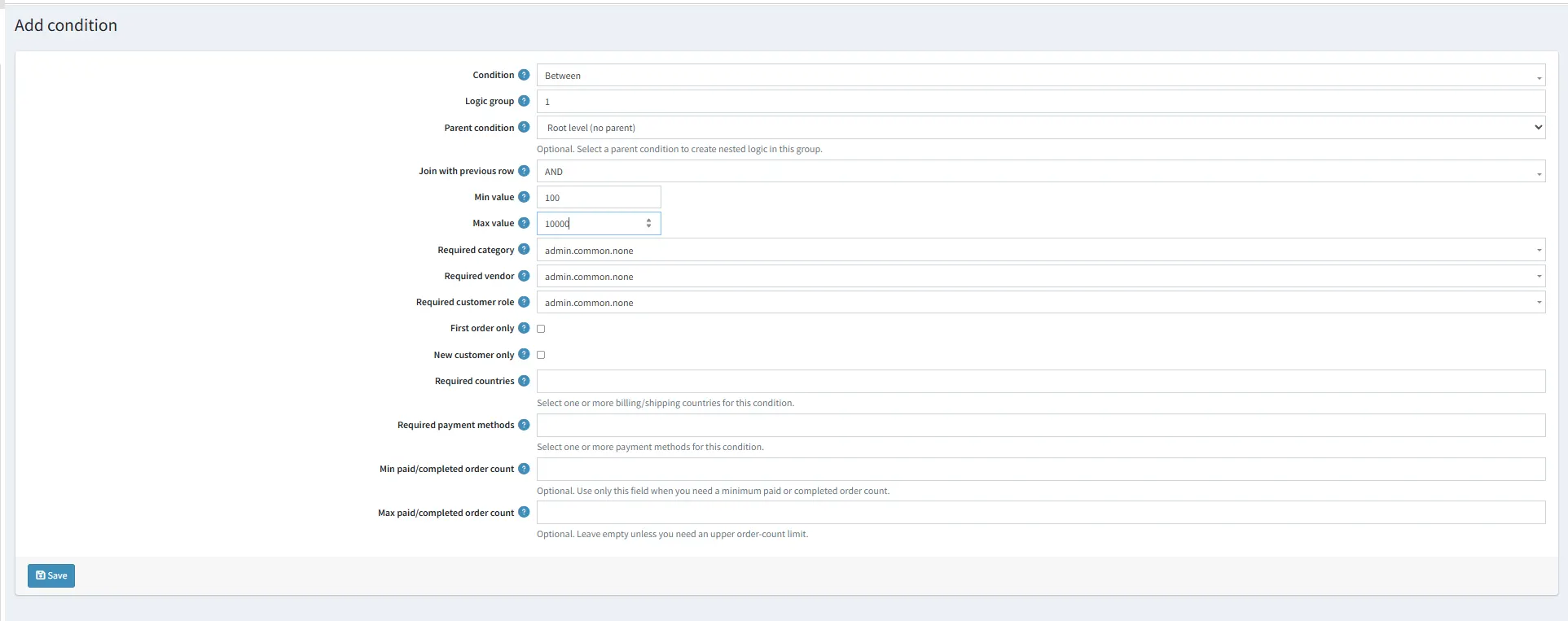
· Click save and go to storefront
· Now add to cart those product from the storefront and discount will show in the cart