Two-Factor Authentication Plugin Make Your nopCommerce Store Secure with Multi-Factor and Passwordless Authentication.
The Two-Factor Authentication plugin for nopCommerce adds an extra layer of security to your online store by helping prevent unauthorized account access, credential theft, and account takeover. It works smoothly with the existing nopCommerce customer accounts, checkout process, and payment system without disrupting the normal shopping experience.
PRE-REQUISITES
- The plugin requires you to install the Nop-Station Core plugin first.
INSTALLATION
- Download the Two-Factor Authentication Plugin from our store
- Go to Administration → Configuration → Local plugins
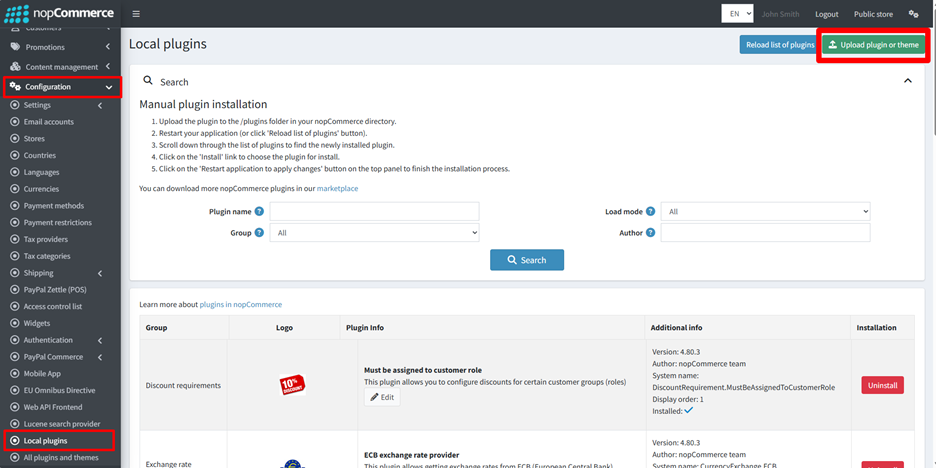
- Select the NopStation.Core file and upload it by clicking the 'Upload plugin or theme' button.
- Select the NopStation.Plugin.Misc.TwoFactorAuthentication-4.90.zip file.
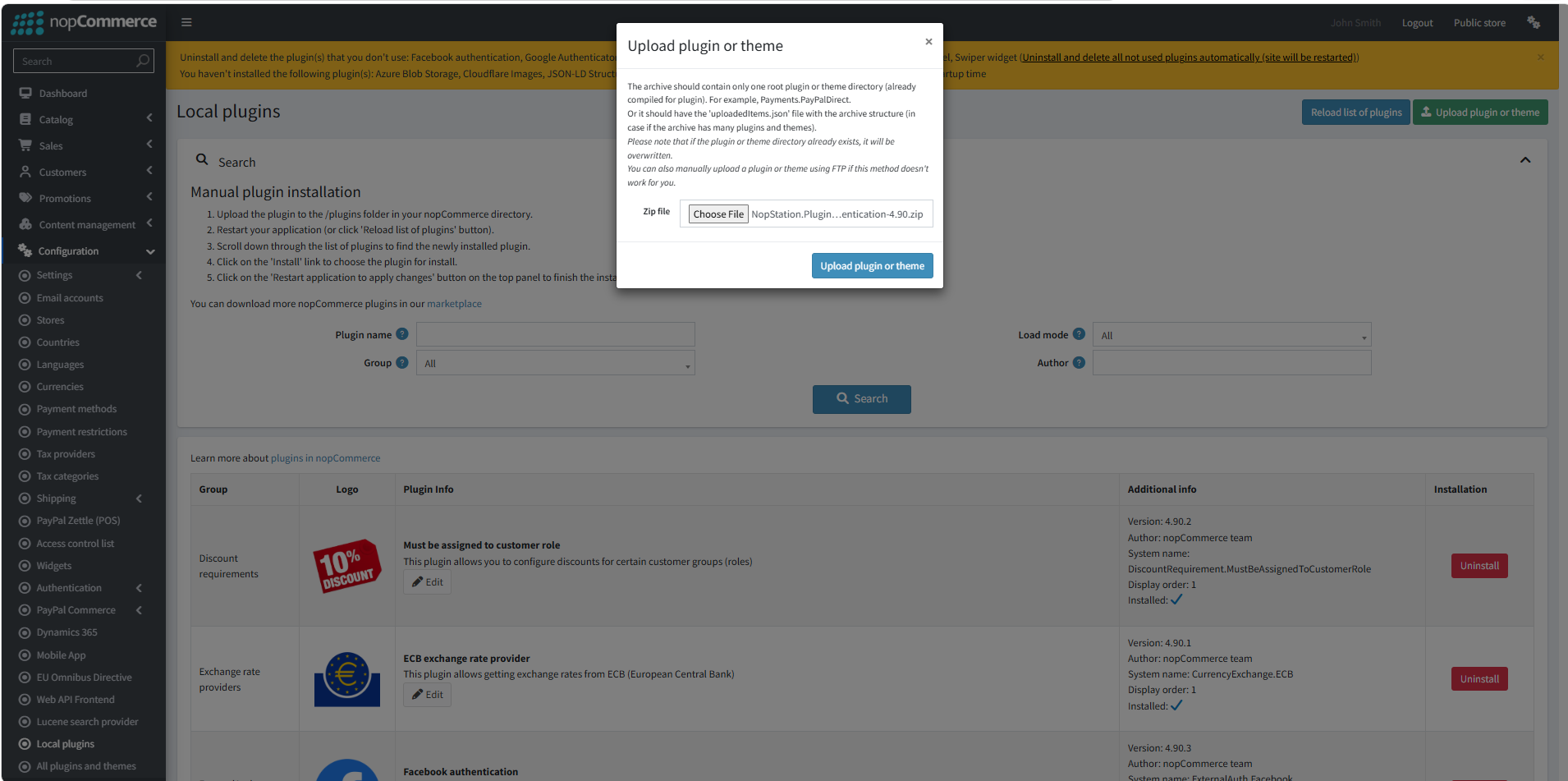
- Upload the file using the 'Upload plugin or theme' button.
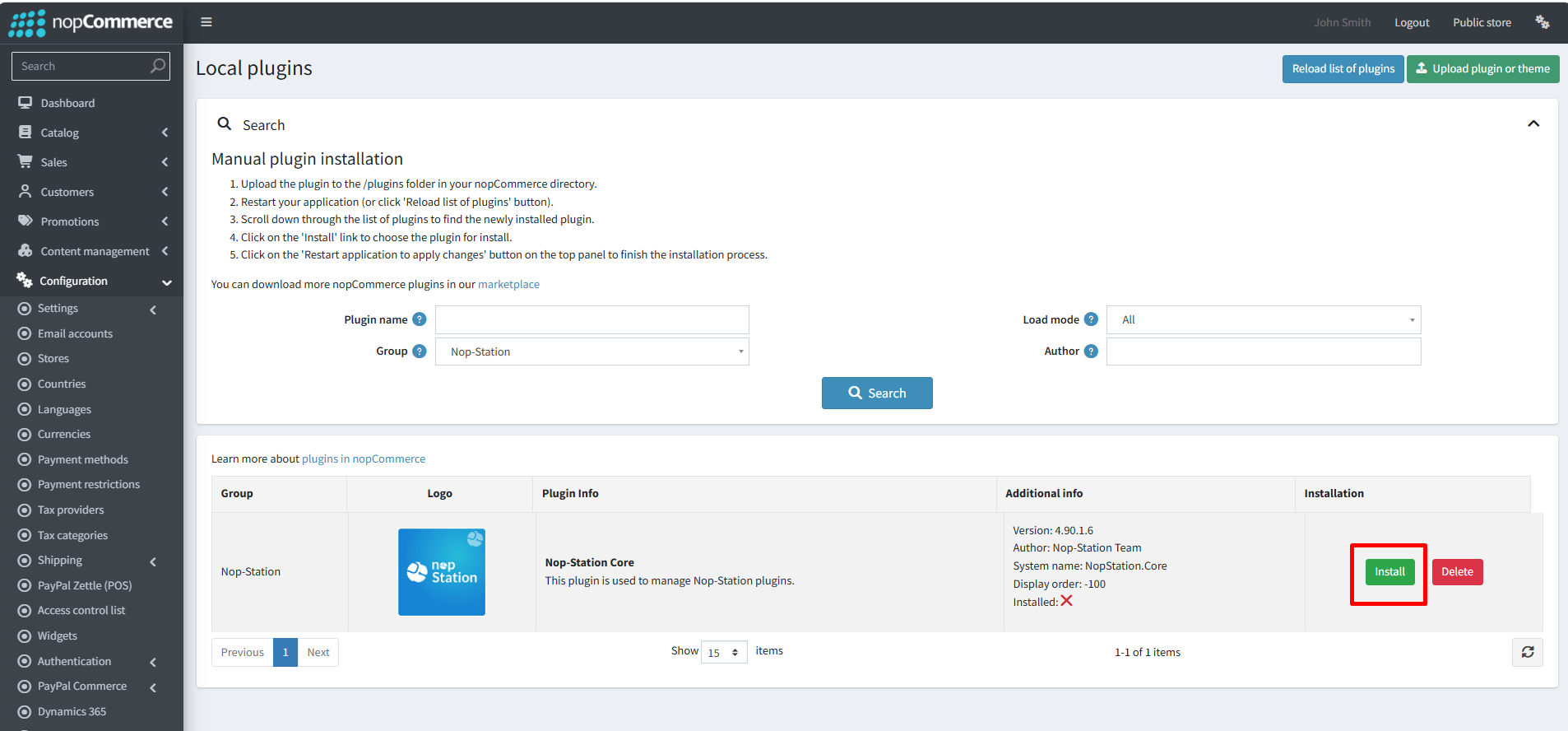
- After uploading the plugin, go to Administration. Install 'Nop-Station Core' Plugin first and then install '2FA' plugin.
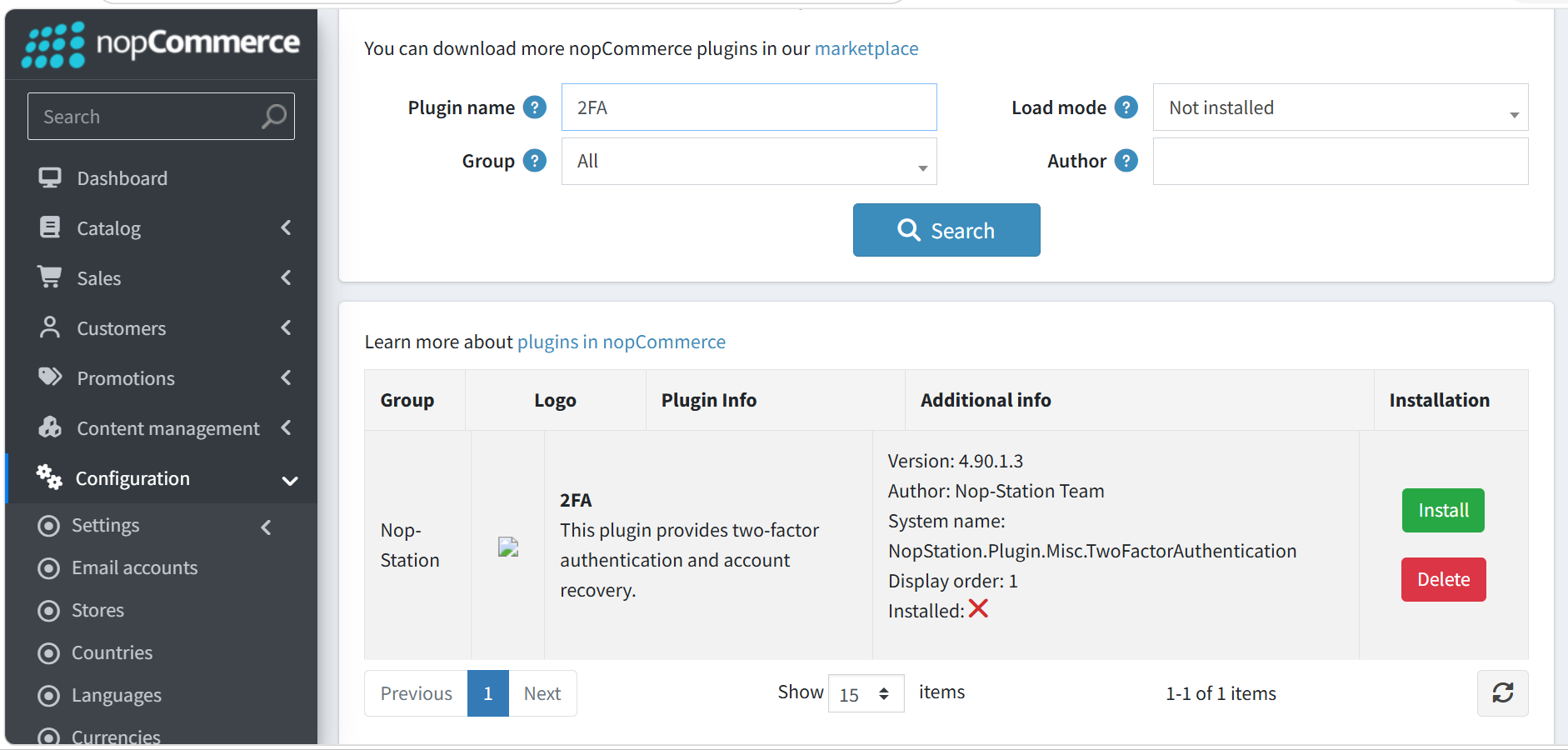
- To make the plugins functional, restart the application
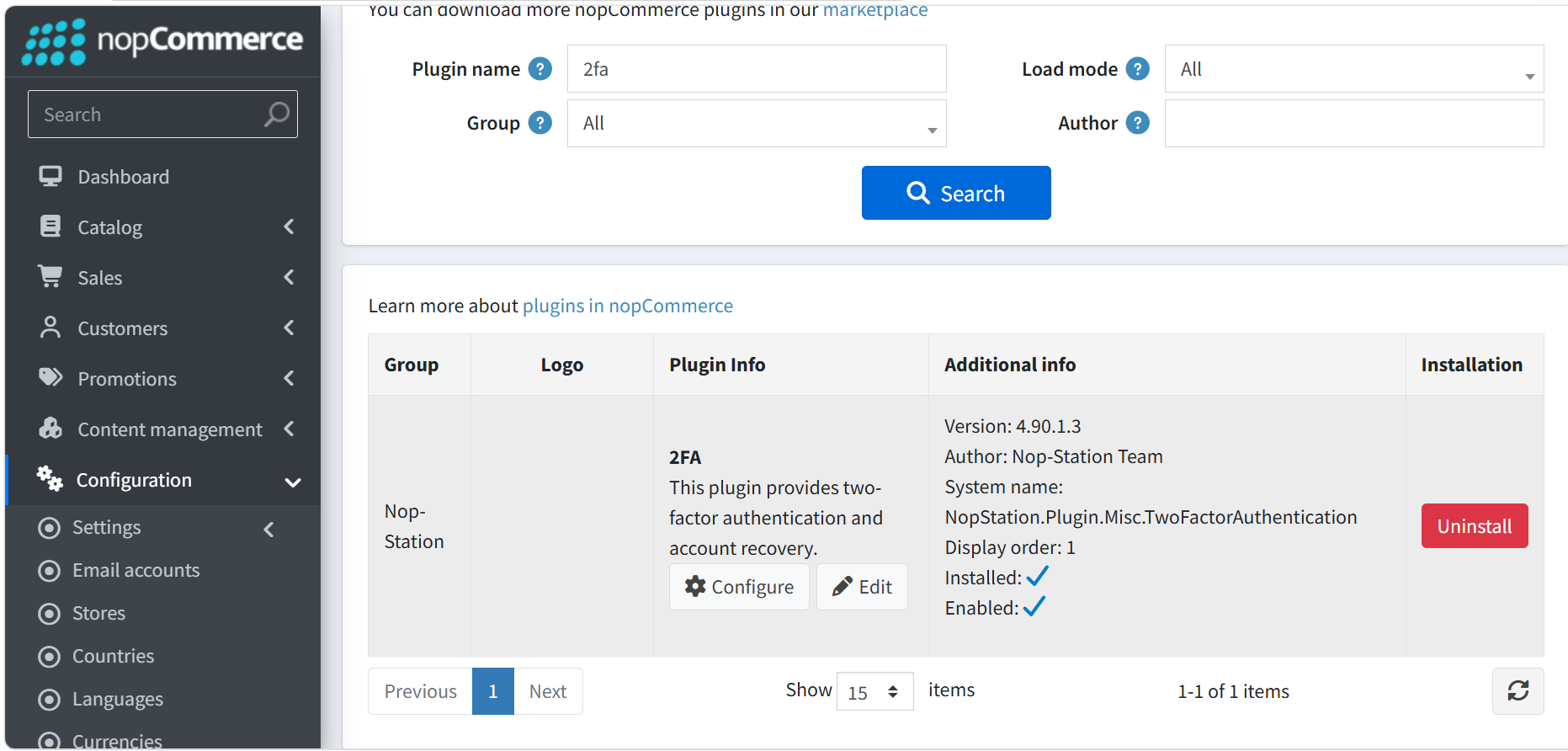
- You can configure the plugin by clicking on Configure from the Local Plugins page. Alternatively, go to nopStation → Plugins → Two-factor authentication → Configure Two-factor authentication Plugin, enable the required options, and click Save
CONFIGURATION
- Go to nopStation → Plugins → Two-factor authentication
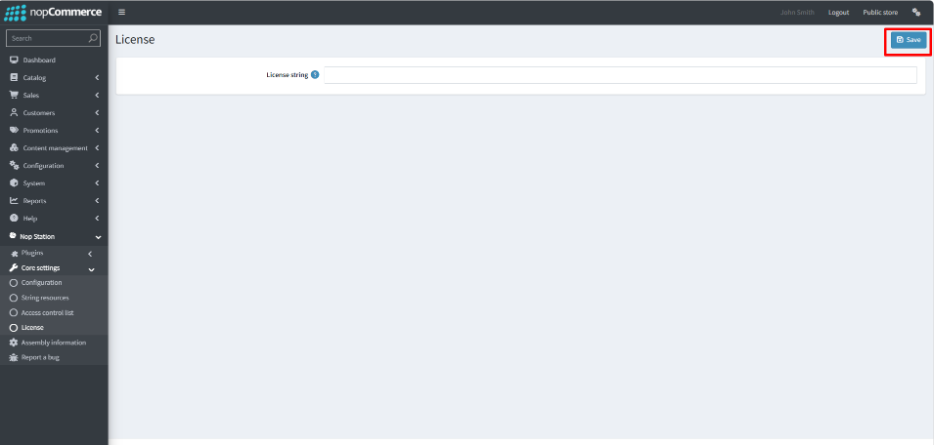
- Automatically redirect to Core settings → License
- Give the license string than save it
- Now go to Two-factor authentication → Configuration.
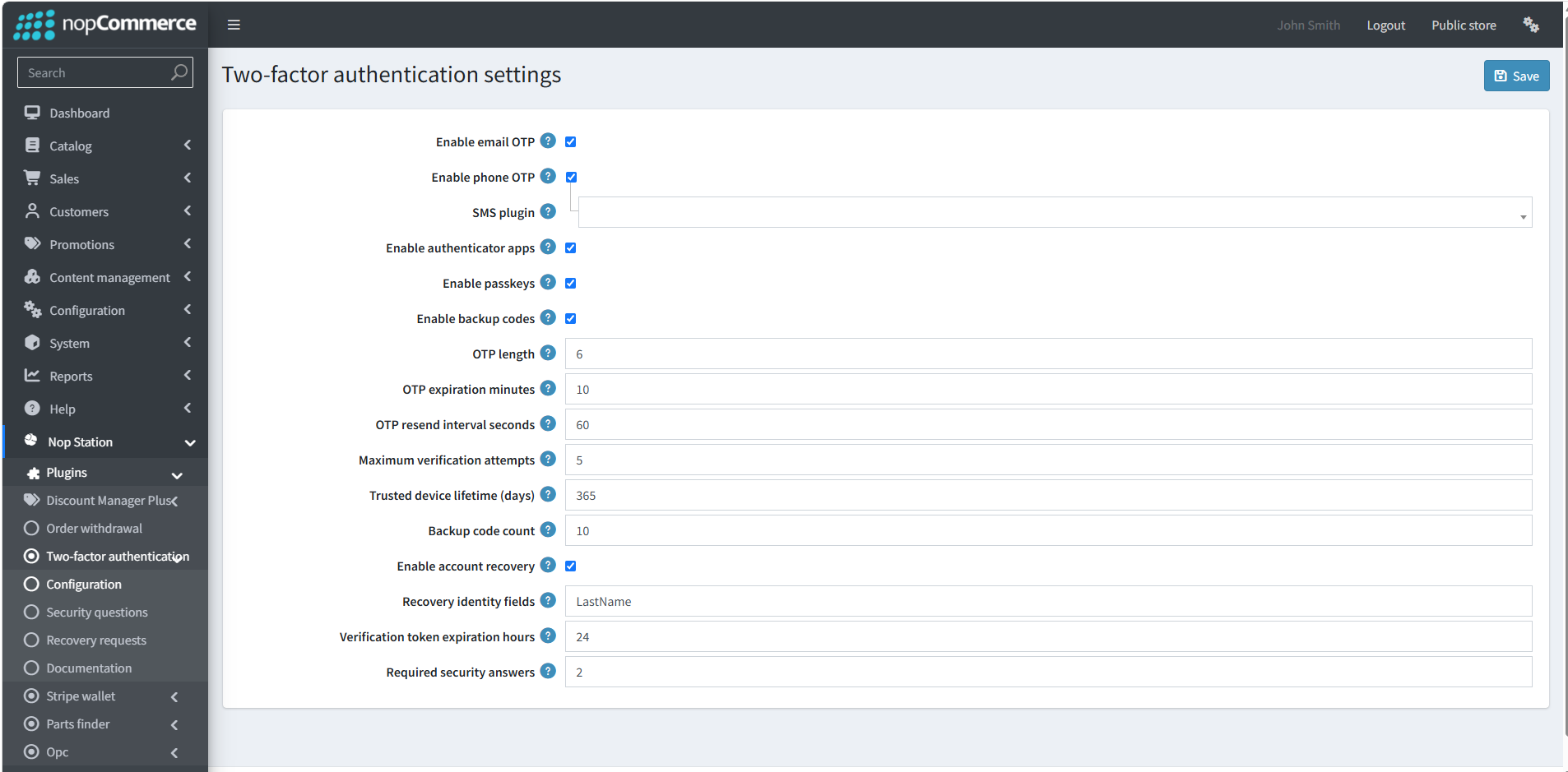
- Email OTP - Enables users to verify their identity using a one-time password sent to their email.
- Phone OTP - Allows users to authenticate using a one-time password sent to their phone.
- SMS Plugin - Selects the SMS plugin that will be used to send OTP codes to users.
- Authenticator Apps - Allows users to use authenticator applications such as Google Authenticator or Microsoft Authenticator for verification.
- Passkeys - Enables passwordless authentication using supported devices, biometrics, or security keys.
- Backup Codes - Allows users to generate backup codes that can be used when their primary authentication method is unavailable.
- OTP Length - Defines the number of digits in the generated OTP. The current setting is 6 digits.
- OTP Expiration Minutes - Specifies how long an OTP remains valid. The current setting is 10 minutes.
- OTP Resend Interval - Defines the waiting time before a user can request another OTP. The current setting is 60 seconds.
- Maximum Verification Attempts - Limits how many times a user can enter an incorrect verification code. The current setting is 5 attempts.
- Trusted Device Lifetime - Defines how long a verified device remains trusted before authentication is required again. The current setting is 365 days.
- Backup Code Count - Specifies the number of backup codes generated for a user. The current setting is 10 codes.
- Account Recovery - Enables users to recover access to their account when they cannot use their normal authentication method.
- Recovery Identity Fields - Defines the user information required to verify their identity during account recovery. The current setting is LastName.
- Verification Token Expiration Hours - Specifies how long an account recovery verification token remains valid. The current setting is 24 hours.
- Required Security Answers - Defines the number of security questions that users must answer during the recovery process. The current setting is 2 answers.
SECURITY QUESTIONS
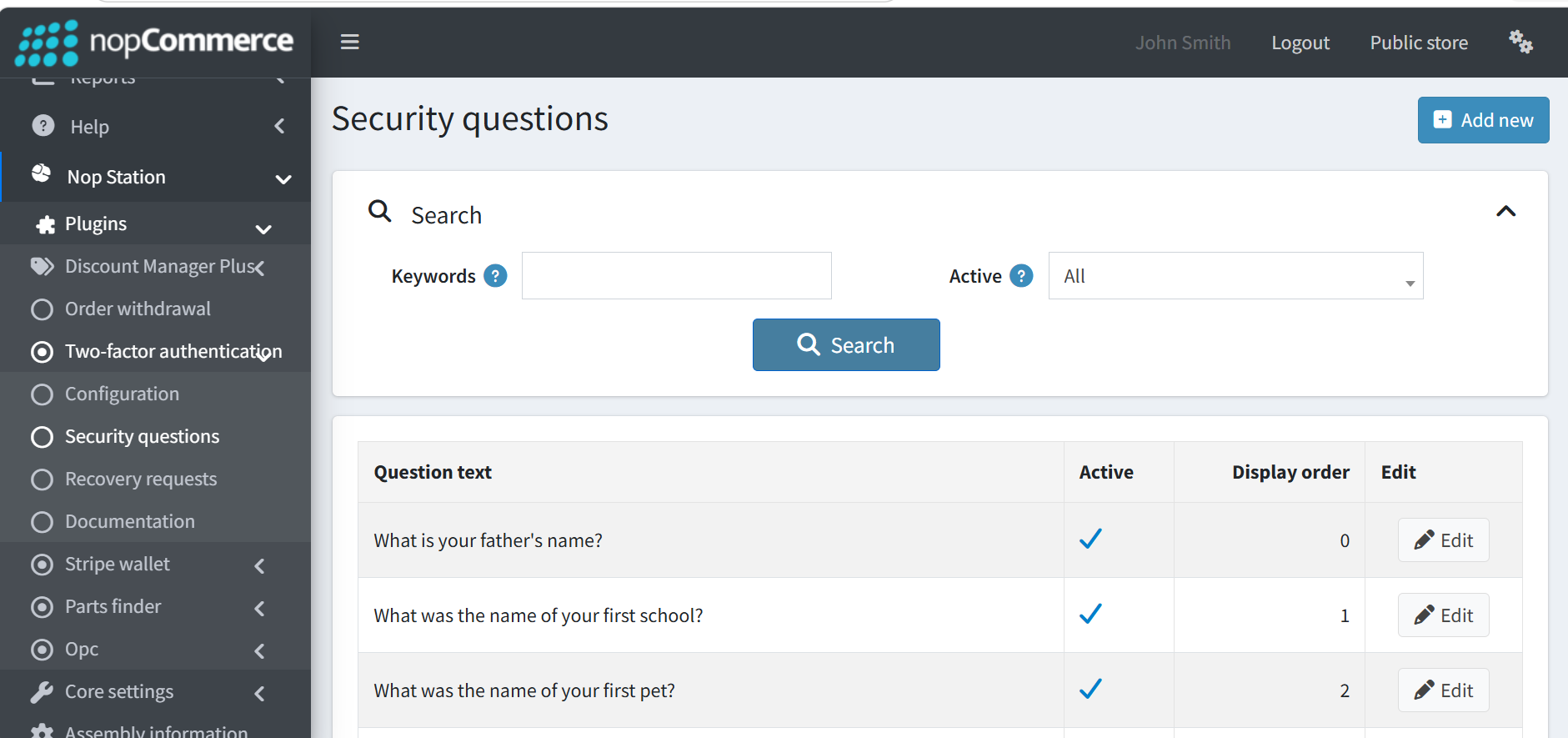
- Go to Two-factor authentication → Security questions
- You can add security questions from the 'Security questions' page
RECOVERY REQUESTS
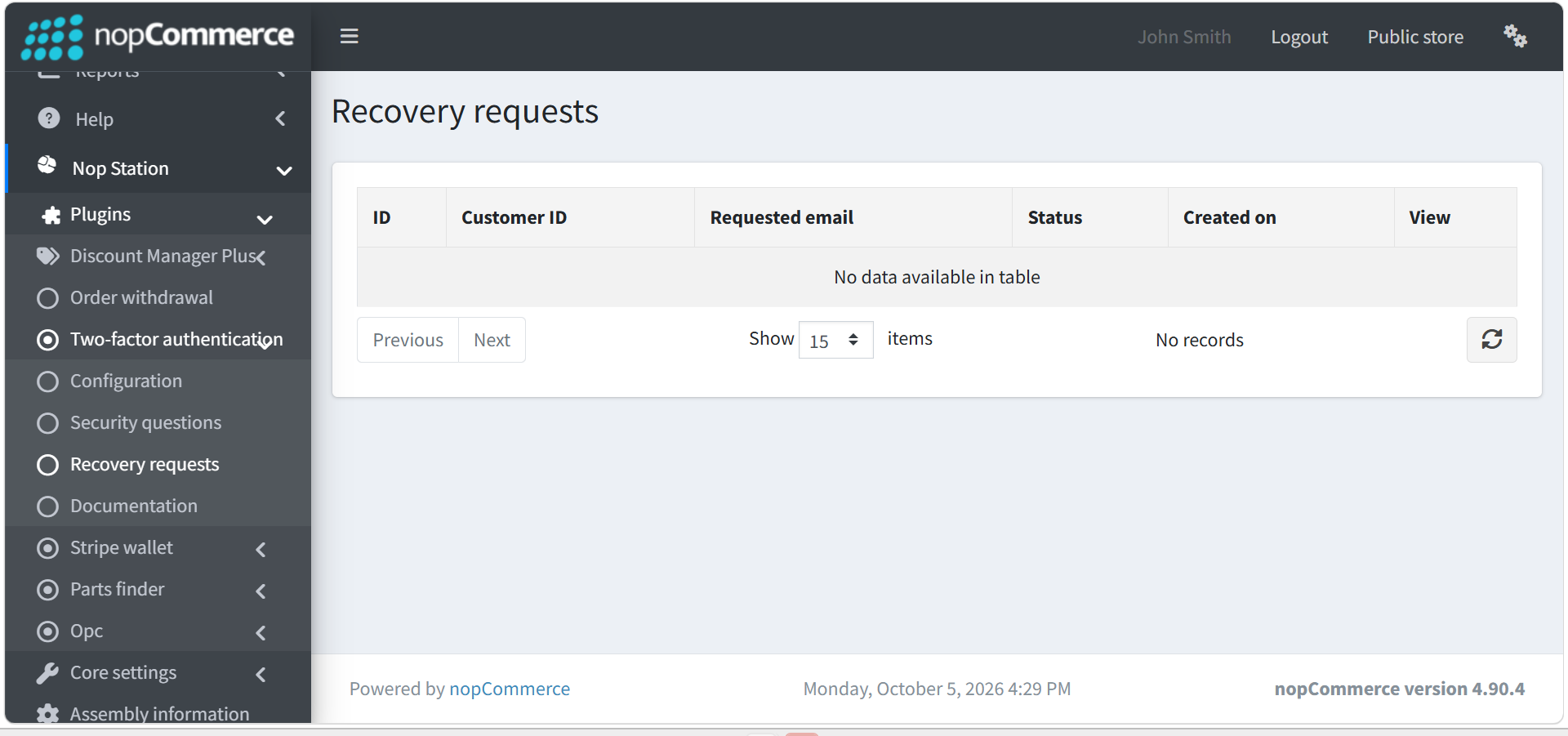
- Go to Two-factor authentication → Recovery requests
- You can see the Number of Requests from the Two-factor authentication → Recovery requests