nopStation's Quote Cart plugin brings quotation functionality for cart items in nopCommerce with support for Quotation forms, chat, and converting quotations to orders. This plugin lets your customers create quotations for and communicate with you directly about pricing and custom requests. Product quotations let you serve customers more effectively and offer a more personalized shopping experience for customers
PRE-REQUISITES
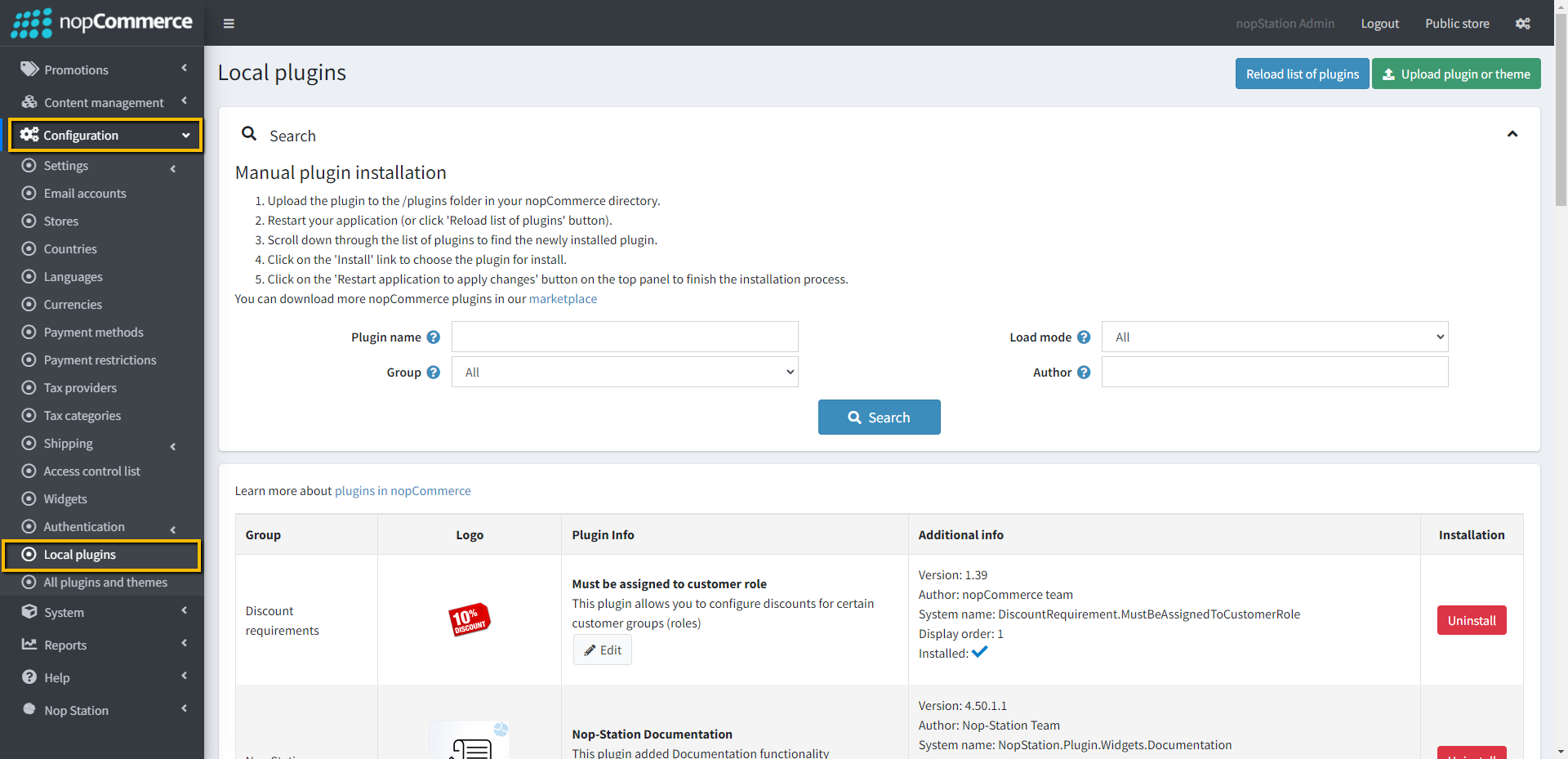
The plugin requires you to install the Nop-Station Core plugin first.
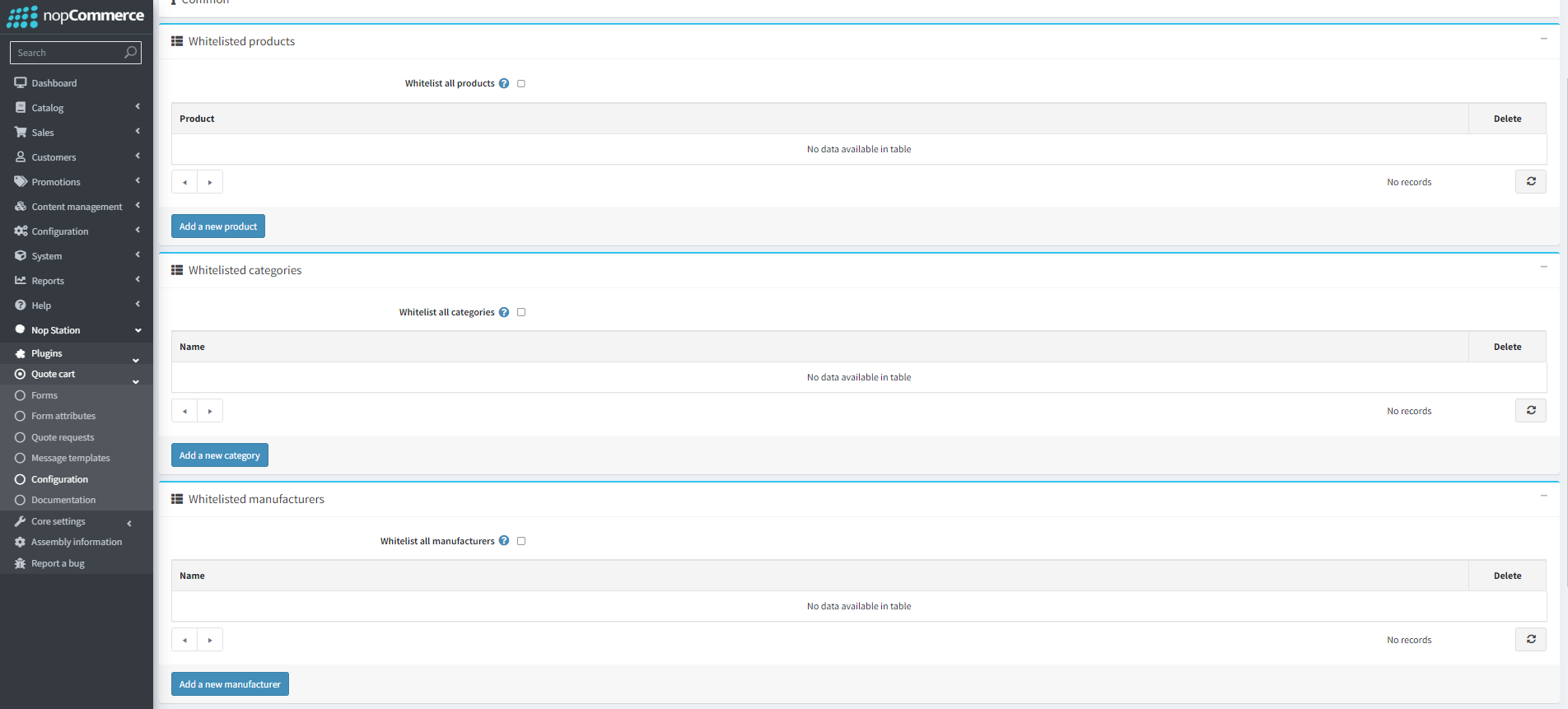
Whitelist all products: checking this checkbox whitelists all products for the quote cart
Add a new product: Admins can specific products by clicking the add a new product button and select one or multiple products from the product list
Whitelist all categories: checking this checkbox whitelists all categories for the quote cart
Add a new category: Admins can specific products by clicking the add a new category button and select one or multiple categories from the categories list
Whitelist all manufacturers: checking this checkbox whitelists all manufacturers for the quote cart
Add a new manufacturer: Admins can specify manufacturers by clicking the add a new manufacturer button and selecting one or multiple manufacturers from the manufacturers' list
Whitelist all vendors: checking this checkbox whitelists all vendors for the quote cart
Add a new vendor: Admins can specify vendors by clicking the add a new vendor button and selecting one or multiple vendors from the vendors list
Setting Form Attributes
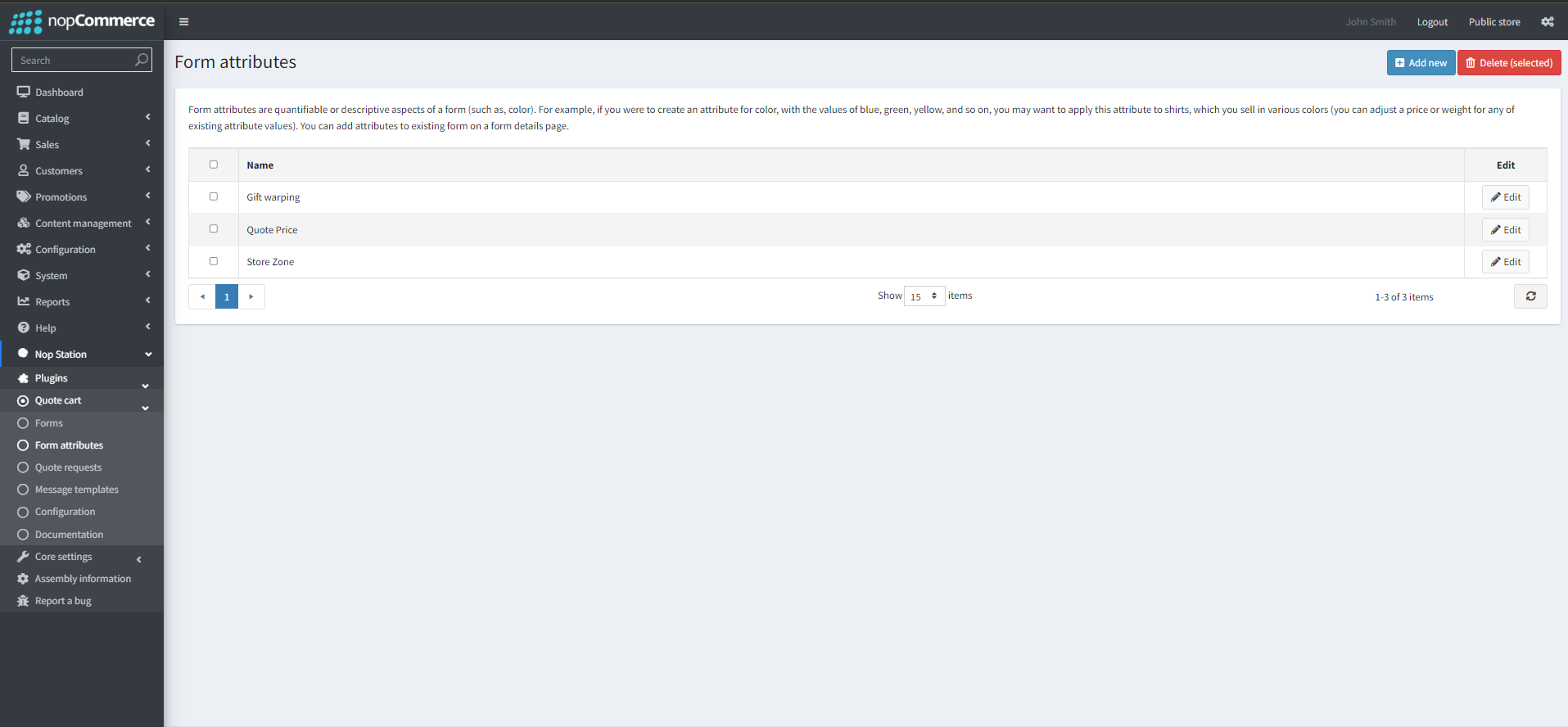
Go to Admin → Nop Station → Plugins → Quote Cart → Form attributes
you can see a list of created attributes here
You can create attributes by clicking on the Add New button.
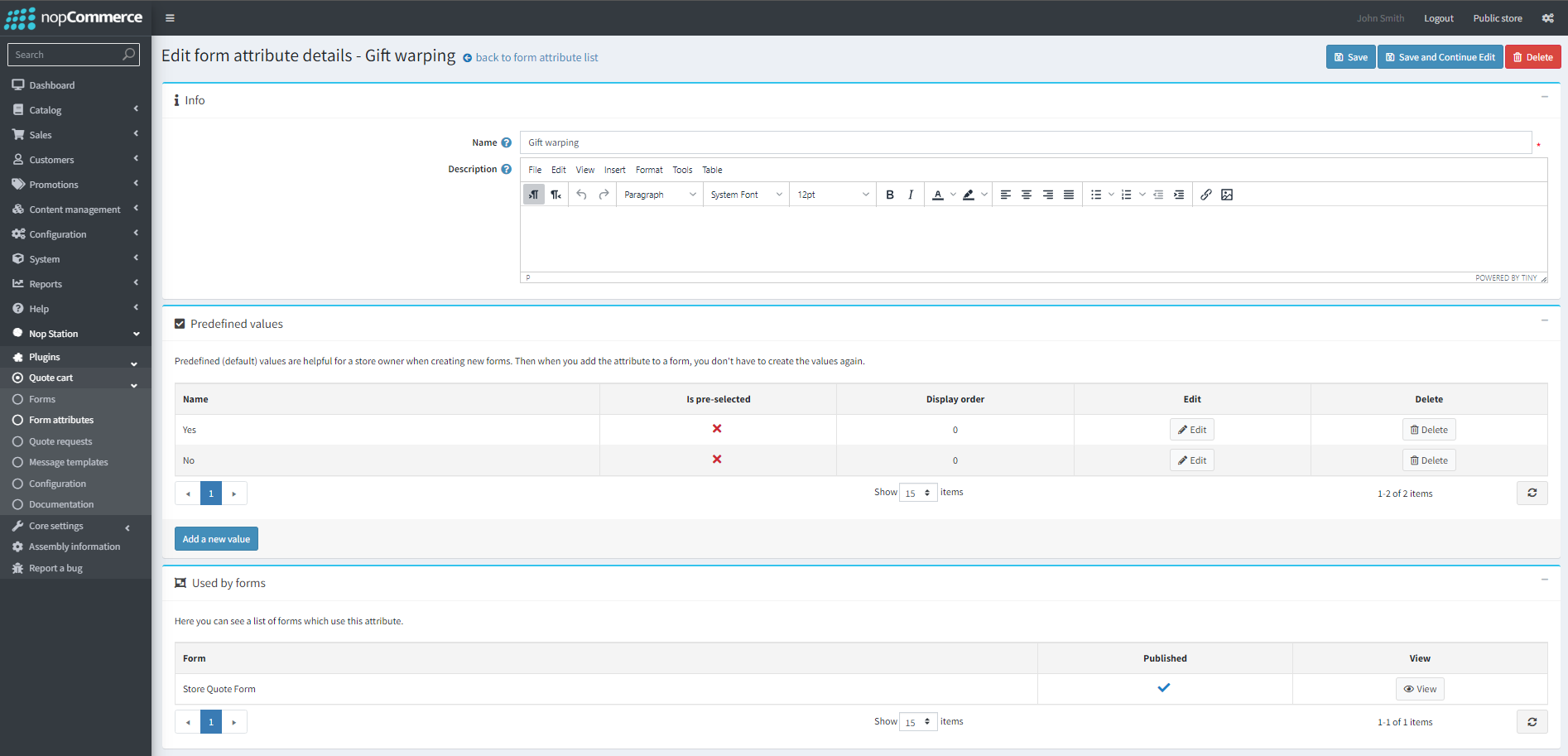
Name:Admins can define the name for the attribute here
Description:admins can add a description for the attibute
Pre-defined values: admins can create some predefined values for attributes if they want
Setting up Quote Forms
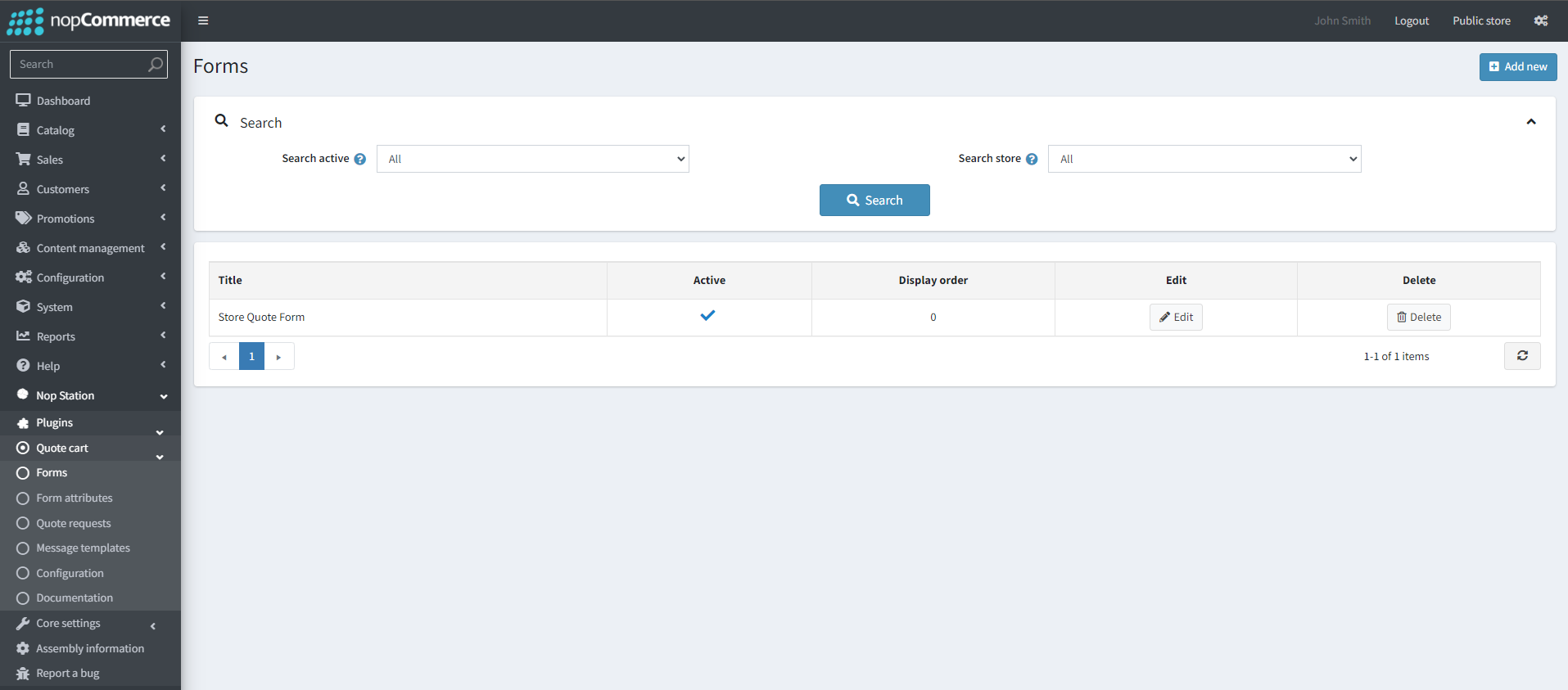
Go to Admin → Nop Station → Plugins → Quote Cart → Forms
you can see a list of created Forms here which you can edit by clicking the edit button
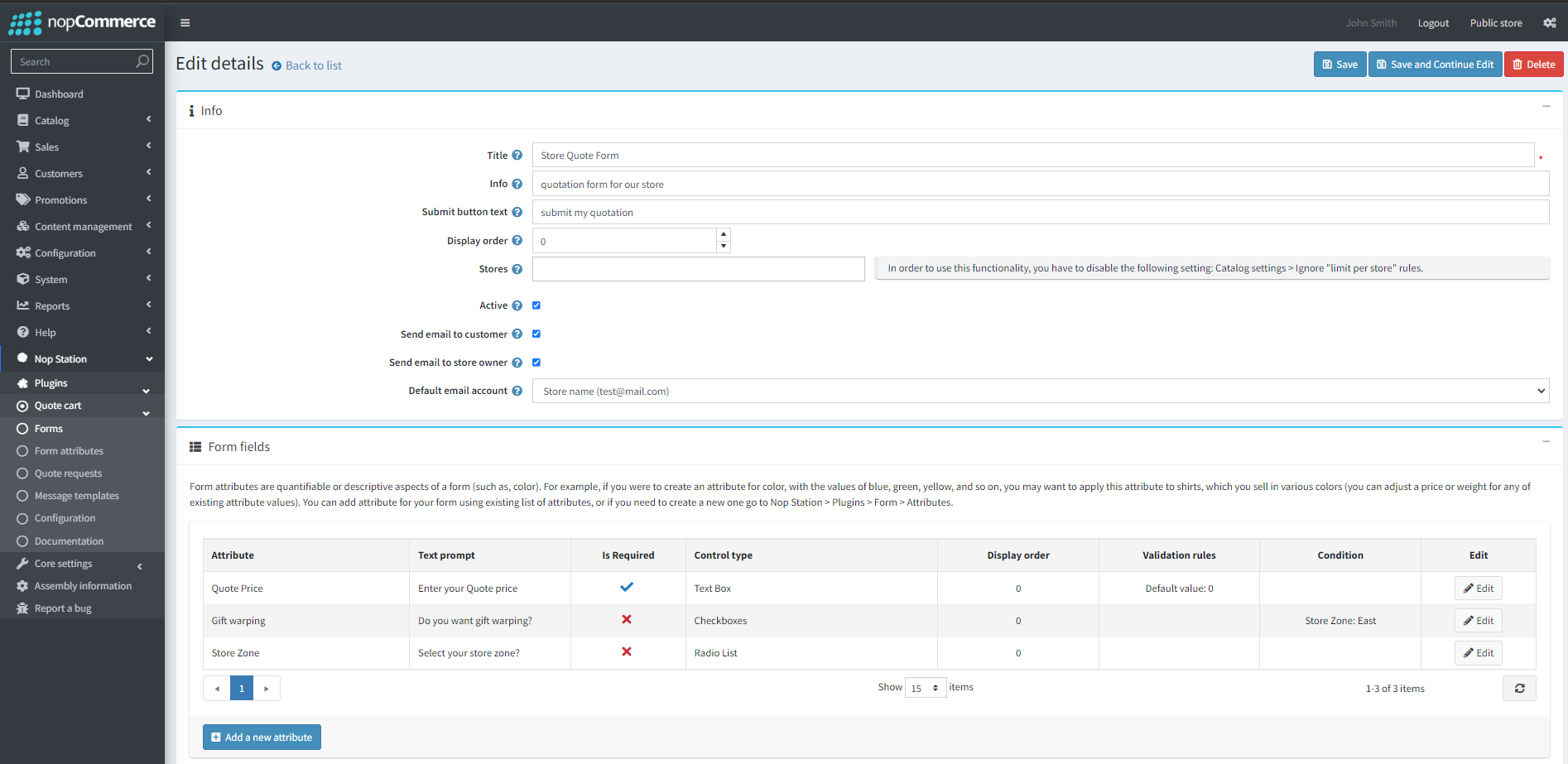
To add a new Quote form, click the add new button . This will take them to the add/Edit details page
Title: Admins can add the title of the quote form
Info: Admins can add additional info or a description about the quote form here
Submit button text: Admins can add a custom submit button text for the form here
Display order: Admins can set display order for the quote cart
Active: admins can activate the quote cart form by checking this
Send email to customer: Customer will get an email after successful submission of their quote
Send email to store owner: Store owners will get an email of each quote submission from the form
Default email account: admins can set default email from the dropdown
Form Fields:Admins can see a list of form attributes defined for a particular form here, They can Add or edit these attributes
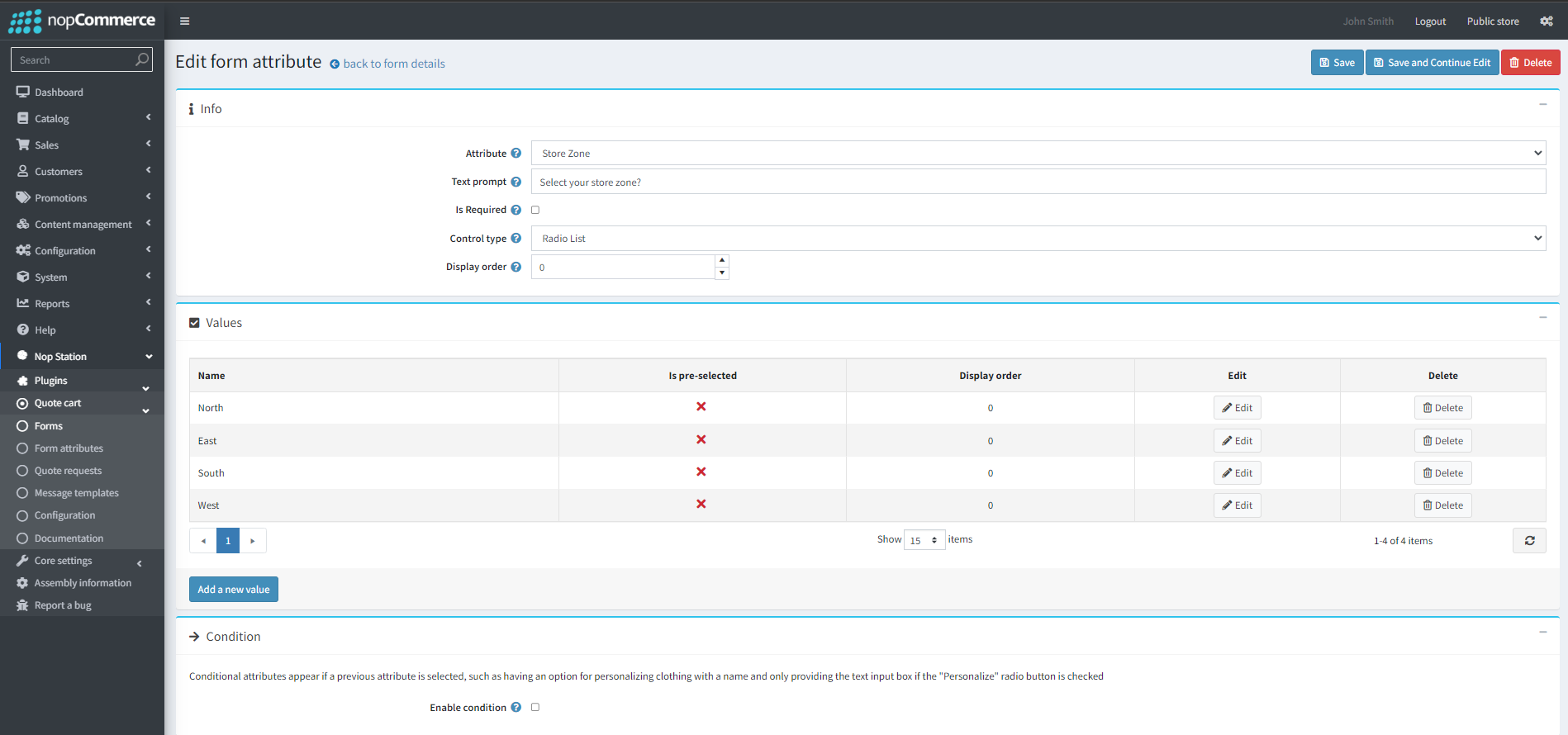
Add a new attribute/Edit: By clicking on the add new attribute button the admin will be taken to the add a new attribute/ Edit a new attribute page.
Attribute:admins can choose the attribute they want to add from this drop-down
Text prompt:admins can set a text prompt or question for the attribute through this option
Is Required:By checking this checkbox admins can set the field as a required one
Content type:By can set the default content type
Display order:By checking this checkbox, admins can set te default order
Enable condition:By checking this checkbox admins can enable conditions for attributes. Once enabled for an attribute , it will only be visible when the condition is fulfilled
Managing Quote requests
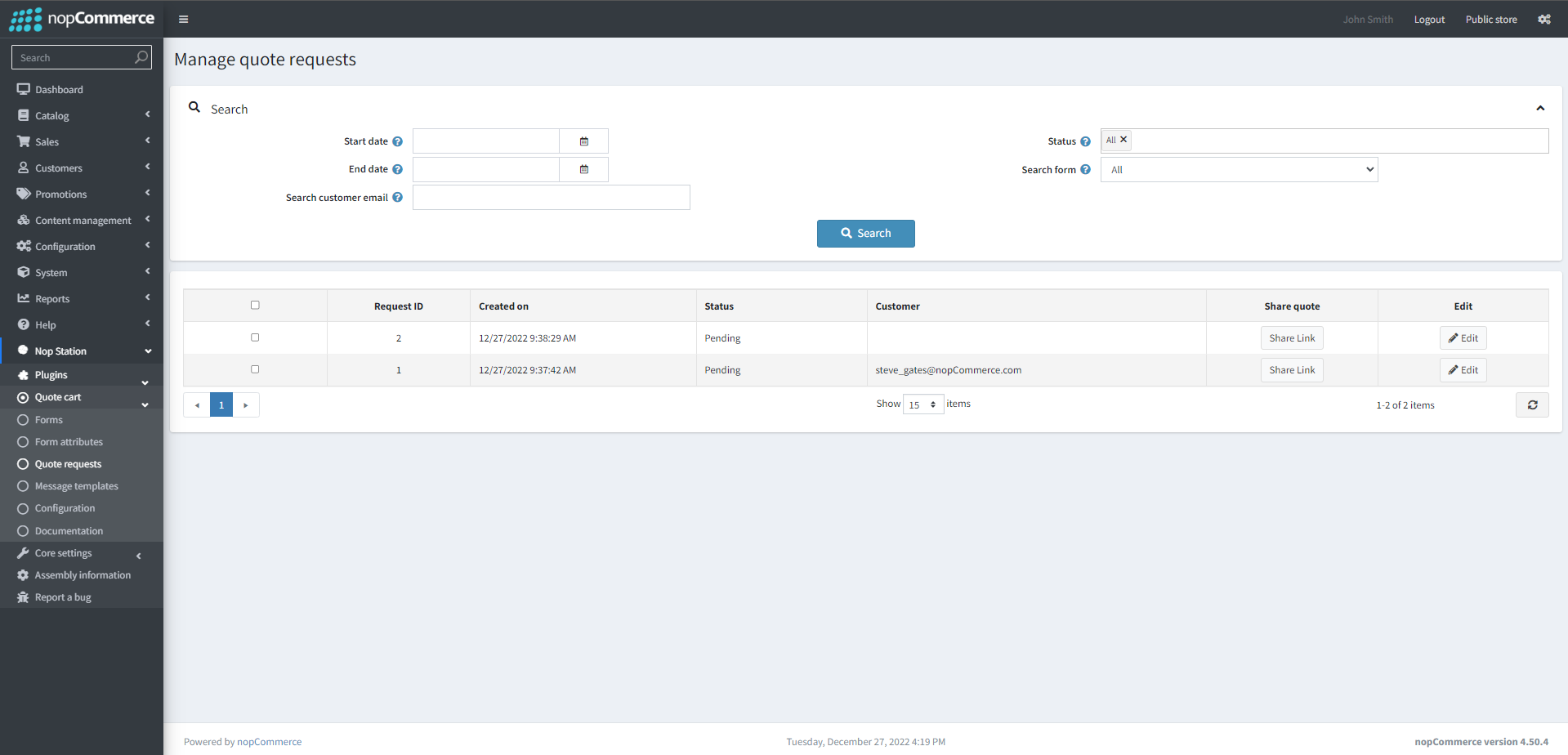
Go to Admin → Nop Station → Plugins → Quote Cart → Quote Requests
On the manage Quote requests page, admins can see a list of submitted quotes from customers
Admins can filter/Search the list through start date, end date, customer email, status, form
Admins can share a quote link by clinking the Share link button. This will copy the quotation link.
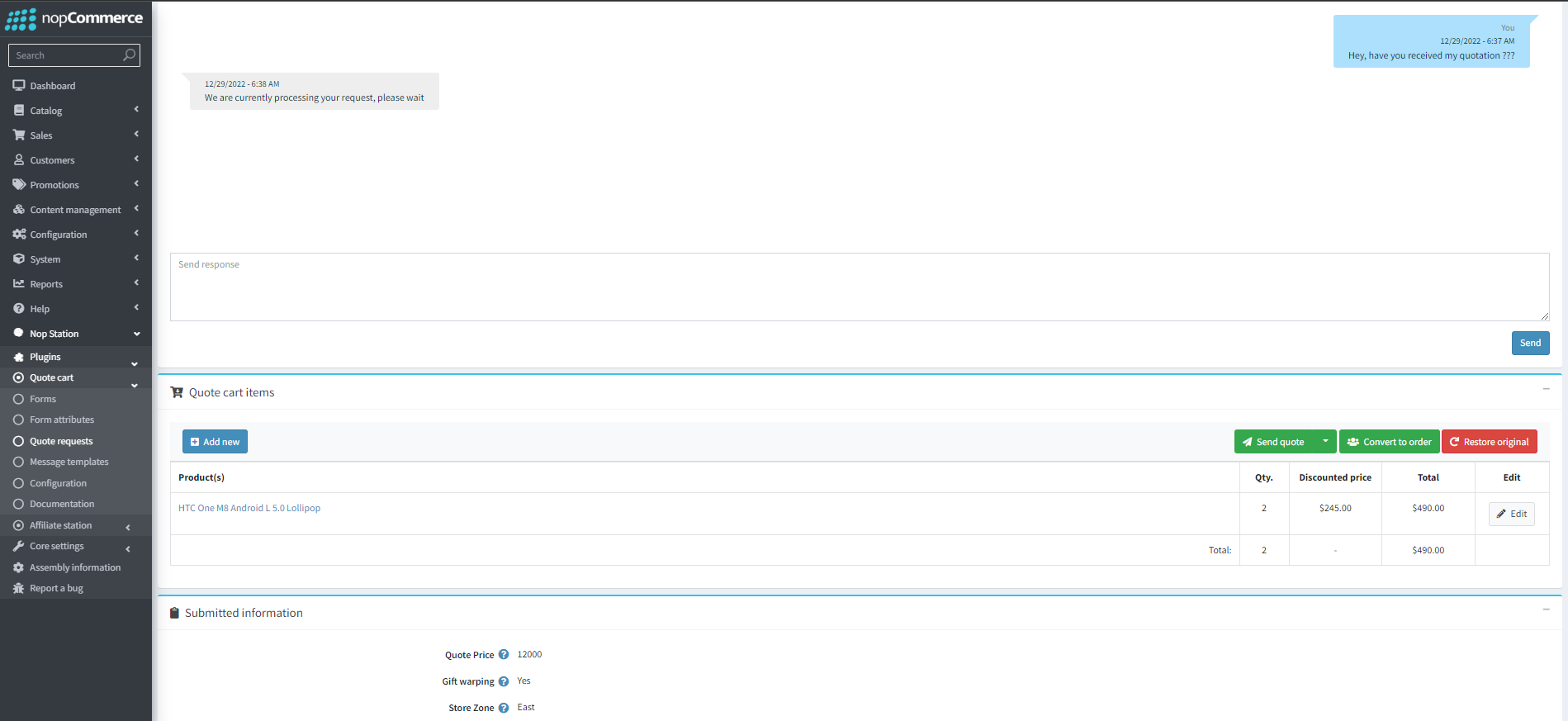
Admins can manage a quote by clicking the edit button. This will take them to the Manage Quote Request page
Status: This shows the current status of a quote request. Request status can be Pending/Processing/Complete/Canceled. Should be changed manually by admin
Request ID: Shows unique quest id for the quote
Store: Shows the store where the quote was submitted from
Created on: Shows the creation date for the quote
Customer name: shows the customer's name
Customer email: Shows the customer email address
Message: Contains messages sent by the customers from the Quote details page. Admins can see the message in the chat window here and send replies
Quote cart items: Admins can see a list of items from the Quotation here. Admins can new items to the request by clicking the add new button or edit the items already in the quote by clicking the edit button
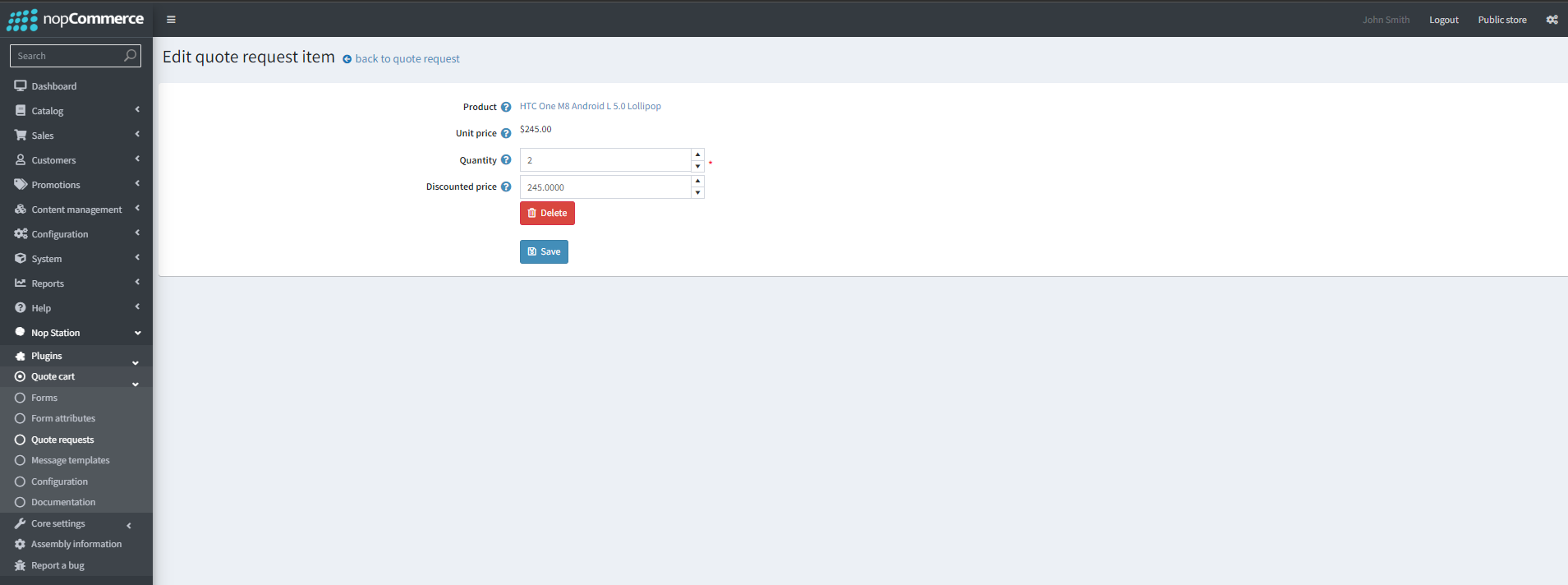
Clicking the edit button takes the admin to the edit quote request item page. Admins can adjust the quantity or add a discounted price here
Send quote: Admins can send the quote as an email to the customer/Store owner by clicking the button
Order Conversion
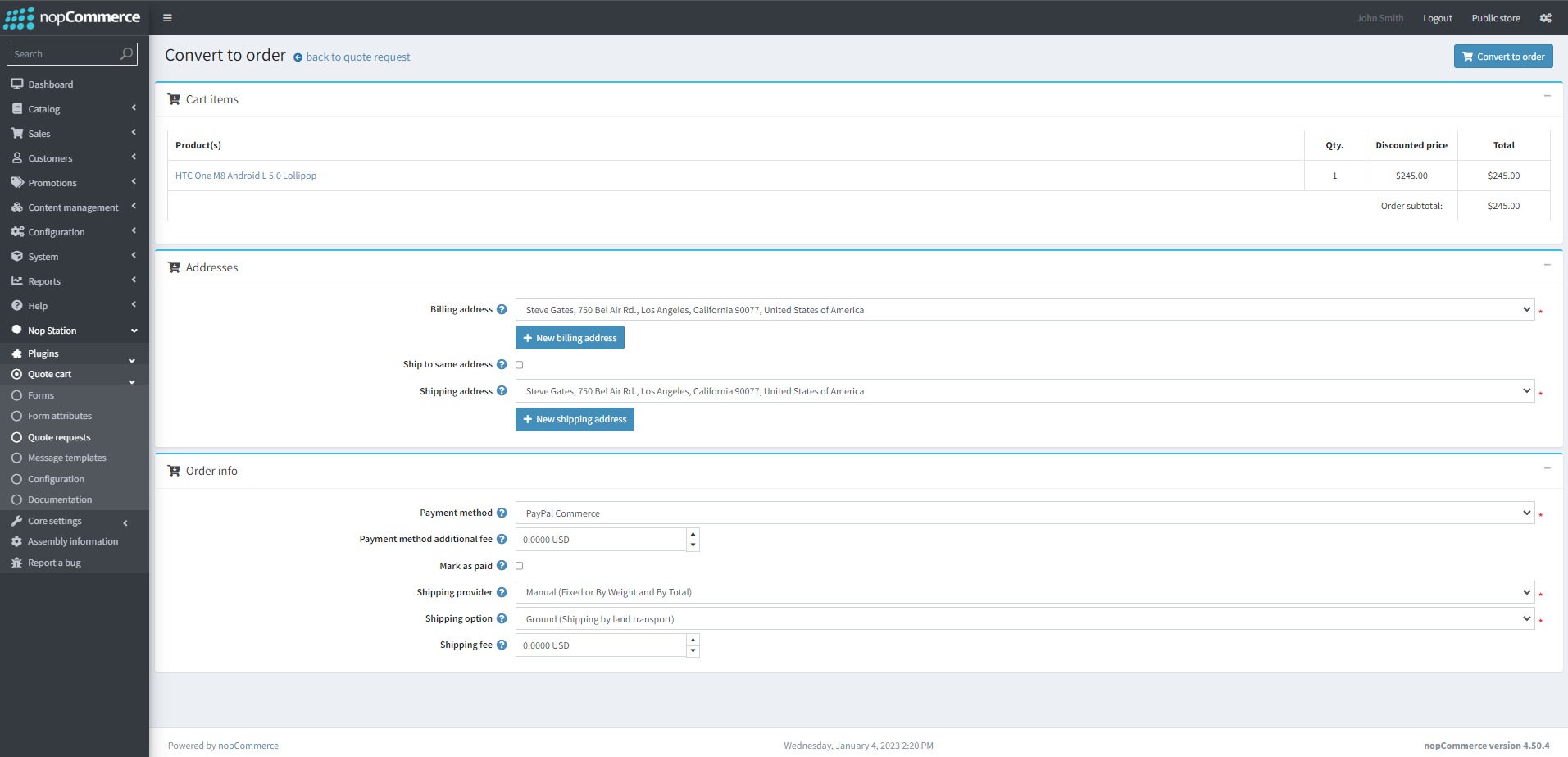
Convert to order: Admins can convert a quote to order for the customer. Clicking the button takes the admin to the Convert to Order page. Here, admins can turn the quote into a customer order.
Note: Order converted from a quote will have the Quote request ID as a reference on the order notes
Restore original: Admins can restore an edited quotation to its original state (As submitted by the customer) by clicking this button
Submitted information: Admins can see customer responses to the form fields here
Quote Status messages
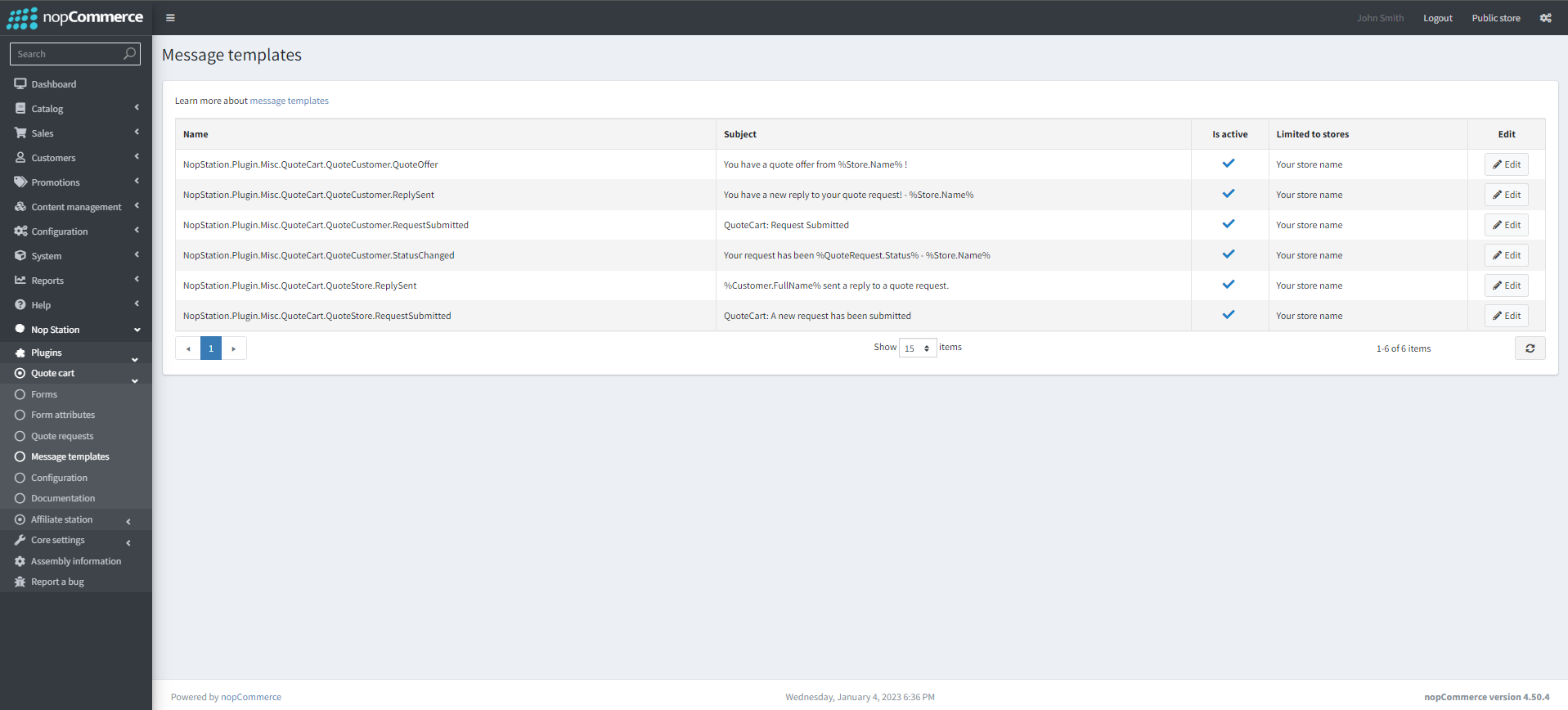
Go to Admin → Nop Station → Plugins → Quote Cart → Message templates
you can see a list of email message templates here
These templates can be customized using the edit button.
PUBLIC STORE VIEW
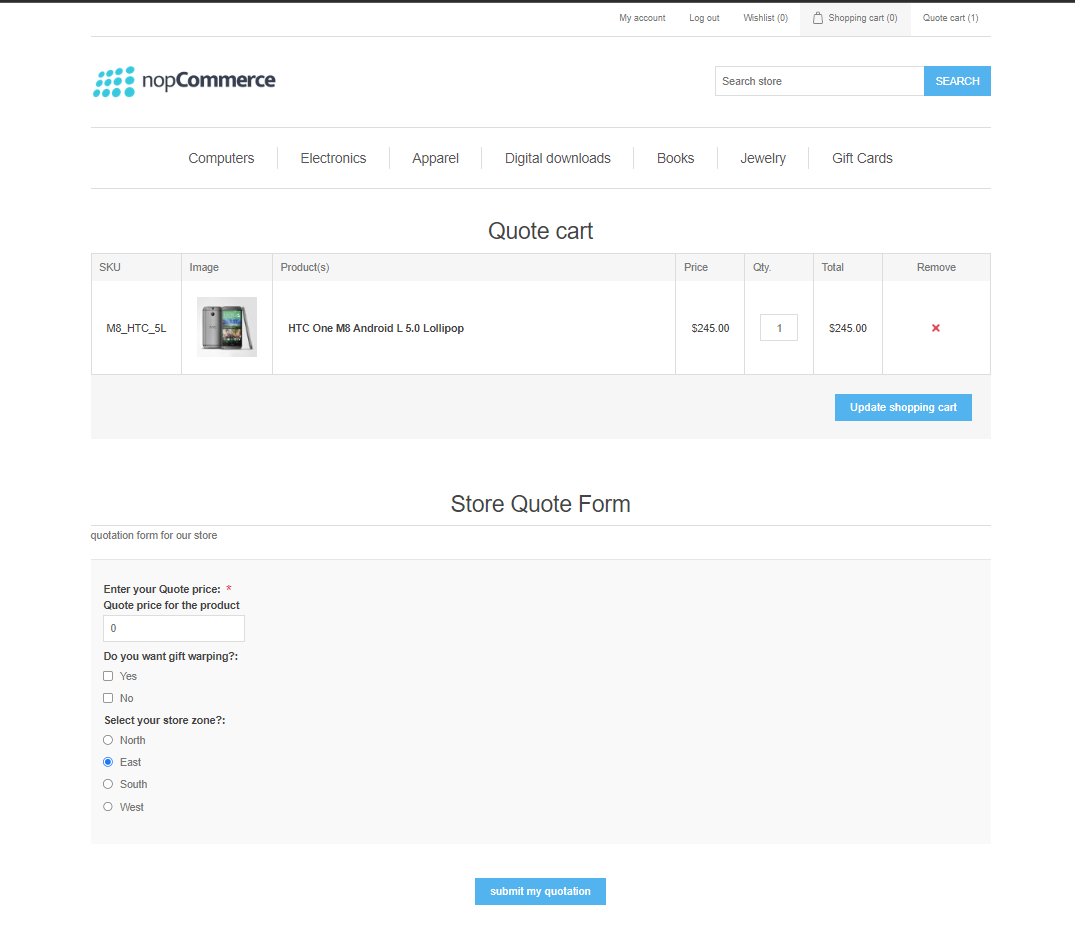
This is how the quotation form looks on the Quote cart page:
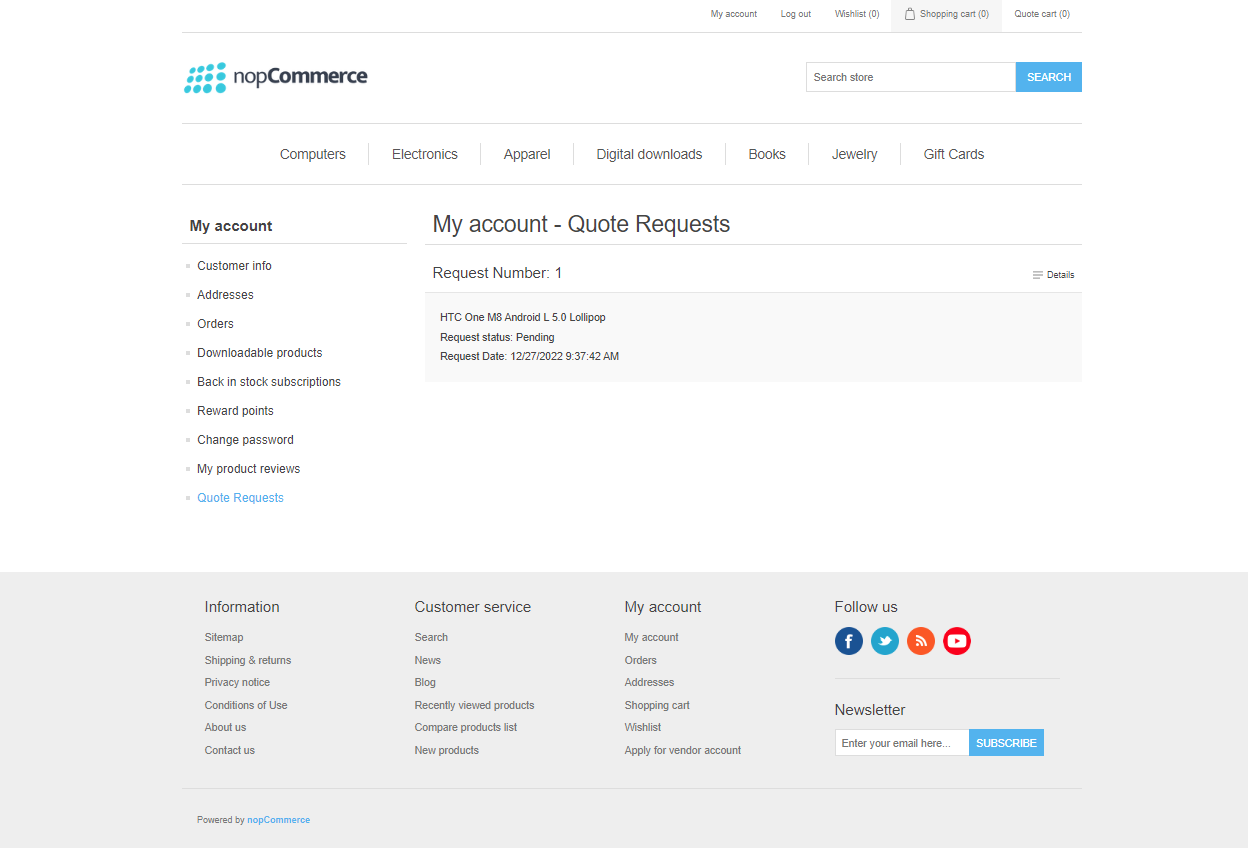
This is how the quotes page looks for a customer:
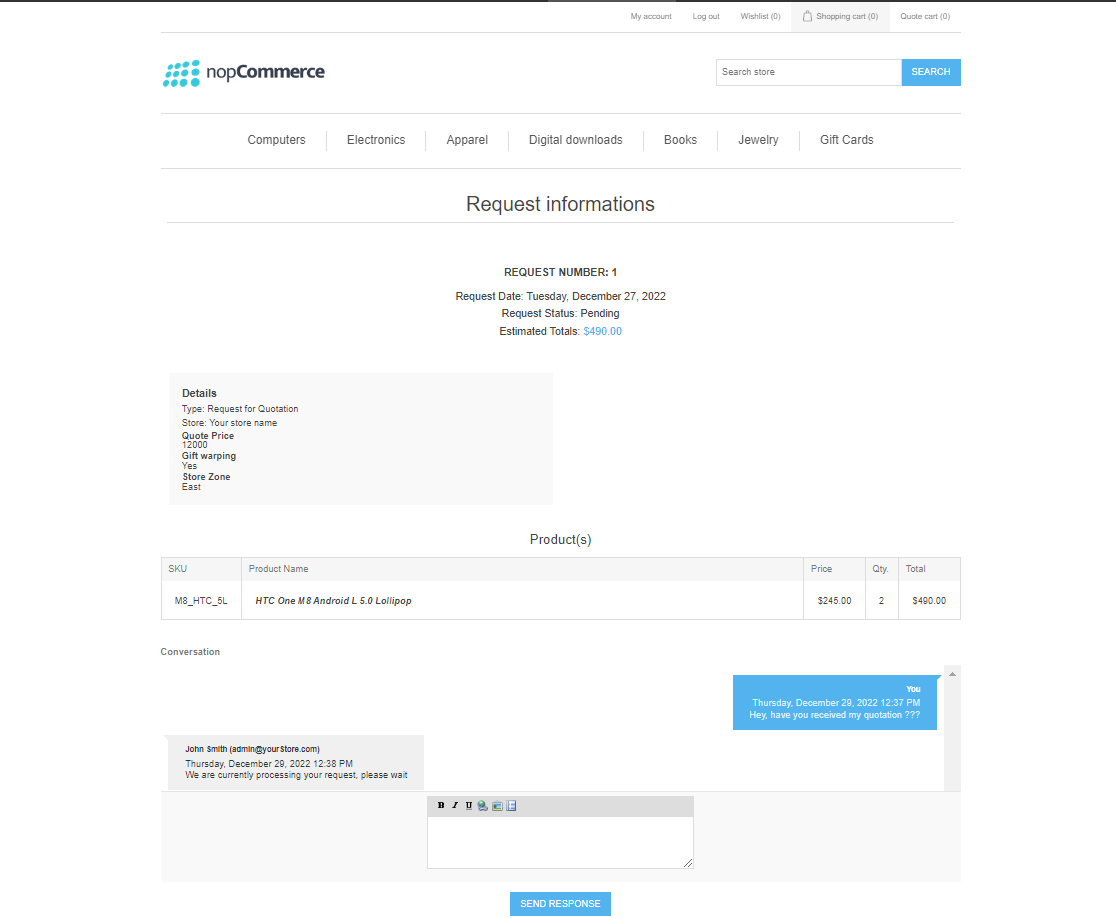
This is how the quote details page looks along with quote messages: