nopStation's Dynamic Survey plugin lets nopCommerce-powered store owners create and manage online surveys on their online storefront. This survey and analytics plugin lets you create, manage and schedule powerful surveys to target your customer base. Surveys can help online businesses and store owners get key insights and customer data while boosting store engagement as well.
PRE-REQUISITES
The plugin requires you to install the Nop-Station Core plugin and nopStation Widget Manager plugin first.
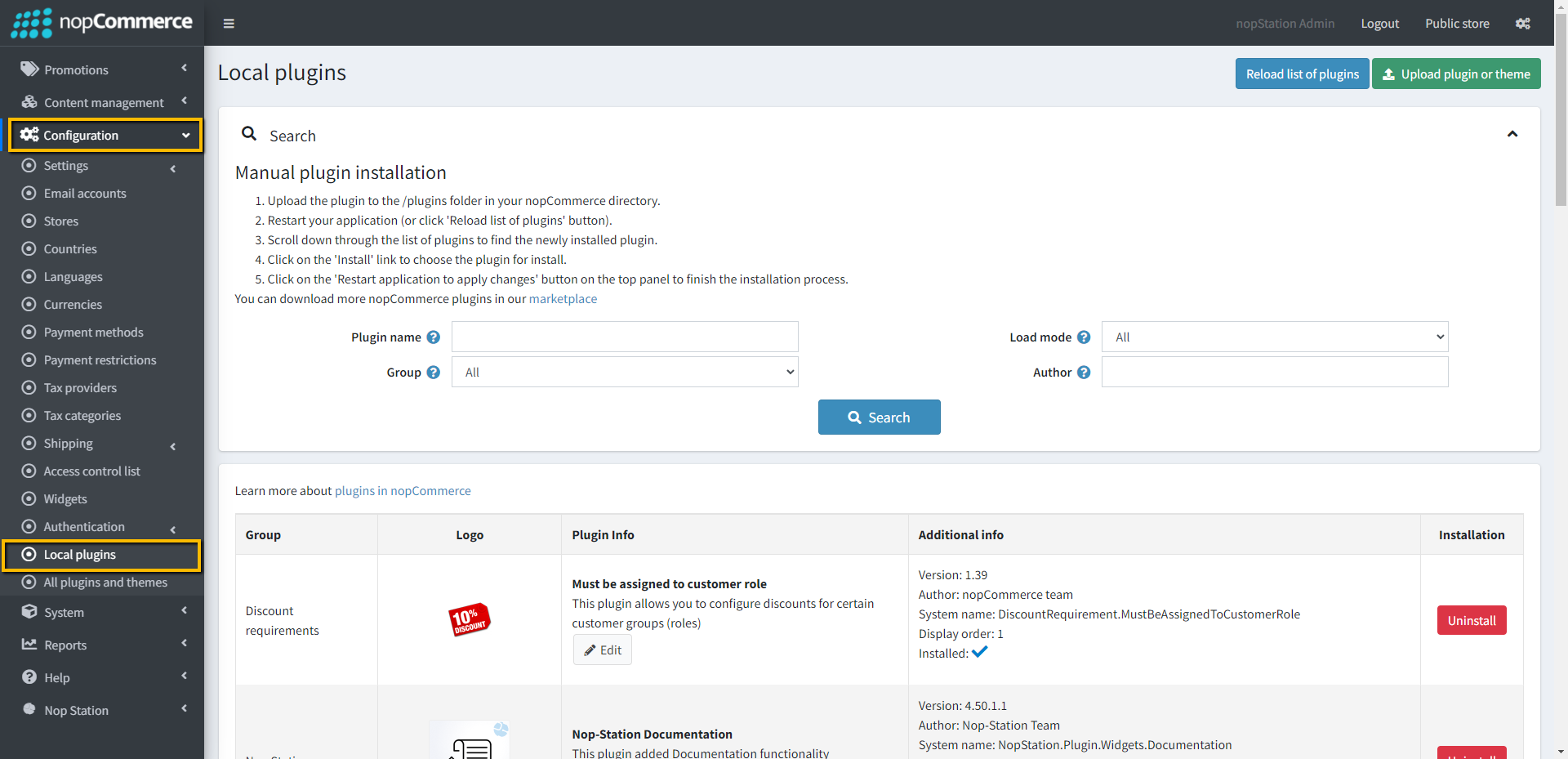
Go to Administration → Configuration → Local plugins
Upload the .zip file using the "Upload plugin or theme" button
Go to Administration, and reload the 'list of plugins'. Install 'Nop-Station Core' Plugin and 'Widget Manager' plugin first and then install 'Nop-Station Dynamic Survey plugin'
To make the plugins functional, restart the application
Enable the plugin with 'Edit' option and Configure it
CONFIGURATION
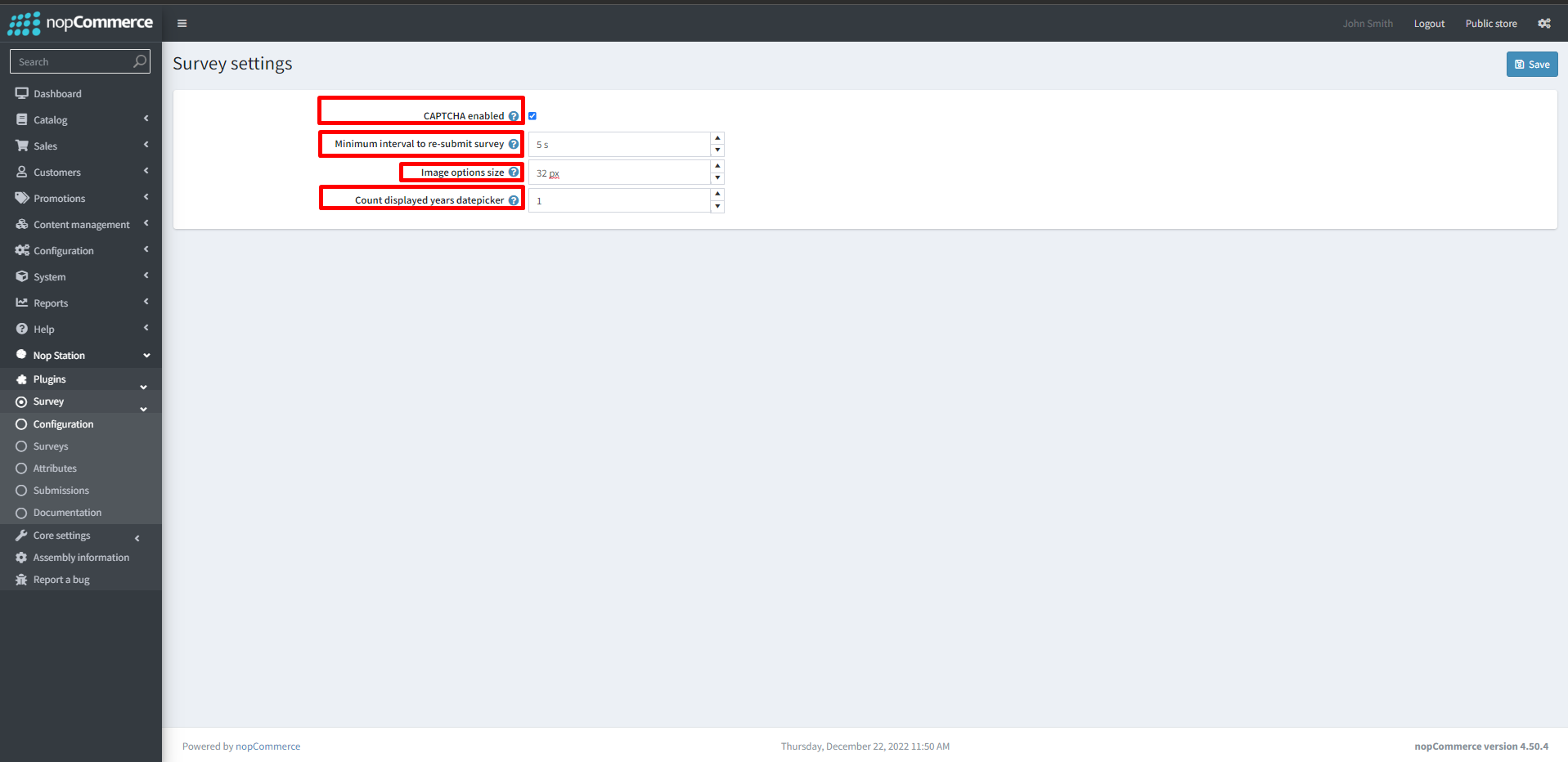
Go to Admin → Nop Station → Plugins → Survey → Configuration
CAPTHA enable: By checking this checkbox admins can enable CAPTCHA for surveys
Minimum interval to resubmit survey: Admins can configure the minimum time gap between resubmissions in seconds
Image options size: admins can configure the image size in pixels for survey image boxes.
Count displayed years date picker: admins can configure the minimum year to browse from the current year in the admin.
Setting Attributes
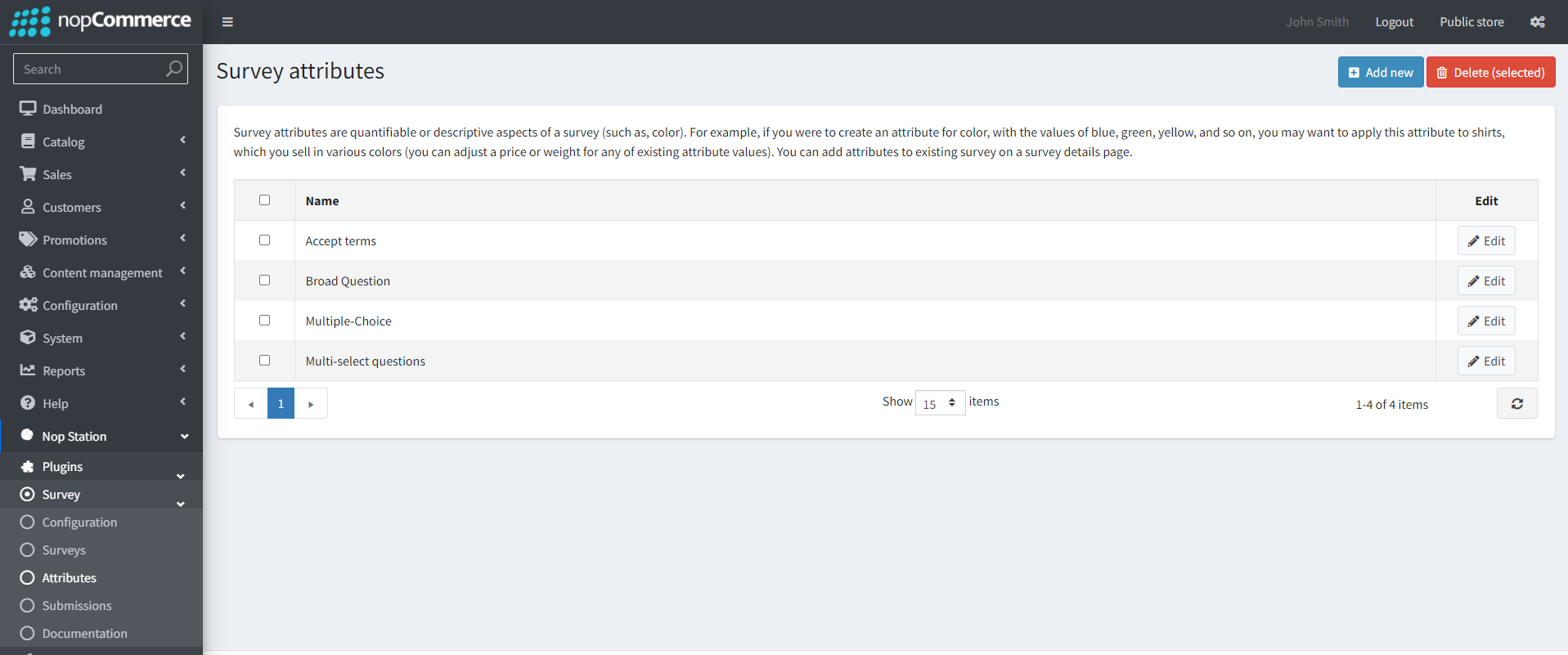
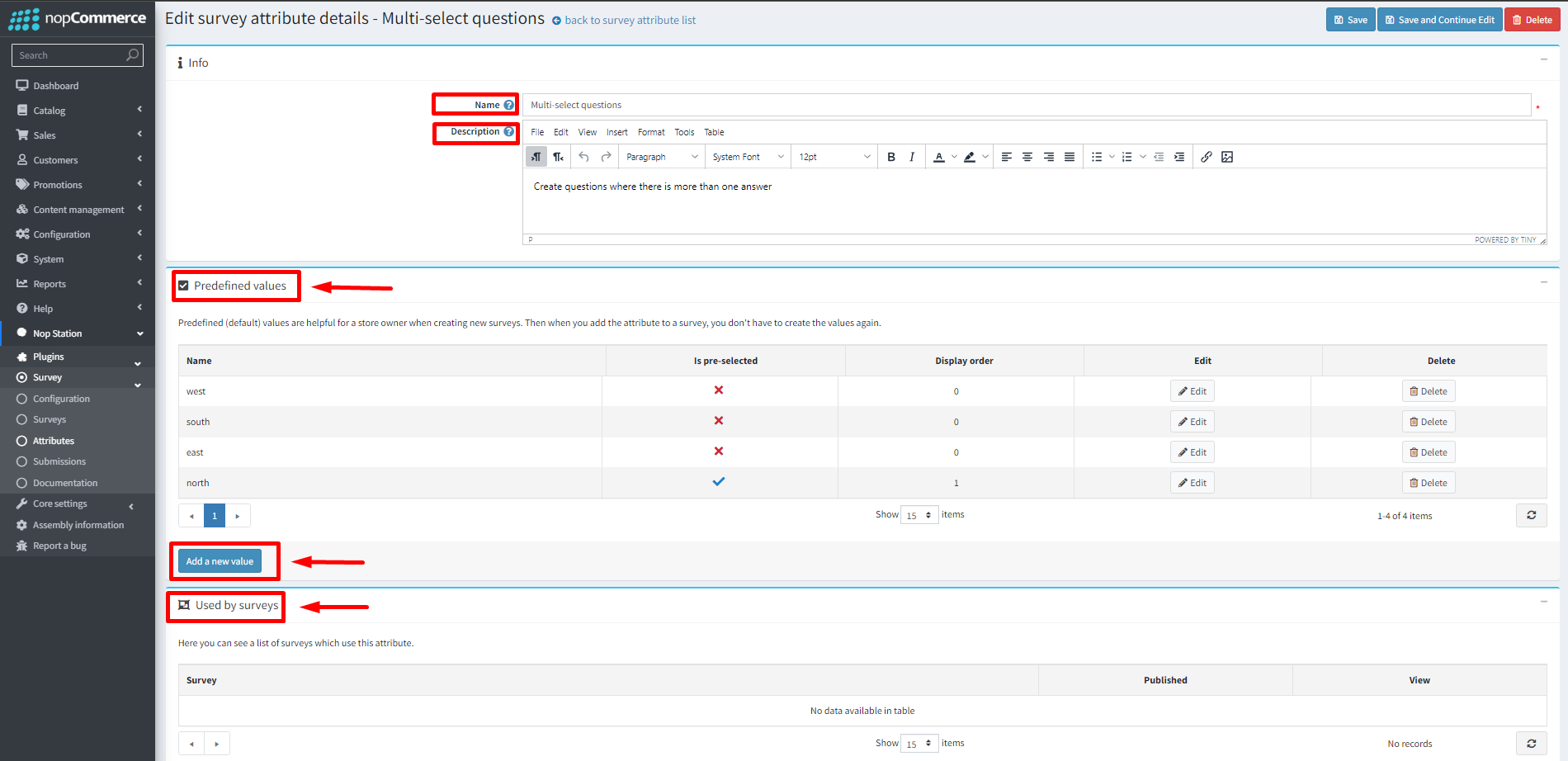
Go to Admin → Nop Station → Plugins → Survey →attributes
you can see a list of created attributes here
You can create attributes by clicking on the Add New button.
Name: Admins can define the name for the attribute here
Description: admins can add a description for the attribute
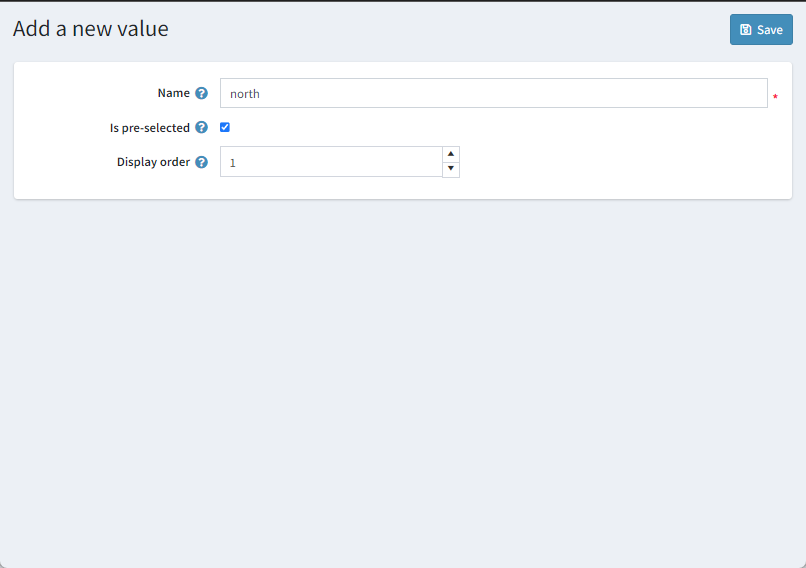
Pre-defined values: admins can create some predefined values for attributes if they want
Setting up Surveys
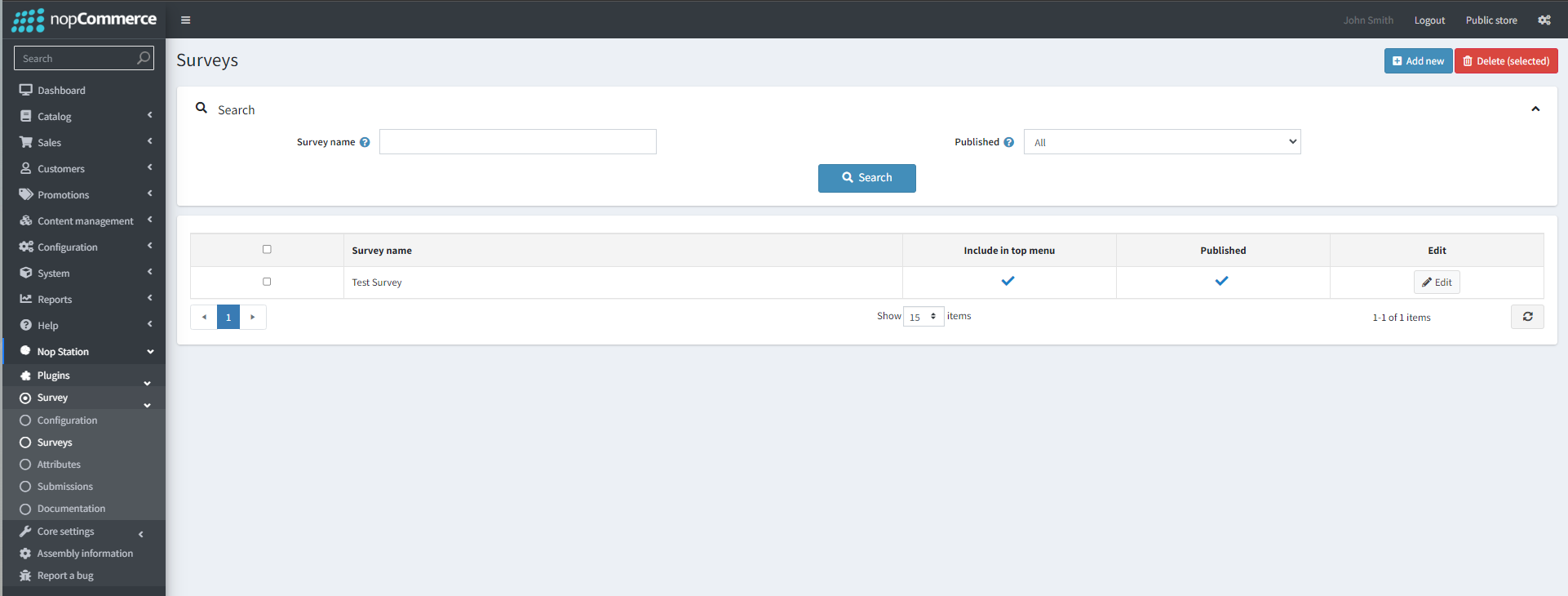
Go to Admin → Nop Station → Plugins → Survey → Surveys
you can see a list of created surveys here which you can edit by clicking the edit button
You can create a new survey by clicking on the Add New button. This will take you to the Add a new Survey page
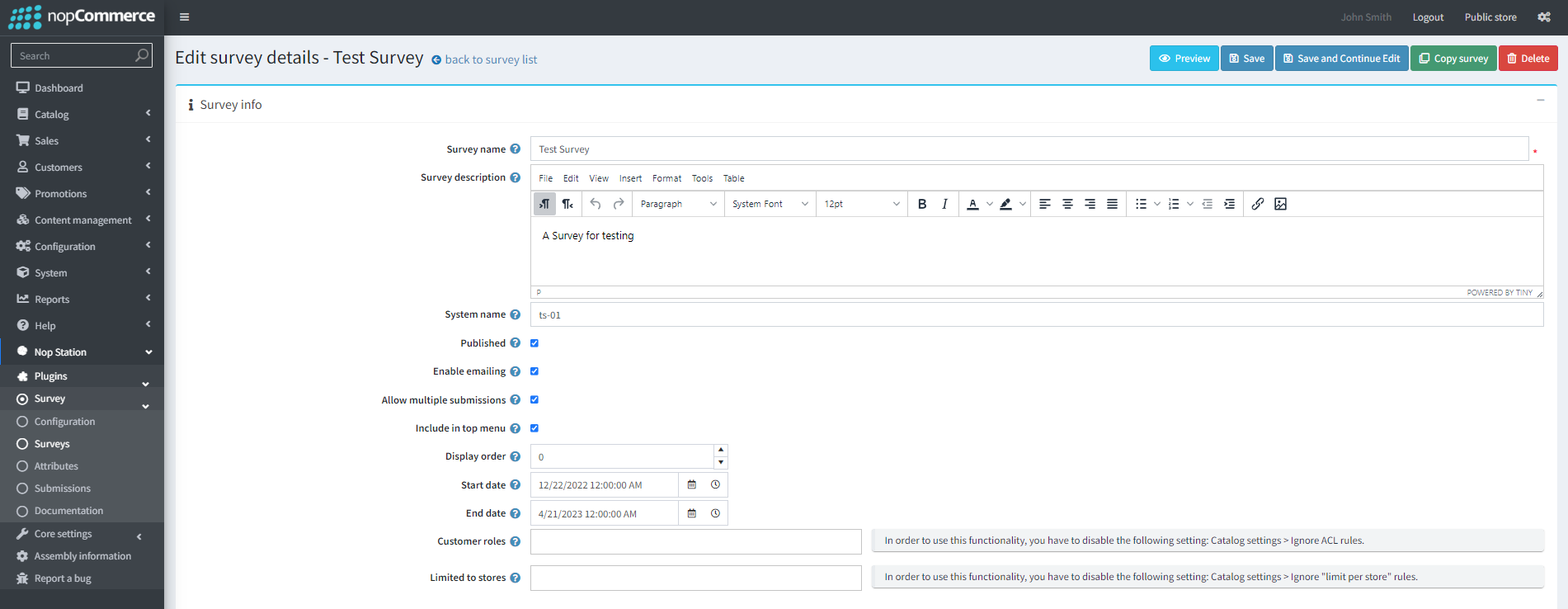
Survey name: Admins can define the name for the survey here
Survey description: admins can add a description for the Survey here. This supports a rich text editor and HTML as well.
System name: Admins can add a system name for the survey here
Published: By checking this checkbox admins can choose whether the Survey is published or not
Enable emailing: By checking this checkbox admins can enable sending Survey links through email
Allow multiple submissions: By checking this checkbox admins can enable multiple submissions
Include in top menu: By checking this checkbox admins can include the Survey link in the top menu
Display order: Admins can set the display order for the Survey in the top menu
Start date: Admins can set the start date for the Survey using the date picker
End date: Admins can set the end date for the Survey using the date picker
Customer roles: Admins can limit the accessibility of the Survey based on customer roles
Limited to stores: Admins can limit the survey's accessibility based on store
Email Account: Admins can add an email account from which emails from the survey will be sent
To: Admins can define the name for the survey here
BCC: admins can add a description for the Survey here. This supports a rich text editor and HTML as well.
Send immediately By checking this checkbox, admins can send the survey immediately after creation through emails
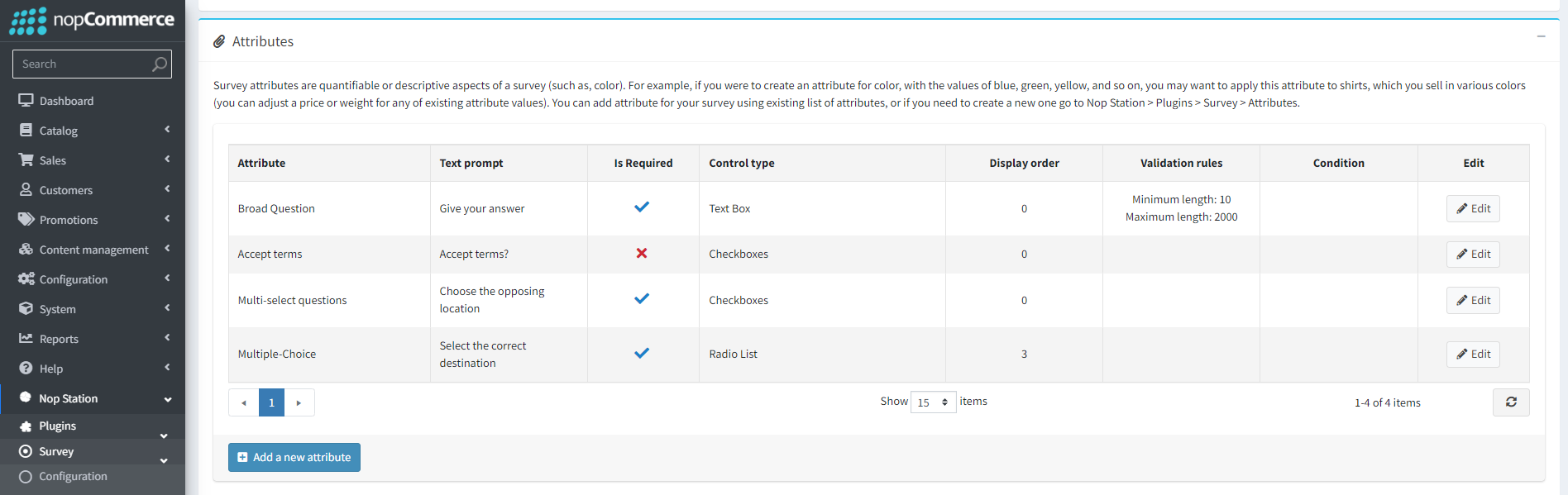
Attributes: Admins can see a list of survey attributes defined for a particular survey here, They can Add or edit these attributes
Add a new attribute/Edit: By clicking on the add new attribute button the admin will be taken to the add a new attribute/ Edit a new attribute page.
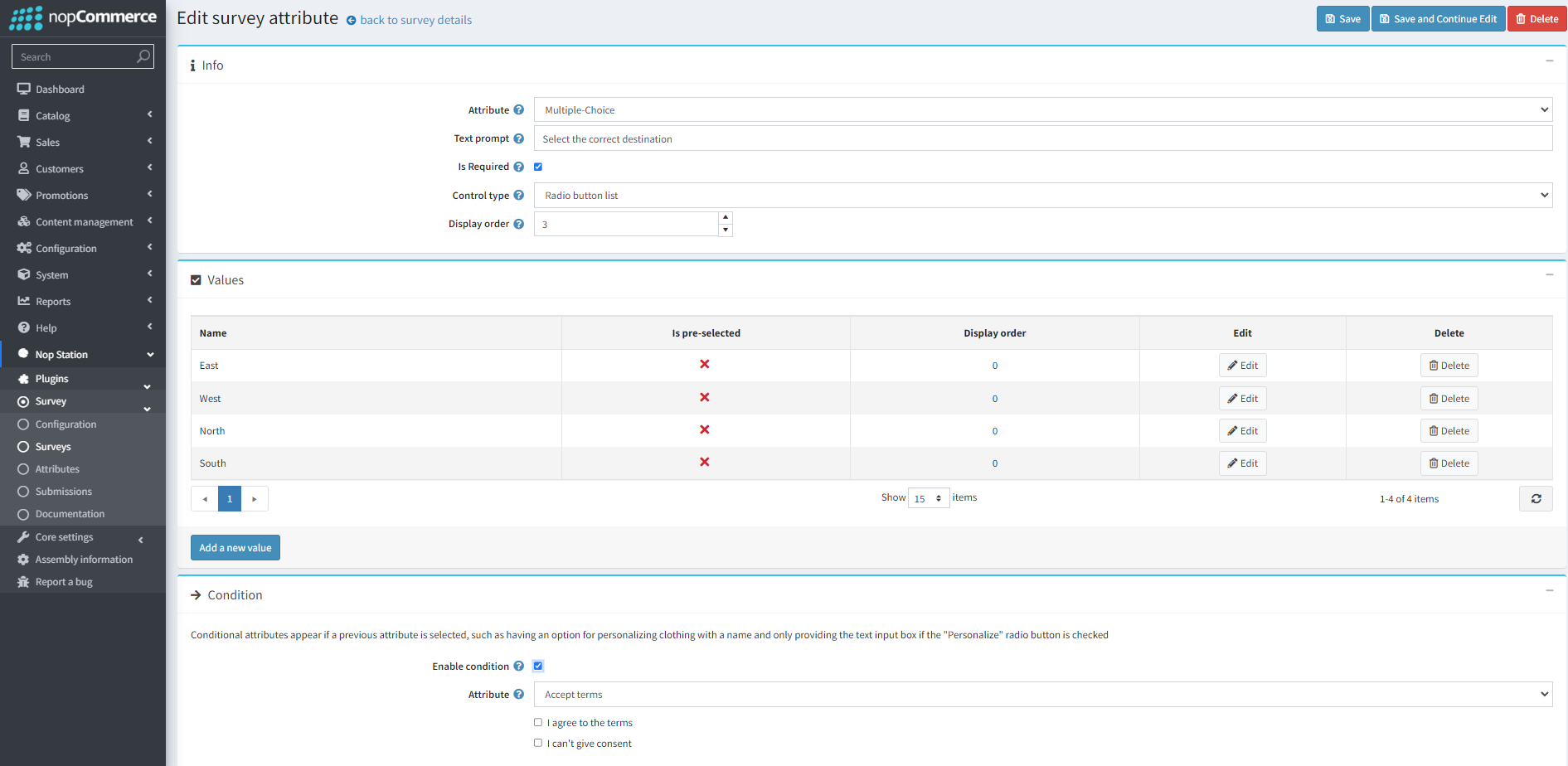
Attribute: admins can choose the attribute they want to add from this drop-down
Text prompt: admins can set a text prompt or question for the attribute through this option
Is Required: By checking this checkbox admins can set the field as a required one
Content type: By checking this checkbox, admins can send the survey immediately after creation through emails
Display order: By checking this checkbox, admins can send the survey immediately after creation through emails
Enable condition: By checking this checkbox, admins can enable conditions for attributes\. Once enabled for an attribute, it will only be visible when the condition is fulfilled
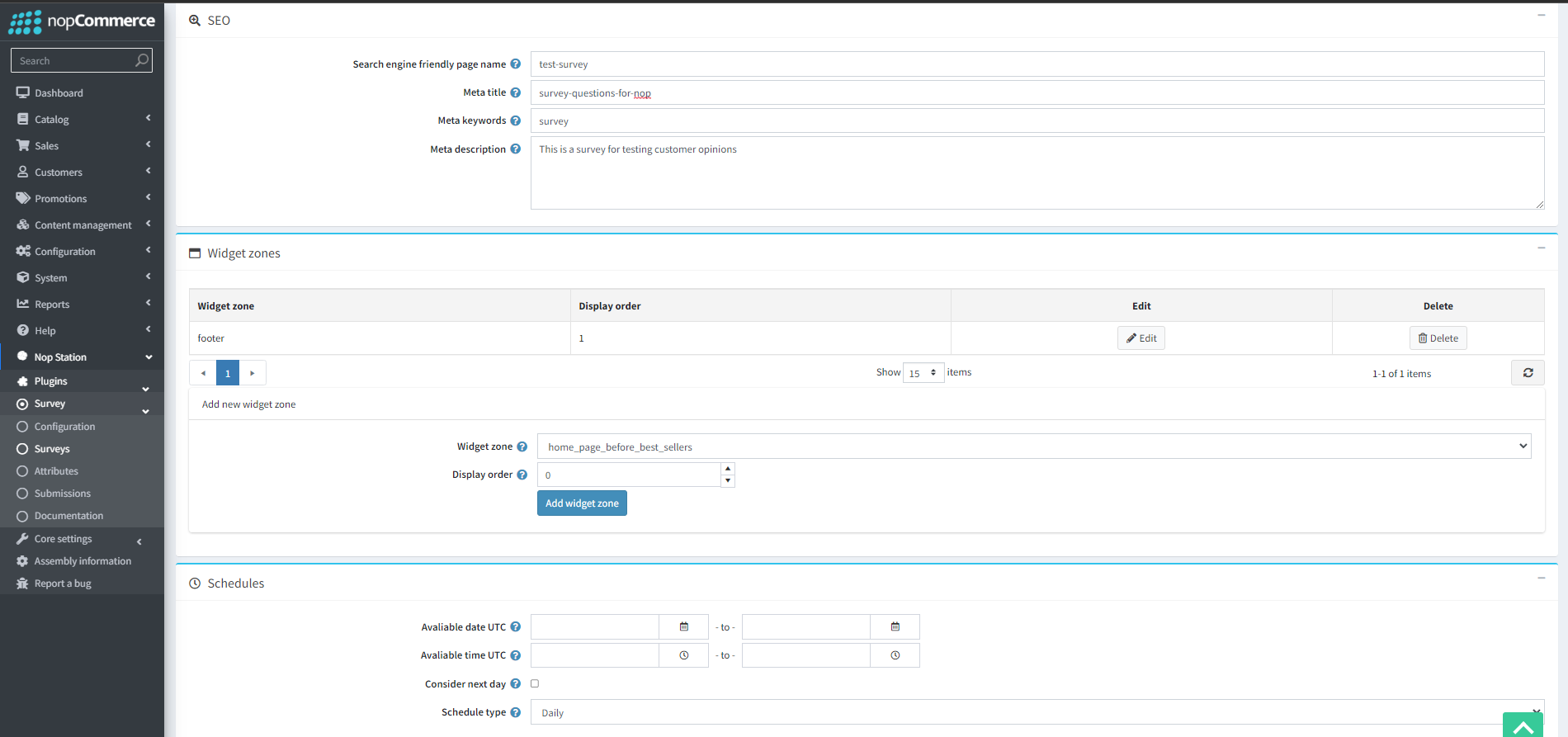
Search engine friendly page name: By clicking on the add new attribute button the admin will be taken to the add a new attribute/ Edit a new attribute page.
Meta title: admins can choose the attribute they want to add from this drop-down
Meta keywords: admins can set a text prompt or question for the attribute through this option
Meta description: By checking this checkbox admins can set the field as a required one
Widget zone: Admins can add widget zones where the survey will be displayed. Admins can choose the widget zone from this drop-down
Display order: admins can set the display order for the survey in the widget zone
Available date UTC: Admins can set survey availability dates based on UTC
Available time UTC: admins can set survey available time of day based on UTC
Consider next day: admins can consider the next day for time calculations
Schedule type: admins can set the schedule type as either: Daily/Weekly/Monthly
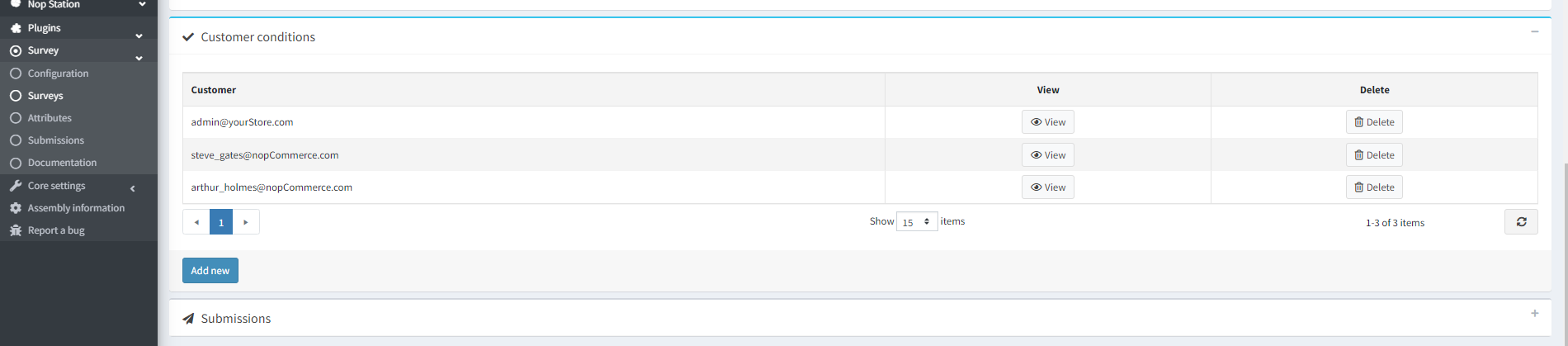
Customer conditions: admins can limit the survey to customers through customer conditions
Submissions: admins can see survey responses here
PUBLIC VIEW
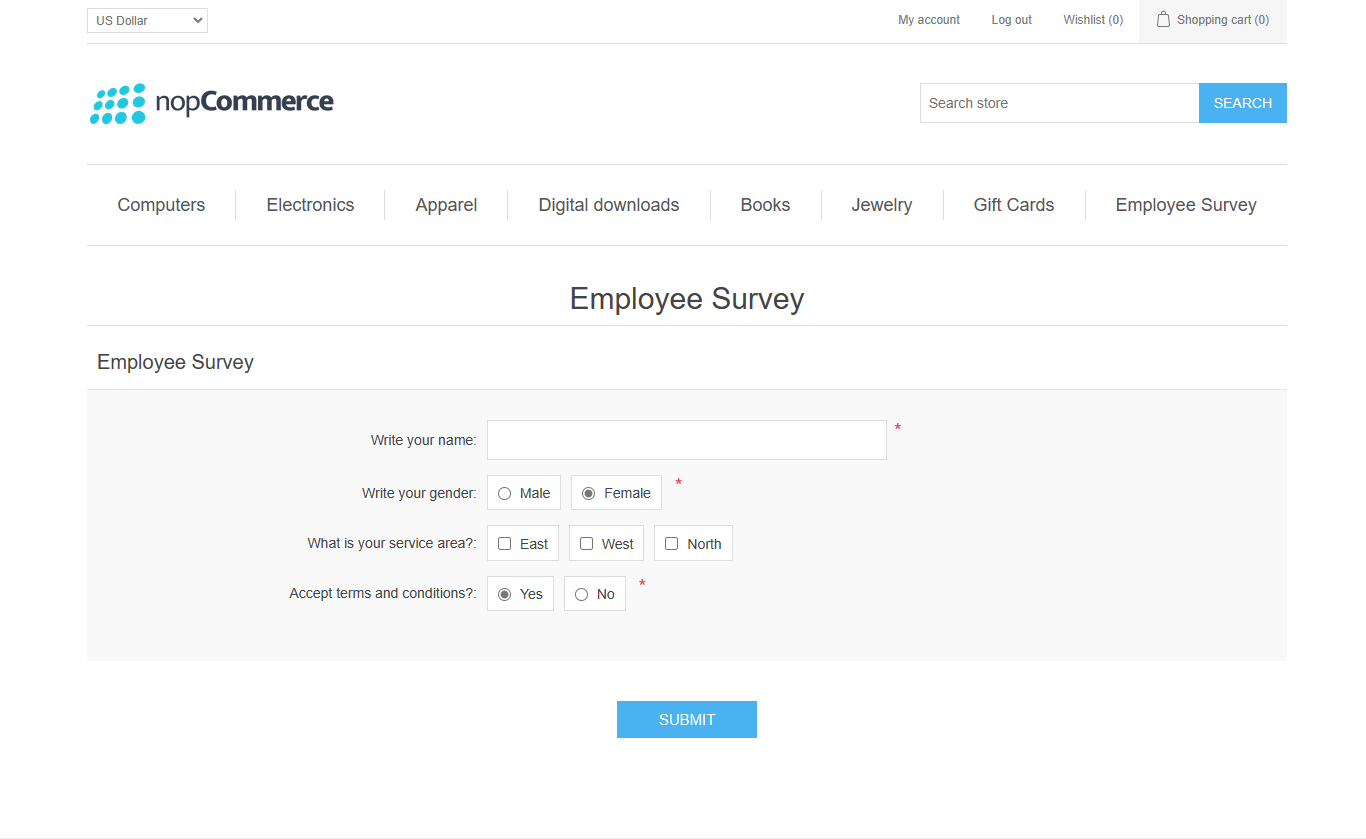
This is how the survey will look once enabled in the Public Store: