nopStation's SQL Manager plugin for nopCommerce provides you with the flexibility to write, run SQL queries and generate custom reports right from the nopCommerce Admin panel. These incredible reports plugin for nopCommerce lets you easily create, save and run custom SQL queries and manage reports. Aside from just viewing query results within the admin panel, this plugin gives you the functionality to export these reports in the form of Excel(.Xlsx) files.
PRE-REQUISITES
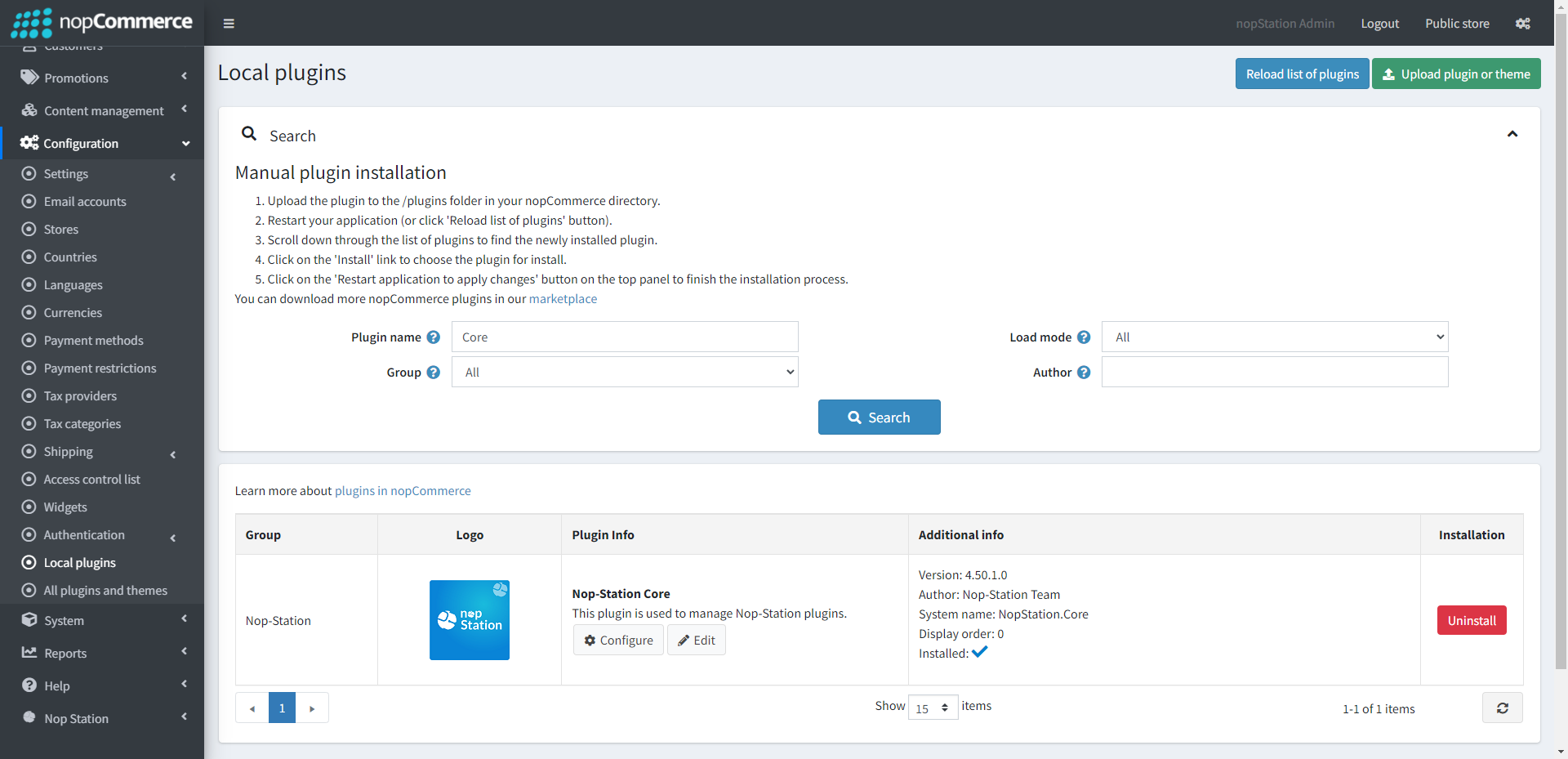
The plugin requires you to install the Nop-Station Core plugin first.
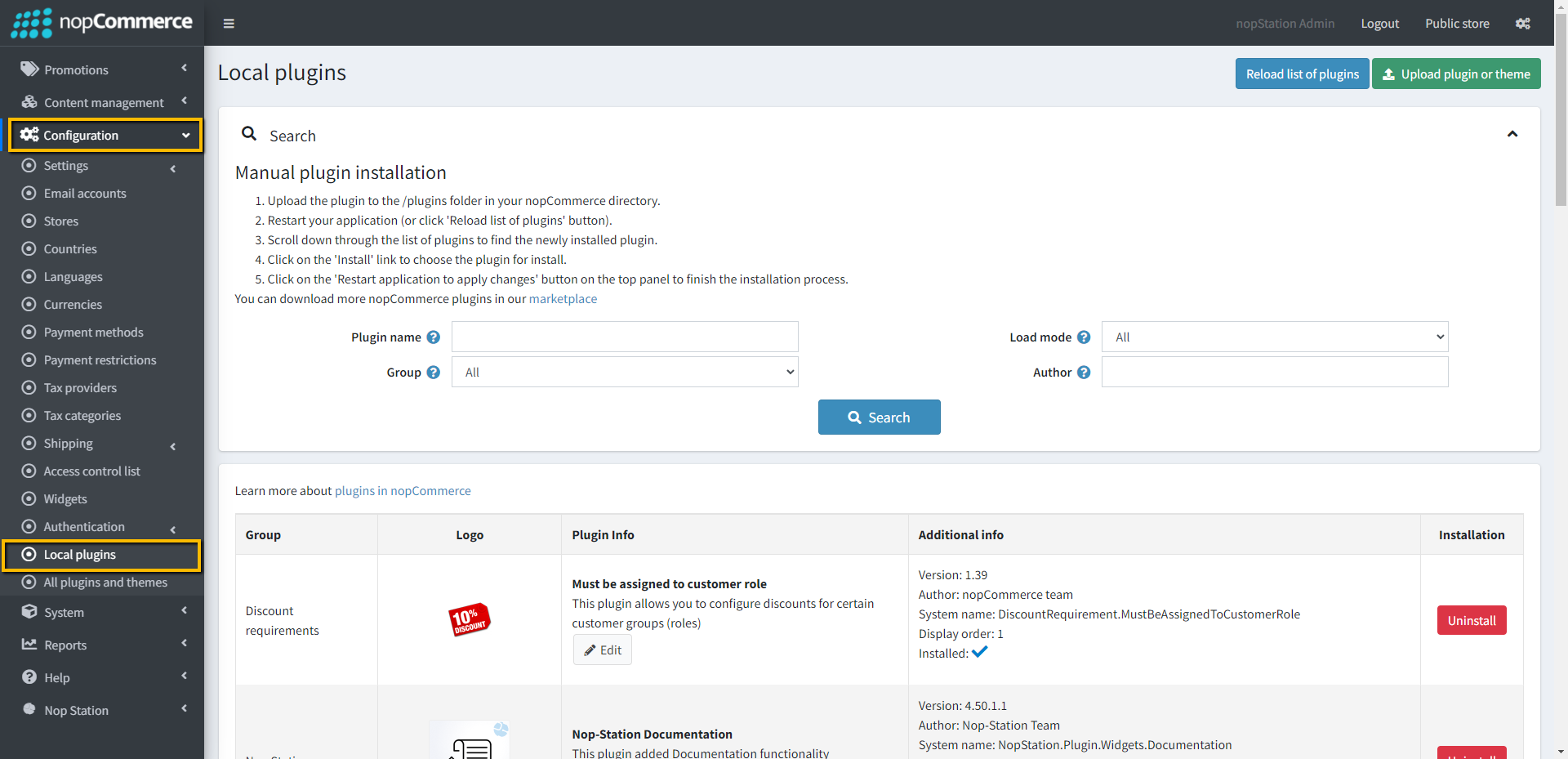
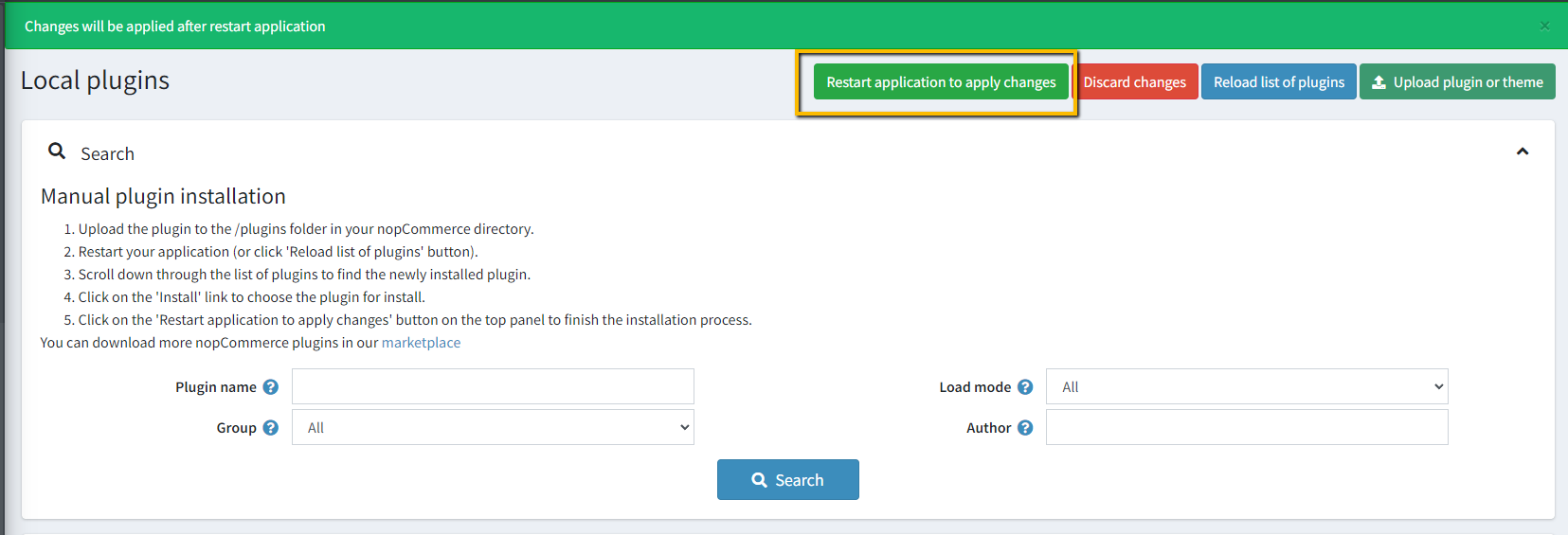
Go to Administration → Configuration → Local plugins
Upload the NopStation.SQLManager zip file using the "Upload plugin or theme" button
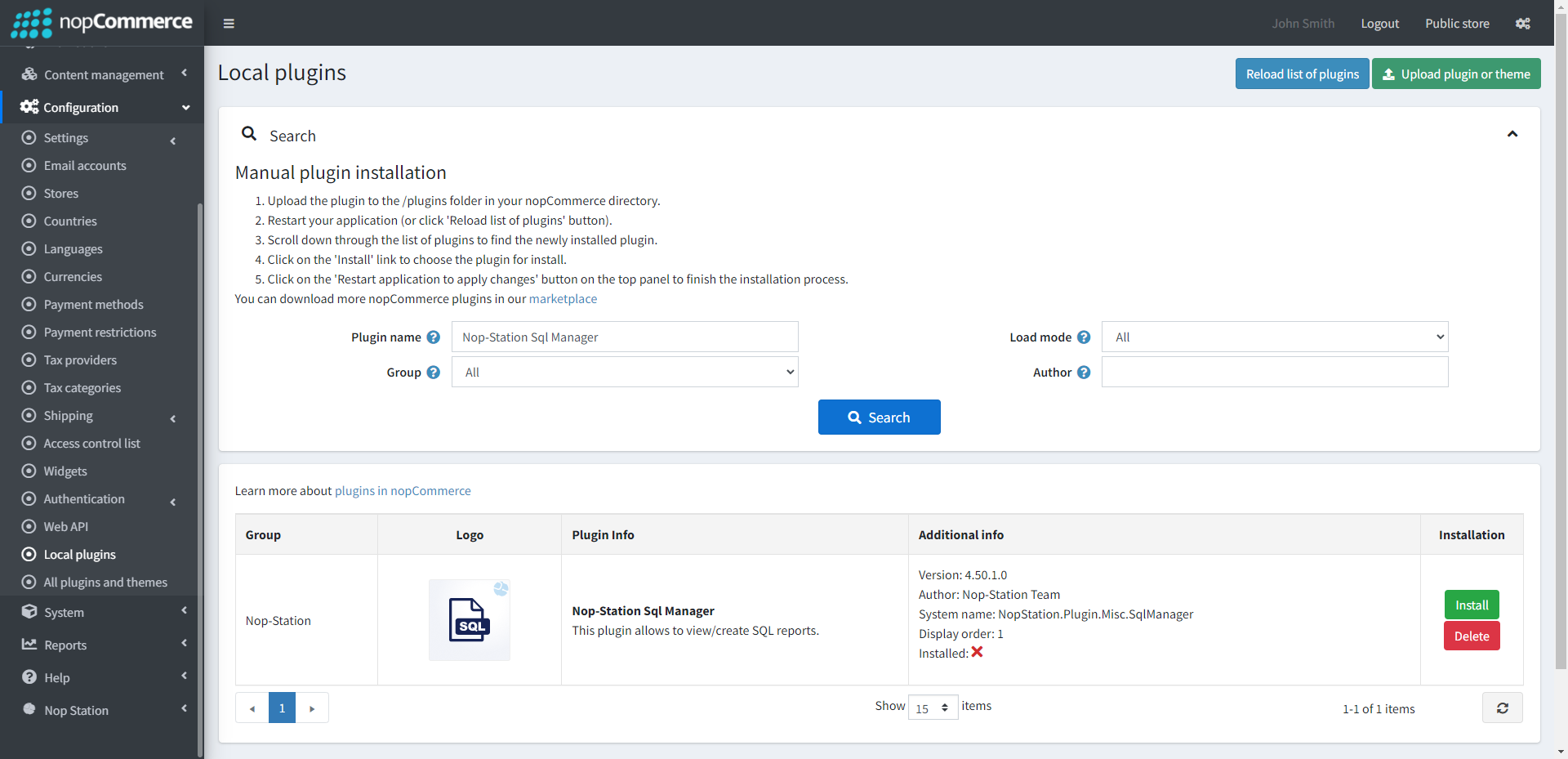
Go to Administration, reload the 'list of plugins'. Install 'Nop-Station Core' Plugin first and then install 'SQL Manager'
To make the plugins functional, restart the application.
REPORTS
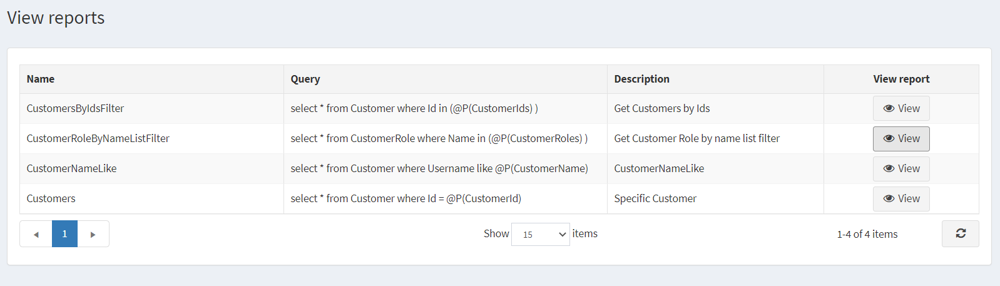
Here you can see a list of reports
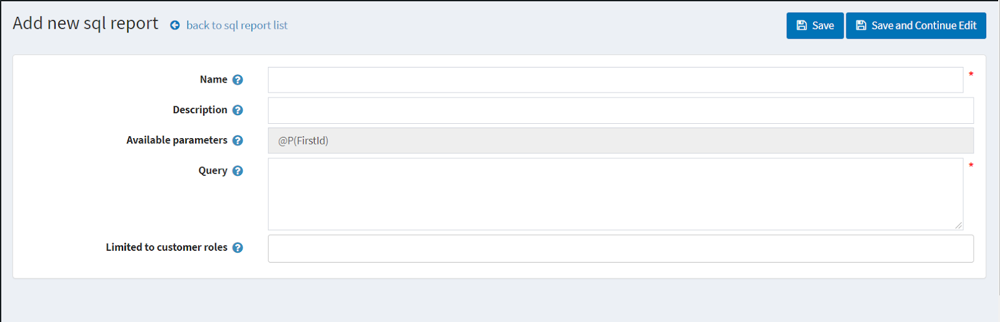
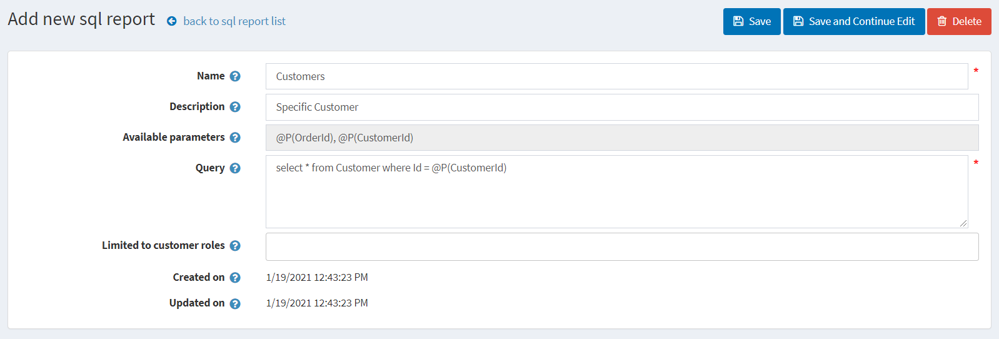
After clicking on "Add New" button you can see report creation windows
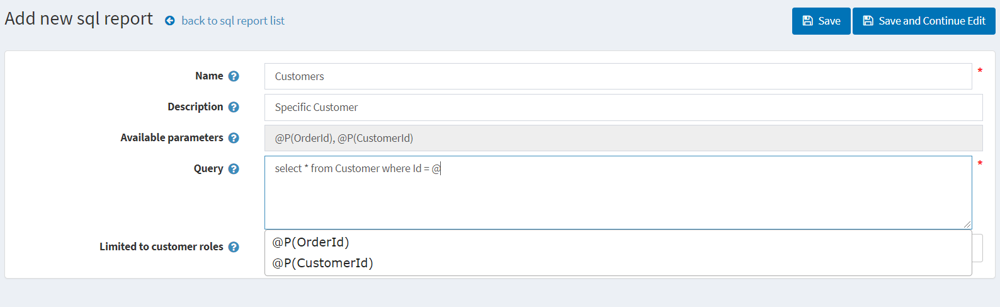
In the available parameters field, all created parameters will be shown here. In the Query text field you will write your own SQL query. You can also set ACL to this report. When you write a query if you put @ sign it will suggest you available parameters which are very user friendly
You can also update/delete reports
PARAMETERS
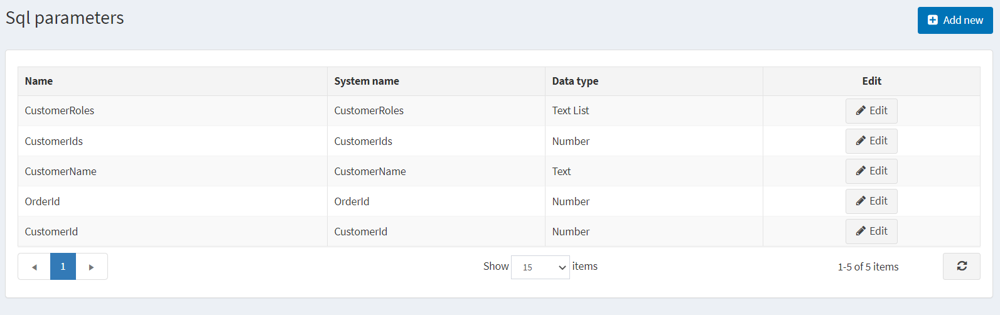
Here you can see a list of parameters
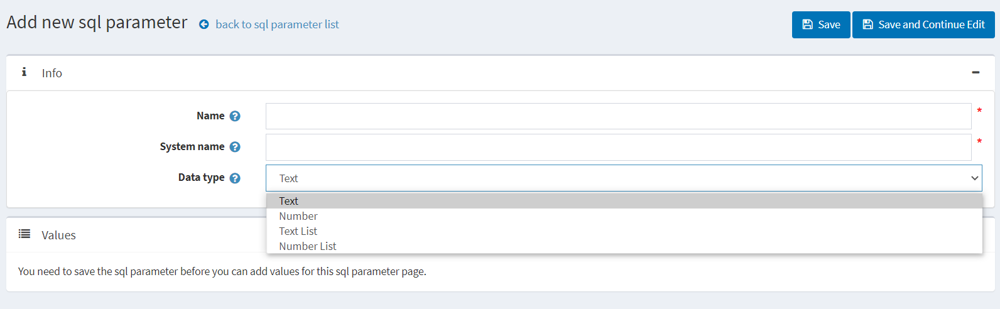
After clicking the Add new button you can see the parameter creation window
THERE ARE 4 DATA TYPES IN THE PARAMETER
Text
Number
Text List
Number List
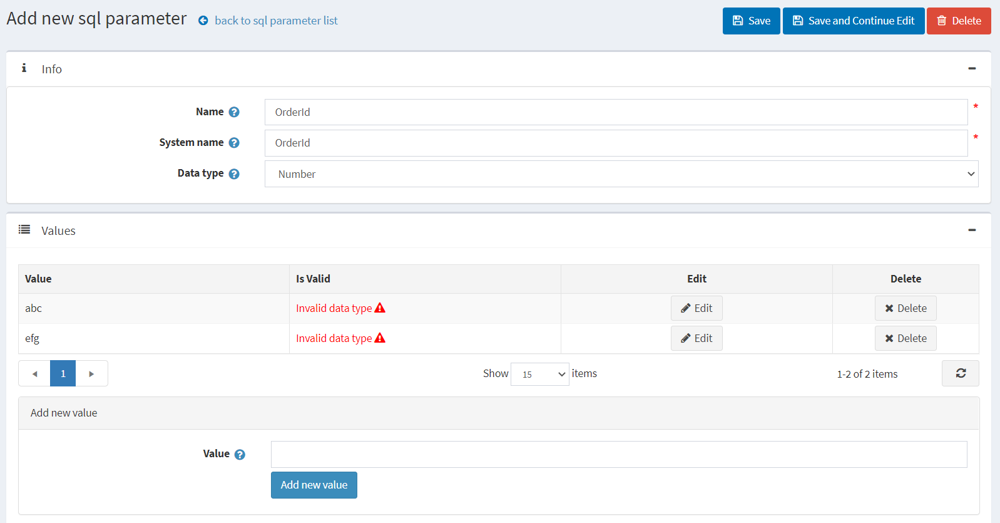
You can set multiple values for each parameter. For the Text list and Number List you can select multiple values while generating a report but for Text and Number you can select only one value. If you select data type as number but you give char/string value like "abc" it will show you invalid datatype
You can also update / delete values of a parameter
VIEW REPORTS
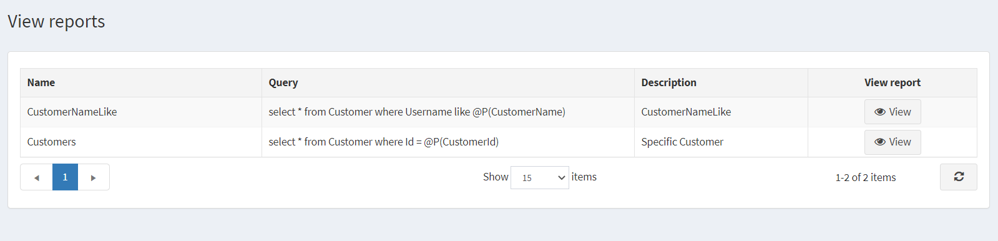
Here you can view reports. Run report and export report result to Excel. You can view specific reports
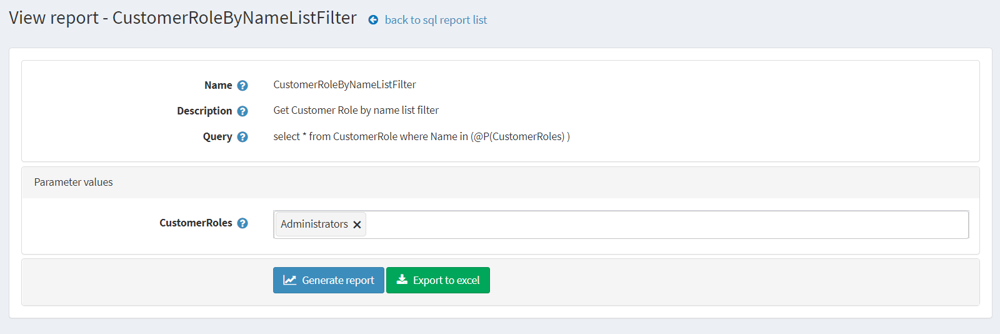
After clicking on a specific report View button you can see like this
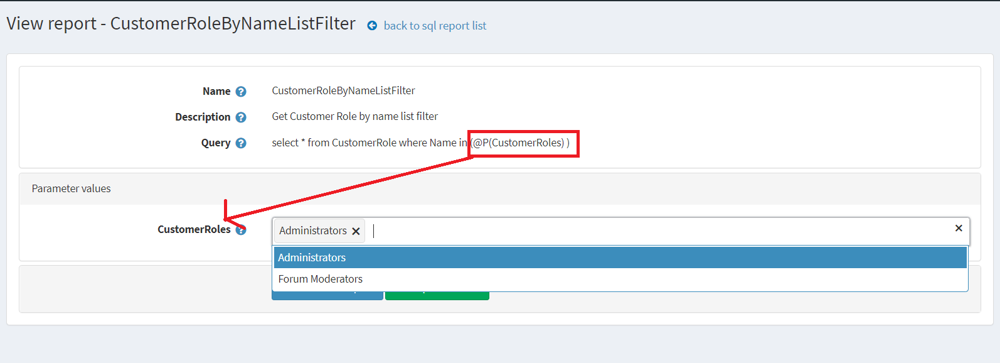
In this report @P(CustomerRoles) is a parameter and it's datatype is Text List. So you can select multiple values from the drop down
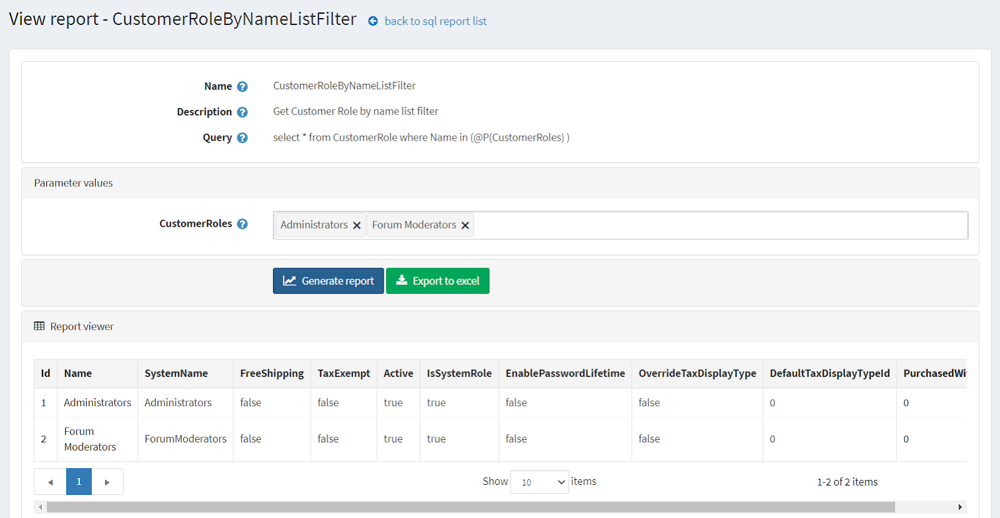
If you click the Generate Report button, the query will run and the result will be shown in the datatable
Then if you want to export this result in Excel you have to click the Export to excel button and all results will be in Excel file and the file will be downloaded as Report name
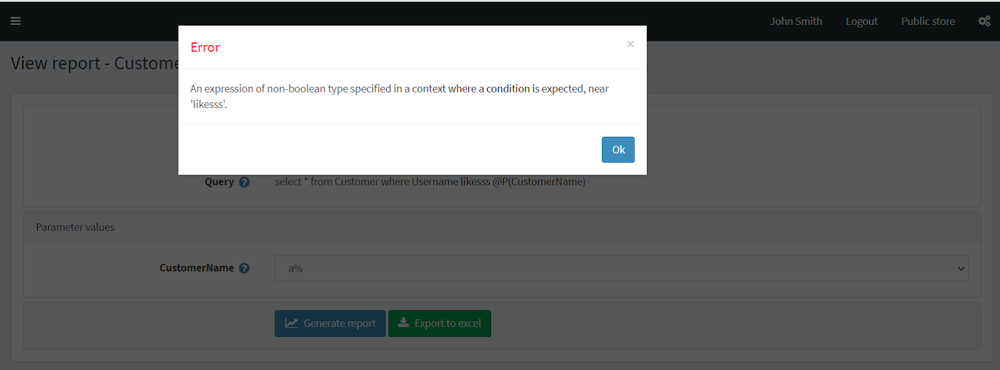
If your query has errors it will give an error / exception message so that you can understand the actual error
INSTANT QUERY
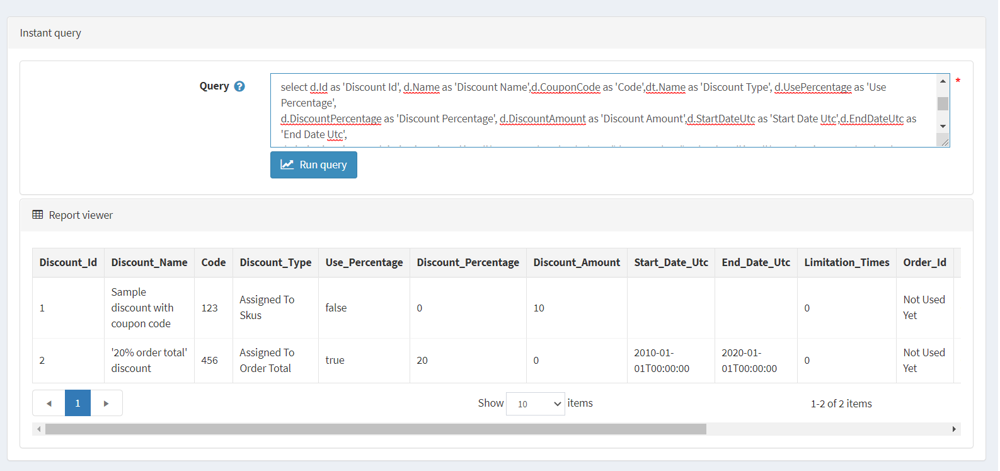
In this menu you can run a query and the result will be shown in datatable. No need to save reports and parameters. If your query has any errors it will give you error message