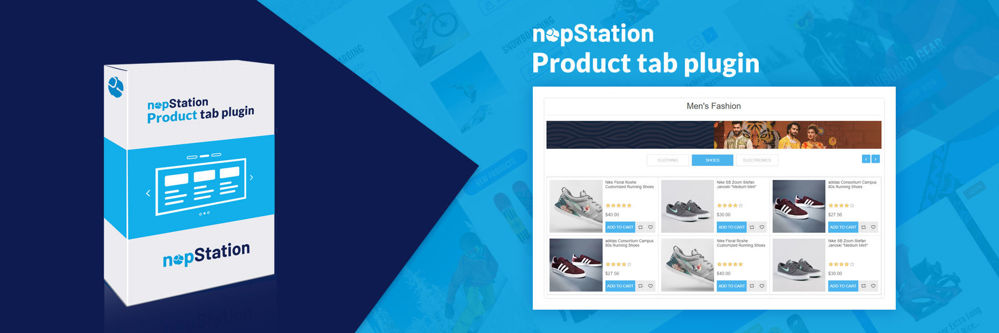
nopStation's Product Tab Plugin organizes your products into collections and makes your website homepage more attractive. This plugin displays products in tabs which ensures a smooth experience for users and enhances the focus on products on the home page. After a quick nopCommerce plugin download and installation, you can display products from a category and categorize them by criteria such as new, sale, featured, bestsellers, and so on. The plugin also allows you to construct a Category Product Collection and organize them into distinct product tabs and provides you with the option to make a Custom Product Collection by selecting items from a predefined list.
PRE-REQUISITES
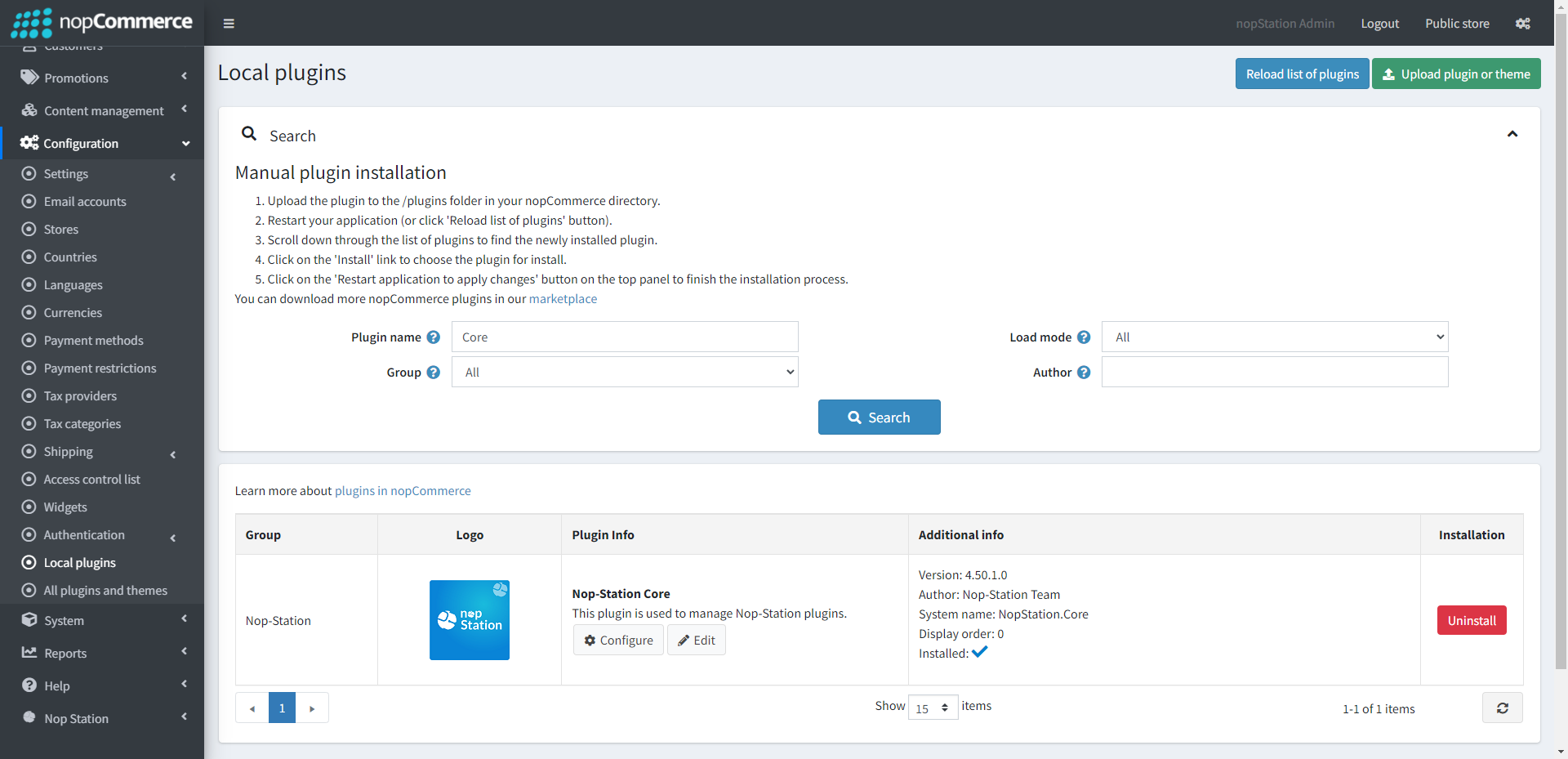
The plugin requires you to install the Nop-Station Core plugin first.
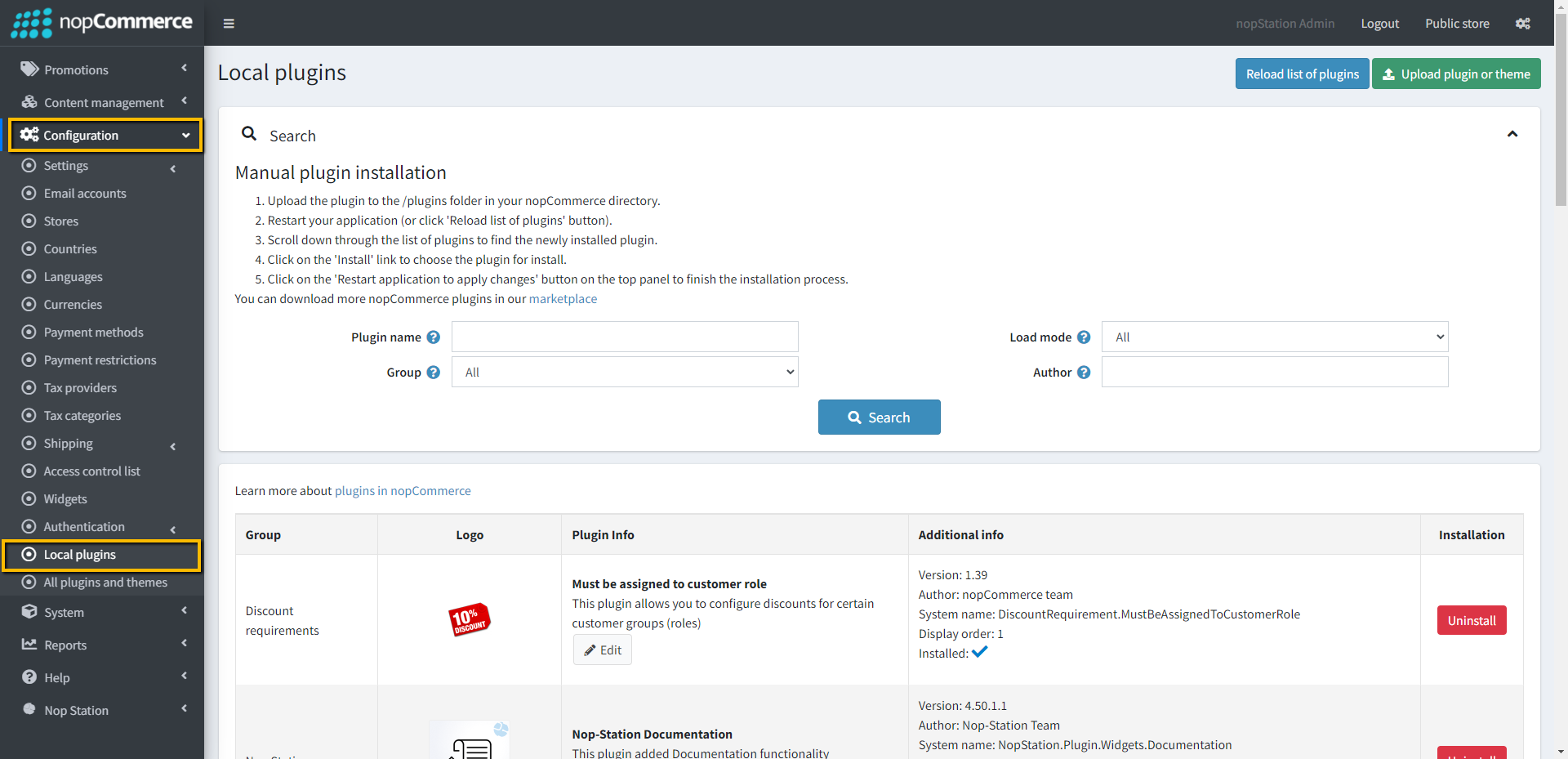
Go to Administration → Configuration → Local plugins
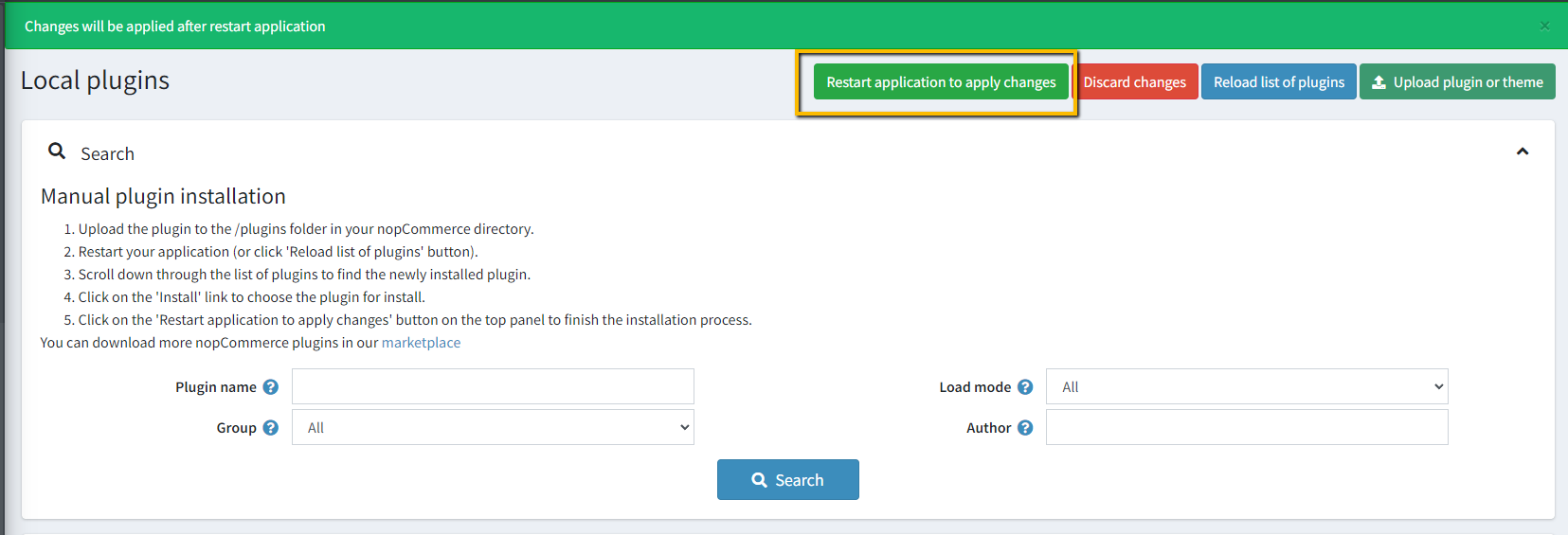
Upload the NopStation.ProductTab zip file using the "Upload plugin or theme" button
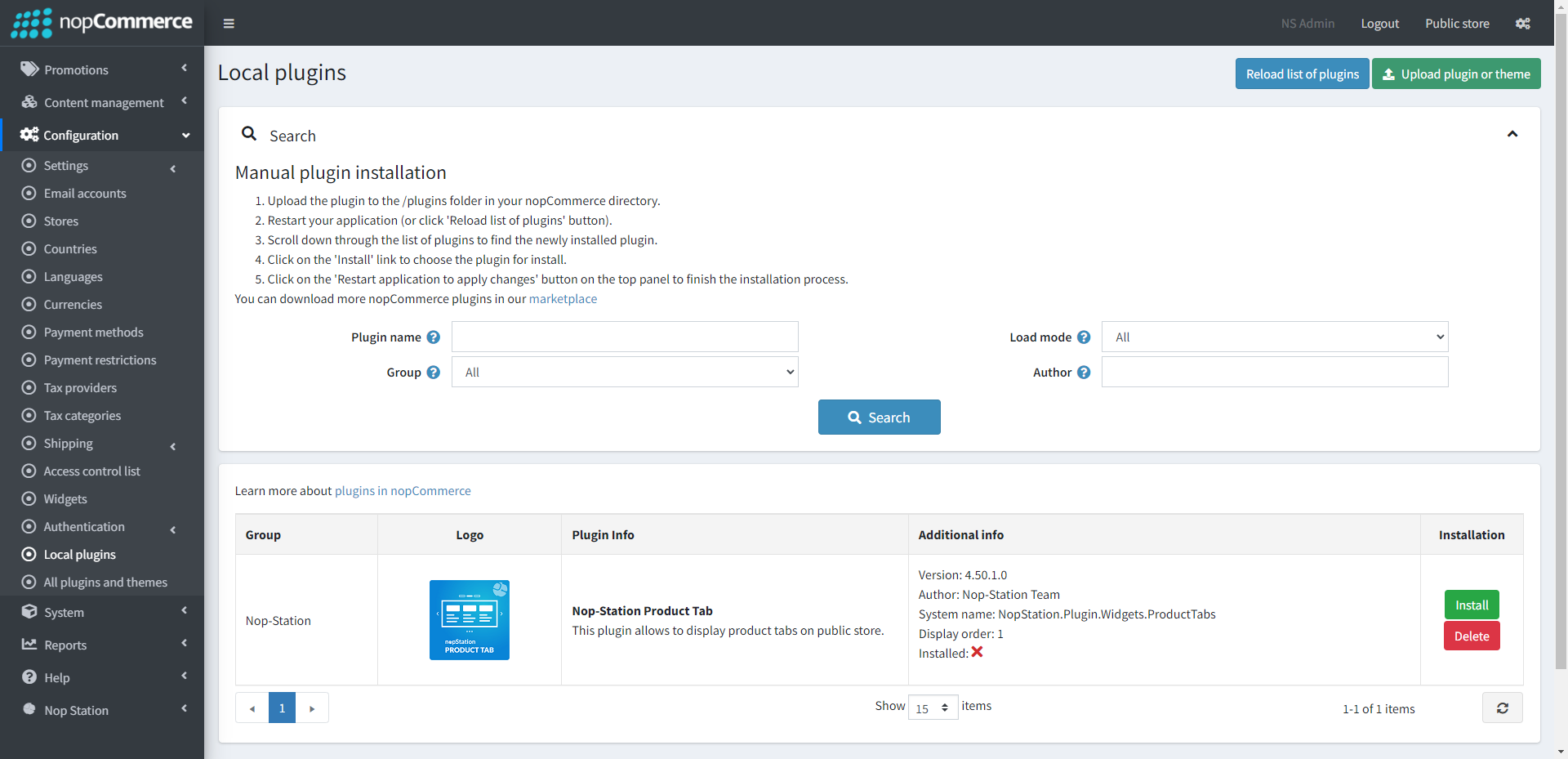
Go to Administration, reload the 'list of plugins'. Install 'Nop-Station Core' Plugin first and then install 'Nop-Station Product Tab'
To make the plugins functional, restart the application.
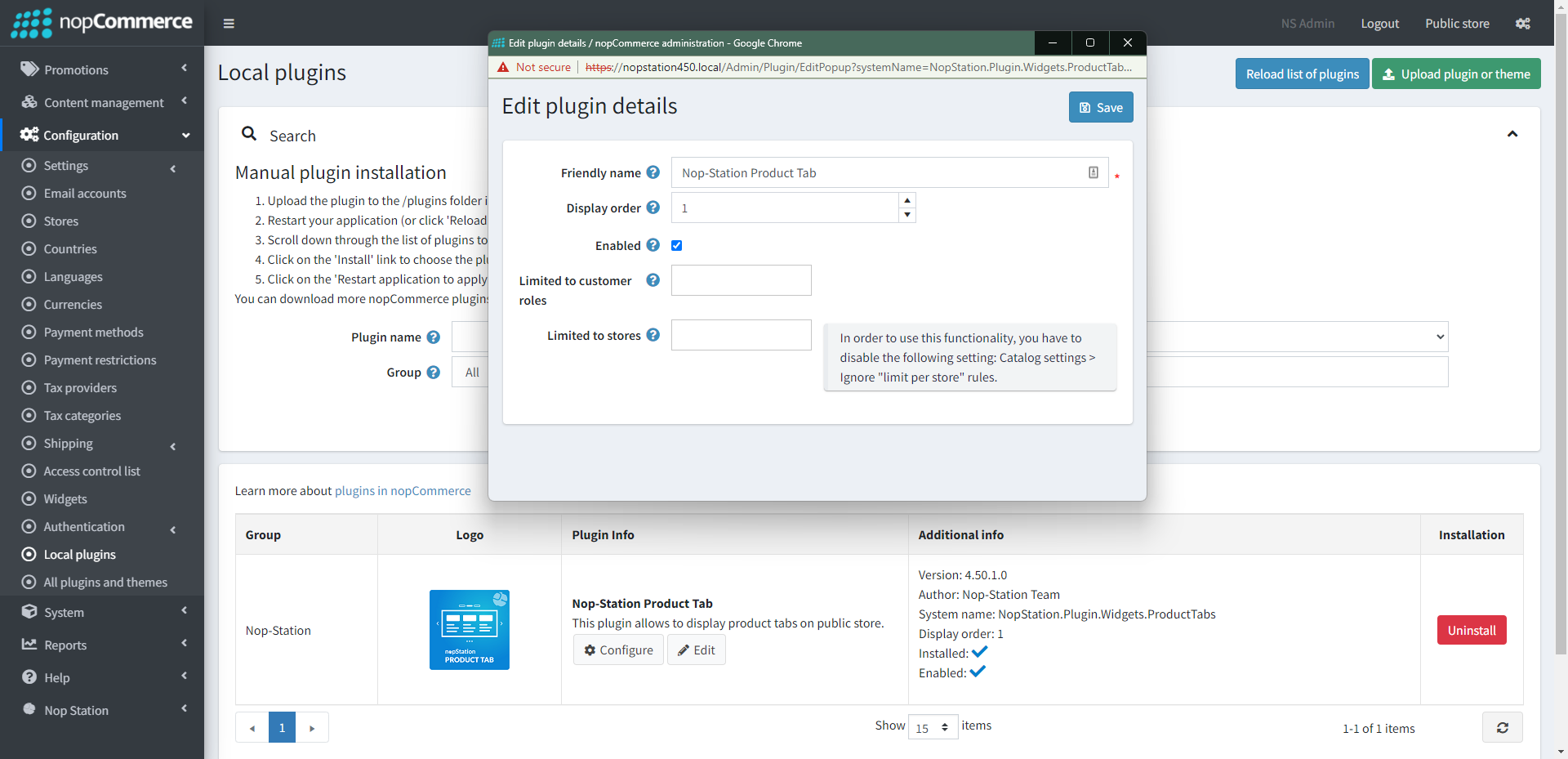
Enable the plugin with 'Edit' option and Configure it.
CONFIGURATION
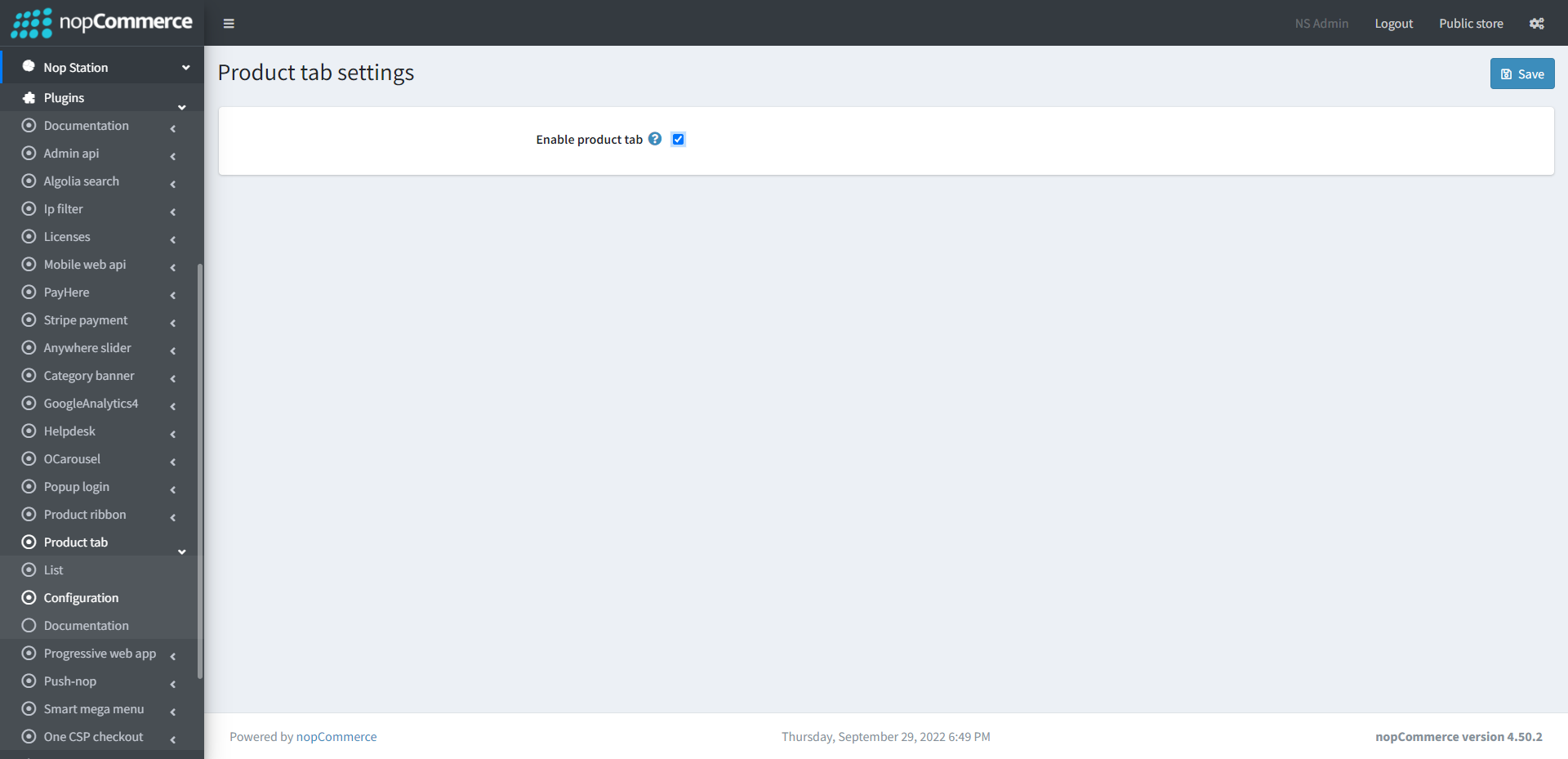
Go to Admin → Nop Station → Plugins → Product Tab → Configuration
Enable product tab: Check to enable the plugin
LIST
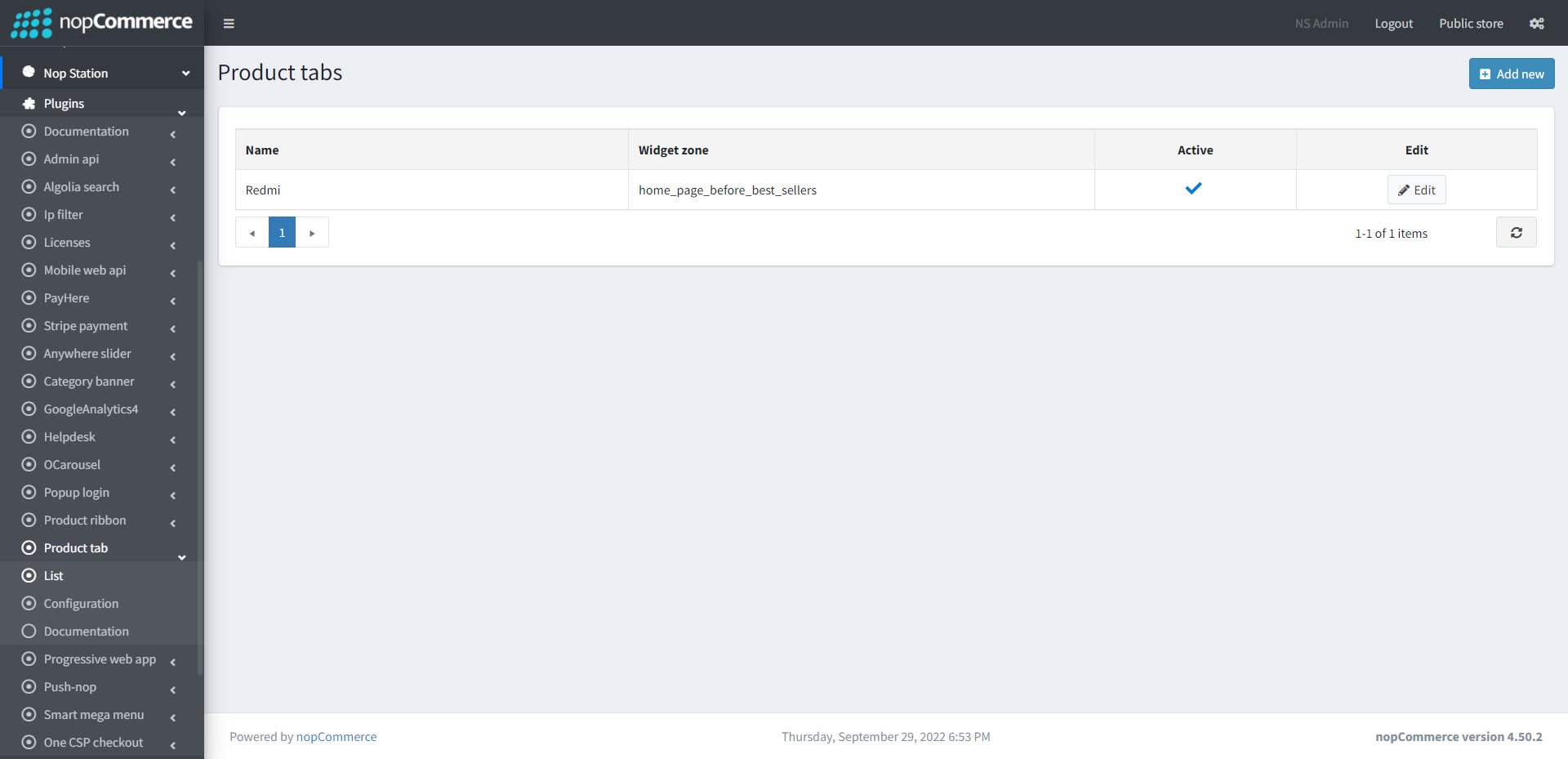
Go to Admin → Nop Station → Plugins → Product Tab → List
In this section you can show your list of active and product tabs
CREATE TAB
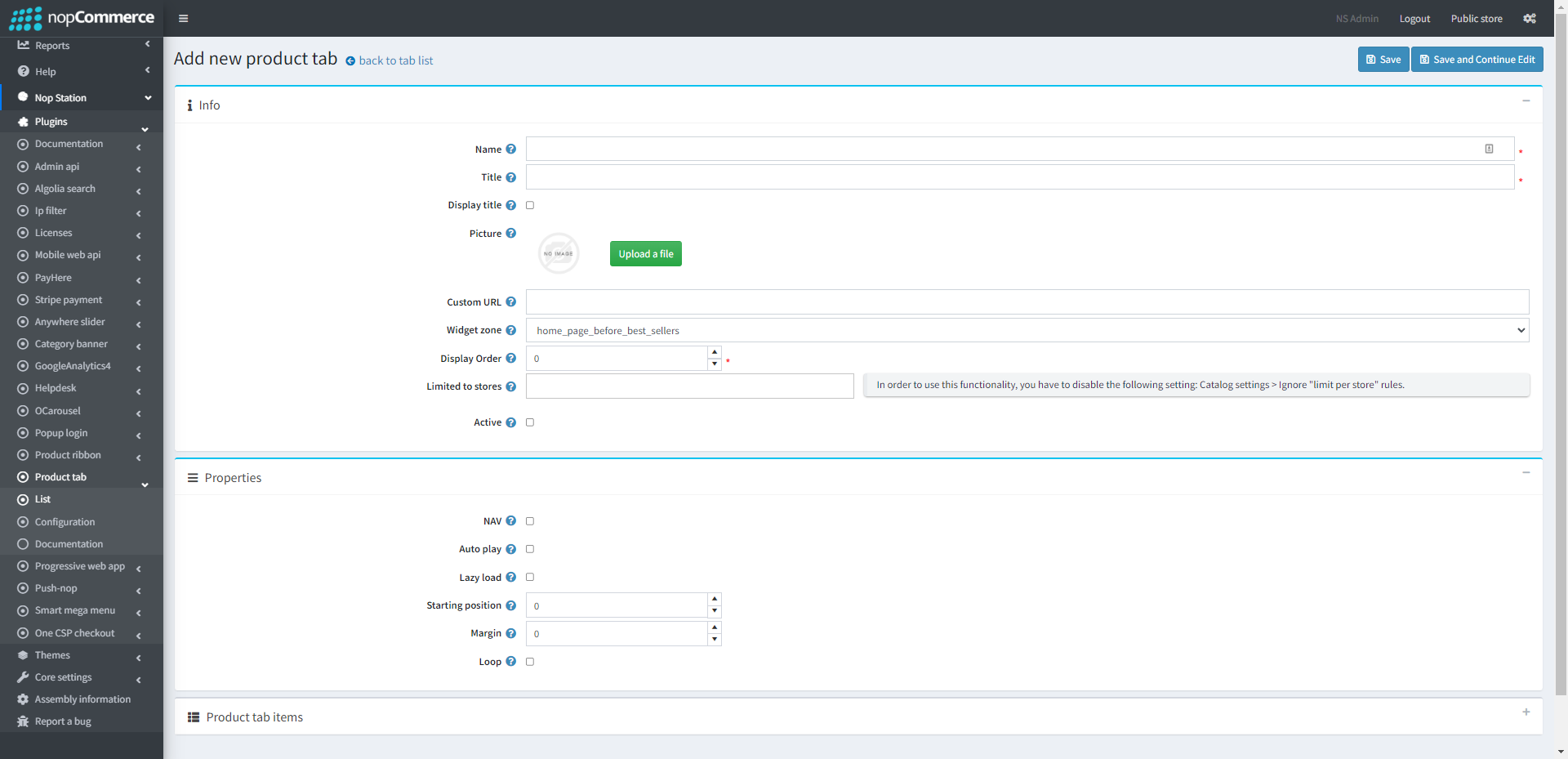
Create: To create a new product tab, go to product tab list page Admin → Nop Station → Plugins → Product Tab → List and then click Add new button
To edit an existing slider, click on Edit button from slider list table
INFO
Name: The tab name
Widget zone: From the list of Widget Zones you can select the locations in which you want your tab to appear in your public store. If you want to add the tab to widget zones click the drop-down select your desired widget zone
Picture: Select product tab picture.
Limited to stores: Option to limit this tab to a certain store, if you have multiple stores choose one or several from the list if you don’t use this option just leave this field empty
Display order: Display order is the order list of the tab, like 1 value represents the top of the tab
Active: Determines whether this tab will be active
PROPERTIES
NAV: By checking this property, it will display next/previous button on tab. If you want to hide these buttons, uncheck it
Autoplay: By checking this property, it enables auto play
Auto play timeout: It defines the duration of tab autoplay interval timeout (in miliseconds) Auto play hover pause: It defines whether the tab autoplay will be paused on slider hover
Lazy load: Check to image lazy load for tab items
Loop: Check this property, if you want to continue autoplay