nopStation's Helpdesk Ticket Plugin is developed to provide ticket creation and management for product issues on nopCommerce based online stores. This ultimate nopCommerce plugin for customer help tickets provides a fast and easy way to create, manage and resolve customer tickets for all products on your online store. By using this plugin, you can easily manage customer issues on your online store from the admin panel and let customers see ticket status from the public store in a convenient manner.
PRE-REQUISITES
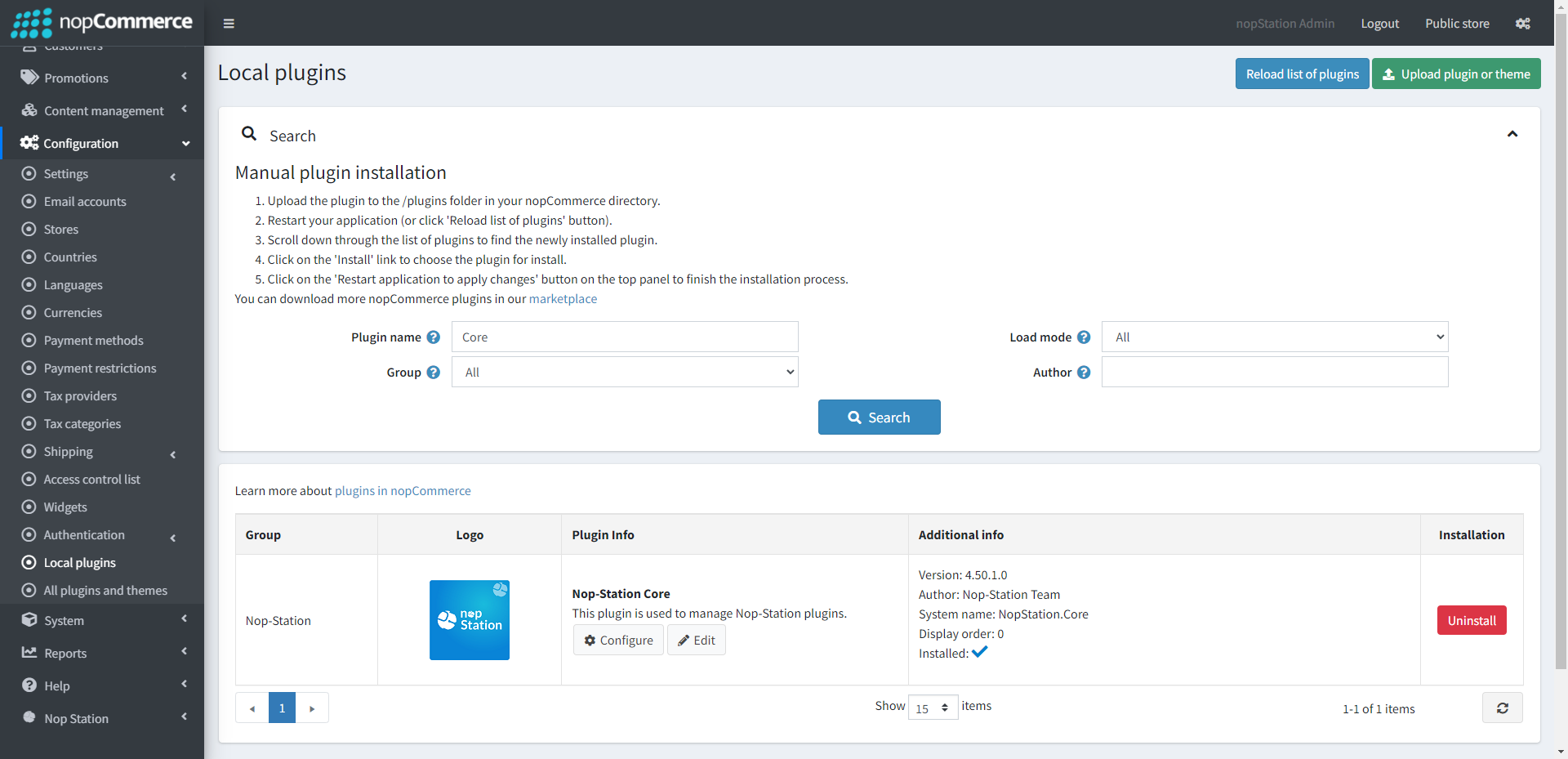
The plugin requires you to install the Nop-Station Core plugin first.
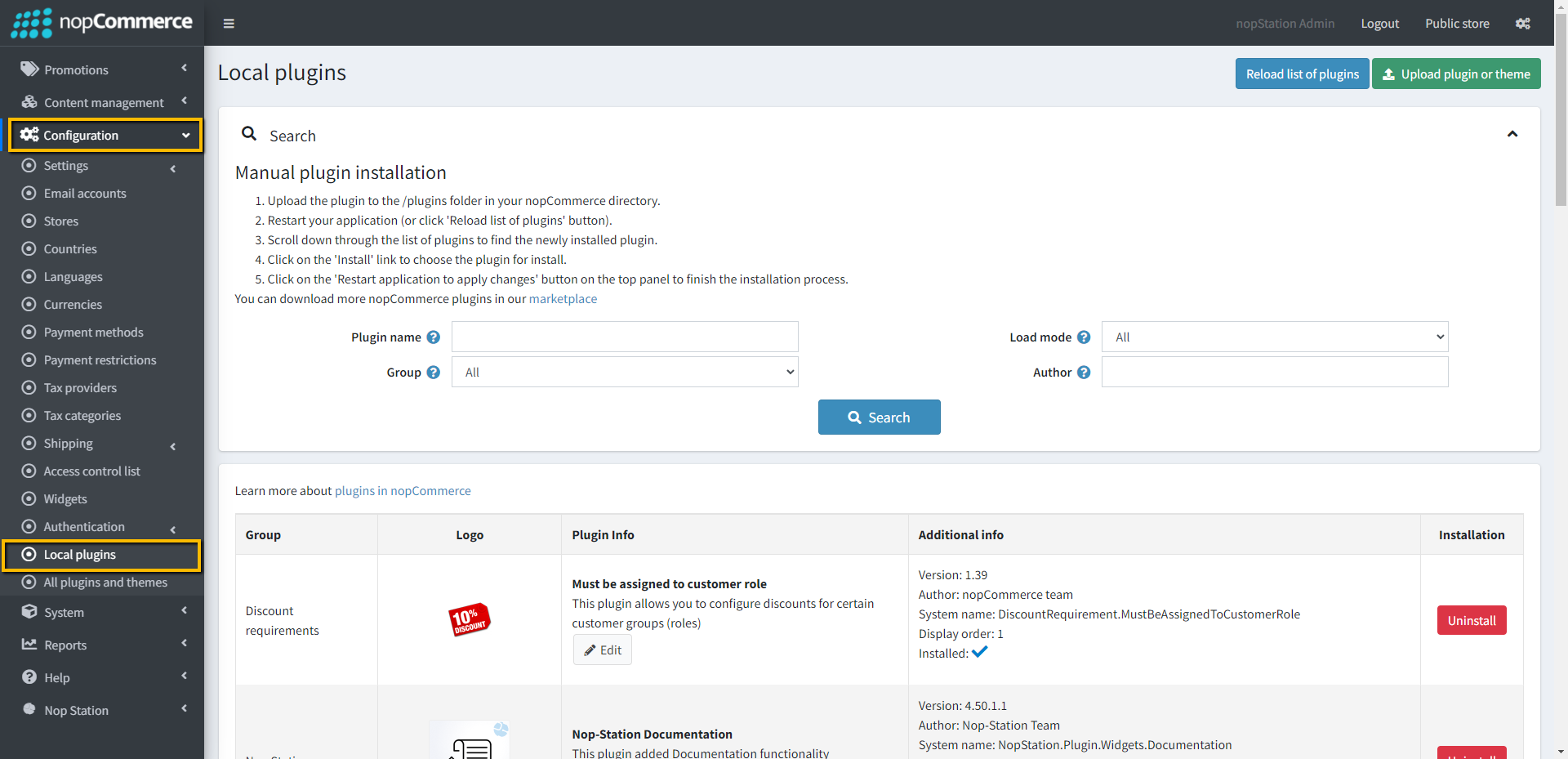
Go to Administration → Configuration → Local plugins
Upload the NopStation.HelpDesk zip file using the "Upload plugin or theme" button
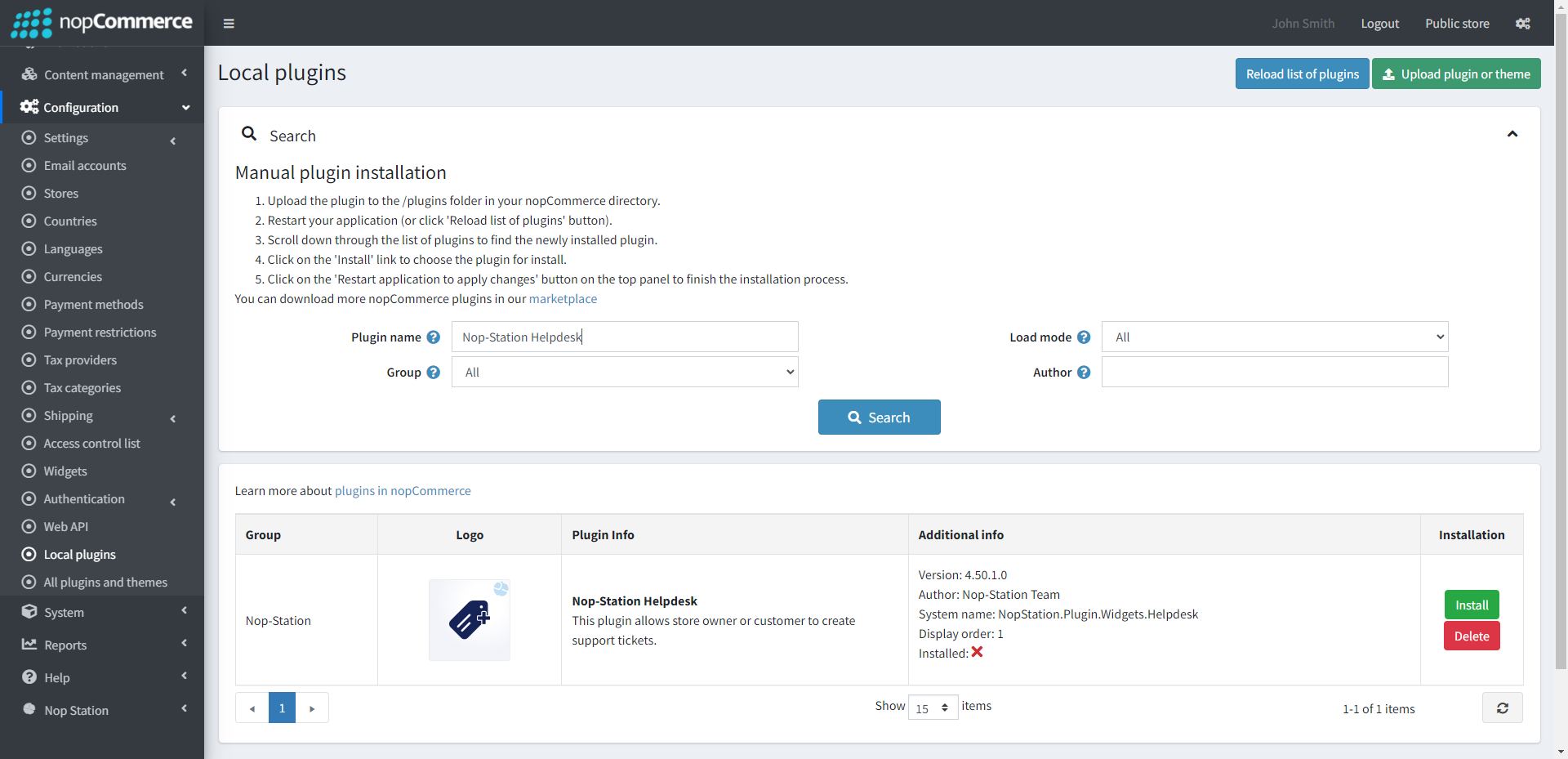
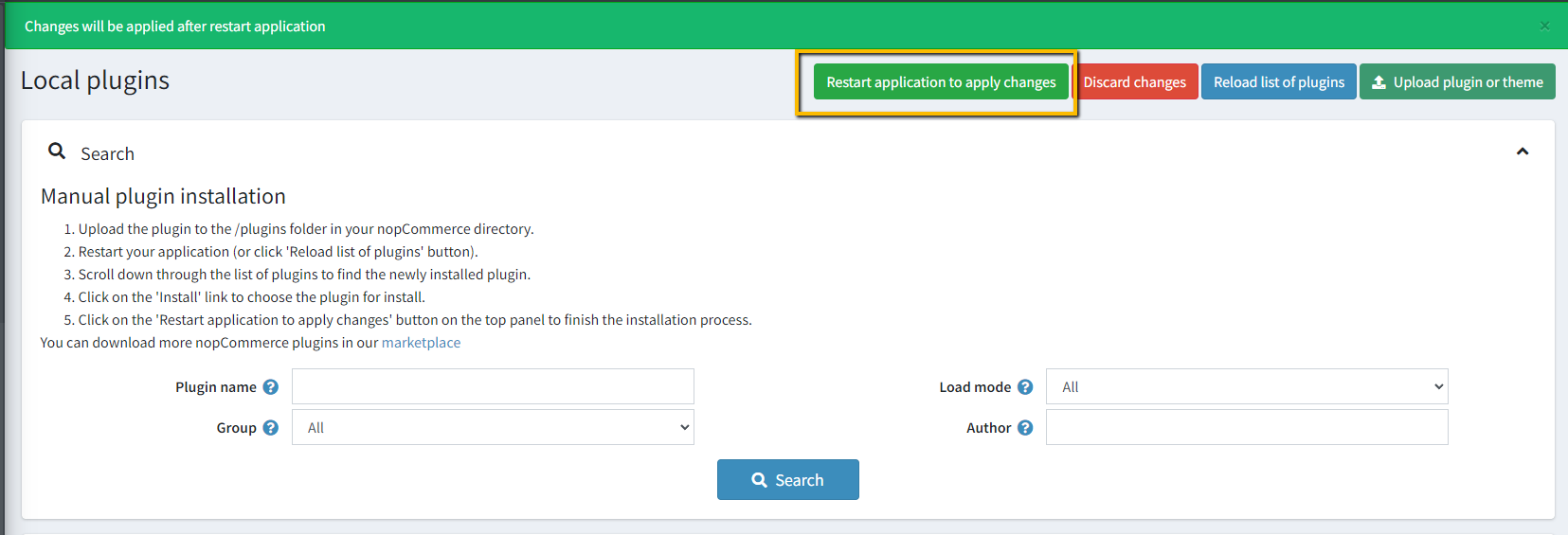
Go to Administration, reload the 'list of plugins'. Install 'Nop-Station Core' Plugin first and then install 'Nop-Station Helpdesk'
To make the plugins functional, restart the application
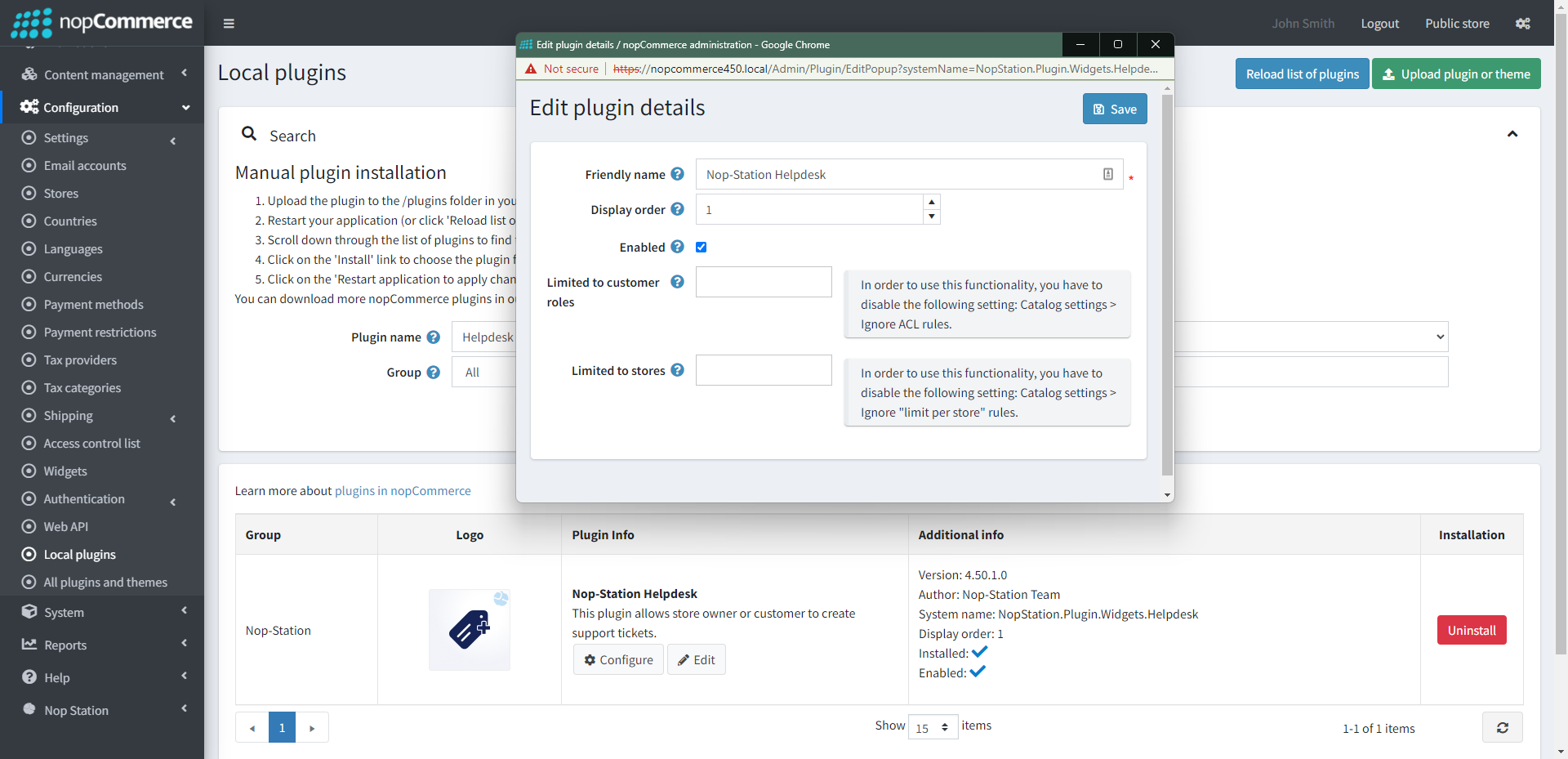
Enable the plugin with 'Edit' option and Configure
CONFIGURATION
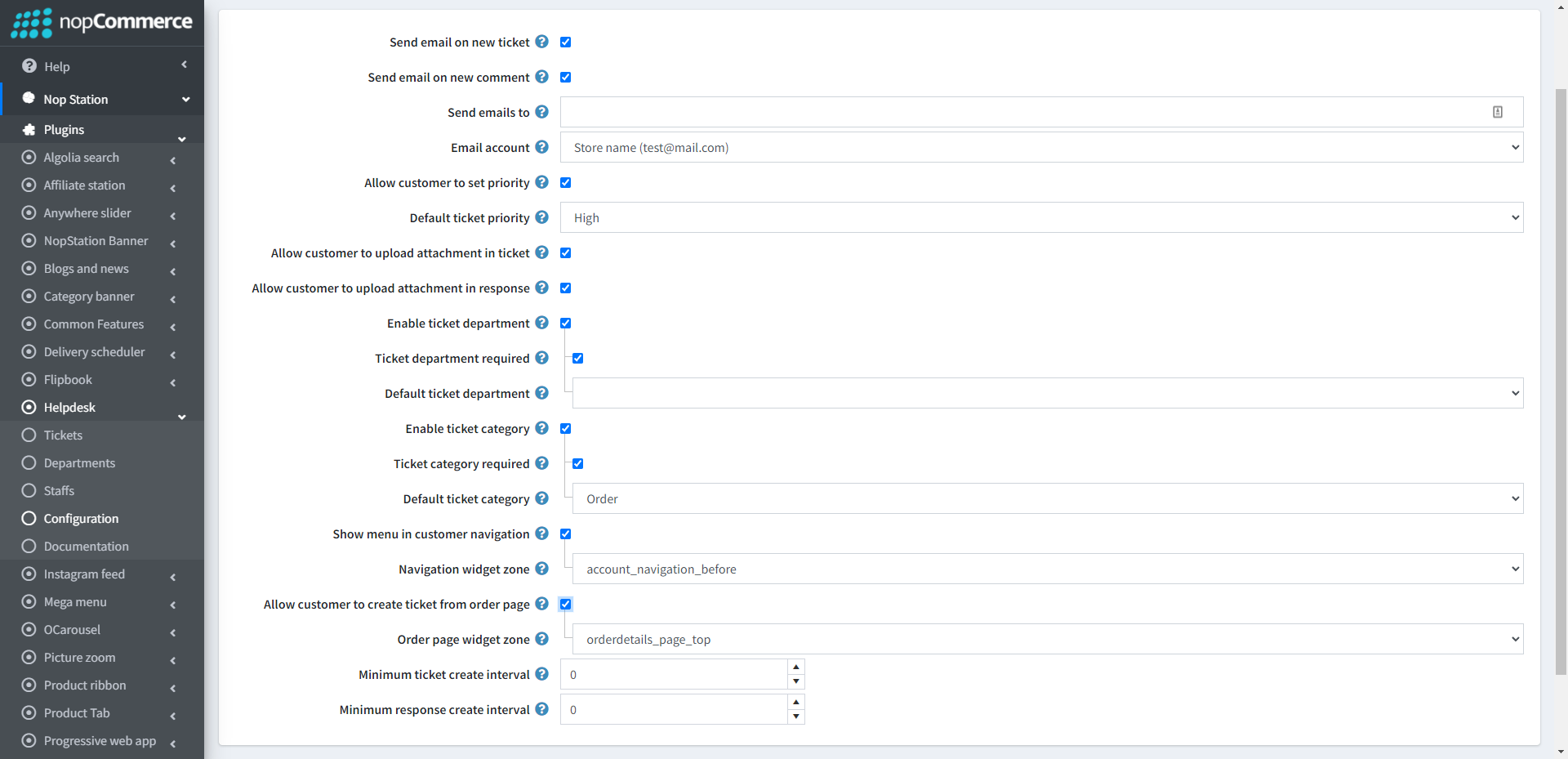
Go to Admin → Nop Station → Plugins → Help desk → Configuration
Allow customer to set priority: This option allows a customer to set priority while creating a ticket
Default ticket priority: Specifies the default priority of the tickets
Allow customer to upload attachment in ticket: Enables or disables file attachment while creating a ticket from the customer end
Allow customer to upload attachment in response: Enables or disables file attachment while replying to a ticket from the customer end
Enable ticket department: Enabling this option allows a customer to set a department while creating a ticket
Ticket department required: Make ticket department as required or not-required field while creating a ticket from customer end
Default ticket department: Specify which department will be assigned for resolving customer tickets
Enable ticket category: Enabling this option allows a customer to set category of type while creating a ticket
Ticket category required: Make ticket category as required or not-required field while creating a ticket from customer end
Default ticket category: Specifies which category will be selected for default ticket category
Show menu in customer navigation: Enabling this option, customers can access the help desk ticket menu from the public store
Navigation widget zone:Default area where customers can see the option for accessing their tickets from the public store with help desk plugin
Allow customer to create ticket from order page: This option allows a customer to create a ticket from the order details page
Order page widget zone: Specifies default zone where Create ticket option can be seen in order details page
TICKET CREATE
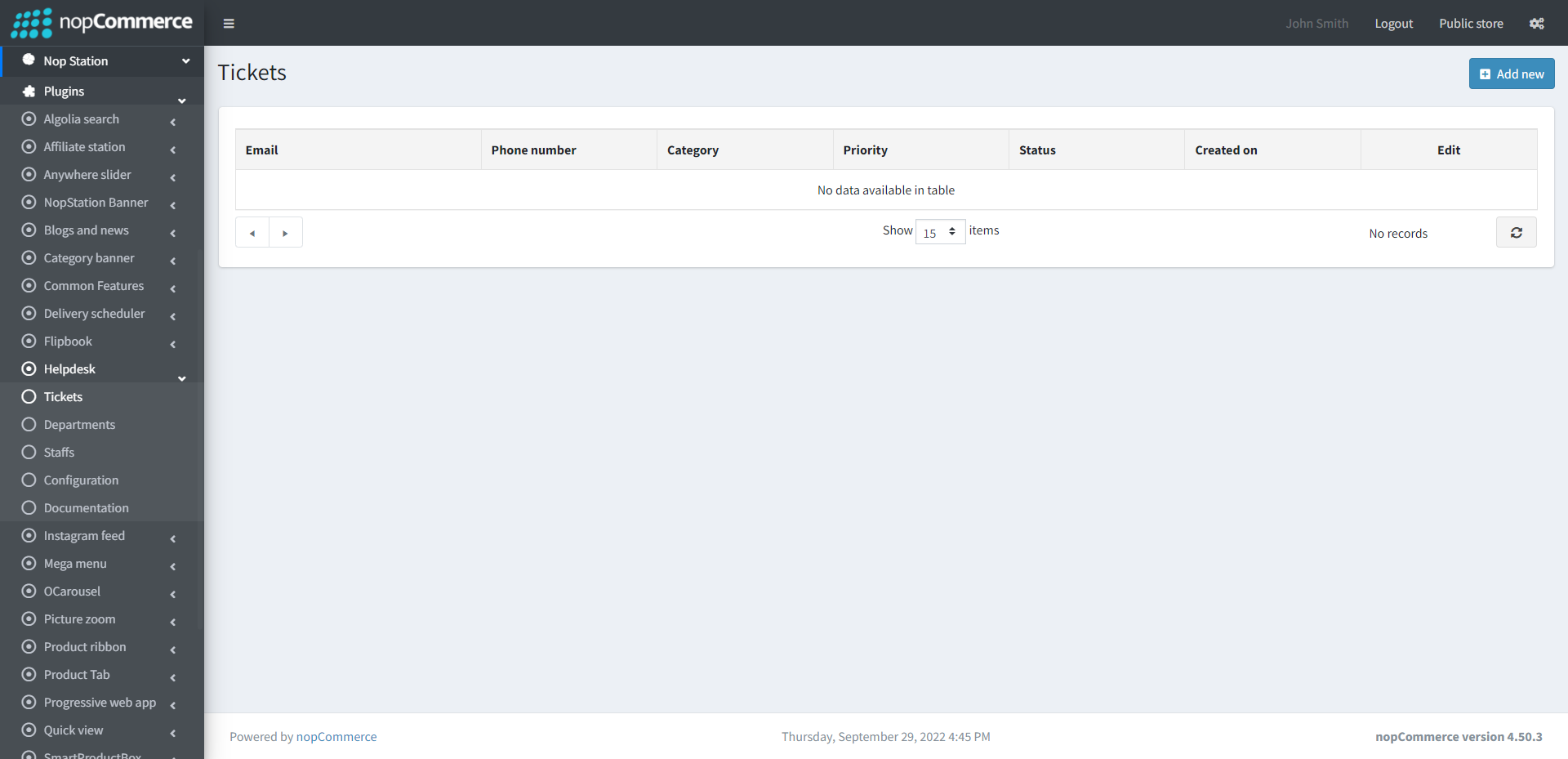
The Nop Station → Plugins → Help desk → Tickets option, contains list of Tickets. Here tickets are found with category, priority and status
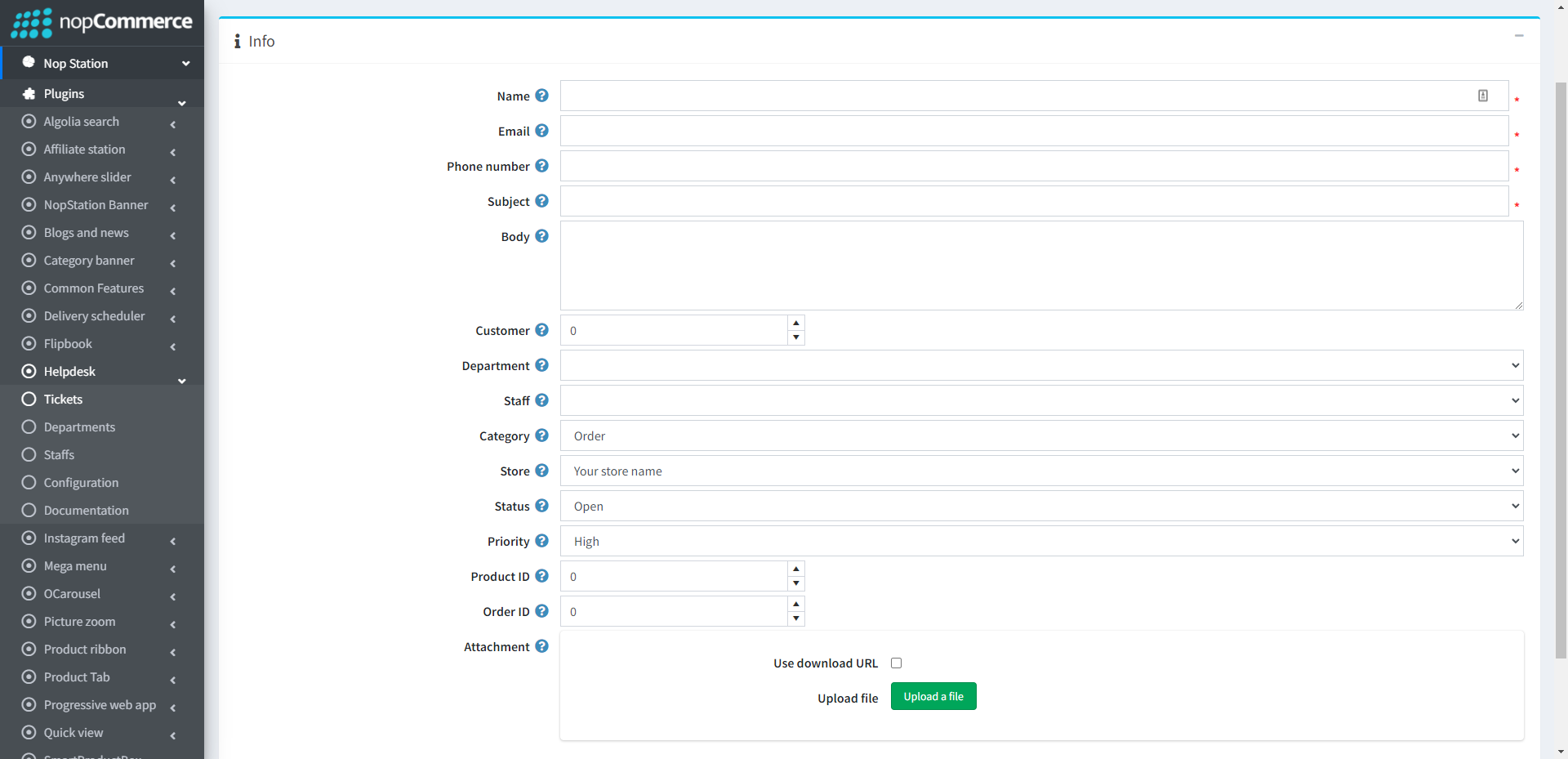
You can create a ticket on behalf of a customer from the admin area. In order to create a new ticket click on the Add new to create
There are multiple fields for creating tickets with Customer information, Order ID, Product ID as well as different parameters. Also there is an option for attachment both url and direct file upload for the ticket
TICKET DETAILS
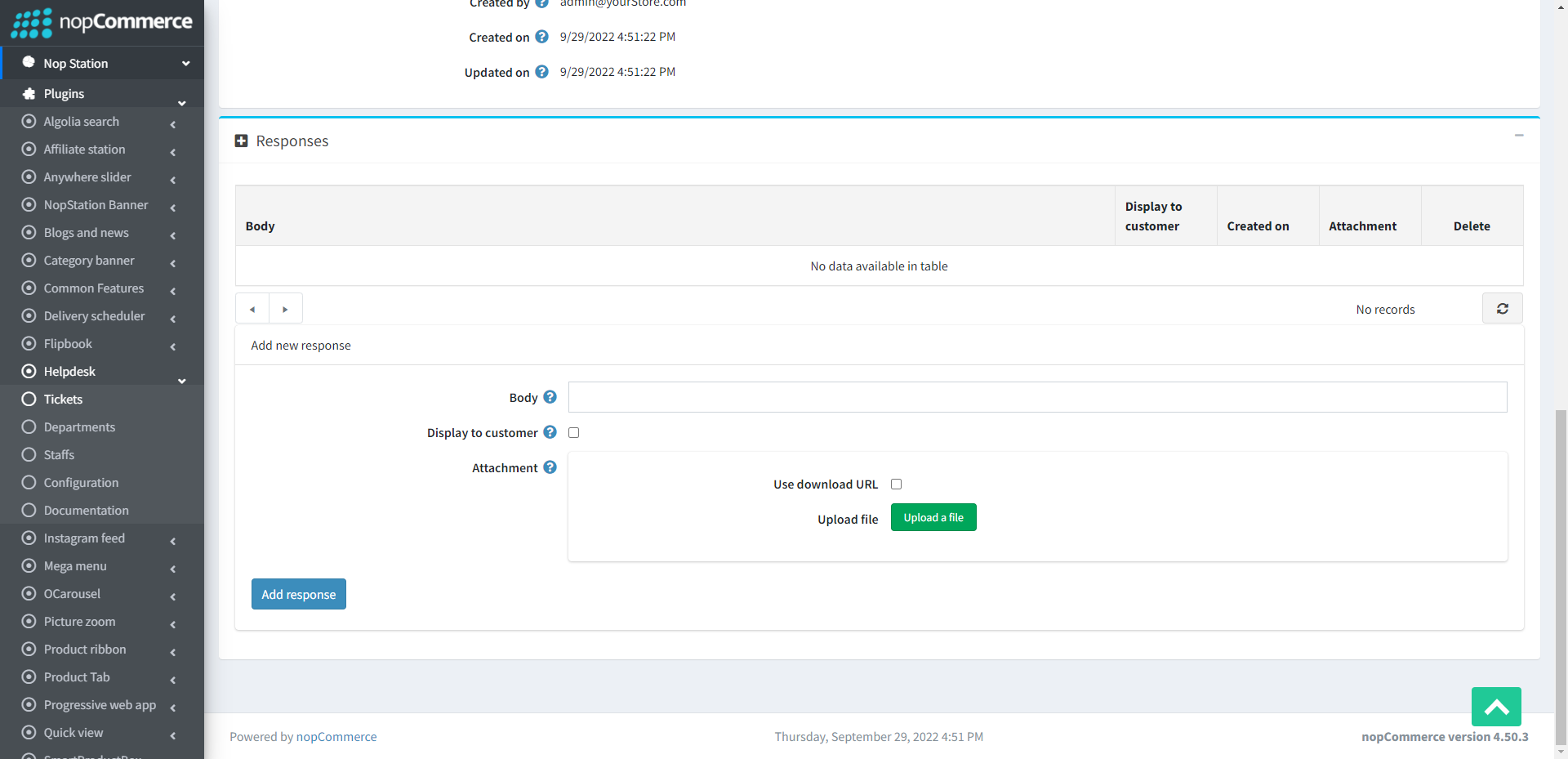
From the Edit button in the ticket list, you can update the existing tickets with all necessary information
Also in the response area ticket’s responses have been found and can be created which may or may not be shown on customer end. It comes with a list view
TICKET DEPARTMENT
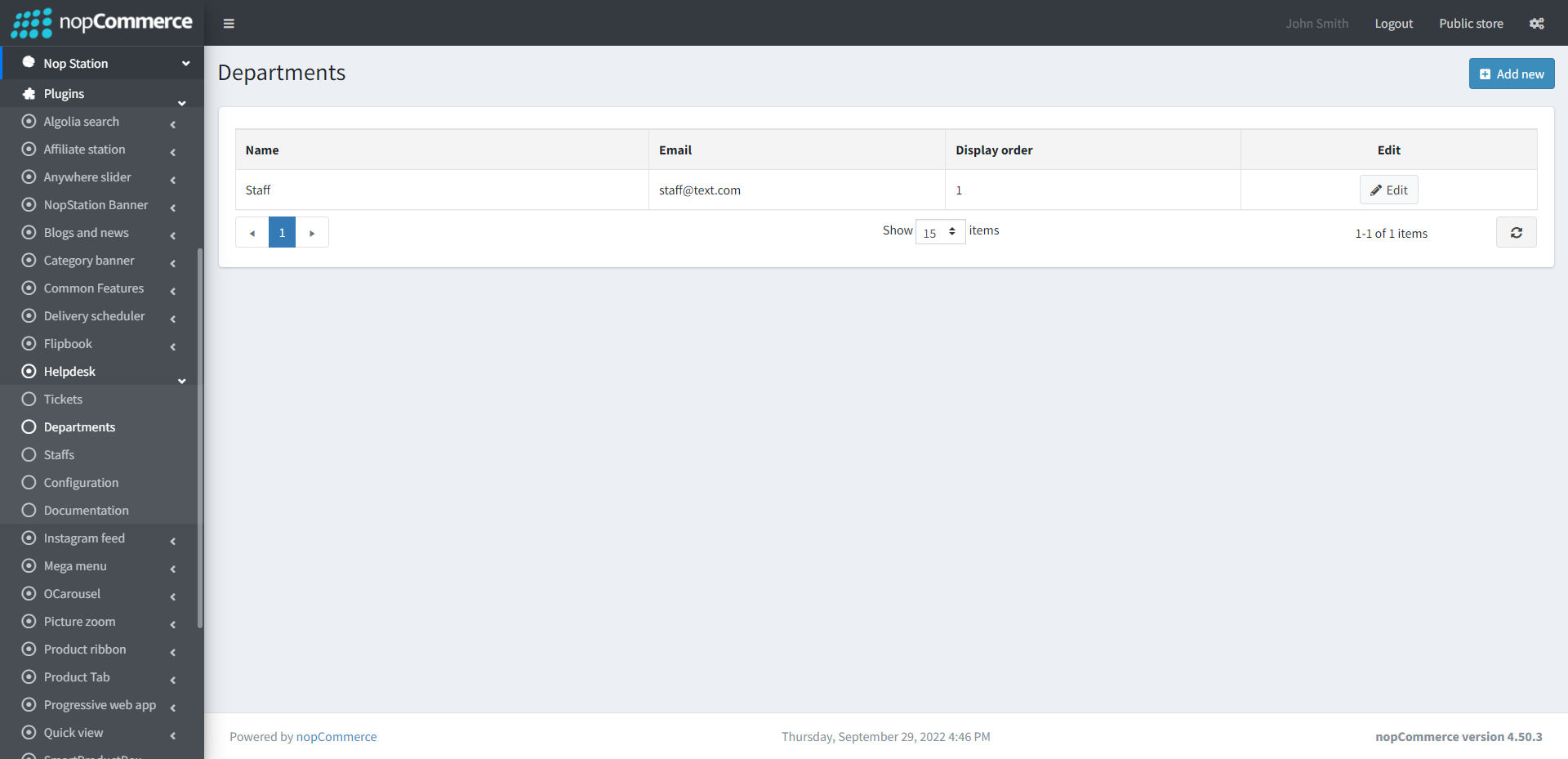
Go to Nop Station → Plugins → Help desk → Departments
The Departments option contains a list of departments
STUFFS
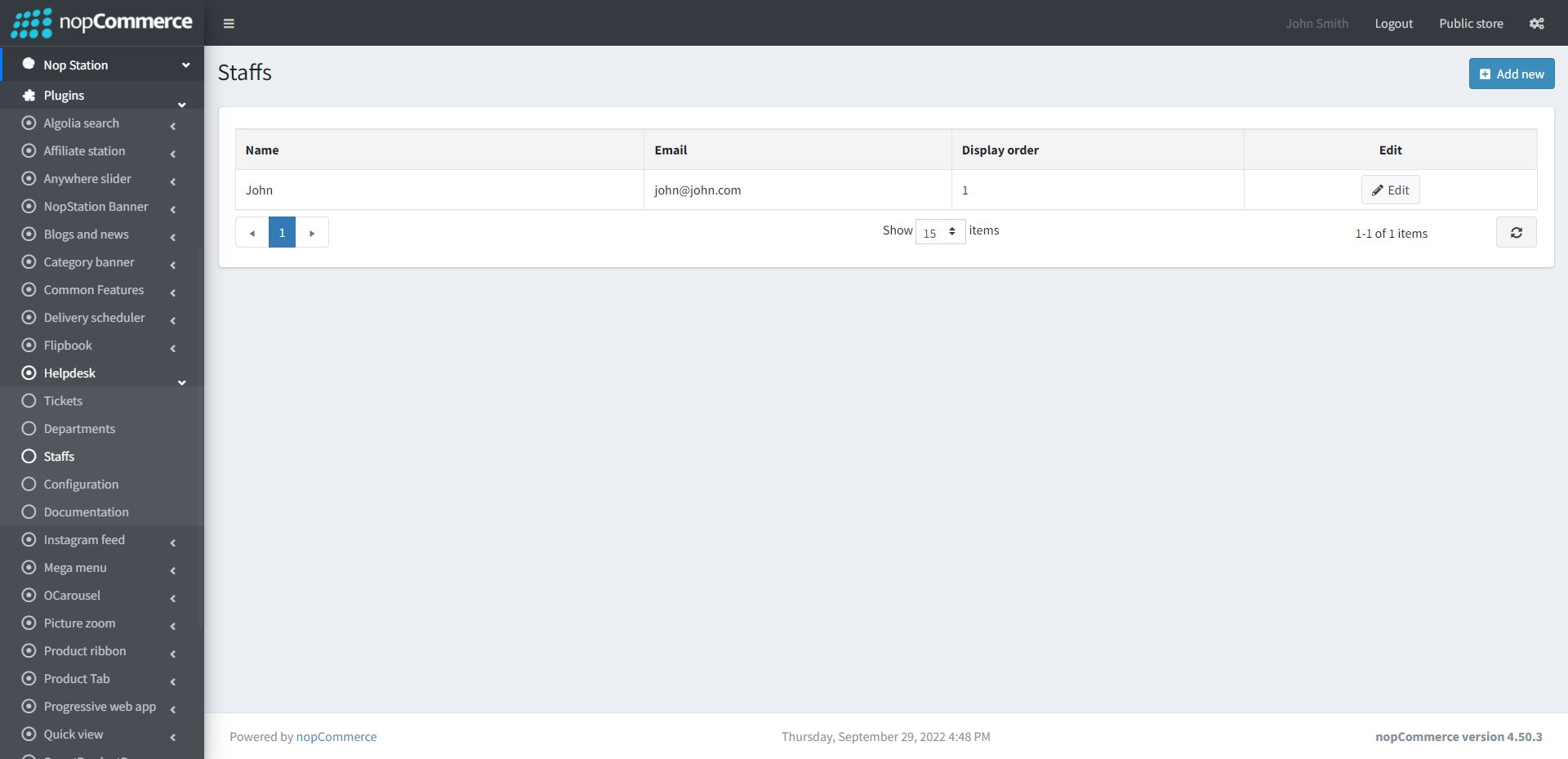
The stuff option contains a list of staff
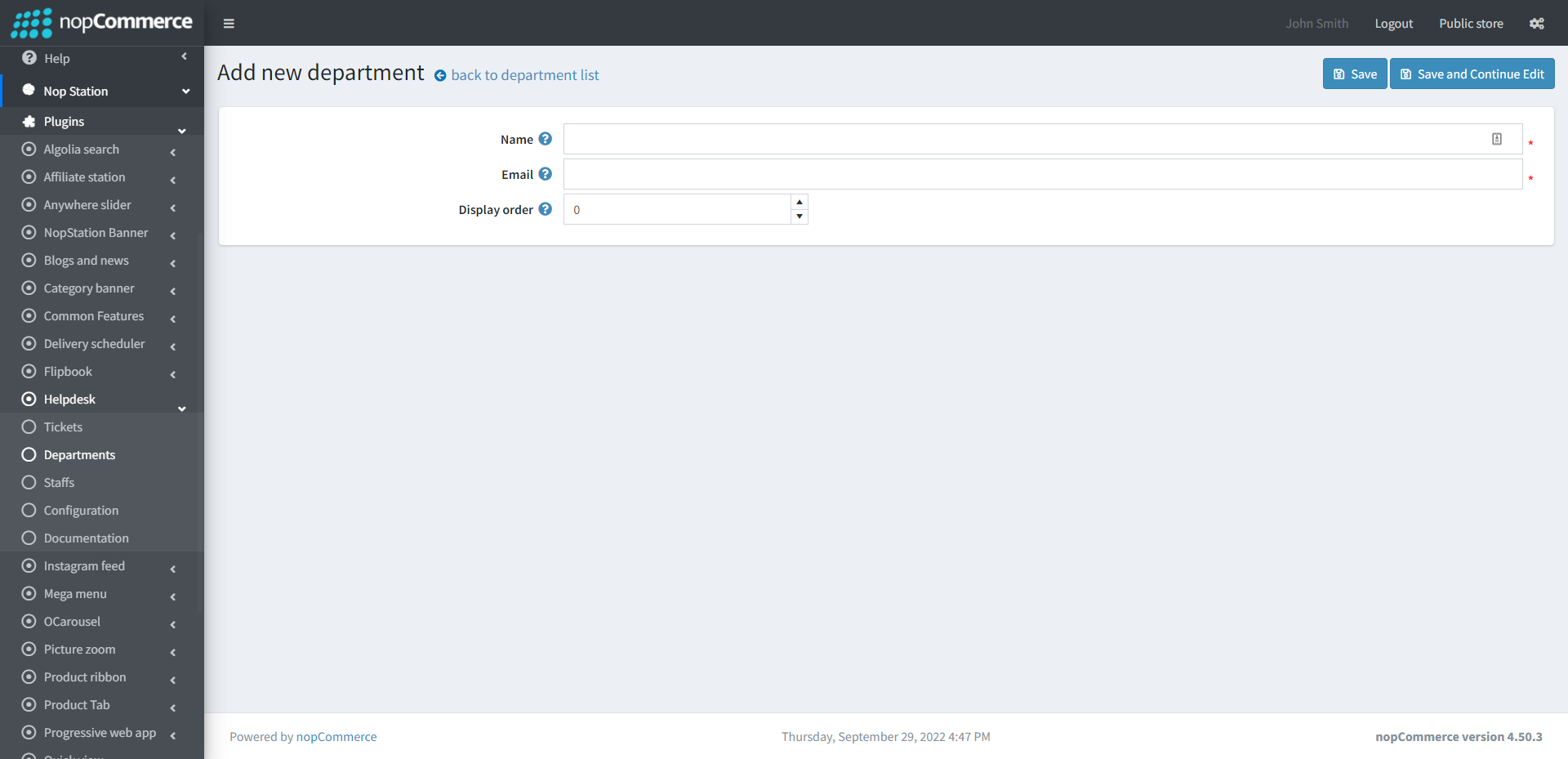
You can create as many stuffs you want. In order to create a new stuff go to Nop Station → Plugins → Help desk → Stuff. Click on the Add new button
PUBLIC AREA
This plugin is integrated as a widget in the MyAccount navigation menu. It provides an option for the help desk My Tickets menu. This option is described below.
PUBLIC AREA - MY TICKET PAGE
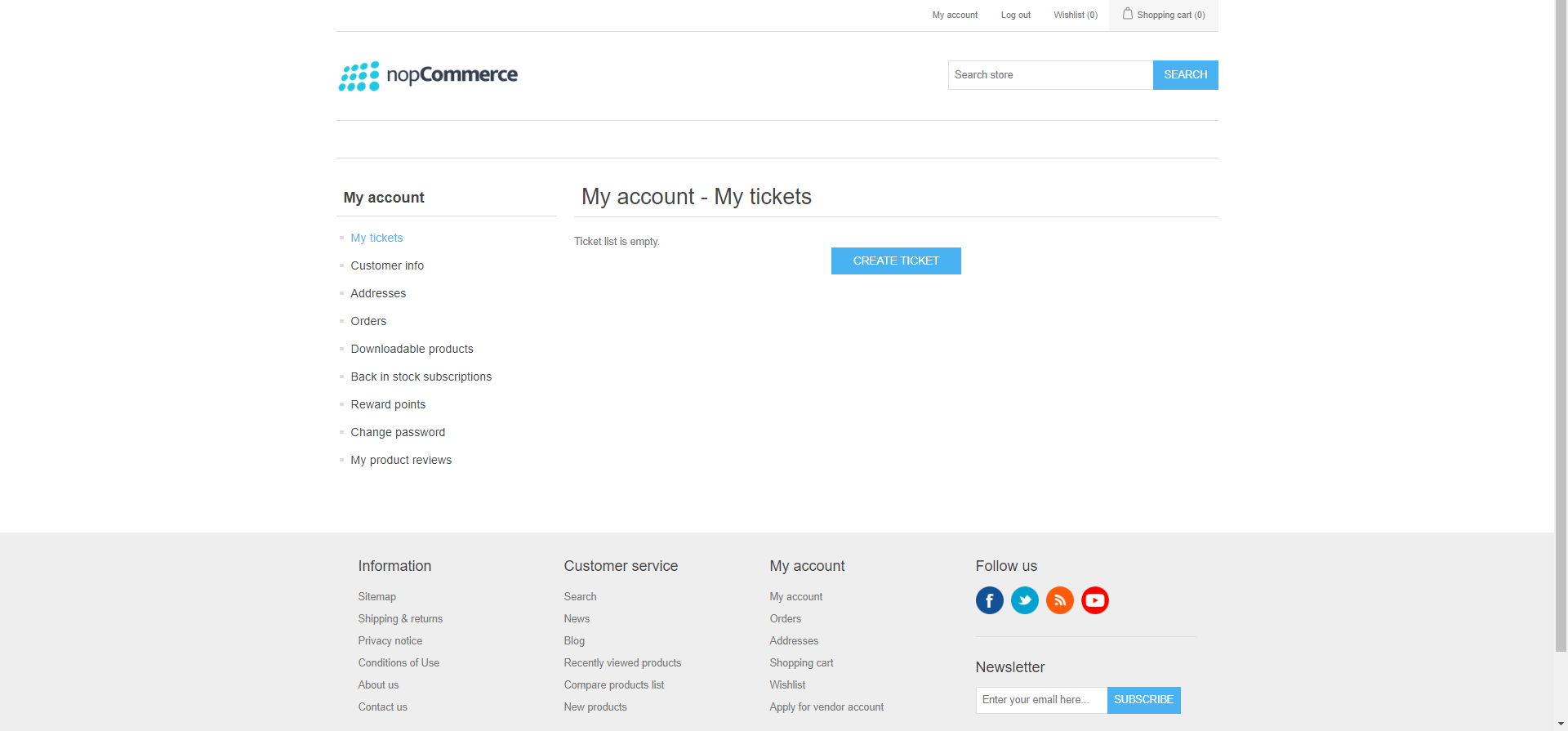
Here customers can see the ticket/s tables which are created at different times with status. From this table customers can view the ticket details information and also create ticket options from here
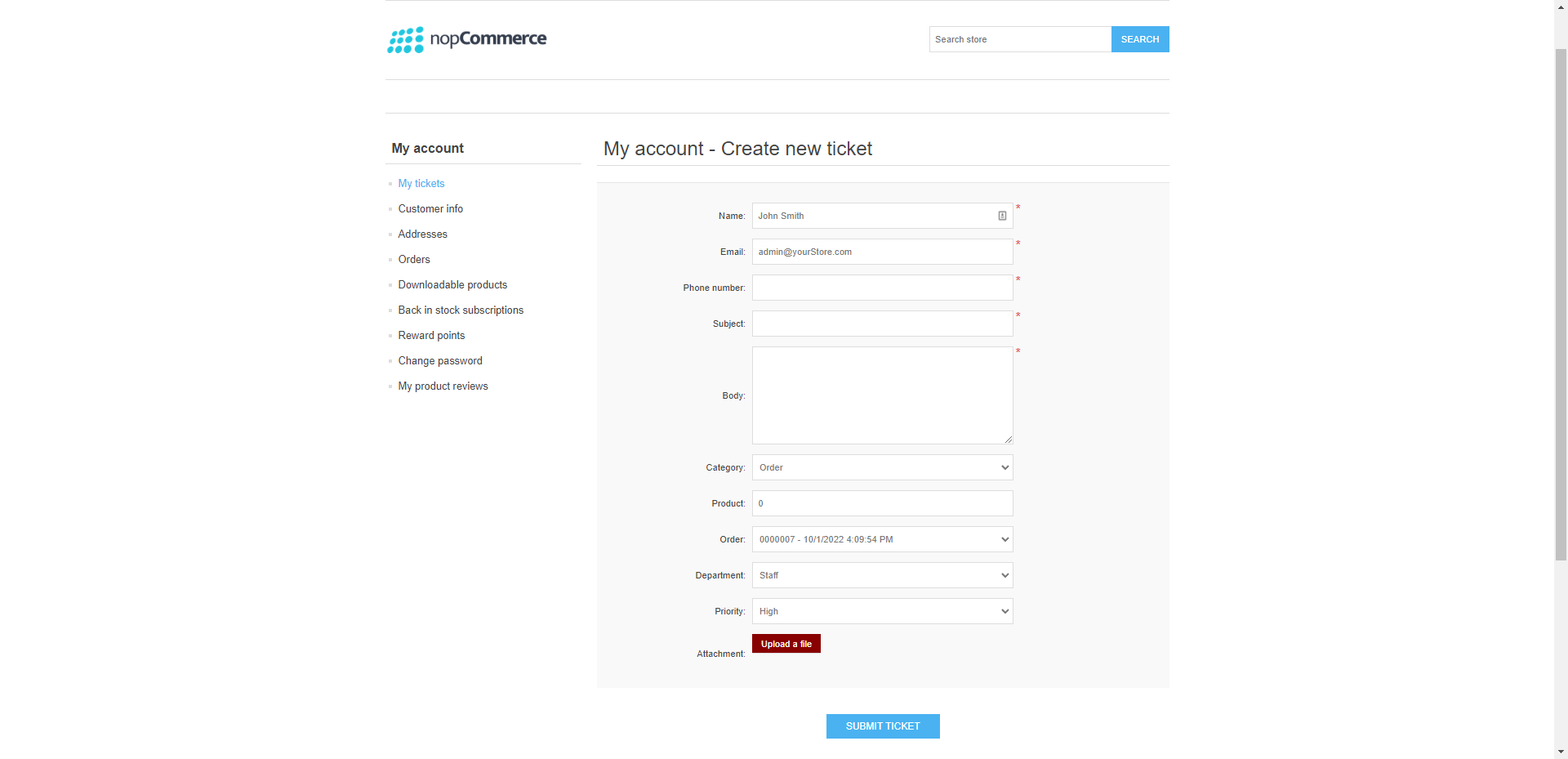
To create a ticket click on the Create Ticket button and it will open a form.
In this form customer can enter their Name, Email, Phone number, Subject, Description of the ticket, Category of the ticket, Product, Ticket department, Priority and can also attach a file for the ticket.