Wednesday, December 8, 2021 · Last updated: Monday, October 3, 2022
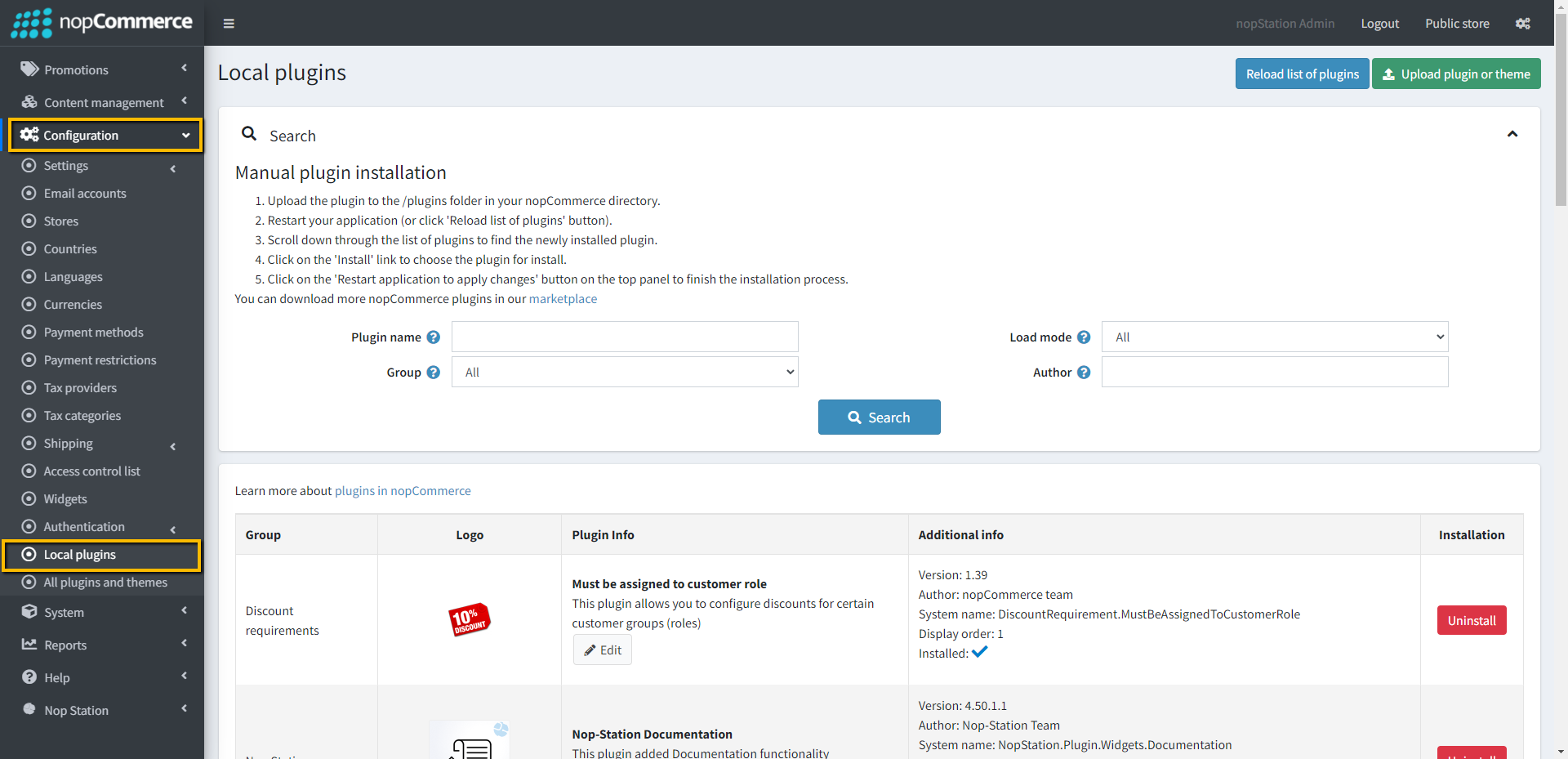
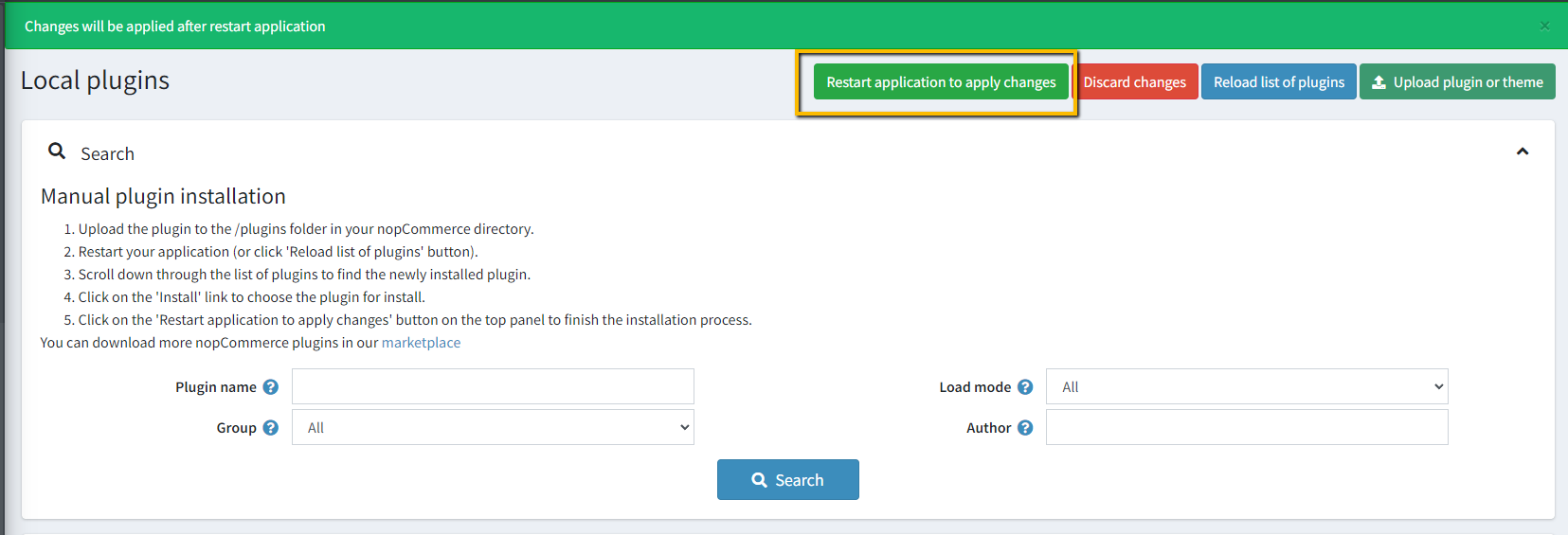
PRE-REQUISITES The plugin requires you to install the Nop-Station Core plugin first. INSTALLATION Download the NopStation Documentation Plugin from our store https://nop-station.com/customer/downloadableproducts Go to Administration → Configuration → Local plugins Upload the NopStation.Documentation zip file using the "Upload plugin or theme" button
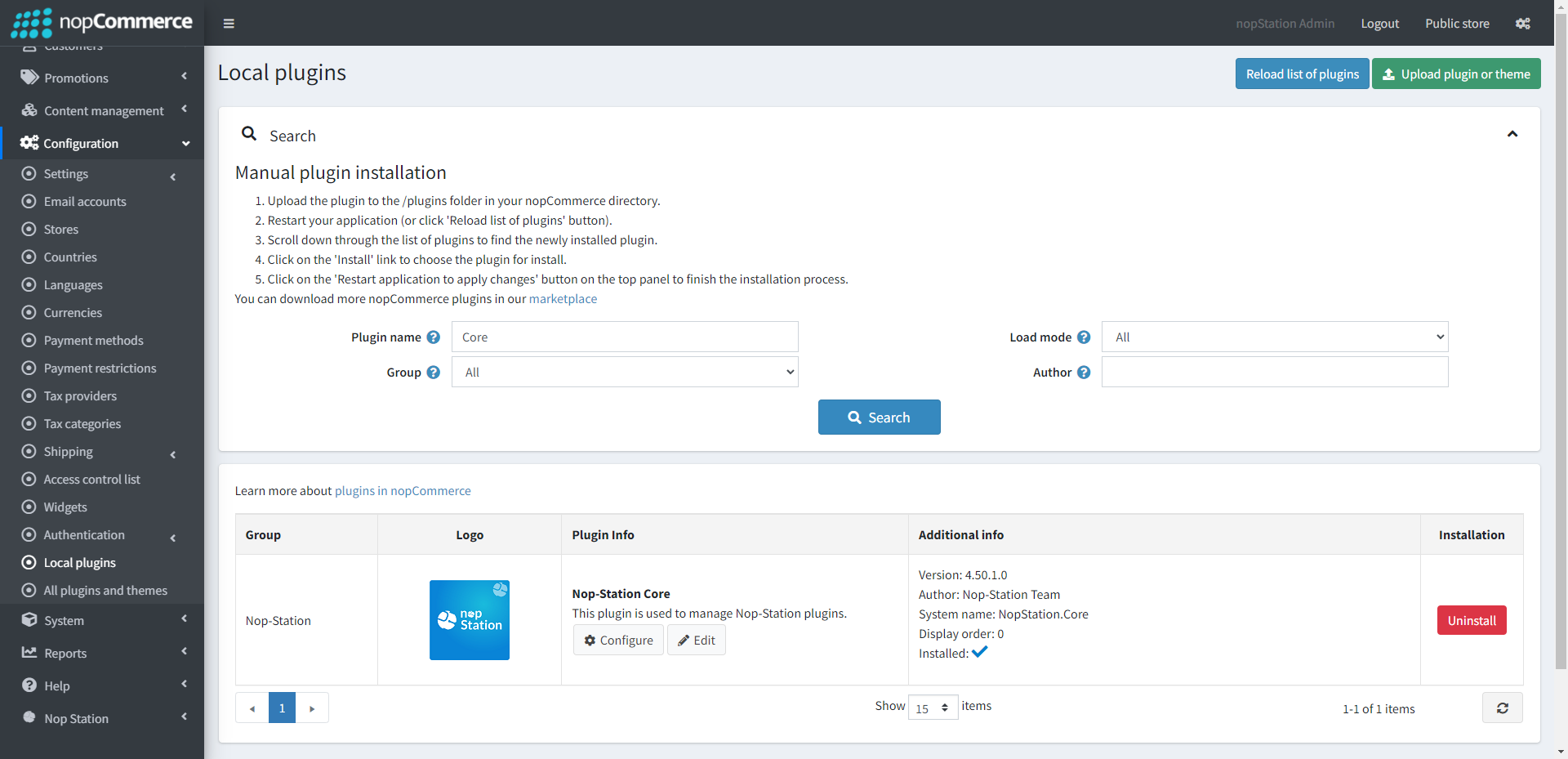
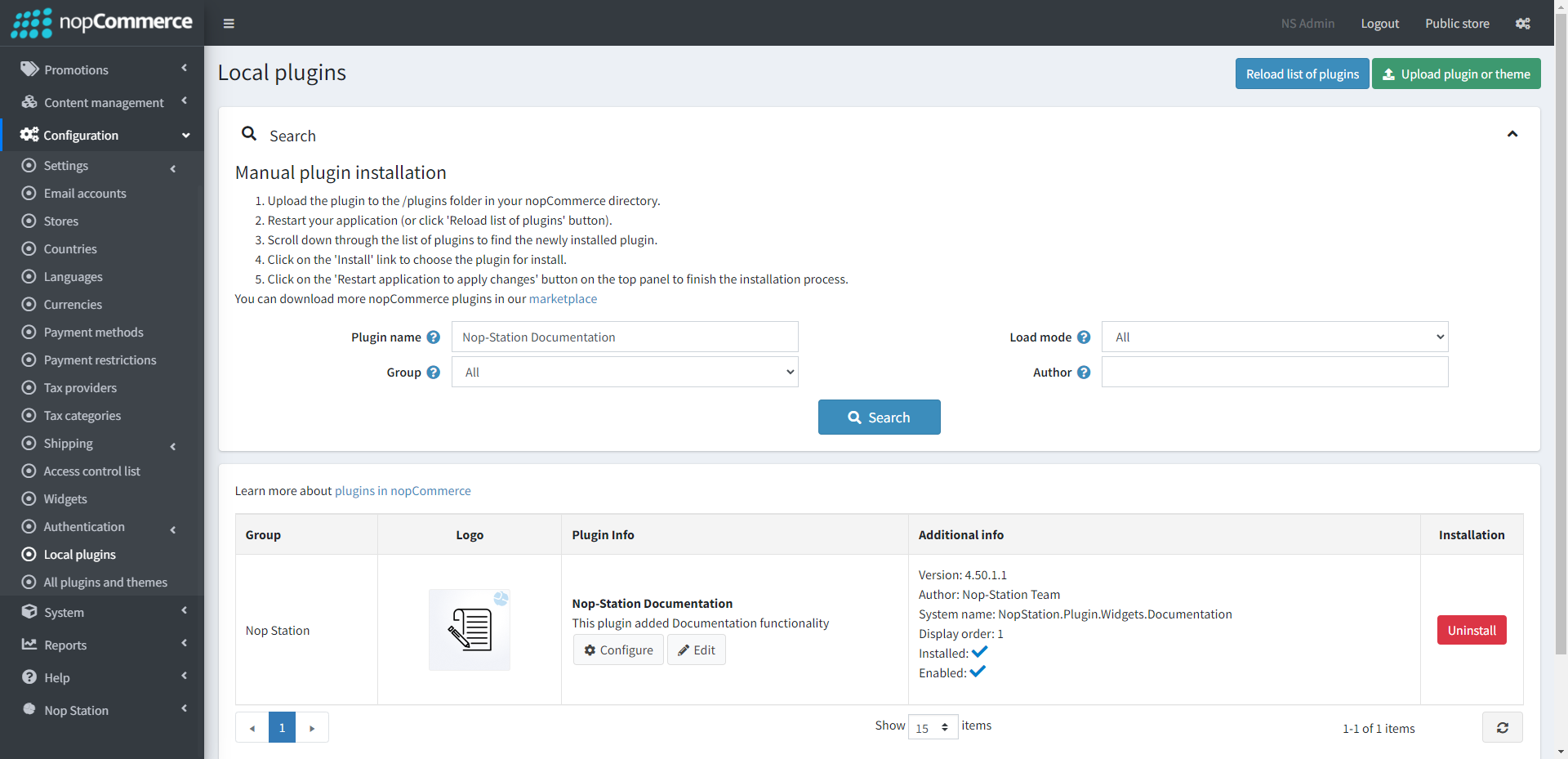
Go to Administration , reload the 'list of plugins' . Install 'Nop-Station Core' Plugin first and then install 'Nop-Station Documentation'
To make the plugins functional, restart the application
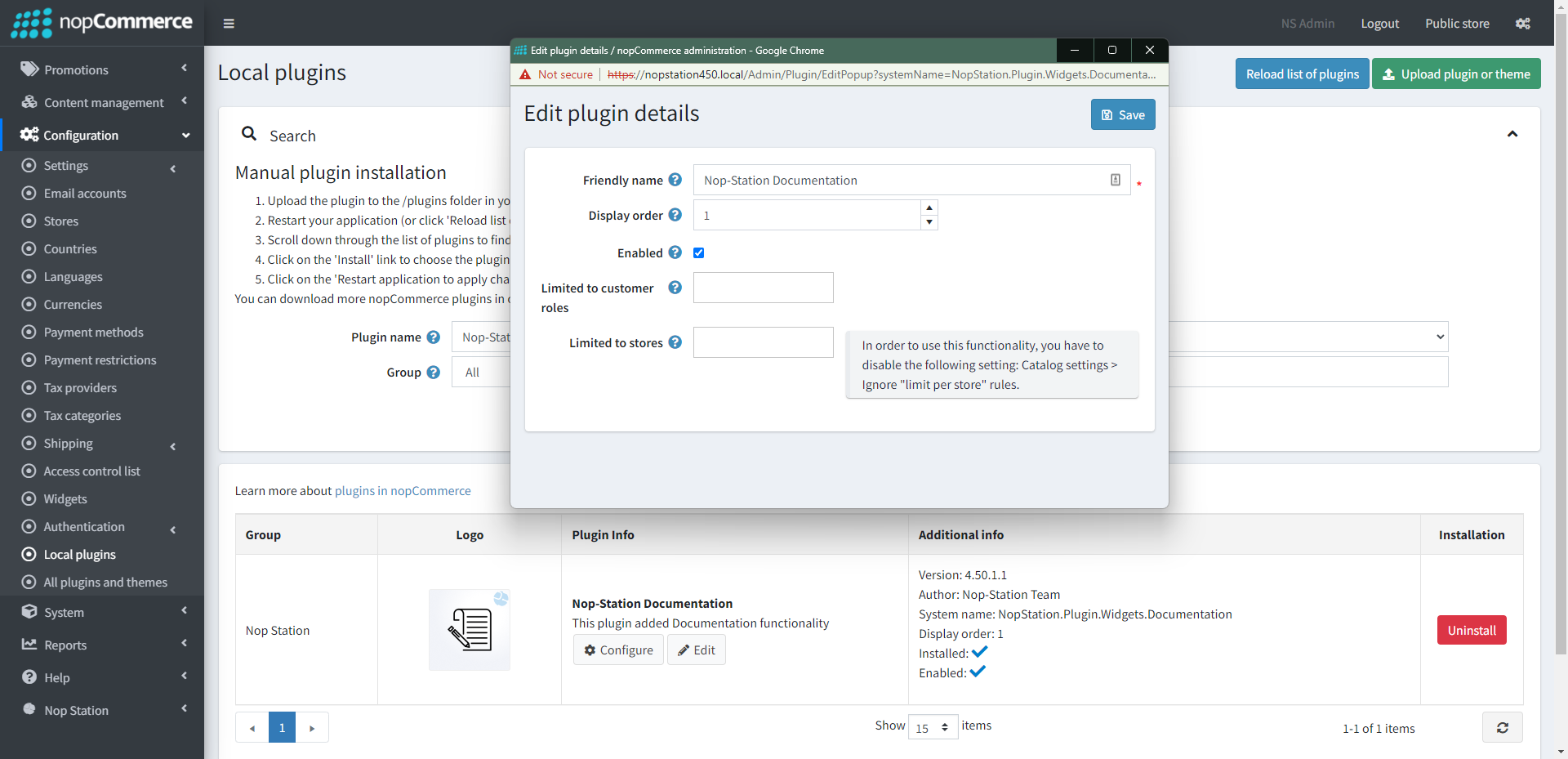
Enable the plugin with 'Edit' option and Configure it
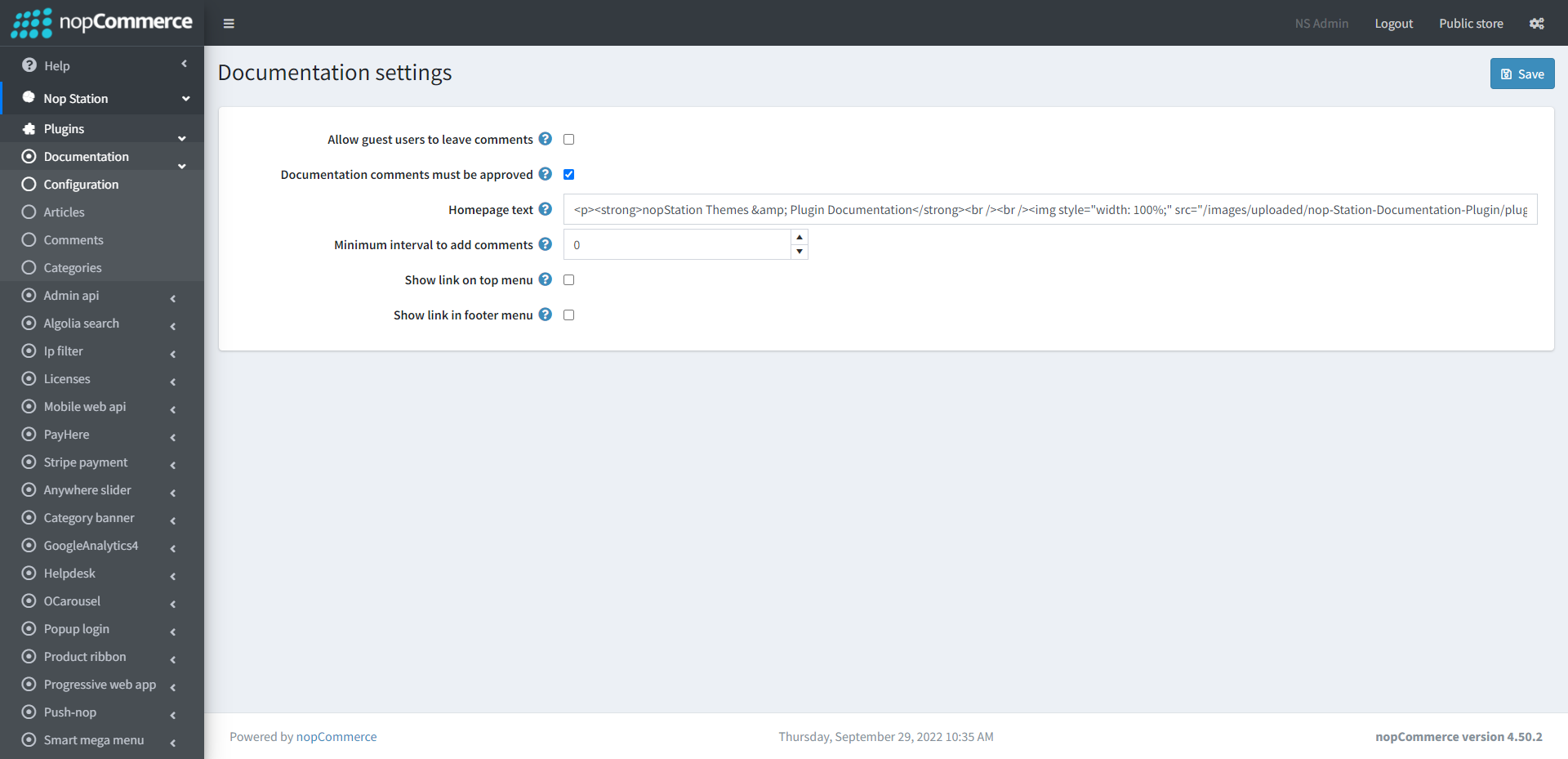
CONFIGURATION Go to Admin → Nop Station → Plugins → Documentation → Configuration
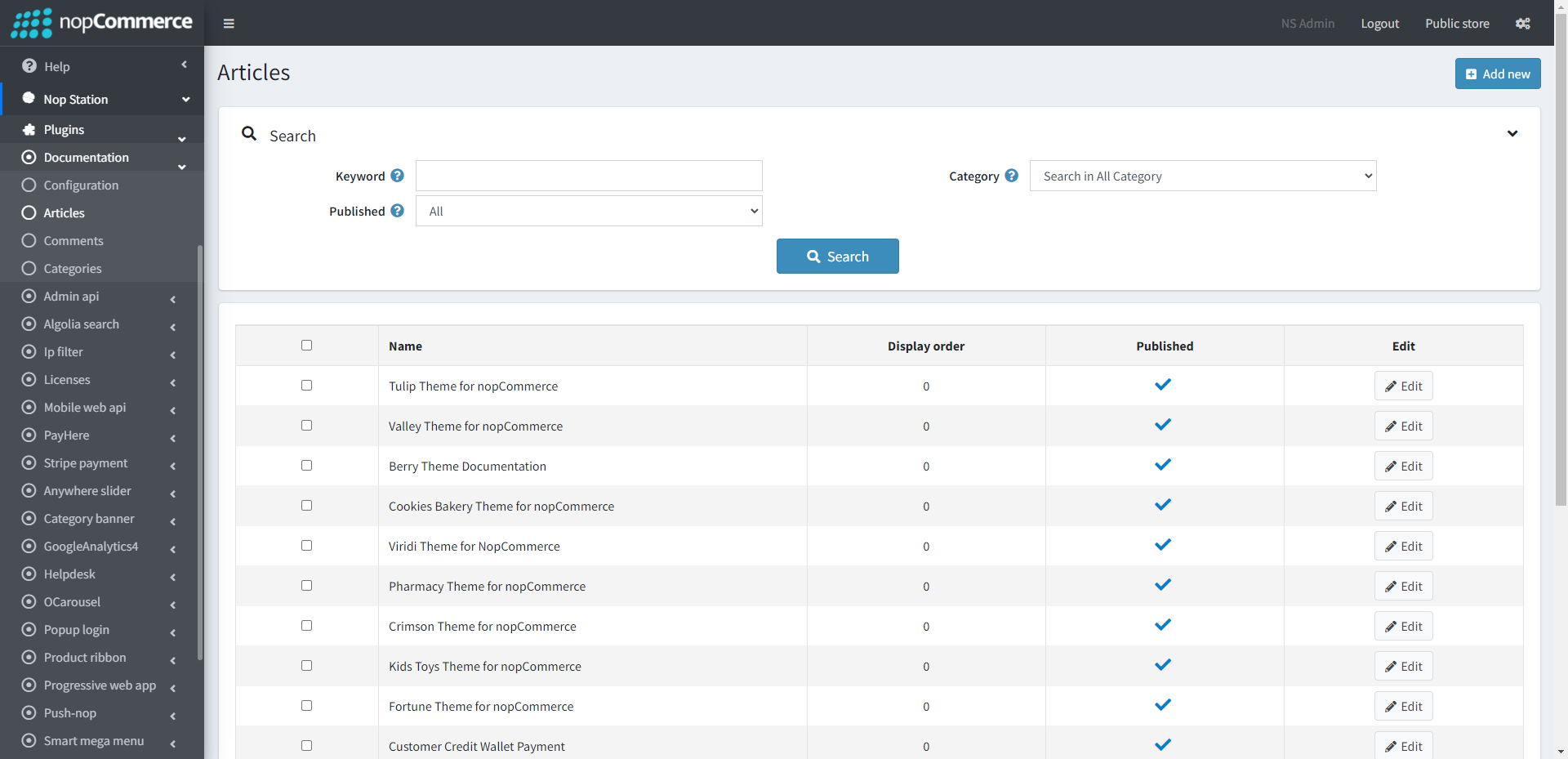
Allow guest users to leave comments: Checking the box allows users to leave commentsDocumentation comments must be approved: Checking the box ensures that the documentation comments must be approvedHomepage text: Enter documentation homepage text.Minimum interval to add comments: Specify minimum interval in seconds to add comments.Show link on top menu: Check to show documentation link on top menu.Show link in footer menu: Check to show documentation link in footer menu.ARTICLES Go to Admin → Nop Station → Plugins → Documentation → Articles In the Article menu a list of already created article will be listed.
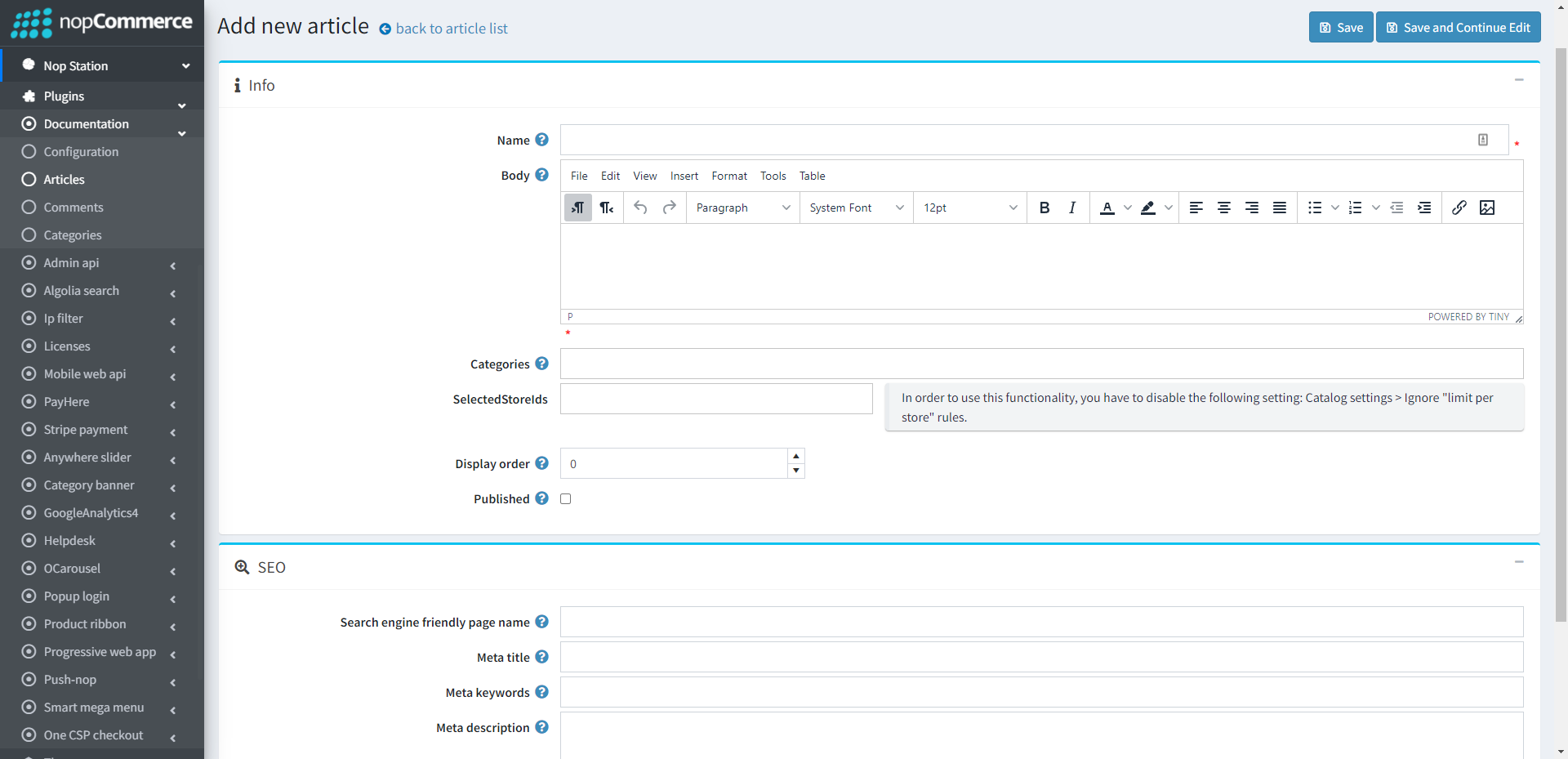
You can create new article clicking on the Add New Article button if not existing any.
Published: Tick the checkbox to published the articleName: Write down the article title hereBody: Write down all the content of the article hereCategories: Choose categories. You can manage document categories by selecting Nop Station > Documentation > Categories.COMMENTS Go to Admin → Nop Station → Plugins → Documentation → Comments
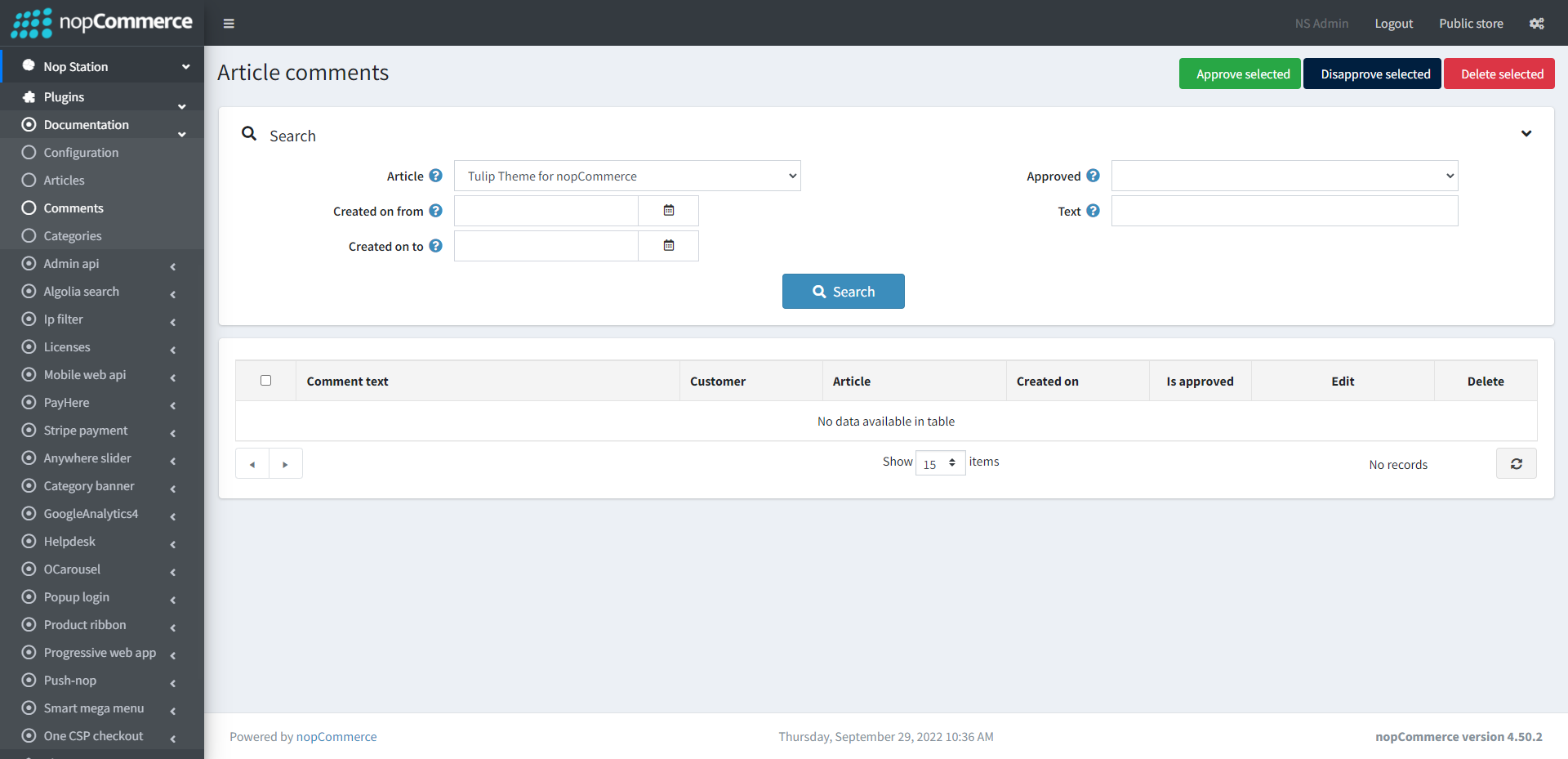
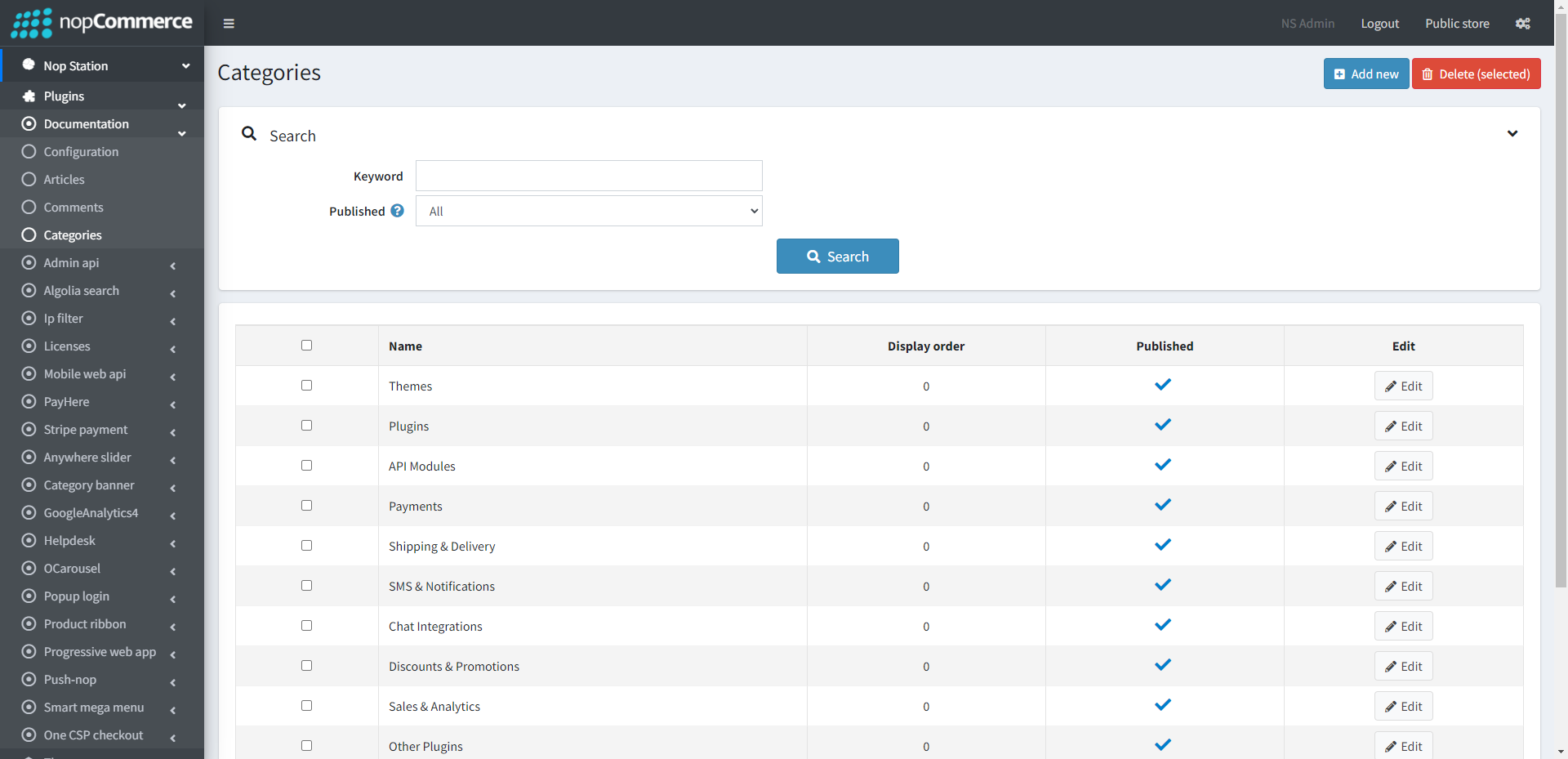
Here the list of comments will show based on the article. You can select different articles from the Article dropdown You can also approve or disapprove comments from here CATEGORIES Go to Admin → Nop Station → Plugins → Documentation → Categories In the Categories menu a list of already created categories will be shown
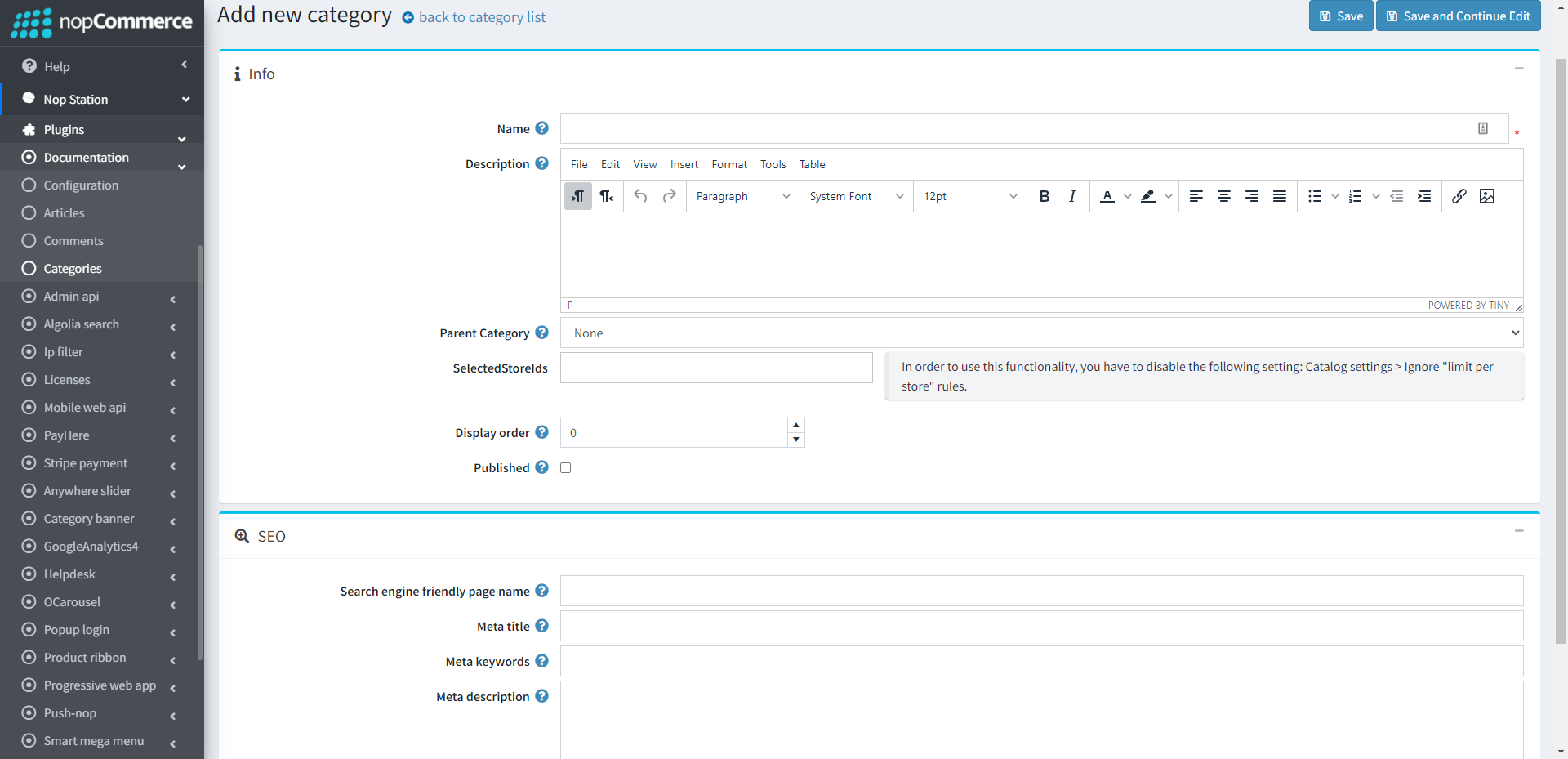
Add Category: To add a new category press the Add New Category button
Parent Category: Select a Parent category to enlist the category as subcategoryPublished: Tick the checkbox to published the categoryName: Write down the category title hereDescription: Write down all the description of the categoryClick on the Save Category button to save the category PUBLIC AREA The Pubic Site can be found at SiteName.Com/Documentation
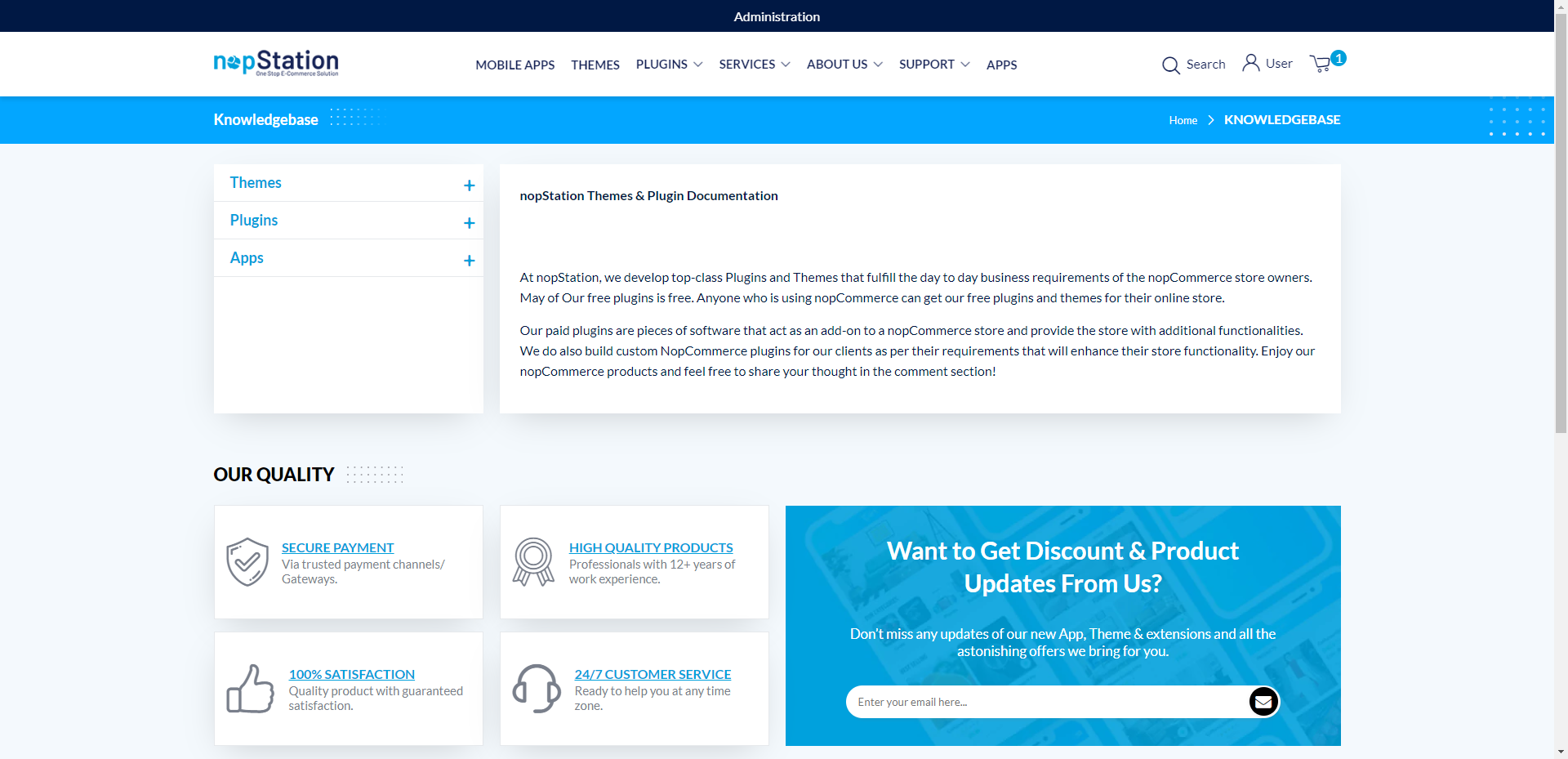
In the public site a list of Root Category will be shown After selecting a category to expand, an hierarchy of articles & subcategory will be shown Selecting an Article will show the content of article Selecting a category a hierarchy of articles & subcategory will be shown again Users can comment against articles here to express their opinion